Categories
Microsoft365

Play Impossible Game Ball Brings An “A-ha” Moment to Education

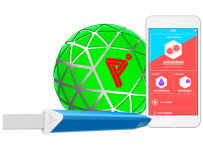
playImpossible_App_green_edited
Image credit

Every now and then you see a piece of technology that leaves your mind whirring about the possibilities for both educators and students alike. Back in 2016 I encountered the HP Sprout for the first time and blogged my first giddy thoughts about how this could be integrated into incredible teaching and learning moments, calling it an “almost magical technology”.

At BETT London 2019 I saw the Play Impossible ball for the first time, right at the very end of this video and the integration with Microsoft Hacking STEM templates in Excel generated the same reaction in me that the Sprout did:

What endless possibilities could creative teachers come up with when technology infused ball sports in such a fun and natural way?

What’s the big deal? Have a look at this:

(If you’re in a hurry, make sure you scroll to the bottom and watch the video I recorded showing the Play Impossible Game Ball and Excel Data Streamer workbook in action.)

In essence, the Play Impossible game ball is:

an active STEM system that delivers fun and challenging games integrated with math and physics lesson plans through a professionally crafted ball containing sensors that connect to a smartphone, tablet or PC via Bluetooth.

Robust in build quality, small enough for younger hands, it’s easy to get up and running on the platform of your choice (currently supporting Windows10, iOS and Android) and then the intuitive app guides you through how to get playing … and learning! My 9yr and 7yr old kids figured it out in minutes.

Integrating Learning Into Play

I’ve blogged before about the principals of game based learning, however that was mostly in a Minecraft:Education Edition context. When I saw the Play Impossible Game Ball in action I really wanted to get hands on to see for myself how this works and Brian Monnin and the team at Play Impossible kindly shipped me a few demo units for some upcoming events I’m presenting at.  As soon as I got hands on, it became apparent to me that deep learning could be achieved alongside the obvious element of fun through playing. Principal #10 from James Paul Gee’s 16 Principals For Game Based Learning is:

Situated Meanings: Students learn new vocabulary words by experiencing them within game situations. Research suggests learners do not acquire new vocabulary when the word is learnt purely in the context of other words. By contrast, retention is highest when words are learnt in association with an action, event, or image. Gaming provides the perfect vehicle for this.

With data outputs from the Game Ball including measurements like speed (in kph), acceleration, g-force, newtons, rotational spin and air time there are a lot of vocabulary words that are no longer abstract, but directly linked and associated with actions and activities the students are participating in through situated meanings.

With a Play Impossible Game Ball, students (and educators!) immediately get caught up in the fun of competing and the kinesthetic learning opportunities are boundless. However, for me the integration of Excel’s Data Streamer and Hacking STEM templates is where this goes next level in terms of learning pathways.

Excel Data Streamer & Hacking STEM

The Microsoft Education team have put considerable resources into creating STEM lessons for educators to quickly and easily build engaging projects for students to learn the fundamentals of STEM concepts. At the heart of this is Data Streamer, a plugin for Microsoft Excel for O365 subscribers:

Data Streamer provides students with a simple way to bring data from the physical world in and out of Excel’s powerful digital canvas. With a sensor connected to a microcontroller that is  attached to Excel, begin introducing students to the emerging worlds of data science and the internet of things.

Data Streamer is available for free to all O365 subscribers.

With Data Streamer, the at times abstract concepts of IoT devices and the data generated by them can be brought to life through real time visualizations inside of custom built Excel spreadsheets.  Here is an example Excel using Data Streamer to take the output data from a Microbit recording the impact of knock to a helmet:

DataStreamer.PNG

You can easily activate Data Streamer in your O365 version of Excel by following the instructions here or watching this animated GIF:

DataStreamer Activate.gif

There is an entire library of Hacking STEM projects that you can access here, and to support the Play Impossible Game Ball there is a custom Excel workbook you can download here. Some of my favourite Hacking STEM lessons include:

What Does It Look Like?

I recorded a quick video (using the Meet Now feature in Microsoft Teams – a great way to deliver Flipped Learning) to show you just how easy it is to get up and running with the Play Impossible Game Ball app and the Hacking STEM Microsoft Excel workbook and Data Streamer plugin for live data feeds:

The Data Streamer and Excel Hacking STEM workbook are only available on Windows 10 and this adds a unique value proposition here when using the Play Impossible Game Ball. To maximise the value beyond the included app from Play Impossible, Windows 10 and Excel O365 prove again why it is the most versatile STEM platform unlocking the widest range of learning pathways with STEM and IoT devices. By combining the flexible canvas of Excel you can easily add other data streams to the workbook and create your own custom visualizations of this data, providing students hands on experience with the tools that many data scientists use on a daily basis.

Final Thoughts:

What I like about the Play Impossible Game Ball is the wide range of learning opportunities available through this technology. It’s getting kids active and physically moving around and being hands on, but also introducing elements of IoT, data streams and STEM in a fun and comprehensible way.

The included Play Impossible app provides a “fast start” for students from a young age, however the addition of the Hacking STEM Excel workbook with the Data Streamer plugin really increases the use case scenarios, in particular in subjects such as more senior subjects like Physics, Maths with Statistics, along with Physical Education learning about range of motions. The sheer volume of data generated by the Game Ball, and collected and recorded in Excel via Data Streamer, allows for an almost limitless range of extended learning ideas where teachers can bring their own ideas to the tools.

Categories
Microsoft365

Preview: Microsoft Teams + Turnitin Integration

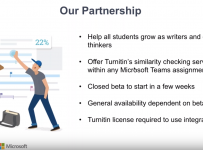
In the BETT London 2019 summary videos that I shared here, Principal Product Manager of Teams for Edu Justin Chando talked about the upcoming integration of Turnitin with Microsoft Teams.

This is a significant update that many schools have expressed strong interest in. I encourage you to watch the above video to understand how this will work.

I’ve blogged a lot about Microsoft Teams for Education and I’m seeing genuine growth and usage of this across the education sector. This new feature will be greatly received as another feature being added to a rapidly evolving platform.

Categories
General

Infographic: Emotion & Cognition In The Age Of Artificial Intelligence

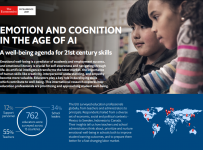
I’m a sucker for a good Infographic, and coming on the back of the announcements at BETT London 2019, I came across the Infographic below that goes deep on the latest research around the importance of Wellbeing and Positive Mindsets for both students and educators in the sector.

Download High Resolution Version Here

The research, conducted by The Economist’s Intelligence Unit came from interviews with school leaders, teachers and librarians in 15 countries and revealed that social and emotional wellbeing remains a high priority for schools. In fact, 70% stated this is fundamental for achieving student success.

Furthermore, the study reinforced that emotion is the gatekeeper of cognition and that a positive emotional state are linked to both academic achievement and well being. I know first hand that the school two of my children attend are focused heavily on Wellbeing, not just for students but also for staff. They blog regularly about this journey here.

You can review the research findings below:

emotion_and_cognition_ai-page-001

Categories
Microsoft365 Windows 11

Education Updates From BETT London 2019

The Microsoft Education Team have traditionally used BETT London as an event to launch or announce new features coming to the Education solutions in Office365 and Windows 10. 2019 is no different and below are a few short videos that summarize some of the latest features you’ll want to know about for your classrooms:

There are a heap of cool new features in there and I do encourage you to check them out (hint: I watch them at 1.5x speed to get through them quicker!). All the other videos from BETT London can be seen here.

Categories
Microsoft365 Windows 11

Intune For Education Announced at BETT

This week Microsoft has released some major announcements at the annual BETT Show in London. You can read the full announcements on the official blog here, however the one that caught my attention the most was Intune For Education:

microsoft-tries-expelling-chromebooks-from-schools-with-intune-app-and-low-cost-pcsFor me, this is a key solution for schools to consider to simplify the management of Windows 10 devices, particularly for those schools that may not have dedicated ICT staff. The things that impressed me were:

  • It’s cloud based, there is no need to install locally as it is hosted in Azure and is scalable, making it suitable for schools of any size whilst remaining simple enough for part-time ICT admin staff to use.
  • There are a number of school-specific policies pre-configured to promote security for school devices (there are over 150 settings you can configure if you choose)
  • There is an express setup for schools that allow for quick deployment of new devices for different groups of users.
  • Your list of purchased applications in the Microsoft Windows Store For Business are automatically synchronised to Intune For Education allowing to easily choose which apps you wish to deploy e.g. Minecraft licensing in the Business Store.
  • There is an auto-enrollment feature meaning students or staff automatically receive the apps specified by the school when they first log in.
  • intune-for-education-set-up-pcs-100705444-largeFor super quick deployment there is free access to the “Schools Setup PC App” that creates a USB key to quickly configure common settings on a new device with a single key press – no need to get it on the wireless network first!
  • Intune for Education supports Student Data Sync to automatically create groups of students/teachers for customised group permissions allowing more granular control over policy.
    • Policy will “follow the user” so if you have different policies for different year levels, these will automatically apply as a student moves from year to year.
  • There is a test/assessment mode. Students can log in with a special account to be used when taking assessment which will lock the device down to pre-defined access levels.

These features represent a significant leap forward with technology offerings for managing Windows 10 devices in education. To learn more, check out Microsoft Education.

Update: A couple more videos showing how Intune for Education can be used, along with the benefits of Digital Inking: