Categories
Minecraft:EE

Puzzling – A Different Form Of Game Based Learning

This is not intended to be a long post, but more of an observation on learning.

I love puzzles. I also love Minecraft: Education Edition. The two have a surprising amount of cross over in terms of skills development when considered through the lens of Game Based Learning theory.

It can be said that play and learning are synonymous, leading to cognitive and emotional development inside a social and cultural context. (source)

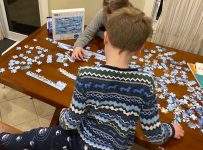
Before bedtime tonight, my two youngest engaged in a quick 40mins of puzzling:

Puzzling
Working as a team to complete the shark puzzle that had been selected

Whilst I was an active participant in the puzzling, I was also an interested observer and while it was clear the goal was a fun activity before bed, it was abundantly evident that a lot of skills were being developed through this play.

This is not an exhaustive list, but included:

  • Communication: Miss 11yrs and Mr 9yrs were in constant communication with each other, as well as myself, discussing pieces they were looking for, celebrating when a piece was successfully matched, and humming popular songs of the day. They also liberally engaged in ‘stream of consciousness’ thinking and talking, associating the activity of puzzling with other activities they’d engaged in at school earlier in the day and memories from holidays at the beach.
  • Collaboration: at times, they paired up to find a specific piece of the puzzle (in this case with the aim of completing a singular shark). This required teamwork, especially when they each had pieces of a single shark and had to move them around to fit them together correctly
  • Critical Thinking: it’s easy to overlook the level of thinking that takes place when playing games. Throughout our time of puzzling this evening, there were frequent references to the illustration on the box, along with consulting the names of the sharks they were attempting to complete. There was also considerable spatial awareness required to correctly locate partially completed sharks in the overall ‘frame’ of the puzzle, even when it was not yet complete. To do this successfully required negotiating where the other person was working at the time, so both communication and collaboration also came into play again here.
  • Creativity: One of the great challenges of puzzles is the need to visualize in entirety what is only partially complete on the table. This requires imagination and creativity of thought because you can not rely on the individual pieces to tell the whole story/picture until they are actually completed. Listening to my two kids discussing aloud how they thought the puzzle was going to look and what would go where was really an exercise in listening to creative thought and imagination in action.

Why This Matters

When I was a classroom teacher I believed in using a wide variety of tools to assist students in comprehension and learning. I loved digital tools like Google Earth for teaching students geography, but I equally liked batting around my classroom an inflatable globe so students that preferred kinesthetic learning styles could catch it, spin it around to find the country in question, then punch it on to another classmate to have a go. Another example was using digital timelines in history – these were great as you could easily embed images, videos and expand/contract the timeline based on the amount of records you wanted to include. However, nothing quite surpassed having a physical timeline of history on a wall where students could scan a large epoch of history, run their fingers over it, locate a specific event and see at a glance where it fit in the breadth of human development.

Clearly, there is a place for both digital and physical tools for learning in the classroom.

I’m a huge fan of Minecraft: Education Edition and believe it’s awesome at teaching the 5 C’s of 21st Century Skills that I saw evidenced above in the puzzling, but the point is mixing up the digital and the analogue tools we use in our classrooms really helps engage students in different ways. The aim of puzzling before bedtime was to relax and unwind after a busy day at school, however inherent in the gameplay was plenty of learning and socialising – the chatter between the three of us was constant.

Analogue activities like board games and puzzles promote the social skills developed by being in proximity, looking at a shared space but also having “downtime” between turns to engage in off topic chatter and conversation. When you’re working on a screen in isolation there is less of this (it still exists, but in a different way).

I was on a flight home last night and struck up a conversation with the person beside me. After around 20mins the topic turned to Minecraft and how it can be used in such wide areas of learning. I discussed how my two kids puzzling above love to play Minecraft but are limited to 1hr of gameplay on a Saturday and 1hr on a Sunday. Nevertheless, the allure of Minecraft: Education Edition is so strong that they read a lot of books on how to improve their knowledge and skills in the game, and when we go on bike rides together they discuss at length (indeed, it’s more of a monologue!) what they’ve built so far as well as what they intend to build in future sessions.

I love the fact that the digital gameplay is both a motivation and driver of their literacy and oral skills too. I’ve blogged previously about the way Game Based Learning is expressed in Minecraft: Education Edition that may be of interest to you here – check it out here.

As you may have picked up, I quite like puzzles and I think one of the other reasons is that it’s great for mental health! It’s calming and relaxing and great as a mindfulness activity, not dissimilar to colouring-in / illustrating books (and also completing Lego sets following the instructions!)

Categories
Microsoft365

Creating Breakout Rooms in Microsoft Teams For Education Settings With Meet Now

UPDATE 19th January 2021Mike Tholfsen has created a great video showing how to use the new breakout room functionality in Microsoft Teams, which you can see below. My original method (further down) still works great, but Mike’s video is also super helpful:

UPDATE 21st December 2020 – Microsoft has officially added native Breakout Room functionality to Microsoft Teams. Whilst my ‘work around’ below is still  very valuable, you may be interested to learn how the new functionality works:

UPDATE 9th April 2020 – people have pointed out some schools block students creating Meet Now meetings in channels – how can this be resolved? See below.

It’s been fascinating to observe the feedback from educators globally as they’ve been forced to transition to remote teaching due to the #COVID19 pandemic that has shut schools across the globe. I read a statistic today that 91% of students globally have been affected by school closures in some way, shape or form!

Proving just how adaptive and incredible educators are, I’ve heard many reflect on what has worked successfully, as well as what has been a “false start” in their remote teaching experiences.

One consistent theme from educators has been a tendency to “over teach” – using the allocated lesson time for the equivalent of the “full attention” state, not leaving students appropriate time to process, think critically and complete exercises in a traditional “working state”.

It’s perhaps understandable this has occurred. Teachers are keen to ensure “on task” behaviour in these virtual classrooms and also be seen to have prepared sufficient content to be delivered. However, the reality is students need that processing time to critically evaluate what they’re learning and being able to discuss this with their peers is part of this formative state of knowledge development.

Breakout Rooms Help!

To that end, allowing students to form small groups to discuss what they’ve learnt whilst easily providing the teacher visibility of who is meeting with whom, “pop in” to listen in to each breakout room, ask questions of the small groups to prompt deeper thinking as well as give reminders about when to return to the main virtual lesson is a vital tool in the remote teaching toolbox!

Fortunately, it’s easy to achieve in Microsoft Teams as I demonstrate below:

I liken these breakout rooms to the “call waiting” function of a phone – you can easily keep the main classroom lesson call “on hold” whilst popping into other breakout groups that students are using (a single user can be on up to five calls at once).

Pro Tip: Don’t “hang up” your main meeting call to join a Breakout Room in a channel – rather simply join the Meet Now in the channel and it will put your main call on hold. You can have up to four calls on hold at once and circle back through any of them by clicking the “resume” button for the appropriate call in the top left of Teams.

One piece of feedback I received is if there is a lot of chatter in the channel where the “Meet Now” breakout room has been created, the “Join” button can sometimes scroll up and off the screen, not making it obvious how a late comer might enter the breakout room. This can easily be resolved by using the drop down menu in the top right indicating all current calls happening in that channel:

Teams Breakout Rooms
Meetings happening in a channel are displayed in the top right drop down menu, allowing easy navigation to the join button, no matter how much chat is going on.

Here are two more close ups shots of that, the first with the meetings running in a single channel collapsed, the second with the meetings expanded:

What If My School Blocks Students Creating Meet Now?

The great thing about Microsoft Teams is there are very granular policies that control what users (Students and Teachers) can and can not do inside of Teams. We have even created pre-packaged policies for education and the different year levels. For example, this primary school aged policy package has a default setting of blocking Meet Now:

Meet Now Blocked

This is explained in more detail in this documentation:

Allow Meet now in channels

This is a per-user policy and applies before a meeting starts. This setting controls whether a user can start an ad hoc meeting in a Teams channel. If you turn this on, when a user posts a message in a Teams channel, the user can click Meet now under the compose box to start an ad hoc meeting in the channel.

Screenshot showing the Meet now icon below a message

A school could, if they chose, override the default setting in this policy package however an alternative way is for the teacher to simply create the breakout meetings in the respective channels. Provided at least one student is in the Meet Now, the teacher can safely “hang up” the meeting and leave the students to it if they wanted to. Here’s a screenshot of a more structured channel approach to breakouts with a single Meet Now running in each channel:

10 breakout rooms
Running 10x Breakout Rooms in a single Team

Final Thoughts

There is a lot more that could be added here, but the general principle of using Breakout Rooms is something many educators may choose to add to their remote teaching skill sets. Invariably, being resourceful, teachers will take this, adapt it and enable students to be empowered in their learning through promoting critical thinking and engagement in small group discussion.

If you’ve got ideas on how you’d use Breakout Rooms in Teams then add them to the comments below.

Categories
Microsoft365

Flipped Learning Hacks With Microsoft Teams & Meet Now

Update: 25th Feb 2019: thanks to all those who have shared and commented on this blog on Twitter – really appreciate it. I saw the following Tweet from Craig Render sharing how mobile phones can be added to the equation:

https://twitter.com/jetpack/status/1099776882877190149

This got me thinking about how smartphones could be used to expand the Flipped Learning component of these lessons and it reminded me that Microsoft Stream has a smartphone app that allows you to download the content for offline play – in other words, creating a Podcast type listening/viewing experience of the flipped lesson.

I have an iPhone and you can get the Stream app from the iOS store here. I’ve used the offline feature for listening/watching content on flights before and it’s a great time saver. For students that perhaps have to commute on lengthy bus or train rides, this could be an awesome way to turn that into productive learning time by providing a Flipped Learning experience through Microsoft Teams and Microsoft Stream.

Flipped 4
Using Microsoft Whiteboard to outline Flipped Learning Ideas

Recently, I’ve had a number of conversations with educators and school leaders who have expressed renewed interest in Flipped Learning. Whilst many have experimented with this in the past, for a variety of reasons they’ve pulled back on it from being a regular component of their teaching. Now, however, it seems more are willing to give this a go as increasing numbers of schools introduce BYOD programmes and also platforms like Microsoft Teams for creating a digital hub for learner activity.

What is Flipped Learning?

There are plenty of definitions for this and if you’re interested in joining the discussion then I suggest you check out the #FlippedLearning hashtag on Twitter. New Zealand’s TKI website (Government sponsored teacher resource site) has a good definition of Flipped Learning here:

In a flipped learning setting, teachers make lessons available to students to be accessed whenever and wherever it is convenient for the student, at home, in class, on the bus, or even from a hospital bed. Teachers can deliver this instruction by recording and narrating screencasts of work they do on their computers, creating videos of themselves teaching, or curating video lessons from trusted Internet sites.

If you’re interested in going deeper, do check out the The Flipped Learning Model – A White Paper available as a PDF download.

Flipped 5.PNG
Differences between a traditional and a flipped classroom model. Credit

Why Use Microsoft Teams “Meet Now” Feature For Flipped Learning?

For schools that are using Microsoft Teams already as their digital hub or classroom for online learning, extending this for use in Flipped Learning is an obvious choice.

I’ve written about Meet Now previously on this blog, but essentially it’s a video calling feature inside of Teams that allows you to start a call and then optionally invite attendees to it. For Flipped Learning purposes, Meet Now would not typically see you include a guest on the call (unless you wanted another teacher or expert to join and help explain concepts), but critically there are two features inside of Meet Now that you can leverage for Flipped Learning:

  1. Screen Sharing Feature
  2. Recording Feature

Example of a Screencast recorded in Microsoft Teams

The video above was recorded using my cellphone as an internet connection so the quality is not as high as would normally be produced on a wireless network in a school/home, but you get the idea of how I used Teams to share and record my screen. Scenarios where I would typically consider some flipped learning lessons would include:

  • Relief Lessons: if I knew I was going to be away from school for a period of time (e.g. on a sports tournament or taking a camp) then recording some content for my classes is a quick and easy way to ensure they will continue to progress their learning in my absence
  • Introducing Major Assessment Tasks: one of the keys to ensure students succeed in assessment is helping them understand what is required of them from the task and how they can adapt it for personalised learning (where applicable). This is often a lengthy and time consuming process and may need to be repeated for students who were absent. Recording this once in Teams is a great way to ensure a high quality explanation that all students can access at any time (and go back and re-watch if they’re getting stuck).
  • Scholarship Classes: This came up in a discussion with some students recently where they were discussing how they can get access to scholarship level classes when there were clashes with their timetables. I see this working in two ways:
    • The teacher leading Scholarship may in fact record a series of key ideas / learning concepts using Meet Now / Recording in Teams and start to build out a bank of “lessons” or “key concepts” that students can tap into and watch at any time. Over a number of years, this would start to create a truly valuable resource.
    • Often Scholarship Classes are run before/after the school’s timetabled lessons, meaning there are clashes and students can not always be present. If the teacher recorded the lessons using Teams (and possibly a wireless mic/headset) then all content would be available for students even if they were absent.
  • Extension Activities / Difficult Concepts: Teams would also be a great platform for recording more complex and difficult concepts that take time to explain clearly or in different ways. This would allow the teacher to introduce students to them in a Flipped Way, allowing for ‘watch on demand’ as needed.

Microsoft Teams is the perfect platform for Flipped Learning Recording because:

  • If the school is already using Office365 then Students are ideally already in Teams (consider using School Data Sync to automatically populate students into classes)
  • Teams has the built in Recording Features and Screensharing to enable quick and easy Screencasting on any platform (Windows 10, MacOS, iOS)
  • Recordings are automatically published to Microsoft Stream for secure viewing either inside of the Team itself, or on the Stream platform inside of Office 365.
    • It’s worth noting that Stream automatically transcribes your speech inside of your video, allowing everything you say to be searched. This can be especially helpful if you’re a teacher that has certain key words such as “In the end of year exam…..” which students could search across your videos for!
Flipped 3
An example of me searching the automatically generated transcript inside of Stream for “flipped” in my video. You’ll note the time stamp to the left and my spoken text to the right. If any of these are clicked the video is automatically cued up a few seconds before the searched for word or phrase.

Tips For A Successful Flipped Learning Recording In Microsoft Teams:

To make the most of Microsoft Teams to record a Flipped Learning lesson I would encourage you to consider:

  • Using a wireless headset or mic as your audio input, rather than the built in mic on your computer. This will make your voice clearer, as well as reducing ambient noise (and clicking from your keyboard, often positioned very near a built in mic!)
  • Have a touch / digital ink enabled device like my Microsoft Surface – this really unlocks the power of a Flipped Lesson, by allowing you to ink / annotate as if you were writing on a whiteboard in your classroom.
Flipped 8.PNG
inking in Word is a powerful way to use Flipped Learning, calling out the important sections of an upcoming assessment for example. Note that you can even use “Ink Reply” so students with access to the document and see your inking replayed, step by step.
  • When ready to record in Teams, follow this sequence:
    • Launch the Meet Now meeting inside of the correct Channel inside your Teams App
    • Blur your background if you want additional privacy
    • Share your screen – remember, you can share your entire desktop (recommended if you’re going to be switching between multiple apps), or a single application such as a web browser, or Word, OneNote etc.
    • Start Recording when ready (if you have others on the call, do make sure you advise them the session is being recorded)
    • When you’re finished, either simply hang up the call to end it, or stop the recording in the same way you started it.
  • Post-Recording the Flipped Learning lesson will automatically be uploaded to Stream and embedded into the Channel inside of Teams that you recorded it in:
    • Expert Tip: Inside of Teams you can create a dedicated tab along the top just for Stream and the Videos you’re recording – learn how here.
Flipped 2
Students can comment/ask questions about the video/lesson directly inside of Teams

Final Thoughts:

I am a big believer that balance is important in the classroom. This relates to balance between the use of technology and non-technical tools when teaching concepts. Similarly, a classroom that is 100% “flipped” will start to lose effectiveness over time, simply because it is always the same. Teachers need to find the balance between recording resources that can be used to support a flipped model, with doing “live” teaching in the classroom and promoting interaction and discussion amongst the students.

There are many tools available to empower teachers to record their screens for flipped learning, even PowerPoint supports this now, however think the power available in Microsoft Teams, combined with the automatic upload into Teams with transcription and search, makes it the best possible tool for quickly creating flipped content. The audio quality recorded in Teams is excellent – in fact I use it when recording our educational podcast with my colleague based in Singapore.

I encourage you to give Flipped Learning with Teams a go and post any comments or tips from your experience in the comments section below.

Categories
Microsoft365 Windows 11

Teaching With Ink Strategies

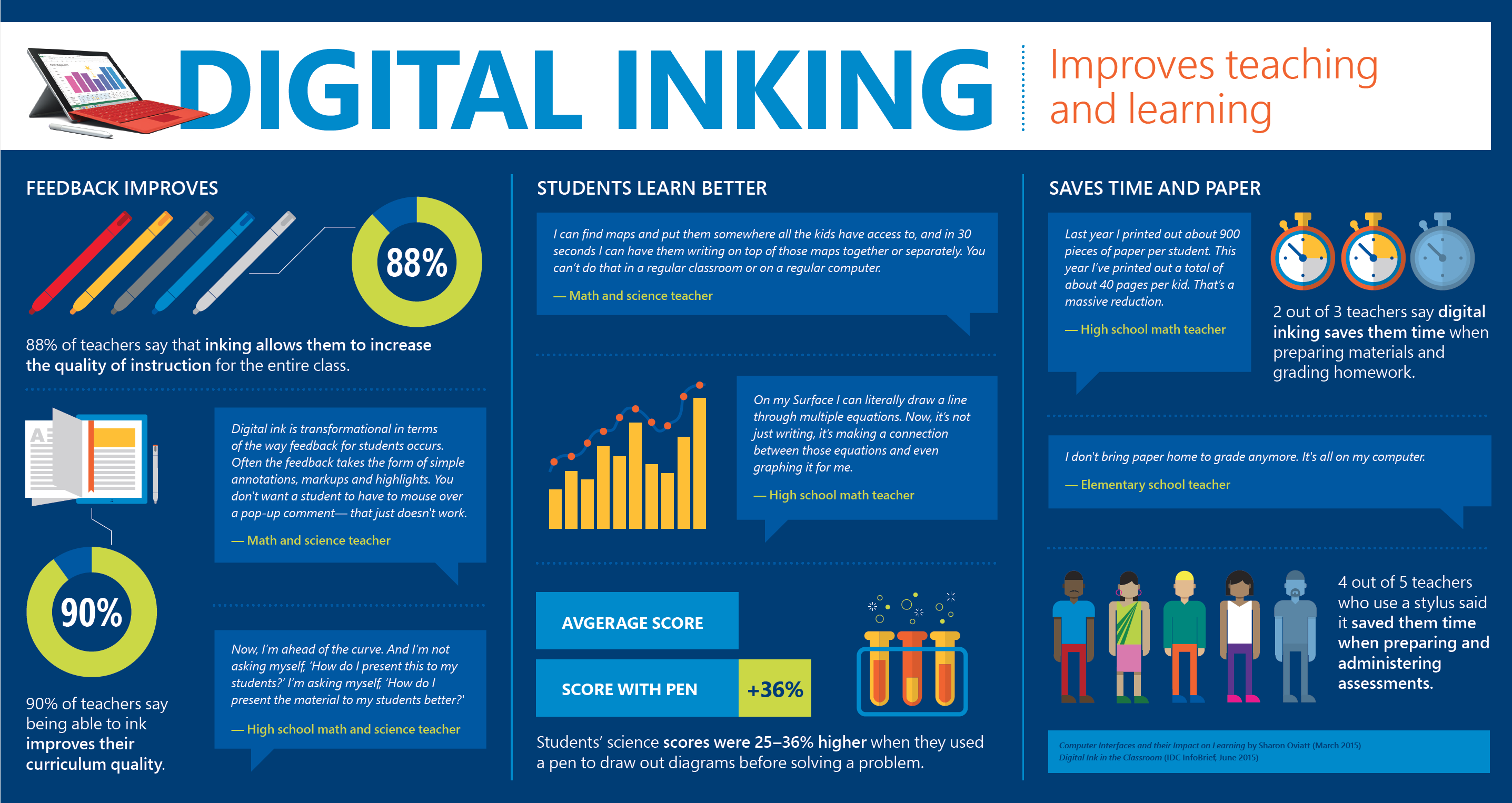
The “power of the pen” is already well established as an effective technique to improve student comprehension and deepening their knowledge and conceptual understanding. In this blog post I want to share some resources from the MSAU Education Team:

  1. A free downloadable OneNote NoteBook full of tips and tricks for effective teaching with Digital Ink.
  2. A series of videos (below) from Travis Smith showing how these techniques can be used.

I hope you find these useful and if you’ve got other suggestions then drop them in the comments section below.

Annotating:

Ideas:

Note Taking:

Visible Learning:

Feedback:

Brainstorming:

Visual Thinking:

For more information on how Eltham High in Victoria, Australia, are rethinking teaching and learning with technology to equip students with 21st Century skills, have a look at this LinkedIn post from New Zealand’s Microsoft Education Lead, Evan Blackman.

Inking

Categories
Windows 11

Strategies To Promote Deeper Student Thinking When Taking Digital Notes

The use of technology for note taking in classes, whether that is in the primary, secondary or even tertiary sectors, can still be a contentious topic amongst educators and parents alike. Today, I read a fantastic article that not only tackles some of the main areas of debate, but more importantly offers practical strategies to promote deeper thinking by students.

Read the full article here.

I am not going to re-post the entire article here, instead I encourage you to click the above link and read it in its entirety, however it  touches on some key points that I will mention below. It cites two important pieces of recent research as being detrimental to the wider conversation of digital technology in the classroom and challenges the conclusions by asking how teaching styles were adapting to use the technology more effectively. The research referenced was:

The key sections of the article are broken down into distinct strategies that students can use to improve their use of technology in classes, but importantly it emphasizes that the educators must take the lead in introducing these to students. Rather than simply tell the students to “take notes on the following topic”, providing them with strategies that leverage the full benefits of technology (such as tags in OneNote and search features across notebooks) is a more effective method of teaching.

  1. Digital Organization and Content Curation
  2. Multimodal Notes
  3. Concept Mapping
  4. Visible Thinking Routines
conceptmap-768x576
Example of how a student might use a Concept Map to more effectively take notes. Digital Inking and an endless canvas in OneNote make this both an easy and efficient way to record critical ideas.

One of the telling passages towards the end of the article is:

Too often, educators project their own note taking habits onto their students, applying paper-based strategies to digital tools. With that mindset, it becomes far too easy for short-sighted studies to confirm previously held biases against technology. However, as students progress in an increasingly digital and connected world, one challenge for educators will be to view digital note taking as a unique, necessary and completely different skill set to be taught.

This accurately highlights the challenges educators face in terms of not being unduly influenced by older learning styles and remaining open to leveraging newer technologies that will benefit students. However, these new methods need to be clearly articulated and presented to students. Using the old adage, they are “taught, not caught” – in my view at least, it’s not enough to hand off note taking to students and simply hope they settle on a technique that works for them. Instead, by providing them with a range of options (like those above) and actively modelling this to them as they master the concepts, students will have the best opportunity to learn and process key information.

Again, I encourage you to read the entire article for yourself.

Categories
Microsoft365 Windows 11

Microsoft Teams For Education Is Here – And It Is Awesome

Big news from over the weekend is that Microsoft Teams, already available in commercial Office365 Tenants, has arrived in Education with all of the new features dedicated to making this app the “one stop shop” for students and educators.

Read the official launch blog post here.

There are a number of major differences in Teams for Education (which replaces the Microsoft Classroom app that was in public preview) and these are designed to streamline the workflows for students and teachers.

Assignments:

Teams Assignments 1
From assigning, through to submission and marking, assessment can be completed directly within the Microsoft Teams app.

Persistent Conversations:

Teams Persistent Conversations.png
These allow students and teachers to share ideas on the fly, from anywhere and any device (iOS/Android/Windows Phones supported, along with native apps for Win10/MacOS and Browsers)

As a trained teacher, I can really see the benefit of setting up various channels for persistent conversation where links could be dropped for future reference/revision, video links for homework viewing and even just a fun channel where only semi-related content could be shared e.g. if you’re teaching a history class interesting facts about different periods of history that students enjoy but are not being covered in class could be shared.

What’s more, you can moderate content being shared in Teams persistent conversation to keep everyone safe. (Click here to learn how to run a Content Search on Teams. Click here to read ICT Admin FAQ for Teams).

Given students will be able to contribute to persistent conversations from any of their devices this opens up great opportunities for learning outside the classroom such as sharing a photo of your backyard if school is closed for snow; or take a selfie photo during term break and play “where in the world is….” with students guessing the location of each other.

Deep Integration With Other Products:

OneNote Class NoteBooks are, of course, built straight into the Teams app and this will likely be the central hub of Teams for many classrooms, with teachers populating content and students contributing their ideas and work into the Collaboration Spaces and their own sections.

However, one of the best parts about Teams is the ability to extend it with third party apps to plug in as Tabs in your team:

Teams Add Apps
Examples of some of the available apps already, with new, education focused apps being added regularly.

As blogged about earlier, the Meet Now function within Teams allows for both scheduled and ad-hoc video conferencing between students and staff.

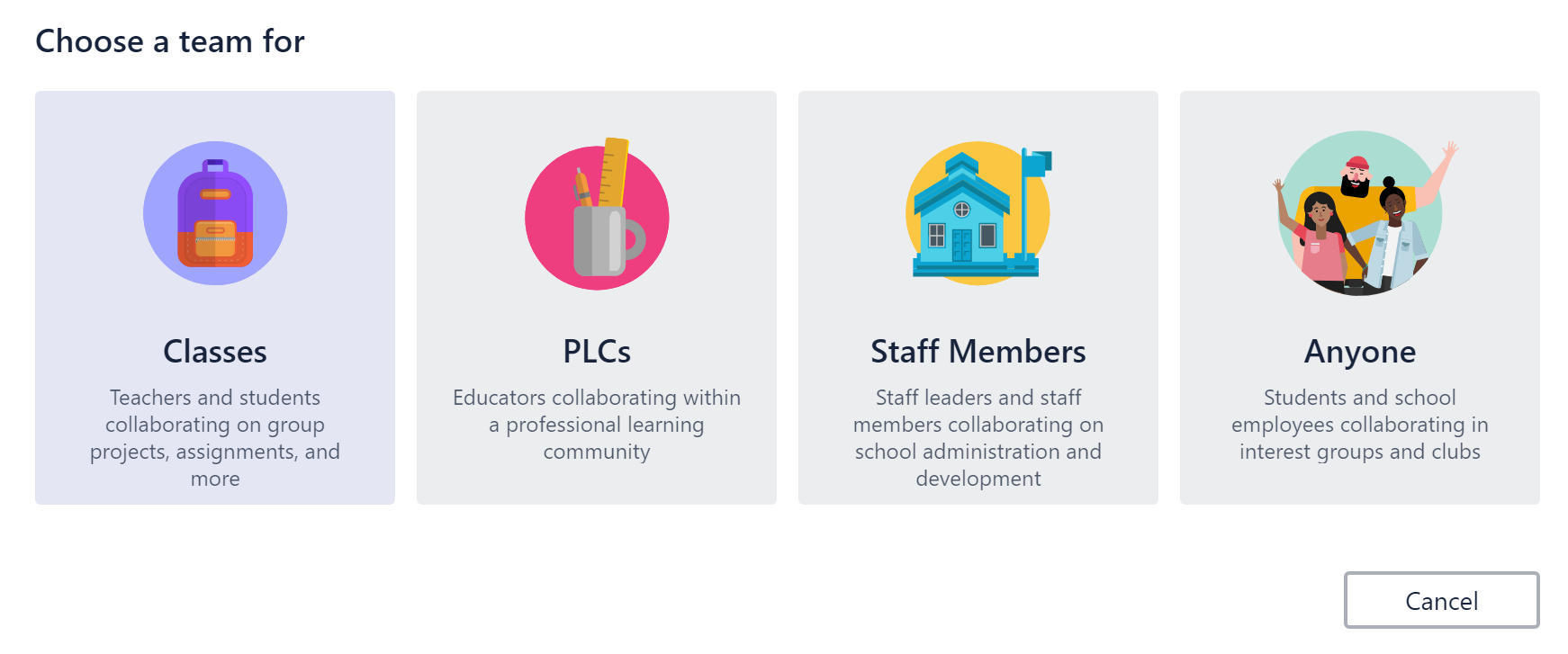
Additionally, there are various types of Teams that can be set up and used and teachers and students can seamlessly switch between each team:

Teams Create
When creating a new Team you’re prompted for what type of Team you’re wanting to bring together to collaborate with.

The PLC (Professional Learning Communities) Team is based on the same structured inquiry based learning that was available in Groups and with the ability to add external team members from outside of your school/organisation coming before the end of the year, then these will be perfect for teachers that participate in cross-school professional development such as the Communities of Learning in New Zealand.

Omaha Schools District Case Study:

“Our students interact and socialize with a larger circle of influence than what we’ve ever had as a society. And when you look at how we prepare students for that type of environment, digital citizenship and literacy really come to the forefront. With technology in the classroom, we focus on the 4Cs – communication, collaboration, critical thinking, and creativity. Microsoft Teams really does all of them.”

I really like that focus on the “4Cs” when it comes to the use of technology in schools and using this as a way to evaluate the usefulness and effectiveness in the classroom:

  • Communication
  • Collaboration
  • Critical Thinking
  • Creativity

Ready To Get Started?

Teams Getting Started.PNG

If you’re ready to get started with Teams, then do check out this overview for ensuring Success With Teams or click one of the specific links below: