Categories
Microsoft365 Windows 11

With Surface, a picture really is a thousand words

Surface inking

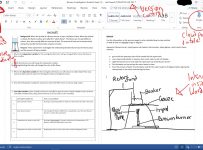
Last week my 13 year old daughter came home with a big grin on her face telling me how she was able to use her new Surface Pro and Surface Pen to draw up her science experiment at school. I asked her to show me and you can see the screenshot above with her diagram of the experiment.

I’ve added a couple of markings in red ink on my Surface Laptop with some additional call outs:

  • Even though the teacher had created this traditional “worksheet” using Microsoft Word, my daughter was saving this inside of her OneDrive with Word in Office365. This meant it was automatically saving to the cloud with “Auto Save” (top left)
  • In the top centre of the screen you can see her Word showing the most recent version of the document – at any stage, she could have shown previous versions – again, powered by OneDrive and cloud saving with Office365
  • The top right shows the cloud-powered Dictate in Office365 – this made possible (and smarter) by using Intelligent Services from Microsoft:

Dictate is one of the Office Intelligent Services, bringing the power of the cloud to Office apps to help save you time and produce better results.

Personally, I would probably not use Word for something like this (Class Notebooks in OneNote are more my style), but this is a great example from a real high school science classroom showing the versatility of Microsoft Word with Office365, Cloud Services in OneDrive, and Digital Inking on a Surface Pro.

Categories
Microsoft365 Windows 11

Education Ideas To Support Global Accessibility Awareness Day 2018

setc-webinars

Global Accessibility Awareness Day 2018 is fast approaching on May 17th and will the be the seventh year this day is celebrated. The focus is on an audience encouraging the design of technology (both software and hardware) that will be more accessible to every end user, including those with disabilities.

To support this day, Microsoft are running some cool webinars show casing how Windows 10 and Office365 in Education focuses on creating inclusive classrooms. The three sessions are:

Improving Literacy In Your Classroom With Learning Tools

Date: May 9, 2018

Time: 3:30 p.m. PDT – 4:30 p.m. PDT

Register today: https://www.specialedtechcenter.org/class-details/?class_id=1914

In this session Mike Tholfsen will show how the Learning Tools in Office365 have demonstrated ability to improve the reading and writing levels of students. These tools are expanding to the Edge browser and Outlook so there is an ever wider audience to benefit from them.

Exploring The Accessibility Features In Windows 10 To Enhance Productivity

Date: May 14, 2018

Time: 12:00 p.m. PDT – 1:00 p.m. PDT

Register today: https://www.specialedtechcenter.org/class-details/?class_id=1915

I am always surprised how few people know about the amazing built in features in Windows 10 that support all users through accessibility tools such as Narrator, Eye Control, Read Aloud and the recently improved Dictation.

No plugins required – built in from the ground up in Windows 10.

Creating Inclusive & Engaging Content With O365

Date: May 15, 2018

Time: 12:00 p.m. PDT – 1:00 p.m. PDT

Register today: https://www.specialedtechcenter.org/class-details/?class_id=1916

Office365 can now check your content to provide feedback on how accessible it is for all consumers, providing tips on what can be improved. Some of the more geeky/cool features include the ability to embed closed captions in PowerPoint and Sway or using the Presentation Translator to create live, on the fly sub titles to your presentation for those that may be hearing impaired or speakers of other languages (yes, real time translation is supported!).

If you’re looking for ways to support users in your classroom, be they students or teachers, then consider supporting Global Accessibility Awareness Day and sign up for the webinars above.