Categories
Microsoft365 Minecraft:EE

Top 5 Education Blog Posts of 2018

My blog is now two years old which means we have had time to establish some traditions: such as listing off the top 5 most popular blog posts of the year! 2018 has certainly been an interesting year in the EdTech space, so without further ado, here are the five most popular blog posts I wrote this year (by number of views):

ONE:

Video: OneNote + iPad Pro + Pencil = Awesome

iPad InkingComing in first by quite some margin was this video I found showing how you can use the very popular Microsoft OneNote app on an iPad Pro with the Apple Pencil. For me, this highlights the value of platform mobility with OneNote providing your note taking app of choice across virtually very device  and OS combination you may wish to have. Additionally, it reinforces the value of Digital Inking, something I’ve blogged about extensively.

Unfortunately, the original video appears to have been removed, so I suggest you search on YouTube for equivalents.

TWO:

Hybrid Cloud Printing Via AzureAD Is Here

cloud print 1A slightly more technical post, but useful in education nevertheless. As many schools plan strategically to move their IT infrastructure from being on the school premises and into the cloud, having a cloud identity that supports printing is a crucial component.

In this blog post, I link to a video and official documentation to assist IT Administrators with understanding how they can configure and deploy cloud printing with Microsoft’s AzureAD services.

THREE:

Cloud Attachments In OneNote – Game Changer For Educators

cloud attachementsProof of the popularity of this post is that it was only published in mid-November and yet has still managed to come in at number three! To be fair, this was helped by some social media posts about it from some well known EduTech Twitter leaders! Another reason I believe this was so popular is that it highlights the continual evolution and development of OneNote, a core product in Microsoft’s Education Suite. By adding cloud storage to OneNote, notebooks will sync faster and documents will be shared more effectively. My colleague Crispin provided a great video for this post and I suggest you check it out.

FOUR:

The Ultimate Minecraft:Education Edition Guide – Getting Started

meeAgain, perhaps no surprises why this post proved popular, with students and educators all over the world loving Minecraft: Education Edition. When I wrote this guide, it was really an attempt to help condense all of my acquired knowledge over the last 18 months into a single post that I could easily share and also update and maintain as new information came to hand.

I’m really pleased it made the top five, as again, it was only published in September this year and shows that the content is valuable to people out there on the internet.

FIVE:

OneNote On Windows – The One App For The Future

OneNOte consistent layoutRounding out the top five with a similar focus: OneNote and the future of this awesome app. Published back in April this was really helpful in terms of learning the roadmap of OneNote and the emphasis that was going to be placed on the Windows 10 App over OneNote 2016. This informed many of the sessions I ran with schools and educators and also provided answers to the most common question “Which version of OneNote should I be using?”

The fact that three of the top five blog posts of 2018 were around OneNote surely points out how popular and in demand the app is for educators.

Final Thoughts For 2018

There you have it – the top five blog posts of 2018. Given I wrote 72 blog posts this year (an average of 1.38 posts a week, which I can’t quite believe), the above posts performed particularly well to distinguish themselves from the 67 other posts I made!

My blog traffic increased 163% year on year, much of which was driven by traffic to the above posts, along with the most popular blogs from last year also ranking pretty highly still.

Thanks to all those who read, comment and share the content – I’m glad you like it.

Categories
Microsoft365 Windows 11

OneNote On Windows – The One App For The Future

UPDATE 29th June: a reader shared with me this great blog showing some of the key differences between OneNote 2016 and the newer OneNote Windows 10 App.

In December last year I wrote a blog entitled “The Future of OneNote in Education” where Mike Tholfsen walked through a lot of the features around accessibility being built into the OneNote Windows 10 app. This week, a new blog post has been written signposting the future of OneNote on Windows 10 more generally and for educators and students alike, this is an important announcement.

As always, I recommend you read the entire original post by William Devereux but I’m going to summarise the key points for you below from an educational point of view.

Firstly, it appears the product team have been listening:

In spending time with you, we heard a recurring theme: you want a single version of OneNote on Windows that combines all the benefits of the modern Windows 10 app with the depth and breadth of capabilities in the older OneNote 2016.

In my frequent conversations with schools, there is always complaints about the confusion amongst teachers and students of the “two versions of OneNote” – being, of course:

  • OneNote UWP App for Windows10 (free with any version of Win10)
  • OneNote 2016 – part of the Office 2016 / Office365 ProPlus suite

In my experiences, most schools have encouraged users to only work in OneNote 2016, largely because this had the most complete Class NoteBook tools originally. This has changed now with all the Class Notebook functionality being built into the Win10 OneNote app:

Additional Class Notebook features: The full slate of Class Notebook features available in the add-on for OneNote 2016 will be available in OneNote for Windows 10 this summer. Best of all, you no longer need to install a separate add-in—it’s all built-in!

OneNote For Windows 10 Will Become The Default:

Beginning with the launch of Office 2019 later this year, OneNote for Windows 10 will replace OneNote 2016 as the default OneNote experience for both Office 365 and Office 2019

This is significant news for educational institutes as this will potentially drive some changes around professional development on the platform as teachers are encouraged towards using OneNote for Windows 10. I can see many benefits for this as well since the interface design will be consistent across all operating systems now (MacOS, iOS, Web, Win10, Android) as well as improved support for accessibility:

OneNOte consistent layout
The consistent design layout is a good thing for OneNote for users who access OneNote across multiple devices and operating systems.

What’s happening to OneNote 2016?

No new features are going to be added to OneNote 2016 but schools will still be able to use this if they wish to. Importantly, it will no longer be installed by default in Office 2019 when it is released, nor as part of Office 365 at that point. If schools really want to deploy OneNote 2016 they will be able to, however it’s clear from this decision that they should be starting to migrate towards using the OneNote for Windows 10 application with all users.

Top-requested features coming soon to OneNote for Windows 10

Here’s what you can expect to be released in the coming months:

  • Insert and search for tags: OneNote 2016’s popular tags feature is coming to OneNote for Windows 10! Soon you’ll be able to insert, create, and search for custom tags, making it easy to mark key information and find it later. Tags you create will now roam with you to across your devices, and OneNote will even show you tags other people have used in a shared notebook so you don’t have to recreate them yourself.
OneNote Tags
Tags are one of the most powerful features of OneNote in Education and the improved features for Tags in OneNote For Windows10 is awesome.

I’ve been fortunate enough to see a preview of the Tags feature in OneNote for Windows 10 and it is awesome. It has taken all the best parts of the tags in OneNote 2016, simplified the interface and supercharged the functionality. As noted above, the ability to have tags “follow you” across devices and also distribute to all users in a Class NoteBook will make educators very happy indeed.

  • View and edit files: See live previews of Office files in OneNote, work together on attached documents, and save space in your notebooks with cloud files. You’ll get all the benefits of saving a file on OneDrive with the context and convenience of an attachment or preview on a OneNote page.
OneNote OneDrive Files
“Live” documents from OneDrive embedded within OneNote is a nice feature

This will help reduce the sync time of OneNote Notebooks as the documents and related data will be stored in OneDrive, not in the NoteBook itself.

  • Additional Class Notebook features: The full slate of Class Notebook features available in the add-on for OneNote 2016 will be available in OneNote for Windows 10 this summer. Best of all, you no longer need to install a separate add-in—it’s all built-in!

An improved sync experience

The new release promises an improved synch experience across devices and platforms – something that will no doubt excite educators and students alike. The original blog post has some videos showing this experience from a Win10 device, to a Mac and an iPhone – if this is indeed indicative of the sync speed between devices then it suggests a massive improvement which will be welcomed.

In my experience, sync speeds when using the OneNote Online web client are very fast, however the speed varies when introducing desktop/smartphone clients. The videos certainly suggest an improved performance is coming in this key area.

OneNote Sync

Final Thoughts:

Whilst it has taken a while to get to this point, it seems the writing has been on the wall for some time that a single OneNote version would happen on Windows 10. When the interface on the iOS, MacOS and OneNote Online versions changed significantly a couple of years ago it seemed OneNote 2016 aged almost overnight.

Nevertheless, the that familiar interface that many teachers trained on, combined with key features such as custom tags and Class NoteBook controls meant educators were slow to adopt the Windows 10 version of OneNote. Personally, I’ve been trying to use that version for the last 6 months or so and have generally found it excellent for my needs.

School eLearning leads should start planning for professional development for teachers to migrate them off OneNote 2016 and on to OneNote for Windows 10 ahead of the release of Office 2019. This will ensure that teachers are prepared for the change and also because most students will only be using the new version of OneNote For Windows 10 when they download Office 365 ProPlus. No doubt there will be some challenges as people learn a new interface, but sharing a consistent UI across platforms can only be a good thing and new features are being added regularly to OneNote for Windows 10 which will keep everyone happy.

Categories
Microsoft365

The Future Of OneNote In Education

Mike Tholfsen – The Future of OneNote in Education from Jared DeCamp on Vimeo.

For anyone that oversees the use of technology for eLearning in their school, this video is well worth watching. In it, Mike Tholfsen does a great job going over the current, new and future features of OneNote with a specific focus on how it can be used in education. Furthermore, he hints at new and exciting features being announced in the short term to come.

I highly recommend watching the entire 30 minutes but particularly want to call out the following three features:

  • The combination of OneNote, Office Lens and Immersive Reader. This allows for an impressive workflow of taking a photograph of text from a book using Office Lens, sending it to OneNote where the text is scanned by Optical Character Recognition (OCR) and then Immersive Reader can have the text highlighted and read back to you. This is huge when it comes to literacy and comprehension, meaning a student can take text from any source and quickly have Immersive Reader breaking down the text for them.


OneNote-Lens-OCR-Immserive Reader 1
The original text from a book photographed using Office Lens and then scanned by OCR to make the text readable by Immersive Reader.


OneNote-Lens-OCR-Immserive Reader 2
The same text from the original photograph now being read back by Immersive Reader


  • Office Lens and Immersive Reader: The read aloud feature of Immersive Reader has been added to the Office Lens app, meaning a photo can be taken and the text read aloud directly from within the app. Useful for when you don’t want to involve OneNote for a quick read.
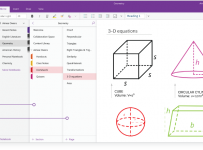
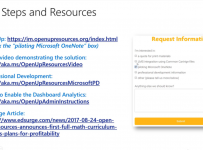
  • Open Up Resources A new partnership where curriculum specific resources are prepared and formatted for OneNote and can be pushed directly into the student sections of OneNote like other page content. Additionally, appropriate assessment is pre-built to match the teaching curriculum and these are made in Microsoft Forms and automatically added to your tenant when the resources are added to the Class OneNote NoteBook.
OpenUpResources
You’ll need to type the links above as they are in an image and not hyperlinks.

Finally, there were two great links for keeping across the developments of OneNote in Education: