Categories
Minecraft:EE

Minecraft To LEGO = Magic?

Do you remember the last time that technology gave you a “wow” moment? The precise second when you realised that new things were possible by harnessing a tool that could unlock your imaginings and make them a reality?

In 2016 I was in Melbourne, Australia and saw the HP Sprout for the first time which seemed to defy the conventional constraints of design possibilities and gave me a truly “wow” moment, leading me to blogging about it immediately – read it here (sadly, some of the official HP videos have been removed and it seems the Sprout was ahead of its time in many ways).

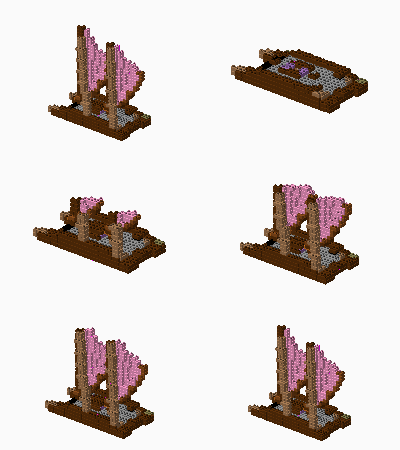
Today, I had another of those “wow” moments, this time courtesy of the team at Craftplicator who have created an ingenious, web-based app that allows you to convert designs made in Minecraft to LEGO models, complete with brick inventories and build instructions. Check out how easy it is in this video:

Giving It A Go With Minecraft: Education Edition

The Craftplicator FAQ clearly indicates that this is supported for Bedrock Edition and Java Editions of Minecraft, and yet I work exclusively in the Minecraft: Education Edition. I tried to upload the .mcworld file for an exported world and it failed, so I needed to get creative.

  • I tried going to the actual path of the world files where M:EE stores the worlds I’ve been editing in Minecraft. On my computer this was:
    • C:\Users\**MyUsername**\AppData\Local\Packages\Microsoft.MinecraftEducationEdition_8wekyb3d8bbwe\LocalState\games\com.mojang\minecraftWorlds
  • It’s worth noting that the folders contained in \minecraftWorlds\ are not labeled with the human readable name of the world that you see in the Minecraft application itself, instead, you’re better off editing the world you want to work with, saving it and then searching by Date Modified:
Recently edited Minecraft worlds – note the folder names do not reflect the name of the world in the Minecraft app itself.
  • When you use the upload tool at Craftplicator you need to select the top level folder (as per the screenshot above) and that will be uploaded – interestingly, at that point the Craftplicator app can read the correct world name and displays this before the final upload:
The Craftplicator app displays the correct world name when the folder was selected, giving you some assurance you’re selecting the correct world

At this point, you simply follow the three steps on the website to complete the process of uploading your world, selecting your model, and being emailed the instructions:

It’s worth noting that in my experience, for larger worlds it is easier to be standing near the model you’re wanting to export. I was in one large world and I could not scroll around the map far enough to find the model I wanted when I was standing a long way away in the world when I exited it in Minecraft: Education Edition. I suspect this will be to do with file upload limits.

The Output

Within a minute of submitting the models I experimented with, I received an email telling me they were being processed, and usually withing 5-10minutes I received the final email with the (super cool) animation showing the ‘build’ of my model and a link to get the brick inventory. Here are some examples:

The main whare (meeting house) from Nga Motu – some of the colours are wrong, but I suspect that is the result of having used custom resource packs in this world. Credit to Whetu Paitai from Piki Studios
The waka hourua (twin hulled canoe) also from Nga Motu
A very simple person built by a colleague in a Minecraft team building exercise during COVID19 work from home
Windmill Challenge model

The email contains a full link to the build instructions (some of these cost money) and the brick inventory. Here’s a few screenshots from the waka hourua build as an example (I’ve only include a few images from the complete instructions):

Final Thoughts

I’m super impressed with the Craftplicator solution and have a 9yr old son who is a Minecraft and LEGO enthusiast who will definitely be keen to try this out. There are so many applications from a teaching and learning curriculum design perspective. In New Zealand, there is the “Design and Develop a Digital Outcome” strand of the Digital Technologies curriculum and this solution would lend itself perfectly to complete the digital to real world journey. There is also a Computational Thinking strand as well, so throwing in the coding elements of Minecraft: Education Edition (block based, JavaScript & Python) you could really do some very creative learning journeys by combining Minecraft: Education Edition and LEGO.

Clearly, there is some cost associated with ordering custom brick packs from LEGO for a model, but I think this highlights the need for an iterative design process that puts drafting and versioning at the forefront and teaches real world understanding of the costs associated with taking a design concept to production. I’m looking forward to giving this a go!

Categories
Microsoft365

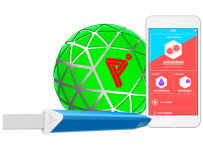
Play Impossible Game Ball Brings An “A-ha” Moment to Education

playImpossible_App_green_edited
Image credit

Every now and then you see a piece of technology that leaves your mind whirring about the possibilities for both educators and students alike. Back in 2016 I encountered the HP Sprout for the first time and blogged my first giddy thoughts about how this could be integrated into incredible teaching and learning moments, calling it an “almost magical technology”.

At BETT London 2019 I saw the Play Impossible ball for the first time, right at the very end of this video and the integration with Microsoft Hacking STEM templates in Excel generated the same reaction in me that the Sprout did:

What endless possibilities could creative teachers come up with when technology infused ball sports in such a fun and natural way?

What’s the big deal? Have a look at this:

(If you’re in a hurry, make sure you scroll to the bottom and watch the video I recorded showing the Play Impossible Game Ball and Excel Data Streamer workbook in action.)

In essence, the Play Impossible game ball is:

an active STEM system that delivers fun and challenging games integrated with math and physics lesson plans through a professionally crafted ball containing sensors that connect to a smartphone, tablet or PC via Bluetooth.

Robust in build quality, small enough for younger hands, it’s easy to get up and running on the platform of your choice (currently supporting Windows10, iOS and Android) and then the intuitive app guides you through how to get playing … and learning! My 9yr and 7yr old kids figured it out in minutes.

Integrating Learning Into Play

I’ve blogged before about the principals of game based learning, however that was mostly in a Minecraft:Education Edition context. When I saw the Play Impossible Game Ball in action I really wanted to get hands on to see for myself how this works and Brian Monnin and the team at Play Impossible kindly shipped me a few demo units for some upcoming events I’m presenting at.  As soon as I got hands on, it became apparent to me that deep learning could be achieved alongside the obvious element of fun through playing. Principal #10 from James Paul Gee’s 16 Principals For Game Based Learning is:

Situated Meanings: Students learn new vocabulary words by experiencing them within game situations. Research suggests learners do not acquire new vocabulary when the word is learnt purely in the context of other words. By contrast, retention is highest when words are learnt in association with an action, event, or image. Gaming provides the perfect vehicle for this.

With data outputs from the Game Ball including measurements like speed (in kph), acceleration, g-force, newtons, rotational spin and air time there are a lot of vocabulary words that are no longer abstract, but directly linked and associated with actions and activities the students are participating in through situated meanings.

With a Play Impossible Game Ball, students (and educators!) immediately get caught up in the fun of competing and the kinesthetic learning opportunities are boundless. However, for me the integration of Excel’s Data Streamer and Hacking STEM templates is where this goes next level in terms of learning pathways.

Excel Data Streamer & Hacking STEM

The Microsoft Education team have put considerable resources into creating STEM lessons for educators to quickly and easily build engaging projects for students to learn the fundamentals of STEM concepts. At the heart of this is Data Streamer, a plugin for Microsoft Excel for O365 subscribers:

Data Streamer provides students with a simple way to bring data from the physical world in and out of Excel’s powerful digital canvas. With a sensor connected to a microcontroller that is  attached to Excel, begin introducing students to the emerging worlds of data science and the internet of things.

Data Streamer is available for free to all O365 subscribers.

With Data Streamer, the at times abstract concepts of IoT devices and the data generated by them can be brought to life through real time visualizations inside of custom built Excel spreadsheets.  Here is an example Excel using Data Streamer to take the output data from a Microbit recording the impact of knock to a helmet:

DataStreamer.PNG

You can easily activate Data Streamer in your O365 version of Excel by following the instructions here or watching this animated GIF:

DataStreamer Activate.gif

There is an entire library of Hacking STEM projects that you can access here, and to support the Play Impossible Game Ball there is a custom Excel workbook you can download here. Some of my favourite Hacking STEM lessons include:

What Does It Look Like?

I recorded a quick video (using the Meet Now feature in Microsoft Teams – a great way to deliver Flipped Learning) to show you just how easy it is to get up and running with the Play Impossible Game Ball app and the Hacking STEM Microsoft Excel workbook and Data Streamer plugin for live data feeds:

The Data Streamer and Excel Hacking STEM workbook are only available on Windows 10 and this adds a unique value proposition here when using the Play Impossible Game Ball. To maximise the value beyond the included app from Play Impossible, Windows 10 and Excel O365 prove again why it is the most versatile STEM platform unlocking the widest range of learning pathways with STEM and IoT devices. By combining the flexible canvas of Excel you can easily add other data streams to the workbook and create your own custom visualizations of this data, providing students hands on experience with the tools that many data scientists use on a daily basis.

Final Thoughts:

What I like about the Play Impossible Game Ball is the wide range of learning opportunities available through this technology. It’s getting kids active and physically moving around and being hands on, but also introducing elements of IoT, data streams and STEM in a fun and comprehensible way.

The included Play Impossible app provides a “fast start” for students from a young age, however the addition of the Hacking STEM Excel workbook with the Data Streamer plugin really increases the use case scenarios, in particular in subjects such as more senior subjects like Physics, Maths with Statistics, along with Physical Education learning about range of motions. The sheer volume of data generated by the Game Ball, and collected and recorded in Excel via Data Streamer, allows for an almost limitless range of extended learning ideas where teachers can bring their own ideas to the tools.

Categories
General Windows 11

Friday Fun: Project Zanzibar Blurs Boundaries of Physical & Digital Worlds

My colleague shared this article with me yesterday from the Microsoft Research Blog showcasing a very cool piece of technology code named Project Zanzibar. My reaction was similar to when I first saw the HP Sprout (a device I blogged about as being ‘almost magical’).

Have a watch of the video above to see how Project Zanzibar works, however the idea came about as follows:

“We began with a simple thought: what if we could blur the divide between the physical and digital worlds? What if you could play with toys and cards and blocks, while watching your actions come alive onscreen?” – Project Zanzibar Research Team

2.jpg
The physical toys on the mat are accurately replicated in the digital world.

What excites me about this project is the interface is no longer the device – it is physical objects such as toys, cards and coins however these interactions are replicated and recorded on a device as part of a story telling narrative. Project Zanzibar invites children to bring their toys into an interactive experience and watch them come alive through sound, visuals and special effects.

Therefore, this incorporates all of the benefits of  kinaesthetic playing, unlocking imagination and promoting hand-eye co-ordination whilst ‘supercharging’ this play with device recording and sharing at the same time. To this end, Project Zanzibar aligns closely with the Montessori Method of learning:

“The importance of multi-sensory learning is especially apparent in the Montessori method of teaching, where children use physical objects and self-directed activities for all subjects of learning. We took traditional Montessori exercises for young children and extended them with digital content and feedback using Project Zanzibar.” – the Project Zanzibar Research Team

If you’re interested in learning more, read the full technical paper the team have released here.

Categories
Windows 11

HoloLens – Seeing IS Believing

hololens-0-0I’m in Seattle this week for the Microsoft S4 Conference and am enjoying seeing the truly global perspective of Microsoft as a company. Virtually all of the sessions I’ve attended are covered by the NDA (Non Disclosure Agreement) I’ve signed as an employee so I can’t discuss anything from those unfortunately, but yesterday I did have some great luck.

I was provided a HoloLens unit for the night to have a good play with. If you’re not familiar with what HoloLens is then the official description is:

Microsoft HoloLens is the first self-contained, holographic computer, enabling you to engage with your digital content and interact with holograms in the world around you.

I’ve known about the HoloLens for a while now and, I have to admit, I had been a bit skeptical about videos like the above – surely these were “mocked up” demos of what could be possible, not what was actually already here with the current iterations of HoloLens.

I was dead wrong.

The last time I was truly blown away by a bit of tech I was hands on with was around February last year (2016) when I saw the HP Sprout in Melbourne. The HoloLens is staggeringly immersive – I definitely “lost” three or four hours playing on it last night with most of that on Fragments:

Fragment.PNG

You become the detective in a high-tech crime thriller. Experience compelling new possibilities for storytelling and gameplay.

Some thoughts on Fragments in no particular order (keep in mind I’m not a gamer at all, this did a lot to draw me in!):

  • You start by scanning/mapping the room(s) you’re in so that the game understands your environment – you are not restricted to a pre-build world to play in.
  • The audio – it’s amazing surround sound from the HoloLens – you just get used to hearing someone talking “over your shoulder” and turning around and seeing the holographic representations of people; it’s entirely believable and lifelike audio.
  • The game play – it responds to your environment i.e. characters sit down on your furniture, they walk through your doors. It’s really difficult to describe just how amazing that is and the value it adds to game play until you’ve actually experienced it for yourself.
  • You very quickly adapt to the tools at your disposable in this mixed-reality environment:
    • You forget within 5 minutes that you’re wearing a headset (honestly, you no longer notice it).
    • You start to rely on virtual tools e.g. you have your “crime lab” and “maps” pinned to one of your walls and you just get used to returning to that time and again during the investigation.
    • Voice commands – leveraging Cortana you just speak naturally during the game e.g. “examine this evidence” or “launch scan” “close” – you can use the hand gestures to do all of this as well, but you often find it faster using voice. Further to this, you quickly increase your speed of interacting – you pick up, examine, dispose of evidence faster and faster as you get used to it.
  • You’re very active
    • You’re literally walking around your room, scanning for evidence and exploring what is being holographically represented on the floors, walls, roof, tables etc
    • As you move around the room the characters move too – they watch you, their eyes follow your movements etc.
    • When the action freezes as part of the game play, you can “walk around” or “circle” the scenes/characters to see the full 3D elements of the game play.
  • You’ll lose track of time! I only stopped playing because the battery was going critically flat!

If I sound excited, it’s because I am. I’ve seen Occulus Rift before and they’re amazing too however you are always tethered to a PC generating the content. To be able to wander around within a mixed reality environment with no cables was liberating.

I could go on, but you probably get the idea. Another app I played with was the HoloLens HoloTour:

This was also very immersive and educational. I’ve never been to the Colosseum in Rome before but with this, being able to walk around inside it, it felt like the next best thing. Whilst I am sure it is very expensive to develop this kind of content, you can definitely see how this has a place in education. Speaking of education, the HoloLens Insight Heart app is a good medical training application that shows a proof of concept about how students could potentially be trained. Again, the voice commands were super easy and responsive e.g. “make bigger/smaller” or “rotate” or “pause” – the app responded immediately to these commands:

The guy that loaned me the HoloLens said he now uses it as his primary device for completing “work” at home – from email to Excel spreadsheets to browsing the web, he just sits on his couch with a bluetooth paired keyboard/mouse and gets to work. He will pin a browser to one wall, his email to another and flip between them by moving his head. Because HoloLens will remember the layout of your house/room and always keep your pinned apps in the same place you can do things like pin a weather app to the back of your front door so you always know the weather forecast as you’re exiting the house.

Furthermore, the natural interaction between the real vs holographic world is evident and natural. For example, if you have an open app as you move it around the room to “pin” it somewhere you may decide you want to put in on table. As you move your hands to lower the app onto the table it will meet slight “resistance” as HoloLens recognises the real, physical table and provides resistance as a prompt so you can set the app down on the surface of the table. You can override this of course by pushing a bit harder, but this highlights the fact that HoloLens has a true awareness of the physical reality around you and applies that to everything you’re doing virtually.

I think this is a key point: whilst the truly immersive 3D apps are still largely in development, you can run any Win32 app via HoloLens still because it is a fully functioning Win10 device. This means it is both useful immediately and will only increase in usefulness as more apps are developed.

Here’s an example of a developer building such an app for a proof of concept:

The take home message is this – if you get a chance to play with a HoloLens jump at it! It’s an experience that you’re not likely to replicate easily elsewhere and it is truly hinting at the innovation and future that is coming.