This week I presented to the Independent Schools of New Zealand Association of School Business Administrators (ASBA) at their annual conference here in Christchurch, New Zealand.
I was asked to run a 1hr workshop on AI and Cyber Risk, allowing time for moderated Q&A. The session was well received and you can see a copy of the deck I used above. It does not include an AI generated video I shared as well, proving the point that believable content can be generated very quickly with very little effort/input, so I embedded it as a video below:
Beyond the initial prompt to create this video, I included some contextual information on education specifically (given the audience) and some slightly misleading information around Multi Factor Authentication (MFA).
To add some further real examples of Generative AI (GAI) I chose to generate unique images for the presentation with GAI – some of my favourites are below:
A pop vinyl image of me as part of the intro, including my role (Technology Strategist) and company I work for (Cyclone) on the packaging of the boxTwo separate images combined – I asked the audience who poses the biggest cyber risk to their organisation – a careless employee or a sophisticated external bad actor?The importance of being prepared: having a cyber response plan written in advance to guide responses whilst under stress is a key strategy.I really liked this one as the GAI tool accurately implemented my prompt for creating a Company AI policy poster with two people drinking coffee in front of it, and starting with “Thou Shalt…”
Of course, when it comes to addressing Cyber Risk I’m a big believer in adopting a Zero Trust framework and I shared the following two slides on this idea:
As the audience was not technical we approached these ideas from a business risk perspective and what they could do as Business Managers to influence ICT teams internally or partner externally to move towards a Zero Trust approach
Only so much can be covered in 1hr on these very large topics so it was necessarily presented a high level but with prompts for them to think about as they returned to their schools after the conference.
I listened to this brief interview with Trimarc Founder and Chief Technology Officer Sean Metcalf and thought it was worth sharing as this has been a topical discussion both internally at work and also with customers recently.
You can read (or listen) to the full article here (approximately a 5min read):
There were a number of things that stood out to be in particular, so if you’re short on time you may just want to read (or listen!) to these rather than the entire article:
Many organisations are too permissive with their user settings
Often this is either out of ignorance or preference to reduce workload by allowing more users to take actions that would normally be restricted to an administrative role in an organisation
Identity remains a key attack vector, so taking the time to secure it is critical.
OAuth 2.0 requests phishing users into giving away access by fraudulent app requests
This is super interesting as many users know that SSO is a good thing, and are familiar with an app requesting access to organisational information through an OAuth request. The trick here is when a user is duped into granting this access by a phishing attack. As Sean points out:
Attackers sometimes phish a user and the user sees what looks like a legit application requesting permissions, but it is an application that the attacker created. The attacker then has full access. The attacker could pull data through the application continuously and the user does not even know about it. This is not just a Microsoft thing. This happens due to OAuth and other cloud providers such as Google are susceptible.
Attackers phish a user with MFA prompts hoping they will eventually hit “approve” instead of “deny” on the request.
In my role at Microsoft, I had a spate of this in 2022 and, given Microsoft was using passwordless authentication there was no need for my password to have been compromised to generate these MFA requests. A bad actor simply had to enter my email address at https://portal.office.com for example and it would push the MFA request. However, because Microsoft used number matching I could not ‘accidentally’ approve this as I could not see the matching number on the device triggering the MFA request. Interestingly, many of these MFA requests were coming from the wider Seattle region (which made me wonder if this was an internal anti-phishing testing – so I did report it to the internal security teams to be on the safe side):
A fraudulent MFA request I received in 2022
Conditional Access is awesome and is effectively an identity firewall
I’ve had a few chats with customers recently who either knew little about Conditional Access, or were learning more and loving it. Sean acknowledged the growing importance of CA to securing the identity of users in a cloud-first world (read more here if you’re new to Conditional Access)
The challenge of “identity nexus” – either the interoperability of on-premise/cloud identities, or the cloud/cloud federation and unintended security holes being introduced
This is a very real challenge and as many customers increasingly expect/demand the ability to have that seamless sign on experience between platforms, the opportunity for lateral movement by bad actors across platforms can materialise.
This can mean that a change made in the cloud with AAD can affect permissions for users/groups on premise, or in a different and federated cloud.
Hybrid components such as AzureAD Connect, Seamless Single Sign On and Pass Through Authentication (PTA) are all possible attack vectors to be aware of.
Sean’s final comment is worth repeating verbatim when it comes to implementing strong protection of identity:
Strong authentication, like Multifactor Authentication, secured systems like Privileged Access Workstations for highly privileged accounts, and limiting rights that service accounts and third-party systems have are the most important ways to protect identity.
I mentioned in the intro that I listened to this interview, rather than read the transcription and I did that using the Edge browser “Read Aloud” functionality – if you’re new to this, check out Read aloud (microsoft.com) for guidance.
To see it in action, here is a quick recording I made:
I’ve been using this more and more recently. For example, a friend sent me an article to read and I used Read Aloud on Edge browser on my iPhone to listen to it whilst walking to the bus stop. With the Azure Cognitive Services powered voices sounding more realistic than ever, it’s not an unpleasant way to quickly absorb content whilst on the go.
UPDATE 22nd August 2022: I came across a great video from Matt Soseman with a great walkthrough video showing how to implement and experience going passwordless. Definitely worth a watch:
—–
In my non-work conversations with friends and family, it seems there is a general growing awareness of the need to improve their security posture with their online accounts. Most people seem to have one or more of the following things in play:
A strong password
Gone are the days of simplistic or guessable passwords – most understand the next for a reasonably complex password.
A Passphrase
Instead of a complex, hard to remember password (e.g. w90ep8[5={h]U:OJ), a few people I know are moving to longer, but more memorable, passphrases (e.g. ILike$unnyDaysInMarch2!)
Single use passwords/passphrases for different websites/applications
No longer are they using a single, shared password/passphrase across their entire digital life
This is good, but can lead to difficulty remembering passwords, which leads to my next point
A Password Manager
Lots of great free/low cost options online to store unique, complex passwords and make them available either via a browser plugin/extension or mobile app on the smart phone of choice.
MultiFactor Authentication (MFA)
Perhaps the gold standard for account protection, adding MFA to an existing password/passphrase massively increases the protection of the account against unauthorized access.
Increasingly, more and more personal and professional services allow you to turn on stronger account protection with MFA
The above are excellent and I encourage you to implement these yourself if you’ve not already embraced a combination of them for your digital life. With that said, there is a growing trend to move away from passwords altogether and instead use alternative means of authentication to achieve this. From a Microsoft Azure Active Directory (AAD) perspective, this is enabled by a few different technologies and I read this week of the general availability of the Temporary Access Password (TAP) to enable the secure onboarding of a new user into a directory without ever providing them with a permanent password. You can read about this here. The end state of a passwordless environment could look like this:
“…We use the MS Authenticator for passwordless sign in. That is the only way employees can access resources.Enrollment is based on TAP, and we do not hand over a traditional password to the users…” – Global Toy Manufacturer, EU
I decided I’d give this a go and see how easy it was to configure. I did run into a few hiccups so worth reading to see how you can avoid my mistakes!
Getting Started
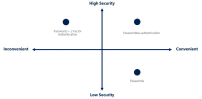
Security is always a balancing act between convenience and robustness of the security measures.
Understanding the options for passwordless authentication and what is right for your organisation is important and you can read about this here. I generally like a combination of Windows Hello for Business which works great on a device with a camera that can do facial recognition or a fingerprint scanner, combined with the Microsoft Authenticator App configured and ready to go. If you’re going to settle on the Authenticator App, then this documentation is the starting point for you. Your pre-requisites for getting this working will be:
AzureAD MFA with push notifications allowed as a verification method
Authenticator App installed on your mobile device
The mobile which has the Authenticator App installed on it must be registered with the AzureAD tenant to an individual user
I am making this one in bold early on as this is what caught me out. I tried to use the Authenticator App on my primary mobile phone that also does passwordless authentication for my primary work account – whilst I could add my test account to Authenticator I could not register this phone with my test tenant. This meant that I was not able to truly test Passwordless and I went around in circles until I recognized this and set up Authenticator App on a spare Android smartphone I had (Pro Tip: a friend told me they use an Android Emulator on Windows to get around this issue – smart!)
Optional: if you’re wanting to test this out rather than implementing it organization wide, you may want to create a Security Group in AzureAD with a subset of users who you assign this policy to for testing.
First, sign into AzureAD Admin Portal with a sufficiently credentialed user. I then created the Security Group and added two users (make sure they’re licensed correctly to support this):
You then need to browse to the Security –> Authentication Methods (direct link here) and make sure you turn on the two policies for Microsoft Authenticator and Temporary Access Pass:
I scoped the functionality for both policies down to the “Temp Password User Group” I created so that this would not affect the majority of users in my tenant:
Create A Temporary Access Pass
The documentation to create a Temporary Access Password Policy is outlined here, and again I’ve scoped this down to my Security Group for testing. It is possible to edit the complexity of this temporary password as well which might require some consideration depending on how you’re going to distribute it (e.g. over a phone call to a remote user, or in a help desk scenario):
With the policy in place, creating a Temporary Access Pass is easy, simply find the user in AzureAD, go to their Authentication Methods, and choose to “Add Authentication Method” selecting Temporary Access Pass:
I want to point out again here that it is absolutely critical that the user completes the phone registration during this process. The steps are outline below (I’ve underlined and italicized #5 as key):
Sign in, then click Add method > Authenticator app > Add to add Microsoft Authenticator.
Follow the instructions to install and configure the Microsoft Authenticator app on your device.
Select Done to complete Authenticator configuration.
In Microsoft Authenticator, choose Enable phone sign-in from the drop-down menu for the account registered.
Follow the instructions in the app to finish registering the account for passwordless phone sign-in.
A key point to understand here is that you can only use a single phone/Authenticator app for passwordless sign in on a unique work/school account:
A phone must be registered to a single work or school account. If you want to turn on phone sign-in for a different work or school account, you must unregister your account from this device through the Settings page.
Signing Into Brand New Windows Device With Passwordless Authentication
One of the really cool things with passwordless authentication is that this can be extended to Windows sign in as well. Usually, this would be combined with Windows Hello for Business as mentioned earlier, but if you have a brand new device that you are going to AzureAD Join then you can do this without needing a password. So what does this look like?
First, when prompted to setup a device for work or school, you need to choose this option:
Enter your full organization email address:
Since the user has already been configured for Passwordless Authentication via the Microsoft Authenticator App, no password is prompted for, instead the push notification to the phone takes place:
On my phone I’m asked to match the number on screen:
A few minutes later I have a working desktop, having never entered a password.
Based on organizational policy, it’s usually a good time during the setup to force the Windows Hello for Business configuration (instructions here). If you go to Account Settings you can see that the user is signed in and the device is joined to AzureAD:
Final Thoughts
The Education Industry is often complex and implementing security measures around identity and authentication can be challenging when not all users would have a phone for MFA (students for example). That said, senior leaders are often provided a phone by the institution and would be strong candidates to move towards a passwordless approach to protect the information they have access to securely.
It’s clear that a lot of work has been done in the background to make Temporary Access Pass relatively simple to implement and combined with Microsoft Authenticator App the experience for the end user is very simple too. Again, this is critical as reducing the friction for users to ‘get started’ or ‘get on with their jobs’ is key from an IT perspective and ensuring that there are robust security measures still in place is the balancing act for all IT and Security teams.
Embracing a passwordless approach might not be appropriate for all users in your organisation right now, but it’s definitely something to consider and trial for a smaller subset of users to provide maximum protection.
Have you already moved to Passwordless? I’d love to hear your experiences in the comments below.
Microsoft New Zealand recently released a series of short videos providing guidance on how to go from “Zero to Cyber Hero” with Microsoft 365 security features in an education context.
These are shared below with permission.
Deploy Multi-Factor Authentication With Conditional Access
UPDATE 16th February 2022: The Microsoft Secure Score have published a great video walking through the dashboard just days after I published my blog post. Embedding it below for reference:
I remember back in 2018 discovery Microsoft Secure Score for the first time when it was still primarily focused on Office365 – I wrote this blog about it. Revisiting it recently, it is awesome to see how far it has progressed with the integrated security features from the full Microsoft Defender suite contributing to a complete view of your organisation’s security posture. If you’re wondering what Secure Score is, then here is the blurb from Microsoft Docs:
If you’re on time you can watch this quick video which shows me providing a very brief overview of Microsoft Secure and then acting on the top recommendation for my demo tenant which is to turn on MFA (Multi Factor Authentication) for administrators:
Why Use Microsoft Secure Score
Fundamentally, Secure Score helps organizations:
Report on the current state of the organization’s security posture.
Improve their security posture by providing discoverability, visibility, guidance, and control.
Compare with benchmarks and establish key performance indicators (KPIs).
As I engage with CIO, CTO, IT Managers and key Business Decision Makers, one of the constant hot topics of discussion is security. They all want to know how to get easy wins to improve their security posture but don’t always know where to start.
Security in education is challenging – protecting identities, devices, documents, cloud apps, let alone the age range of users from K-12 students through to varying technical competencies of teachers and school administrative staff, knowing where to start is not always easy.
A classic overview of the challenge school IT staff face
Moreover, many IT staff are genuinely keen to report ‘up the line’ to their managers about what is being done to improve their security posture and where the funding needs to be invested to accelerate this.
Enter Microsoft Secure Score.
One of the major appeals of Secure Score for me is the relative simplicity it offers. The overview is clear, the recommended improvement actions are obvious, the accompanying documentation on how to implement those improvements is right there, and the ability to monitor and report on security changes over time provides measurable feedback. For these reasons, I strongly recommend you check it out if you have IT administrative responsibilities for your organisation.
Once you’re in the Secure Score you are presented with the Overview page that provides some key indicators for you, including:
Your current score
Actions that need reviewing
Top Improvement actions
Comparison with similar organisations
As you can see from the screenshot above, my demo tenant has a very low score as many things are not turned on and there is significant opportunity to quickly and easily improve the security posture. You can also see that compared to similar organisations my tenant is significantly less secure. Microsoft calculates this comparison based on similar sized tenants in your region and industry.
Improvement Actions
This is my favourite section as it provides an almost “paint by numbers” approach to how to get the quickest wins to improve your security posture:
Here are the top 5 recommendations for my demo tenant. You can clearly see what the actions are, what impact it will have on the overall secure score, what the current status is (note I changed MFA to planned), are you currently licensed for this (super helpful if you’re trying to justify further investment in security) and lastly what products are being used. It should be no surprise that 3/5 of the top recommendations involve identity as this remains one of the main attack vectors for bad actors and the education industry is not immune to this.
By clicking on any of the improvement actions a new pane appears from the right with detail overview and implementation steps – as you can see below after I clicked on “Require MFA for administrative roles”:
The level of information displayed here is actually pretty impressive and the fact it’s easily digestible means you should read it all. You’ll note it’s saying that 0/3 of my administrative roles are currently protected – giving you an immediate sense of the scale of the risk here. It’s also giving an overview of the end user impact – something that is very important to factor in when doing something like an organisation wide change and what level of end user training may be required. For example, implementing MFA for administrator users (3 in my instance) should have minimal impact given there are not many of them numerically and, given they’ve been allocated some form of administrative permissions, they should be technically capable of registering for MFA relatively easily. By contrast, if you were turning on MFA for all end users the scale of potential disruption and support tickets might be quite high!
Implementation Guide: Turning on MFA For Administrators
Simply clicking the ‘Implementation” tab provides another step by step guide on how to turn this on and ensure that you’re sending your Secure Score in the right direction. Things to note here:
It automatically outlines what the prerequisites are and indicates whether you’ve met them (green tick). If you don’t meet these it’s recommending you simply turn on the Security Defaults and outlines what this does
Given the licensing in this demo tenant has AzureAD Premium 2 it provides additional clarity around Conditional Access and how this can be used.
I chose to select by Directory Roles, so that any new User Admins would automatically be included
You can see my choice of User Administrator – this new policy will only apply to users who have been given this directory role
Next move down to Cloud apps or actions and then select for this to apply to all cloud apps. Note that it does warn you that you need to take care to not lock yourself out of the tenant! Given I’m only applying this to directory roles of User Administrator I would be fine as I was signed in as a Global Administrator. Do take care though!
In this example I did not configure any conditions here, but it’s worth noting this option exists. For example, you can set this policy to only apply if the sign in was attempted outside of your local area network (which implies some trust if someone is on your network either physically or VPN), or another common one I’ve seen is by IP address range – blocking or requiring MFA for any international IP address attempting to authenticate for example. If you have AzureAD Premium 2 then you can apply “User Risk” which uses Microsoft’s algorithms to determine if the sign in attempt is considered risky on a high / medium / low scale.
Next, you configure the “Grant” with either block or grant access, and for this instance I’ve selected to require MFA. NOTE: you need to hit select at the bottom right to continue! The final step is to enable the policy in the bottom left. Again, double check you’re not going to be locked out by this policy, and then select to “On” (by default it’s set to “Report-Only” which is a great way to test the impact by looking at the audit logs:
Conclusion
With that, you’ve implemented the highest recommendation to improve your security posture by making it far harder for a bad actor to gain administrative access inside your tenant. As you can see, this only takes a few minutes to implement and yet it starts you on your journey towards a more secure M365 tenant and the implementation guides hold your hand the entire way.
As always, I highly recommend you check out the documentation and then build out a plan to implement Secure Score across your Identity and Apps. I know of at least two organisations that include a Secure Score review in their weekly IT team meetings to ensure they’re trending in the right direction – an excellent practice that is easy to adopt!
This post was inspired by recent conversations with partners and IT Admins in schools who were wanting to provide a layer of additional protection for students without requiring them to use MFA (usually, because younger students do not always have access to mobile phones).
It’s a lengthy post, however provides a good step by step overview on how to protect users from overseas identity attacks by blocking international authentication attempts through the use of Conditional Access without requiring MFA. The following sections are included:
Why Identity Protection
What is Conditional Access?
How To
Implications of this Approach
Final Thoughts
Why Identity Protection?
Attempts by bad actors to exploit weak or compromised passwords is one of the most common attack vectors experienced by organizations globally and education is no exception. In fact, in a 2019 Microsoft Security blog it was noted:
There are over 300 million fraudulent sign-in attempts to our cloud services every day … MFA can block over 99.9 percent of account compromise attacks. With MFA, knowing or cracking the password won’t be enough to gain access. To learn more, read Your Pa$$word doesn’t matter. (source)
MFA, or Multi Factor Authentication, is a process whereby a second form of identification is required (usually a smartphone app or SMS code message) which works very effectively, however can be challenging or time consuming for some end users. This is particularly true in education where schools often have younger students who may not have a phone with which to perform the MFA action.
Whilst weak passwords can be relatively easily avoided by schools and universities by applying minimum password complexity rules, the reality is many users will leverage the same password in other online platforms (e.g. social media, fitness apps and other websites where they have created accounts) and it may be that those platforms have their user database compromised. In those circumstances, a good place to check is the website Have I Been Pwned? where simply entering your email address will reveal if your account has been compromised online. Having obtained compromised account details, would-be attackers can launch automated drive by attacks on many online platforms, including M365. MFA will go a long way towards stopping this, however Conditional Access is another tool available to M365 users that is effective even without MFA which may be unavailable due to age or skill of end users.
Given that the vast majority of attackers are likely to be attempting authentications from overseas, Conditional Access will allow you to automatically block those attempts, adding an invisible layer of protection to all users without slowing down the authentication process at all. I was talking to an IT partner recently who supports multiple schools and he commented:
[Conditional Access is a] quick easy way to stop 99% of our student accounts getting compromised, probably staff as well… [other solutions] don’t have any product offerings outside of MFA … Conditional Access is a game-changer!”
What Is Conditional Access?
Conditional Access policies at their simplest are if-then statements, if a user wants to access a resource, then they must complete an action. (source)
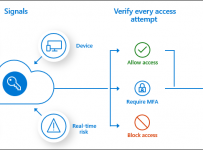
As part of Microsoft’s security approach based on Zero Trust, Conditional Access provides an excellent set of tools to the IT Administrator to allow employees or students and teachers the ability to carry out necessary tasks and actions, whilst ensuring security policy is applied with the least imposition possible.
Conditional Access uses a few terms interchangeably, so for clarity sake keep the following three ideas in your mind:
A Condition needs to be met. This is the “if” statement and is made up of common signals. Common examples of conditions or if statements include
User or group membership; IP location information (i.e. where the end user is connecting to the internet from); Device (e.g. OS or device state); Application (e.g. using authorized apps only); as well as advanced 1st Party Microsoft Identity Protection Tools such as Microsoft Cloud App Security (MCAS)
A Decision is made to Grant access to a resource (or, alternatively, block it) based on the Condition / if statement. This is the “then” statement completed for each Condition. Common decisions include:
Block access (clearly the most restrictive decision); Grant Access with optional additional layers required such as MFA, only from compliant or hybrid AAD joined device or from an approved app only (e.g. official Outlook app for iOS and not the native Mail client).
Like all policies in M365, a Conditional Access policy must be Assigned to a valid user/group or users/groups before it becomes effective.
Common examples of Conditional Access policies used by organizations include:
Requiring multi-factor authentication for users with administrative roles
Requiring multi-factor authentication for Azure management tasks
Blocking sign-ins for users attempting to use legacy authentication protocols
Requiring trusted locations for Azure Multi-Factor Authentication registration
Blocking or granting access from specific locations
Blocking risky sign-in behaviors
Requiring organization-managed devices for specific applications
How To
There are a bunch of great tutorials out there (this is a super simple one to follow) and the official documentation is always highly recommended to read, but if you want to follow my steps then read on. In this example I will be setting up a Conditional Access policy to block all authentications from outside New Zealand, but allowing any internal authentications to process without requiring MFA. A policy like this, tweaked for your location, would provide the additional layer of protection for your accounts without adding any additional steps for your end users.
Start at the AzureAD Admin Centre (accessible via the M365 Admin Centre menu options) and scroll down to locate the Security menu
Create a Named Location where you will define your Country IP address range
Which should look like this:
This will be important as Conditional Access Policies will be relying on Named Locations that you’ve created. You can also define specific IP address ranges rather than entire countries if you choose.
It’s now time to create your Conditional Access Policy and use the Named Location you created above. In the blade menu choose Conditional Access:
Then look to create a new Policy:
When creating a Conditional Access Policy there are three steps you need to always consider:
What’s the Condition that needs to be met? (the If statement)
What access will you Grant? (the Then statement)
Which Users and/or Groups will you Assign the policy to?
Setting up the Condition to block all logins but to exclude your named location(s) such as New Zealand in my location requires two steps. First, include Any Location:
And then exclude the Named Location you created:
With your Condition defined, you now need to Grant the access you want associated with this policy:
In this example I have chosen to simply “Block Access” – remember, this will now apply to all locations I “Included” in the above Condition (which was ‘anywhere’) but critically will exclude the Named Locations I selected – New Zealand. In effect, this means that any attempt to sign into M365 outside of New Zealand will be blocked immediately. You’ll note there are other good options to consider such as enforcing Multi Factor Authentication (MFA) and more advanced options such as ensuring that the device is compliant from a security posture assessment.
The final step to complete setting this up is to Assign the new policy – this process follows the standard M365 Administrative workflow of selecting a user(s) or group(s)
It’s worth noting that you can set the policy to “Report-only” – this is a great thing to do initially when testing to ensure that you’re not locking yourself out of your tenant! Assign the policy and then monitor the impact
To Monitor the sign-in activity and check the impact of your Conditional Access Policy, return to the main AzureAD Admin Portal and under the “Monitoring” section of the menu you’ll see “Sign-ins” which should look something like this:
From an end user perspective, they would receive a message like this:
Implications Of This Approach
Multi Factor Authentication (MFA) is obviously one of the best ways to protect accounts, however the above example shows that a simple Conditional Access policy can go a long way towards protecting student and teacher accounts without negatively impacting their authentication sign in process. This can be used effectively in situations where end users do not have any means of completing MFA (such as, no mobile phone or access to a fixed landline to receive an automated MFA call).
The power of Conditional Access is that it can still be used in conjunction with MFA, as it could easily be tweaked to allow a teacher or student travelling overseas to still log into M365 but they would necessarily be prompted for MFA to ensure the integrity of their authentication.
For those educational institutes looking to provide the maximum level of protection around their accounts they should consider AzureAD Identity Protection which works by collating and analyzing many signals and making automated decisions based on the risk profile of the sign-in attempt.
Identity Protection uses the learnings Microsoft has acquired from their position in organizations with Azure AD, the consumer space with Microsoft Accounts, and in gaming with Xbox to protect your users. Microsoft analyses 6.5 trillion signals per day to identify and protect customers from threats.
The signals generated by and fed to Identity Protection, can be further fed into tools like Conditional Access to make access decisions, or fed back to a security information and event management (SIEM) tool for further investigation based on your organization’s enforced policies. (source)
With Identity Protection, the following risk classifications are analyzed:
RISK DETECTION AND REMEDIATION
Risk detection type
Description
Atypical travel
Sign in from an atypical location based on the user’s recent sign-ins.
Anonymous IP address
Sign in from an anonymous IP address (for example: Tor browser, anonymizer VPNs).
Unfamiliar sign-in properties
Sign in with properties we’ve not seen recently for the given user.
Malware linked IP address
Sign in from a malware linked IP address.
Leaked Credentials
This risk detection indicates that the user’s valid credentials have been leaked.
Password spray
Indicates that multiple usernames are being attacked using common passwords in a unified brute force manner.
Azure AD threat intelligence
Microsoft’s internal and external threat intelligence sources have identified a known attack pattern.
The “Atypical Travel” is an interesting one that I’ve encountered given my work across Asia – I’ll be prompted for MFA when signing in at locations I rarely travel to.
Identity Protection then creates three levels of risk:
Low
Medium
High
A smart approach for schools and universities would be to automatically block Medium and High risk sign in attempts and in doing so, significantly bolstering their security posture when it comes to Identity Protection.
Final Thoughts
There are many ways organisations can add additional layers of protection to the authentication process to reduce the chance their users are compromised and the potential of serious damage is limited. There is always a balance between security and inconvenience (which risks non-adherence from end users), and therefore the beauty and power of Conditional Access should be very appealing to IT Administrators in schools and universities. Of course, Multi Factor Authentication (MFA) and AzureAD Identity Protection provide some of the highest levels of protection possible, but I would personally strongly encourage every organization to start with Conditional Access based on location and blocking overseas authentication attempts.
If you’ve got other strategies for protecting your users’ accounts, drop them in the comments below.