Staying across the breadth of attack surfaces is more challenging than ever but fortunately I think more people are at least aware of traditional email phishing attacks and are on the alert to suspicious looking emails (even as they become ever more sophisticated). Back in 2017 I shared a great poster around phishing attacks that was modelled off posters in traditional fish and chip shops found in New Zealand:
traditional phishing has seen no slowdown: Proofpoint reported that 83% of organizations experienced a successful email-based phishing attack in 2021 — a massive jump from 57% in 2020. And outside of email, SMS attacks (smishing) and voice-based attacks (vishing) both grew in 2021, as well, according to the email security vendor.
It was interesting, therefore, to read a post today about new attacks coming via Microsoft Teams and as always, I encourage you to read the original article in full: Microsoft Teams is the new frontier for phishing attacks | VentureBeat. I will pull out some of the best bits below however.
A big reason attackers are using new vectors like Teams and Slack is that there is a greater level of trust by users that anything communicated or shared via those platforms must be inherently safe due to the mostly internal organisational usage of these tools. Unlike email which is often sent from users outside the organisation, messages and content shared inside of Teams is generally (but not always) from other colleagues.
What’s more, attackers are becoming ever more sophisticated and patient in how they construct an attack. On the “What’s Next in Security” webinar I listened to from Microsoft his morning, one presenter mentioned that some attacks have built slowly over a period exceeding 300 days – usually well beyond the length of time many organisations keep verbose security logs. In the Venturebeat article, a complex Teams attack was described in detail:
It happened, Harr said, while the CEO of the customer company was traveling to China. Posing as the CEO, an attacker sent a WhatsApp message to several of the company’s employees, asking them to join a Teams meeting. Once in the meeting, the employees saw a video feed of the CEO, which they didn’t realize had been scraped from a past TV interview. As part of the trick, the attackers had added a fake background to the video to make it appear the CEO was in China, Harr said. But since there was no audio, the “CEO” said that there “must be a bad connection” — and then dropped a SharePoint link into the chat. Posing as the CEO, the attacker told the employees that “‘since I can’t can’t make this work, send me the information on this SharePoint link,’” Harr said. An employee did end up clicking on the malicious SharePoint link — but they were blocked from accessing the page
In some instances, getting access to a user’s credentials is the starting point as this would allow a bad actor to pass off as an employee inside of Microsoft Teams – making the need for greater protection around identity a key strategy – making Microsoft Defender for Identity a great starting point to secure and protect access to a user’s account in the first place. Internal organisational chat tools like Teams or Slack and others, are at risk of becoming the new “BEC” – Business Email Compromise, expanding the attack surface beyond traditional email and into newer platforms and mediums that employees like to use.
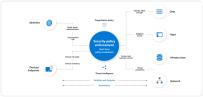
Therefore, continual education for employees and end users remains critical when it comes to defusing potential threats as more of these rely on social engineering at some level – i.e. the implied trust of a message that comes from another colleague on Teams or Slack. Adopting a Zero Trust approach to security remains a key strategy for organisations to harden their security posture, with the three pillars of this being:
To learn more about Zero Trust I encourage you to read Zero Trust – Microsoft Security Blog which contains multiple blog posts relevant to this topic but for a simple one diagram overview you can see:
One thing is certain: bad actors will not give up creating innovative and convincing attacks. It is critical that organisations of all sizes ensure that their security is up to date and that their users are educated to the types of attacks that can come from any vector.
UPDATE 16th February 2022: The Microsoft Secure Score have published a great video walking through the dashboard just days after I published my blog post. Embedding it below for reference:
I remember back in 2018 discovery Microsoft Secure Score for the first time when it was still primarily focused on Office365 – I wrote this blog about it. Revisiting it recently, it is awesome to see how far it has progressed with the integrated security features from the full Microsoft Defender suite contributing to a complete view of your organisation’s security posture. If you’re wondering what Secure Score is, then here is the blurb from Microsoft Docs:
If you’re on time you can watch this quick video which shows me providing a very brief overview of Microsoft Secure and then acting on the top recommendation for my demo tenant which is to turn on MFA (Multi Factor Authentication) for administrators:
Why Use Microsoft Secure Score
Fundamentally, Secure Score helps organizations:
Report on the current state of the organization’s security posture.
Improve their security posture by providing discoverability, visibility, guidance, and control.
Compare with benchmarks and establish key performance indicators (KPIs).
As I engage with CIO, CTO, IT Managers and key Business Decision Makers, one of the constant hot topics of discussion is security. They all want to know how to get easy wins to improve their security posture but don’t always know where to start.
Security in education is challenging – protecting identities, devices, documents, cloud apps, let alone the age range of users from K-12 students through to varying technical competencies of teachers and school administrative staff, knowing where to start is not always easy.
A classic overview of the challenge school IT staff face
Moreover, many IT staff are genuinely keen to report ‘up the line’ to their managers about what is being done to improve their security posture and where the funding needs to be invested to accelerate this.
Enter Microsoft Secure Score.
One of the major appeals of Secure Score for me is the relative simplicity it offers. The overview is clear, the recommended improvement actions are obvious, the accompanying documentation on how to implement those improvements is right there, and the ability to monitor and report on security changes over time provides measurable feedback. For these reasons, I strongly recommend you check it out if you have IT administrative responsibilities for your organisation.
Once you’re in the Secure Score you are presented with the Overview page that provides some key indicators for you, including:
Your current score
Actions that need reviewing
Top Improvement actions
Comparison with similar organisations
As you can see from the screenshot above, my demo tenant has a very low score as many things are not turned on and there is significant opportunity to quickly and easily improve the security posture. You can also see that compared to similar organisations my tenant is significantly less secure. Microsoft calculates this comparison based on similar sized tenants in your region and industry.
Improvement Actions
This is my favourite section as it provides an almost “paint by numbers” approach to how to get the quickest wins to improve your security posture:
Here are the top 5 recommendations for my demo tenant. You can clearly see what the actions are, what impact it will have on the overall secure score, what the current status is (note I changed MFA to planned), are you currently licensed for this (super helpful if you’re trying to justify further investment in security) and lastly what products are being used. It should be no surprise that 3/5 of the top recommendations involve identity as this remains one of the main attack vectors for bad actors and the education industry is not immune to this.
By clicking on any of the improvement actions a new pane appears from the right with detail overview and implementation steps – as you can see below after I clicked on “Require MFA for administrative roles”:
The level of information displayed here is actually pretty impressive and the fact it’s easily digestible means you should read it all. You’ll note it’s saying that 0/3 of my administrative roles are currently protected – giving you an immediate sense of the scale of the risk here. It’s also giving an overview of the end user impact – something that is very important to factor in when doing something like an organisation wide change and what level of end user training may be required. For example, implementing MFA for administrator users (3 in my instance) should have minimal impact given there are not many of them numerically and, given they’ve been allocated some form of administrative permissions, they should be technically capable of registering for MFA relatively easily. By contrast, if you were turning on MFA for all end users the scale of potential disruption and support tickets might be quite high!
Implementation Guide: Turning on MFA For Administrators
Simply clicking the ‘Implementation” tab provides another step by step guide on how to turn this on and ensure that you’re sending your Secure Score in the right direction. Things to note here:
It automatically outlines what the prerequisites are and indicates whether you’ve met them (green tick). If you don’t meet these it’s recommending you simply turn on the Security Defaults and outlines what this does
Given the licensing in this demo tenant has AzureAD Premium 2 it provides additional clarity around Conditional Access and how this can be used.
I chose to select by Directory Roles, so that any new User Admins would automatically be included
You can see my choice of User Administrator – this new policy will only apply to users who have been given this directory role
Next move down to Cloud apps or actions and then select for this to apply to all cloud apps. Note that it does warn you that you need to take care to not lock yourself out of the tenant! Given I’m only applying this to directory roles of User Administrator I would be fine as I was signed in as a Global Administrator. Do take care though!
In this example I did not configure any conditions here, but it’s worth noting this option exists. For example, you can set this policy to only apply if the sign in was attempted outside of your local area network (which implies some trust if someone is on your network either physically or VPN), or another common one I’ve seen is by IP address range – blocking or requiring MFA for any international IP address attempting to authenticate for example. If you have AzureAD Premium 2 then you can apply “User Risk” which uses Microsoft’s algorithms to determine if the sign in attempt is considered risky on a high / medium / low scale.
Next, you configure the “Grant” with either block or grant access, and for this instance I’ve selected to require MFA. NOTE: you need to hit select at the bottom right to continue! The final step is to enable the policy in the bottom left. Again, double check you’re not going to be locked out by this policy, and then select to “On” (by default it’s set to “Report-Only” which is a great way to test the impact by looking at the audit logs:
Conclusion
With that, you’ve implemented the highest recommendation to improve your security posture by making it far harder for a bad actor to gain administrative access inside your tenant. As you can see, this only takes a few minutes to implement and yet it starts you on your journey towards a more secure M365 tenant and the implementation guides hold your hand the entire way.
As always, I highly recommend you check out the documentation and then build out a plan to implement Secure Score across your Identity and Apps. I know of at least two organisations that include a Secure Score review in their weekly IT team meetings to ensure they’re trending in the right direction – an excellent practice that is easy to adopt!