Categories
Microsoft365 Windows 11

White Glove Windows 10 Devices in Education With AutoPilot

I’ve written previously about solutions for streamlining the deployment of Windows 10 in Education using AutoPilot – check it out here. Today I saw that there is now a dedicated White Glove experience using AutoPilot that offers further improvements in this space and leverages new functionality available in Windows 10 1903:

You can read the full documentation on how to configure this here.

How Does It Work?

The idea behind the White Glove service is that IT Partners can add value by pre-loading the larger applications and device configuration settings before the device ends up in the hands of the user. From an education context, think of this in terms of a reseller adding value by provisioning the school’s preferred applications and settings on the device before shipping it to the student or teacher, who then complete the configuration by entering their AzureAD credentials. Visually, it’s like this:

whiteglove.png

With Windows Autopilot for White Glove deployment, the provisioning process is split. The time-consuming portions are performed by IT, partners, or OEMs. The end user simply completes a few necessary settings and polices and then they can begin using their device.

What’s Required?

There are some pre-requisites that will mean this is not suitable for every deployment at this stage. Note:

In addition to Windows Autopilot requirements, Windows Autopilot for White Glove deployment adds the following:

  • Windows 10, version 1903 or later is required.
  • An Intune subscription.
  • Physical devices that support TPM 2.0 and device attestation; virtual machines are not supported. The White Glove provisioning process leverages Windows Autopilot self-deploying capabilities, hence the TPM 2.0 requirements.
  • Physical devices with Ethernet connectivity; Wi-fi connectivity is not supported due to the requirement to choose a language, locale, and keyboard to make that Wi-fi connection; doing that in a pre-provisioning process could prevent the user from choosing their own language, locale, and keyboard when they receive the device.

I actually came across this earlier today when working with a partner who was interested in AutoPilot and I saw the “new” (to me) White Glove option:


There are also two stages to the deployment in this technique and again, I encourage you to read the full documentation here, but essentially:

whiteglove2.png

The option inside of Intune when configuring an AutoPilot profile for White Glove installations.

There are also two stages to the deployment in this technique and again, I encourage you to read the full documentation here, but essentially:

  • The Technician: configures AutoPilot settings inside of Intune to deliver the correct applications and settings to the device and then boots a 1903 OS installed Win10 device and hits the “Windows Key” 5x to launch the White Glove menu which kickcs off the AutoPilot deployment. Note: the device must be connected via an ethernet internet connection (Wifi will not suffice). At the completion of the setup, AutoPilot will display a QR code allowing the technician to make any change sif required (e.g. assigning the device to a different user at the last minute – an app is provided on GitHub to support this). Once this is completed, the device is re-boxed and shipped to the end user.
  • The End User (Student/Teacher):  After un-packaging the device, they choose their locale and connect the device to a Wifi network at which point they will be presented with a company/school branded screen and, if assigned to them specifically, their username pre-populated and simply requesting their password. Once this is entered, any final configuration is completed but generally at a far quicker speed than deploying all large apps that were taken care of by the White Glove experience with AutoPilot.

My Thoughts:

This is a pretty cool way of deploying devices and allows opportunities for the OEM/Reseller to add value to the delivery chain by pre-configuring devices with the necessary applications to start school, along with the prerequisite network settings so the device simply connects once on the school grounds.

At this stage, with 1903 still relatively new, not every device is going to be suitable for this option but I can see this becoming more mainstream over the coming twelve months. Whether it be a school wanting to easily deploy and drop ship new teacher laptops to them, or using a partner who can pre-provision Windows 10 for student BYOD device use, this method will certainly allow new options to deliver a stellar experience.

Video: Simplifying Attendance With Flow & PowerBI

I love PowerBI and have blogged about it quite a bit here already, as well as led some projects using it in the K-12 space in previous roles. The above video is really worth checking out if you’re a school looking to simplify the process of taking attendance as well as if you’re a software developer working in the schooling sector.

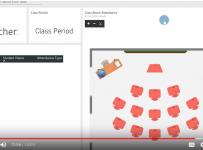
The video uses the free Microsoft Flow and PowerBI live data streams to enable students to record their own attendance in class and have that written to Azure SQL and simultaneously streamed to PowerBI for visual reporting. It’s worth checking out the custom visual designer of Synoptic Panel Designer for PowerBI if nothing else from this post. Now, as Patrick points out in the video, this is not a complete solution and end users would need to use their imagination on how to get around some of the inherent challenges in taking attendance.

The first, and perhaps biggest, is the fact that most Student Information Systems (SIS) often prevent the writing of data from external sources to the tables in the database. This is a safety precaution around data integrity and preventing corruption of the database tables due to invalid data being inserted. However, if you’re a software developer building your own SIS, or you have API that allow third party apps to safely and securely write back to the database, this can be overcome.

Attendance
Screenshot showing the student app in Microsoft Flow on the left and the real time data stream report in PowerBI of the desktop layout in the classroom.

The other issue is around student integrity when it comes to taking attendance. This is a school’s biggest fear – a system that allows students to inaccurately or fraudulently record attendance. I’ve spent 2-3 minutes thinking about a few ideas that could be implemented to mitigate risk here. This is not an exhaustive list, simply a few ideas if you’re thinking of going down this pathway:

  • A student companion app could be developed by the SIS company that requires students to sign in, which identifies them rather than simply entering their name and desk number (as per the video above).
  • The SIS could generate a unique QR code per class that the teacher simply displays on the projector/TV screen and students scan that to verify they’re physically in the classroom, which would then trigger the Flow and Attendance recording.
  • Wifi data and the Wireless Access Point (WAP) could be used to verify the student was in the actual classroom when submitting their own attendance (this is actually already being used in some tertiary lecture halls as an ad-hoc attendance record. The student does nothing around recording attendance but if one of their devices accesses the WAP in the lecture hall the College can record that as the student being physically in the room).
    • This does not, of course, work if students are on cellular 4G networks instead of wifi.
  • Some level of biometric recording that feeds back into Flow to trigger the attendance. On Windows 10 devices, this could be Windows Hello or even a fingerprint scanner that students place their thumb on as they enter the classroom. I know that holding personally identifiable information like a biometric fingerprint might be frowned upon, but the actual identifiable information of that fingerprinted could be hashed and then salted so it could not be used in other scenarios at the school.
  • Visual Reporting as safety check – the fact that the PowerBI report visually shows which desk is occupied would give the teacher a very quick visual cue to scan the room for “empty” desks and see if this correlates.

This is not necessarily an easily implementable solution for schools but it hints at a future where mundane and time consuming activities like attendance checking can be streamlined allowing greater emphasis and time for teaching.