Categories
Microsoft365 Windows 11

Microsoft Teams For Education Is Here – And It Is Awesome

Big news from over the weekend is that Microsoft Teams, already available in commercial Office365 Tenants, has arrived in Education with all of the new features dedicated to making this app the “one stop shop” for students and educators.

Read the official launch blog post here.

There are a number of major differences in Teams for Education (which replaces the Microsoft Classroom app that was in public preview) and these are designed to streamline the workflows for students and teachers.

Assignments:

Teams Assignments 1
From assigning, through to submission and marking, assessment can be completed directly within the Microsoft Teams app.

Persistent Conversations:

Teams Persistent Conversations.png
These allow students and teachers to share ideas on the fly, from anywhere and any device (iOS/Android/Windows Phones supported, along with native apps for Win10/MacOS and Browsers)

As a trained teacher, I can really see the benefit of setting up various channels for persistent conversation where links could be dropped for future reference/revision, video links for homework viewing and even just a fun channel where only semi-related content could be shared e.g. if you’re teaching a history class interesting facts about different periods of history that students enjoy but are not being covered in class could be shared.

What’s more, you can moderate content being shared in Teams persistent conversation to keep everyone safe. (Click here to learn how to run a Content Search on Teams. Click here to read ICT Admin FAQ for Teams).

Given students will be able to contribute to persistent conversations from any of their devices this opens up great opportunities for learning outside the classroom such as sharing a photo of your backyard if school is closed for snow; or take a selfie photo during term break and play “where in the world is….” with students guessing the location of each other.

Deep Integration With Other Products:

OneNote Class NoteBooks are, of course, built straight into the Teams app and this will likely be the central hub of Teams for many classrooms, with teachers populating content and students contributing their ideas and work into the Collaboration Spaces and their own sections.

However, one of the best parts about Teams is the ability to extend it with third party apps to plug in as Tabs in your team:

Teams Add Apps
Examples of some of the available apps already, with new, education focused apps being added regularly.

As blogged about earlier, the Meet Now function within Teams allows for both scheduled and ad-hoc video conferencing between students and staff.

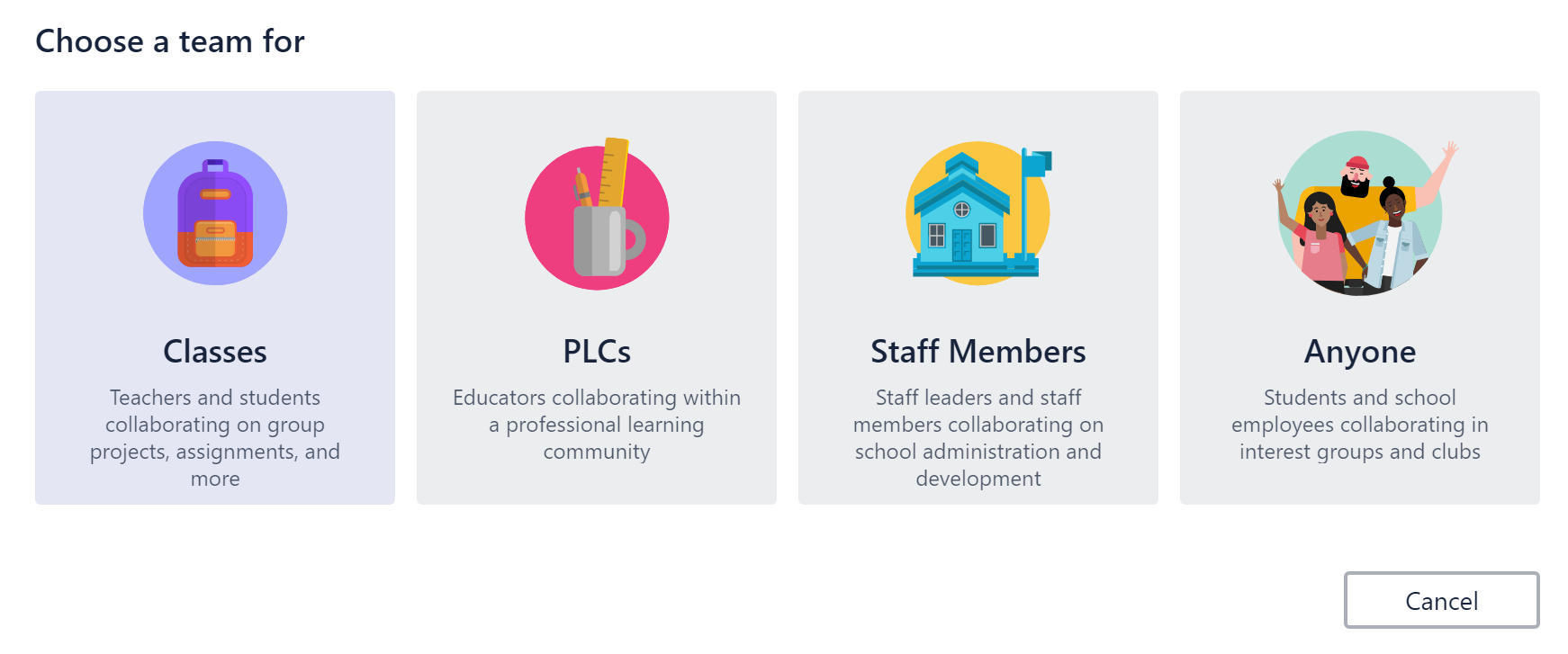
Additionally, there are various types of Teams that can be set up and used and teachers and students can seamlessly switch between each team:

Teams Create
When creating a new Team you’re prompted for what type of Team you’re wanting to bring together to collaborate with.

The PLC (Professional Learning Communities) Team is based on the same structured inquiry based learning that was available in Groups and with the ability to add external team members from outside of your school/organisation coming before the end of the year, then these will be perfect for teachers that participate in cross-school professional development such as the Communities of Learning in New Zealand.

Omaha Schools District Case Study:

“Our students interact and socialize with a larger circle of influence than what we’ve ever had as a society. And when you look at how we prepare students for that type of environment, digital citizenship and literacy really come to the forefront. With technology in the classroom, we focus on the 4Cs – communication, collaboration, critical thinking, and creativity. Microsoft Teams really does all of them.”

I really like that focus on the “4Cs” when it comes to the use of technology in schools and using this as a way to evaluate the usefulness and effectiveness in the classroom:

  • Communication
  • Collaboration
  • Critical Thinking
  • Creativity

Ready To Get Started?

Teams Getting Started.PNG

If you’re ready to get started with Teams, then do check out this overview for ensuring Success With Teams or click one of the specific links below:


Categories
Microsoft365 Windows 11

Planning To Deploy MS Teams? Check This Resource First

With many businesses already deploying Microsoft Teams, and many educational institutes looking to follow along once Teams for Education in Office365 is officially launched, the following website is a great starting point to successfully start planning:

Success With Microsoft Teams

The website aims to provide practical guidance on best practice tips for deploying Teams and includes:

  • A link to download planning resources
  • Video tutorials including an overview/introduction, guide for deploying/operating teams, tips for ensuring success with Teams in your organisation and a bandwidth calculator to identify what impact Teams may have on your network
  • A link to download the Teams application for all the supported platforms including Windows, MacOS, iOS, Android and Windows Phone (and of course web browser platforms).

Teams Calculator.PNG

Screenshot of the bandwidth calculator provided on the Success With Teams website

It is good to see Microsoft putting together companion websites for a new tool like Teams to ensure that organisations can introduce it smoothly. Here’s the other info from the website:

Teams.PNG
Screenshot of the help topics available