Categories
Microsoft365

Cloud Attachments In OneNote – Game Changer For Educators

Recording courtesy of Crispin Lockwood – Learning Delivery Specialist

OneNote remains one of the best tools in the classroom and, when used in combination with MS Teams for Education, it can be a real game changer. In late October a blog post referred to new “Cloud Attachments” for OneNote and I’ve been waiting to see what this actually means.

The idea expressed in the original blog post was:

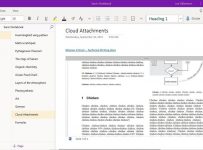
When you attach a file stored in the cloud (i.e. on your OneDrive) to your OneNote page your file will be synced with the latest changes through OneDrive. You can attach cloud files simply by enabling it in Settings and clicking Insert > File. Once your cloud attachment is on the page, OneNote will upload the file into OneDrive, which makes real-time editing and collaborating on the file easy. Your notebook will display a live preview if it is an Office document, so you can see changes made to the file in real time.

cloud attachements
An example of an embedded document with live changes displayed directly inside OneNote

Whilst the instructions on the blog post reference uploading to OneDrive, if your OneNote is actually a Class NoteBook inside of Teams, then this file is uploaded directly into the Teams for Education “Files” tab – with permissions set to allow students to edit by default. To see this in action, check out the YouTube clip at the top of the page (acknowledgement to Crispin for recording this for me!)

Note: This is does require a setting change under the Options in OneNote so follow the instructions on the video, otherwise this feature may not be available for you just yet.

My Point of View:

This is an awesome addition to OneNote and really shows the value of using MS Teams for Education as the platform for all classroom interaction, including the hosting of the OneNote Class Notebook. In particular:

  • This will improve the syncing speed of OneNote Notebooks with students because large files are not being saved inside the notebook itself, but rather being saved in a more permanent storage location – inside of Teams.
  • Improved read/write access control by using the underlying SharePoint Online permissions to control which groups of users in your Team have access to editing the document.
  • Quicker viewing for Team members – with the real time embed option there is no need to double click an attached file to launch it: you can see the content immediately. In a classroom situation where you may have multiple students co-authoring a document, a teacher can easily see these live updates through the embedded view in the OneNote notebook itself.
  • In the same way that Known Folder Move helps protect key documents from being lost or accidentally deleted by being saved in the wrong place, Cloud Attachments in OneNote will ensure documents are stored in the most appropriate location – Teams!
  • You can, of course, grab the sharing link of an existing file in your OneDrive or Teams Files section and paste that into OneNote to embed the content inside the Notebook

I love the continued evolution of the product in this space and this latest “Cloud Attachments” should be a big win for educators and students alike.

Categories
Microsoft365 Windows 11

Why Did The Titanic Sink? Explaining With OneNote & Digital Ink

I do a lot of demonstrations to schools and educational IT partners and one thing I commonly get asked is “can you explain why Digital Inking is so valuable?” Consequently, I decided to create the above video showing how visual ideation looks when using Microsoft OneNote and Digital Inking on my Surface Book and compared it to a traditional typed and bullet-pointed list attempting to answer the same question:

Why did the Titanic sink?

I’ll leave it up to you which version you find more memorable, however the use of the incredible SAMR model is always helpful in these discussions:

samr-diving.jpg
SAMR is a simple and incredibly instructive taxonomy to assist teachers planning how they can integrate technology into their pedagogy.

In a simple example like this, I’d explain SAMR a follows:

  • Substitution: Instead of a teacher photocopying a worksheet about the Titanic and physically handing it out to the students, they instead deliver it electronically e.g. on a Learning Management System such as Moodle or Microsoft Teams for Education or even simply emailing it to students. I find that many teachers are doing this on a frequent basis already
  • Augmentation: Using a tool such as Microsoft OneNote where students can not only edit their own copy, but can work collaboratively on it with other students in their class through something like OneNote Class NoteBooks. The functional improvement here is the ability to co-author and permanently save a copy of the brainstorm to be reviewed later, or even shared with students who may be away from the class for some time.
  • Modification: You’ll see in my video above that by using Digital Inking and OneNote a number of things are achieved that would simply not be possible without technology, allowing the task to be redesigned e.g.
    • As ideas evolve, they can be re-prioritized by selecting the text and associated sketches, and moved into a priority order. Additionally, they can be resized depending on their importance and even have the original colour of the “ink” changed if there is a colour coding scheme at work – imagine the possibilities here if integrated with de Bono’s six coloured hats thinking scheme.
    • Additional media can be added to ‘canvas’ in OneNote to cement learning in different ways. In the video above, I insert a YouTube clip of an animation of the sinking of the Titanic that can be played alongside the notes being recorded and sketched – students can take ideas directly from this media and add new information or expand on existing contributions from expert sources.
  • Re-Definition: Whilst not shown in the above video, an easy way to take this lesson sequence into the top level of SAMR could include ideas such as:
    • Using Paint3D and Mixed Reality Viewer to create a replica of the Titanic that can be projected into the class learning spaces and record a video explaining precisely why the Titanic sunk based on the research and ideation above.
    • Using Microsoft Teams Meet Now video calling to dial in an expert on the Titanic and host a Q&A with your class over the internet. If you think this is not possible, think again – I did this with a group of Year 3 students and the Viking Museum in York and it was a huge success. Microsoft have even created a website to assist in connecting your class with experts and other classrooms around the world – give it a go here.
    • Design 3D models of the Titanic and imaginary icebergs it may have hit and then print them directly from your Windows 10 device.

If you’re after more examples of SAMR in action, have a look at the following collection of blog posts that I wrote when still at St Andrew’s College.

Here’s the final two screenshots of the different ways we could record our responses to the question “Why did the Titanic sink?”

Blog 2.PNG
A “traditional” approach using a keyboard and enumerated list – how memorable is this?
Blog 1
A zoomed out view using Digital Ink on my Surface Book, with sketches and symbols naturally recorded as ideas expanded. Note the ability to embed third party media like YouTube directly into the canvas and ideas re-arranged, grouped and re-sized based on importance.

Research & Additional Thoughts:

Transforming Edu
Download your free eBook copy here

This month, Microsoft released an excellent collection of research collated into a single book called Transforming Education (you can download a free PDF version of the eBook here) and I highly recommend you have a look through this for guidance on what works and what does not work in the classrooms after 30 years of research into EdTech.

At the end of each section of the book are “Red Flags” – a short list of things that have not worked across the years when attempting to integrated technology into classrooms, and “Green Flags” – critical concepts that have been proven to add value in schools for educators and students alike by successfully integrating technology.

On pages 84-90 in the book are suggestions on device choice that includes interesting research into the value of adding a digital pen/stylus to the student device (as I used in my video above):

In two different studies in which high school students solved the same mathematics and science problems, the best results came from students using a digital pen, while marking up on the digital digital content. Using the pen, students produced 56% more non-linguistic content (i.e. diagrams, symbols, numbers etc), which led to a 9-38% improvement in performance. Additionally, research revealed that informal marking of existing content (using a digital pen on top of digital content) helps students to group and organize information, and has been associated with 24.5% higher solution correctness.

For further research into the value of digital inking vs typing have a look at pp.177-181 in the eBook.

How To Test Device Capabilities For Deep Learning:

Taken from p.90 of the Transforming Education eBook, this is a helpful exercise when selecting devices:

Blog 3.PNG#MSFT

Final Thoughts:

I’m a competent typist and can type at around 90 words per minute with 98% accuracy on an average day. I’m also a terrible artist and poor at handwriting. Even before I ever had access to a computer I struggled to keep my handwriting tidy and legible.

Nevertheless, the value I get from being able to sketch, link ideas and easily move and prioritize my thinking with Digital Inking far outstrips anything I can achieve with faster typing. When listening to a presentation I fall into the trap of attempting to type verbatim what is being said (and at 90wpm I can pretty much do that), whereas when digital inking I’m forced to synthesize information ‘on the fly’, actively engaging and processing knowledge during the session, resulting in far deeper recall and understanding at a later date. Whilst it is easy to scoff at my messy handwriting and poor artistic attempts to draw the Titanic hitting an iceberg, I’d be willing to wager you’re going to recall those ideas and answers far more readily than if I’d simply typed them into a bullet point list.

If you have not used a device that supports Digital Inking and Microsoft OneNote, I really encourage you to give it a go. With the recent launch of the Microsoft Surface Go, this is the most affordable and compact Surface yet and an awesome introduction to the value of Digital Inking in the classroom.


Categories
Microsoft365

Free OneNote Professional Development

OneNotePDWith the end of the school year rapidly approaching for those in the southern hemisphere, thoughts of summative assessment followed by a holiday typically dominate the minds of teachers.

In my previous role as an ICT Director at St Andrew’s College I started using the month of November to provide professional development to teachers, particularly those senior teachers who had reduced class loads because their students had left to revise for and sit the national external examinations. Prior to launching our BYOD program I introduced staff to the SAMR model (looking at the date of that blog post, I can’t believe it was four years ago!) and it was through these sessions that I realized end-of-year professional development could be very effective, particularly for senior teachers in high schools.

With this in mind, I see there is going to be a virtual/online OneNote Conference running between November 7-13th with a strong emphasis on education:

More than 25 speakers will be sharing—via video—how they use OneNote to be productive in business and in education. These 20 to 30 minute videos dive deep into real ways you can use OneNote in the real world, shown by OneNote fans just like you. This is a free online event during the dates of November 7th to November 13th, 2017. Visit Learn OneNote Conference to register for free.

You can see more at the official conference URL here:

https://learnonconference.com/

There is an impressive list of sessions on offer, as you can see:

  1. Getting Started with OneNote and Class Notebooks
  2. Why Class Notebook?
  3. Embedding Interactive Elements into OneNote and How They are Used in my Classroom
  4. Staff OneNote, Class OneNote and Collaboration Administration and Permissions
  5. Flipped Lessons Using a Class Notebook Platform
  6. Making Learning Fun with Game-Based Learning and OneNote
  7. Using OneNote in Education for E-Portfolios
  8. OneNote Student Avengers, Unite!
  9. Bringing Joy to Learning: It all STEMs from OneNote!
  10. Teaching Using OneNote
  11. OneNote: The Ultimate New Teacher Training Tool
  12. Teaching Math with OneNote
  13. OneNote and GeoGebra – Creating Interactive Learning Resources
  14. Dealing with Diverse Learners Using OneNote
  15. ​The Future of OneNote in Education
  16. Flipgrid and OneNote Integration

If you can’t make all the sessions you can certainly follow along with the Twitter hashtag of #LONC17

If you’re leading Professional Development around eLearning and pedagogy then I strongly encourage you to attend these sessions and distribute this to your staff so they can tune in for the sessions most applicable to them.

OneNotePD