Categories
Microsoft365

Take Your Files (& email!) With You Using OneDrive Graduation

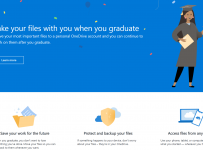
Graduate.PNGThis post shares another answer to commonly asked questions from schools I engage with:

How do students take their files with them when they graduate?

Here is the answer in a Tweet from the inimitable Mike Tholfsen:

The direct link to the guides are here:

OneDrive.com Graduation

What Is Included?

What Is Missing?

Perhaps unsurprisingly, given this is a OneDrive tool, it does not include any sort of email migration which would be super handy. For a student to be able to migrate their email history from their school Office365 account to an Outlook.com account would complete this Graduation Tool nicely.

The good news is, there are plenty of options for importing email from other provides like Gmail and if you wanted to bring your O365 email from school into your outlook.com account then simply go to settings (direct link here) and select “Sync Email”:

Sync email 1

Choose “Other email accounts” and enter your O365 Credentials:

Sync email 2

You’ll notice there are two options above in terms of importing the email from the “old” school account to appear in the matching folders in the new @outlook.com account such creating a combined inbox, sent folder etc. This is more streamlined but many students may like to keep their school email separate from their new account and can create a subfolder structure by choosing the second option – this ends up looking as follows:

Sync email 3.PNG

In case you’re wondering, the bob@minecraft.sammcneill.me is a real O365 email address in a demo tenant I set up (expires soon) so it proves you can pull through the email from O365 to Outlook.

My Point of View:

This is a great move from the OneDrive.com team as it easily allows students to follow a simple step to take their important files and folders with them. Critically, the content from a OneNote Class NoteBook is often the main record of student learning and this is also guided in terms of how to move this.

As I’ve demonstrated above, it’s not hard for students to also move their school email on to their new account, providing a complete digital record of their learning and communication as they graduate into their next stage of education or into the workforce.

One more “end of year task” has now been simplified for educators and students alike!

Categories
Microsoft365

How To: Switching To Office 365

I seem to get pretty regular questions around what the differences are between G Suite and Office365 and how to switch to the O365 tools. These conversations happen at a number of levels, from technical questions such as moving mailboxes from Gmail to O365 Exchange, through to the differences between Google Docs and OneNote.

Helpfully, the Office365 Support Team have recently created some excellent guides on how to switch to their products and have taken real care with keeping the format of these guides consistent between the various applications in the suite. This makes it super easy for end users to easily navigate to the help they need on a specific application.

Switch To Office365 Guide


1
The guides currently have a range of different supported applications with specific, consistently formatted options to explore.

From an educational context, the above are excellent and cover off the majority of applications that teachers and students might use, with one notable exception: OneNote. It’s perhaps because OneNote does a whole lot more than Google Docs that it is not included, but nevertheless a guide of comparable functionality would certainly complete the set of migration documents!

Once you’ve chosen an application you’re presented with the folllowing:

2

The formatting is worth paying attention to here. Every guide has:

  • Horizontal menu bar with options to explore the main differences between the G Suite and O365 application, guides on how to collaborate with other users (Work Together) as well as Tips and links off to additional help and training.
    • As you choose each sub menu, you’re provided with context-specific screenshots and guides
  • There is a short (usually less than 2minutes) video introduction to the application in O365.

The key differences between the applications are especially helpful for new users, quickly highlighting areas where the application behaviour may be different than expected. This is clearly displayed in a table like the following:

3

My Perspective:

These types of guides are super handy if you’re in charge of leading change in schools and significantly reduce the workload in terms of producing “guides” and documentation for teachers/students. Change is hard and there is always a variety of learning styles that people want when it comes to upskilling in new products.

Some prefer to attend sessions where someone can work alongside them and show them step by step how to use a new application. These can be every effective but are time consuming and difficult to scale because of limitations around time and resources. Additionally, others simply want material they can digest themselves, whether that be written documentation or videos to follow along that they can rewind / fast forward as necessary. The beauty of these resources is that it contains both text and images/videos to cater for most learners.

The above guides can also be used in conjunction with specific education focused resources such as the Microsoft Educator Community and these Quick Tips:

4.PNG

For schools that are using ChromeBooks and are exploring a move to Windows 10 and Office365 there is a good in-depth guide here:

ChromeBook Migration Guide

There is also the Office365 Roadmap available which makes it very easy to see which products are getting updated with new features:

5.PNG
It’s worth noting the filter selection available on the right of the Road Map – from here you can filter by product, or Operating System and even specifically for Education

Final Thoughts:

When making a significant shift in a school, such as moving to Office365 as the primary Cloud Productivity Suite for creation and collaboration of content, it’s sometimes worth exploring this change in the wider context of the school strategy. I really recommend you check out the Ten Critical Critical Components of School Transformation to get some insights:

6.PNG
Click the above image to access a full sized poster suitable for printing

This guide is excellent, product/vendor agnostic and covers off the ten stages under the two main categories of:

  • Leadership and policy:
    • Establishing a Vision
    • Partnerships and capacity building for change
    • Organisational capacity, strategic planning and quality assurance
    • Inclusion, accessibility and sustainability
  • 21st Century Pedagogy
    • Personalized Learning
    • Teacher and leader capacity
    • Curriculum and assessment
    • Developing a learning community
    • Physical learning environments
    • Designing technology for effective and efficient schools

It’s always interesting to point out to leaders that only #10 in the list directly deals with the technology.

Technology is a great servant of pedagogy – not vice versa!

When the thinking is put in first and is informed by the educational research then often the decisions around the technology platforms become self evident.

Categories
Microsoft365

Azure AD B2B – Simplifying Collaboration With Users Outside Your Organisation

AAD B2BCollaboration is a buzz word that is hard to avoid in virtually every sphere of life these days, whether that is education, work environments and right through to team building exercises. This week I learnt about Azure AD B2B a new feature in Azure Active Directory that went into general availability in April 2017.

This feature solves a very real problem many organisations currently have: how to securely and easily invite users from outside your organisation and enable them to access key applications and resources that are only available to internal Office365 tenant users. Existing Microsoft customers have made it very clear that the ability to work with external partners is critical:

97-percent-support

I am particularly excited about this feature to enable better collaboration between schools in the Communities of Learning here in New Zealand. For those unfamiliar with what a CoL is, here is the summary:

A Community of Learning | Kāhui Ako is a group of education and training providers working together to help learners achieve their full potential. These include early childhood education services me ngā kōhanga reo (early learning services), schools, kura and post-secondary.
Each Community of Learning | Kāhui Ako sets shared goals, or achievement challenges based on the particular needs of its learners.

I’ve added the bold highlights above to focus on the fact that for these groups of schools (often 10-15 in number, clustered together geographically), and having the ability to access and share key resources is critical. This is where Azure AD B2B excels:

The key benefits of Azure AD B2B collaboration to your organization

Work with any user from any partner

  • Partners use their own credentials
  • No requirement for partners to use Azure AD
  • No external directories or complex set-up required

Simple and secure collaboration

  • Provide access to any corporate app or data, while applying sophisticated, Azure AD-powered authorization policies
  • Seamless user experiences
  • Enterprise-grade security for apps and data

No management overhead

  • No external account or password management
  • No sync or manual account lifecycle management
  • No external administrative overhead

Put in simple terms, schools can all sign into a “host” Office365 Tenant’s Azure Active Directory using their own school’s email address and password, or even a personal email address such as yahoo.com or gmail.comThis immediately removes any barriers to access of documents but retains full security and the application of policy to these external users is very easy too e.g. requiring Multi Factor Authentication (MFA) to ensure security around accessing content.

This is all explained in the following video which I do encourage you to watch through to the end to see just how easy it is to set up.

If you’re interested in getting started immediately, click this link for more information.

Other cool features (demonstrated in the YouTube video above) include:

  • Setting up a “request access” page so that external users can proactively request access and then have a nominated tenant administrator approve all requests in one go, reducing the need to manually set up external users one by one
  • Future plans exist to federate with popular third party identity providers as well such as Google/Yahoo to provide true Single Sign On (SSO) experiences.
  • Easily use AAD Groups to manage access and policy e.g. create an “External Schools OneNote” Group that teachers from other schools would be added to so that they can access and share OneNote resources (or Sharepoint, or Teams etc).
  • There is advanced feature such as MFA that can be applied, restrictions based on OS e.g. allow only iOS or Windows 10 but block Android, as well as detailed reporting around sign in and accessing of content from external users.
  • Access source code on GitHub published by Microsoft to support getting AAD B2B up and running quickly.

Setting up Azure AD B2B has a wide range of potential uses in school settings and I’m interested to see how this plays out over the next few months as it gets picked up and used by schools.