Categories
Microsoft365

How To: Leaving A Guest Teams Tenant

One of the great features of Microsoft Teams is the ability to join another organisation’s Teams Tenant as a Guest – I blogged about this when it was first released. However, if you’re anything like me, you’re often invited as a Guest into many tenants. For example – this week I’ve been delivering professional development in a school and to assist in demo’ing, they added me as a Guest to their Teams tenant.

Another common scenario is cross-school collaboration (think Communities of Learning in an NZ context). This is great to facilitate the easy sharing of resources and communication, however at some point you may want to leave some of these organisations. At first glance, this is not quite as obvious as it might seem.

How To Leave A Team:

This step is pretty straight forward – select the ellipses (…) to the right of the team name and then choose “Leave the Team”

1.PNG
Leaving a Team is pretty straight forward but this does not actually mean you leave the Tenant.

While this is easy to leave the Team, you’re still a member of the host tenant courtesy of how Azure B2B works. Therefore, the organisation still appears in your list of tenants in Teams you could switch to:

Teams Switch
You can see that I’m a guest member of three different tenants above, but I don’t want to be in all of these all of the time.

Leaving An Organisation As A Guest User:

I admit I was a bit stuck on how to resolve this, so after posting in an internal Yammer group I was directed to this helpful guide: Leaving An Organisation As a Guest User

It’s a pretty simple five step process in the end:

To leave an organization, as a user signed in to the Access Panel, do the following:

  1. If you’re not already signed in to the organization that you want to leave, select your name in the upper-right corner, and click the organization you want to leave.
  2. In the upper-right corner, select your name.
  3. Next to Organizations, select the settings icon (gear).
  4. Under Organizations, find the organization that you want to leave, and select Leave organization.
  5. When asked to confirm, select Leave.

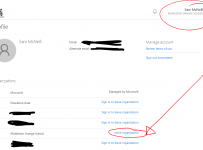
For me, this looked as follows after signing into the My Apps page:

2.PNG

After clicking the cog above, I can then simply choose to leave the organisation:

3.PNG

As the Docs point out, this performs a soft delete so the Tenant Administrator can restore this user for up to 30 days if requested. You even get a groovy branded email advising you’ve left the organisation:

4.PNG

My Point of View:

Guest access across Tenants allows schools to seamlessly add/remove users from other organisations in an easy and secure way. That a Guest can “self-manage” their access to these organisations in terms of determining when they leave is even better.

This is a significant aid towards collaboration across schools and ensuring best practice can be seamlessly shared with the right people, at the right time. Hopefully this tip is useful for people that end up as Guests in lots of tenants!

Categories
Microsoft365

True Guest Access Comes To Microsoft Teams (at last!)

UPDATE: You can see the documentation around the Guest Experience here.

A useful matrix comparing the functionality of local team members vs guests is below:

Teams

Ever since Microsoft Teams For Education was first announced the immediate request from educators was twofold:

  1. Can we invite parents into Teams?
  2. Can we invite teachers from other schools with G Suite / Gmail addresses ?

Until recently, only external users with AzureAD Office365 credentials could authenticate as guests into a Team which was great if the person you wanted in the Team had this, but the reality is many parents did not have an O365 account.

This morning it’s been announced that Guest acccess has been extended significantly to include consumer accounts such as Gmail.com, Outlook.com, Hotmail.com and others and will be given full access to the Team chat, files and meetings etc.

How it works

To invite a guest to a team, select “Add Members” in the menu next to the team name. Then add the guest’s email address. They will receive a welcome email message with information about the team and what to expect now that they’re a member. If the guest doesn’t yet have a Microsoft Account associated with their email address, they will be directed to create one for free (this is an important step for the authentication to work – it does not take long at all and effectively registers the guest’s personal email address as a Microsoft Account – also known as an MSA).

To invite a guest to a team, select Add Members in the menu next to the team name.

To invite a guest to a team, select Add Members in the menu next to the team name.

You can now add anybody with a consumer account as a guest in Teams

You can now add anybody with a consumer account as a guest in Teams

Once they accept the invitation, guests can participate in chats, join meetings, collaborate on documents, and more. Teams with guests will be identified with text and icons throughout the Teams UI to give all team members a clear indication that there are guests in that team.

Text and icon give a clear indication of guest participation in a team.

Text and icon give a clear indication of guest participation in a team.

FAQ:

Who can use guest access?

Guest access is included with all Office 365 Business Premium, Office 365 Enterprise, and Office 365 Education subscriptions.

How do I enable guest access

Guest access is a tenant-level setting in Microsoft Teams and is turned off by default. To take advantage of the new functionality, admins need to enable guest access in the Office 365 admin centre

If I already enabled guest access when Azure Active Directory (AAD) guest access became available, do I need to take any additional action to enable guest access for consumer email accounts?

If you have already enabled guest access, then your users will be able to add guests with a consumer account without additional action on your side.

If you enabled guest access with the expectation that you wanted to restrict it to AAD accounts only, you can disable guest access via the Teams setting by switching the feature off.

My Perspective:

This is a game changer for education as it opens a huge amount of collaborative possibilities to educators. From the top of my head I’m thinking:

  • Inviting parents into class Teams for younger students
  • Parent Teacher Association (PTA) Events e.g. organsing the school the fair or fundraisers
  • Sports Team Collaboration – parents can share photos from game day, see updates
  • Inviting external experts into a Team to teach a lesson, do a video conference with students etc
  • Communities of Learning (CoLs) – teachers collaborating across schools, contributing information around  students from feeder schools
  • Professional Learning Groups (PLG) where educators and experts across different organisations can join a Team together to go on a professional development journey.

I am super excited to see how the creativity of educators is unlocked with this announcement for the increased collaboration through Microsoft Teams for Education.

Categories
Microsoft365

Microsoft Teams Adds Guest Access

A really exciting announcement this morning from the MSFT General Manager Lori Wright – Guest Access is now available!

Read the official release here.

This is far and away the most requested feature from schools that I’ve encountered and given the enormous growth in usage of Microsoft Teams since it was released six months ago, I can see Guest Access contributing to even more usage. Here’s an interesting infographic of usage so far:

Teams 1.png

It is worth nothing, however, that this is not unrestricted guest access at this stage. From the blog release:

Beginning today, anyone with an Azure Active Directory (Azure AD) account can be added as a guest in Teams. That means anyone with one of the more than 870 million user accounts—across Microsoft commercial cloud services and third-party Azure AD integrated apps—can be added as a guest in Teams.

This actually caught me out as I saw on Twitter first thing this morning that Guest Access had been released so I immediately logged into my demo O365 Tenant and signed into Microsoft Teams, inviting my personal email address of #######@mcneill.co.nz. Sure enough, I received the invite:

Teams 2

However, when I attempted to authenticate into the Team it didn’t work. The reason for this is because my @mcneill.co.nz domain email is hosted (and has been for ten years) on Google Mail services i.e. not using Azure Active Directory (AAD). It looks like this will be rectified in future releases with support for signing in with a Microsoft Account (MSA):

Later, we’ll add the ability for anyone with a Microsoft Account (MSA) to be added as a guest in Teams. If the guest doesn’t have an existing MSA, they will be directed to create a free account using their current corporate or consumer email address, such as Outlook.com or Gmail.com.

This authentication is being managed by Azure B2C which I blogged about previously, which provides the host organisation with a lot of very granular control over how and what users can access within the host tenant.

From an education perspective, there is a world of opportunities for guest access, with the following being the first off the top of my head:

  • Inter-school collaboration for professional development (this is particularly relevant in New Zealand with the development of the Communities of Learning or CoLS)
  • External experts are used for professional development of staff or additional teaching of students. Remember, Meet Now allows video calls directly within Teams.
  • Adding Parents or Caregivers into a Team for seamless communication between school and home
  • School partners/suppliers who deliver services could be added to a Team for easier communication

Teams 3

I’ve blogged about a few times about Teams and could be worth checking out if you’re new to these:

While many schools do use AzureAD, some are 100% Google Cloud accounts and therefore, as in my example above, they won’t be able to sign into Teams at this stage. There is, however, a good work around for this using AzureAD Single Sign On (SSO). This requires the primary identity of students/faculty to be managed out of AzureAD but then allows for the configuration of SSO into G Suite accounts in only a few minutes. This is probably the easiest way to usher in Google Schools to using Teams at this stage.