Categories
Microsoft365 Windows 11

Empowering Students & Teachers To Self-Deploy Windows 10 Devices with AutoPilot & Intune

One of the most common discussions I have with education customers, both in K-12 and Higher Education, along with our partners, is around the easiest pathways to mass scale device deployments. As the COVID19 pandemic continues to impact schooling, many students are in remote/hybrid learning scenarios and require devices to support their learning. Consequently, traditional models of deployment need to be reconsidered as devices are often needing to be shipped directly to teachers and students who may be in various levels of lockdown, there may be a mixture of institution and personally only devices needing management and of course a pressing concern to ensure the devices are secure and compliant.

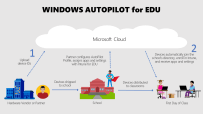
This graphic illustrates the changing approach to device deployment that many education institutes are facing

With that background, I was thrilled to see a recent LinkedIn post from my colleague Ovi Barceló Hernández where he shared a real life, very personal example of “practicing what you preach” as he recorded his 8yr old son unboxing and self-deploying his new school Windows 10 device:

As always, I encourage you to read the full original post, but the key take away was his 8yr old son could easily deploy his device for learning, straight from the sealed box from the manufacturer and within minutes end up with:

  • A full zero-touch deployment of Windows 10 EDU, already secured
  • A deployment of all the needed software (now we have Notepad ++, Minecraft: Education Edition, Scratch, Chrome, Lego WeDo, Paint.Net, VLC Player, 7-Zip, Publisher apps, and, of course M365 Apps)
  • A completely managed device, end to end, with full control on updates
  • All in a 4/128 device!! 78GB still available after everything I mentioned here.

Aside from dispelling myths around the challenges of deploying Windows in education, Ovi’s son was able to independently prepare his device for learning and gain new skills and a sense of ownership from being part of the preparation of his device for learning during this period of remote and hybrid teaching.

If you’re interested in learning more about how to do this, we have created interactive, click-through guided demos of many of the required tools, including the Windows for AutoPilot and Intune for Education platforms to enable this. I’ve collated all of these videos in this blog post here but will specifically link to:

I particularly like the above video because it demonstrates genuine options around end user self-deployment allowing both schools and deployment IT partners to save money on what has historically been a costly and time/labour intensive part of the deployment process. This is outlined in the following infographic:

Understanding Windows AutoPilot for Edu and empowering students and teachers to self-deploy their own devices

If you are wondering what is required to achieve the same outcomes, the base line solutions to seamlessly allow end user self-deployment like Ovi’s son achieved would be:

Not Just For Education…

If you’re reading this and thinking this solution is just for education, then think again! It’s widely used in many organisations now and when I saw Ovi’s post above, it reminded me of one from my NZ based colleague Ben Brown when he posted the following question!

IT people, why are you still imaging devices?? 💻 A real world example of why autopilot + cloud ☁️managed devices just makes so much sense. Broken work laptop -> full work machine in <10 minutes 🎉

Ben Brown – LinkedIn

Being the talented individual he is, Ben created a time lapse of his re-deployment process from unboxing his new Surface, to deploying it via Windows AutoPilot and then submitting the return ticket for his broken device – all in under ten minutes!

Final Thoughts

These two examples are great because they’re real world examples of people who would likely both identify as “not super techy” IT Manager type individuals and yet, with the power of modern deployment technologies likes Windows AutoPilot and Intune, they were both able to quickly get themselves up and running with new devices in mere minutes.

It’s hard to overstate the importance of this empowering of end users to ‘own the process’ both in terms of building their confidence that they could redeploy their existing device if it needed a full reset if something went wrong, or in the case of Ben, deploy a brand new replacement device if something more serious had happened.

For education leaders, this should prove the point that the pathway forward for large scale deployment of Windows devices is a modern management approach, freeing the IT team up for more important functions to the organisation than simply touching every device to prepare it for end users. If you are an IT Admin in a school and would like to know more about how to implement this process yourself, then check this link which has all the documentation you need:

Link to documentation here

If you have questions on this, feel free to hit me up on Twitter or in the comments section below!

Categories
Microsoft365

Shared Channels for Microsoft Teams for Education – Initial Thoughts

(Embed should start at the 1:17 mark – if not, click here)

The above video (queued to start at the 1:17 mark where they start talking about Shared Channels) does a great job of calling out the new functionality in Microsoft Teams. Put simply, Shared Channels will provide a solution where an external user that is collaborating with someone will currently have to “change tenants” inside of Teams to communicate natively with each other. As the video suggests, this takes users ‘out of their flow’.

The solution is Shared Channels.

As the video indicates, this will give users the ability to create a dedicated channel inside of a ‘host Team’ where they can invite users external to their organization, with the result that for both the host tenant users and the guest/external invited users, the experience will appear as if they’re both working inside of their home Team tenant. This is a big game changer for education and there are a lot of scenarios where this would add value.

How Would Shared Channels Benefit Education?

This is far from an exhaustive list, but some ideas off the top of my head:

  • Teachers collaborating with each other across different schools
    • This is definitely one of the main scenarios I can see appealing to schools, as I’ve talked to numerous customers where they exist in a cluster or “community of learning” – a close, geographically neighboring group of schools, across the K-12 years, who want to be able to easily share information with each other.
    • Adding Shared Channels for various interest groups (literacy / numeracy / Gifted and Talented / Sports organization etc, would aid the flow of information tremendously.
    • Similarly, Professional Development across schools (and countries) is enabled through Shared Channels.
  • Students working securely / safely with each other across schools
    • Similar to teachers above, often students would like to work across schools in terms of projects and have all of their information secure in the one location. Teams provides an excellent way to achieve this, without needing to use external third party platforms, or remember different usernames/passwords for students and the various websites they may choose to use.
    • Given Teams is a truly unified communication platform, the ability for students to go from a chat, to a call to a video call with screen sharing, ensures that student collaboration is secure and easy.
  • External experts invited into a Team for a specific role/purpose
    • Another common request from teachers is the ability to bring an industry expert into their Team to give their students (or colleagues) access to expert knowledge is something that Shared Channels would enable.
    • This could happen on an ad-hoc or semi-permanent basis.
    • I was on a call with a Minister of Education from a country in APAC recently where he shared one of his key goals was to drive greater industry/schooling crossover to ensure that educators remain relevant in their fields and that educational institutes are bringing in the best talent for their students to learn from. Shared Channels facilitates this free exchange of knowledge easily and securely.
  • Sports Co-Ordination
    • For anyone that has ever worked in a school, they know there is a lot of co-curricular organization that takes place across schools. Enabling schools to have access to each other in a single, secure platform like Microsoft Teams where they can ask questions in real time, get access to schedules, draws, rules and other resources for sports would be awesome.
    • Given Teams allows for video calling, it would also be possible to host briefing / de-briefing ahead of seasons and ensure that all coordinators in schools would be able to be brought up to date with what they need to know. As these can be recorded and shared in the Channel, they become a bank of resources for anyone that missed the initial call
  • Streamlined Communication Across Multi-Tenant Ministries of Education
    • A number of Ministries / Districts of Education have configured individual tenants for each of the schools in their jurisdiction. However, they also want the ability to communicate easily to targeted audiences across all schools (in their own tenants).
    • For example, the Ministry/District wants to communicate to all Principals, or all Executive Officers, or all IT Administrators in schools. Creating a Shared Channel in the central Ministry / District ‘host’ tenant for each of the target audiences, would then allow them to easily communicate directly to all users. Significantly, those intended recipients of the memo would receive it inside of their own school’s tenant with no need to change tenants or platforms.
  • Research:
    • Many Higher Education customers and educators want to be able to do cross-organization research and collaboration and yet have very stringent requirements around where data is stored and how it can be secured. Shared Channels would allow for this easy, real time communication, whilst benefiting from all the industry leading retention policies that Microsoft 365 relies on.
Screenshot showing two users, in separate tenants, collaborating together in a single Shared Channel in Microsoft Teams.
  • External IT Support Partners
    • My colleague Tim Vergel de Dios suggested this one, whereby it would be helpful for a school/university’s external IT partner to have a Shared Channel for two way Teams communication to assist in problem resolution with the school.
  • Exchange Students / Teachers
    • Often, schools are reluctant to set up new account details for exchange students given the temporary nature of their residence at the exchange school. One solution would be to add them to the school in Shared Channels so that they can use their own school’s credentials to be members of the exchange school learning programs.
  • Professional Development Partners Communicating With Client Schools
    • This one came to me via the suggestion from Carmen Kenton, a PLD provider and MIE Fellow. The ability for a PLD provider to host a shared channel and then invite client schools / educators into that Shared Channel based off their own school’s credentials makes the secure sharing of content even easier.

Final Thoughts

I can’t wait to get my heads on Shared Channels in Teams as this looks like a super promising new feature that will solve the cross-organization collaboration requirements for education customers.

Once I get access to this I’ll update the blog with a new post to share my hands on experience.

Categories
Windows 11

Video: Microsoft’s Vision For Windows 10 In Education

Jordan Chrysafidis outlines the Microsoft Vision

I’m posting this three minute video from Jordan Chrysafidis where he outlines the Microsoft strategy of devices in education for hybrid and remote learning. He outlines the focus on three key areas:

  1. Better Learning Outcomes
    1. Assistive Technologies
    2. Cognitive Services
    3. Pen and Touch
  2. Comprehensive Security and Privacy
    1. Classroom Security
    2. Multi Factor Authentication
    3. Built-in Threat Protection
  3. Built for Remote and Hybrid Learning
    1. Range of devices across form factors and price points
    2. Devices + Services
    3. Deployment + Management

It’s a quick video and worth checking out to see the vision for Windows 10 in Education. To learn more, check out www.aka.ms/WinEduStore

Categories
Microsoft365

Secure Your Office365 Tenant With Secure Score

As schools are required to document ever more sensitive information about students, it is no surprise that school IT Managers and senior leaders responsible for IT in schools continue to say that security and protection against hacking and data leaks remains one of their key concerns. Most schools store large amounts of Personally Identifiable Information (PII), often on behalf of students that are minors in age, and the requirement to protect this against external threats is greater than ever.

This week I have discovered a tool available to Office365 Administrators called Secure Score that provides direct guidance around the best actions to take to improve security in your tenant and reduce the risk of unauthorized hacking or data leaks. You can read more about this here and for a quick overview, the following video is quite helpful:

It’s important to note that if you have Windows Advanced Threat Protection (ATP) you can include this into your score as well. The great part about Secure Score is that it analyzes what services your Tenant is using (i.e. Exchange Online, OneDrive, Teams etc) as well as what services/products you’ve purchased for your Tenant and then customizes your possible overall score based on the above criteria. In other words, this is not a ‘one size fits all’ tool, but accurately reflects what you can do to secure your organisation and tenant against potential threats.

What Is Secure Score?

Ever wonder how secure your Office 365 organization really is? Time to stop wondering – the Office 365 Secure Score is here to help. Secure Score analyzes your Office 365 organization’s security based on your regular activities and security settings and assigns a score. Think of it as a credit score for security.

Just like we service our vehicles regularly and need to have an official Warrant of Fitness certificate to prove that it is safe and secure on the road, think of Secure Score as a check list of actions that you can take as an administrator to protect your organisation and users from both external and internal threats. I am going to share some screenshots below of how it looks and make some comments, but first some outlines from within the tool itself (If you want to jump straight to your Secure Score Dashboard then click here)

  • Welcome to the Microsoft Secure Score
    • Secure Score is a security analytics tool that will help you understand what you have done to reduce the risk to your data, and show you what you can do to further reduce that risk. We think of it as a credit score for security
  • Your Secure Score
    • Secure Score figures out what Office 365 services you are using, then looks at your configuration and behaviors and compares it to a baseline asserted by Microsoft. If your configuration and behaviors are in line with best practices, you will get points, which you can track over time. More importantly, you will be able to quick determine what things you can do to reduce their risk
  • Take Action, Improve Your Score
    • Secure Score helps you quickly figure out what actions you can take to improve your score. You can check your action queue and find the change you can make that most improves your security posture with the least amount of usability impact for your users
  • Analyzing Your Score
    • Secure Score gives you a different way of managing your risk. Rather than reacting or responding to security alerts, the Secure Score lets you track and plan incremental improvements over a longer period of time
  • DISCLAIMER
    • The Secure Score does not express an absolute measure of how likely you are to get breached. It expresses the extent to which you have adopted controls which can offset the risk of being breached. No service can guarantee that you will not be breached, and the Secure Score should not be interpreted as a guarantee in any way

What Does It Look Like?

To get started with your Secure Score Dashboard,  or follow the guide below:

1
Sign into your Office365 Admin Portal and then click on the “Admin Centres” on the left and select “Security and Compliance”

2
You should see the “Microsoft Secure Score” tile in the dashboard with a direct link to the Microsoft Secure Score you can click on – or go directly here,

3
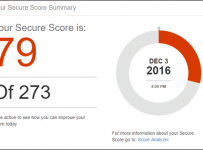
You will immediately be displayed your current score, along with a possible maximum secure score. In the above screenshot you can see my demonstration tenant has a score of 95 out of a possible 566. If I had Advanced Threat Protection available I could also add scores from my Windows10 devices.

5
This is a a particularly interesting use of AI showing how your tenant compares to other tenants in your Industry Sector. My demo tenant is an Education Tenant so I have a direct comparison point of anonymized data from other education institutes and what their average Secure Score is (74). I can also see what the overall Secure Score is on the far right (31)

6
This slider bar is very helpful – it allows me to take a pragmatic approach to security. The reality is most school IT managers are very busy and do not have endless hours to be implementing additional security features, no matter how ‘best practice’ they may be. Similarly, they need to consider the impact on the end users and their daily work flows. By shifting the slider to the left, only the least intrusive actions are suggested (your overall possible Secure Score is also reduced). Similarly, sliding right creates more recommended actions and boosts your overall possible Secure Score.

7
Here you can see the first four actions recommended for my tenant, along with the expanded view of the first recommended action – enabling Multi Factor Authentication for users with elevated privileges (e.g. admins).You will note that it shows the impact on the users, the cost to implement as well as links explaining what the threats this action is designed to combat or mitigate (this is super helpful in terms of assisting an IT manager in justifying these sorts of actions).

7a
By clicking on one of the threats there is an expanded dialogue box explaining the impact / risk of this threat.

7b
One of the features I best like about Secure Score is that you can take action directly from this dashboard. By clicking on “Learn More” you can get an action that will start to action this feature. In this screenshot, it even points out the users with elevated privileges who would be impacted my implementing MFA, as well as providing an option to notify them – super handy!

8
This was the top 20 action items recommended for my demonstration Education Tenant – those with [Not Scored] means there is currently no assessment (yet!) of this in the tool but expect it to come. You can also choose to “Ignore” an action which means it won’t count towards your overall score, or you can indicate if you’re using a third party tool for this action (Which will again reduce the overall score).

9
Secure Score provides the ability to filter actions based on what your priorities are e.g. low cost, or low impact on end users vs perhaps protecting data or securing the identity of users. This allows IT Admins to take a very granular and targeted approach to securing their O365 tenant.

10
Finally, you can select “Score Analyzer” which gives you a view of the security of your tenant over time. This allows you to track progress and identify whether you’re trending in the right direction or not in terms of securing your tenant and users.

My Point of View:

I remember listening to a security expert present to Education IT Directors and IT Managers in Canberra in 2016 and he shared his opinion that the Education Sector was “one or two major security incidents away from having enforced security regulation similar to the banking and health sectors” – that certainly caused everyone to sit up and take notice!

This article from Ed Tech Magazine earlier this week further highlights the risks schools face:

Schools utilizing education technology may need to double down on cybersecurity as collections of student data become more common targets for cybercriminals, announces the Federal Bureau of Investigations in an alert, Tuesday.

According to the FBI, utilizing education technology offers a number of useful services, including “adaptive, personalized learning experiences, and unique opportunities for student collaboration,” as well help with administrative services. However, in exchange, education technology companies may have access to student information including biometrics, personal identifiable information and students’ geolocation.

The FBI warning went even further:

“Malicious use of this sensitive data could result in social engineering, bullying, tracking, identity theft, or other means for targeting children,” according to the alert. “Therefore, the FBI is providing awareness to schools and parents of the important role cybersecurity plays in the securing of student information and devices.”

The good news for those IT managers responsible for securely administrating an O365 Tenant is that Secure Score now provides an excellent check list of activities to undertake to ensure the balance between security and pragmatism can be achieved. Additionally, it also provides stronger justification when recommending to non IT leadership why they need to have MFA in place (particularly when you can use the comparison scores to other O365 tenants in your industry!).

In terms of free and easy tools to support administrators to be more security conscious, Secure Score is one of the best I’ve come across recently.


Can Schools Go Cloud? Debunking “same, same, but different”

WildRoseOne of the things I enjoy about the EdTech sector is the varied conversations I get to participate in that truly range from “the classroom to the cloud.”

This morning I read a case study from the Wild Rose School Division in Alberta, Canada that highlighted the success of moving from a centralized and locally maintained data center, to the Microsoft Azure Public Cloud.

It’s an instructive read (again, check the full case study here) because it mirrors the journey many schools and districts embark on, however it concludes with the less common final step of fully embracing the public cloud. This journey is often as follows:

  1. Decentralized hardware (storage, compute, networking) across a school or multiple schools in a district / cluster.
  2. Centralized hardware into a locally maintained data center – an attempt to rationalize the management, reduce costs and increase efficiencies.
  3. Off site infrastructure for backups / disaster recovery is required and implemented
  4. The realization that more money and expertise is required to maintain this infrastructure and that now the service is better than the decentralized approach in stage one, more consumption occurs requiring more investment.

Wild Rose contains 19 schools and around 4,800 students so it’s not the largest district but there is physical isolation for many of the schools. The key benefit was all schools had fiber internet access to the campus, opening up possibilities for infrastructure in the cloud.

 “We aggressively centralized and virtualized our entire core service catalog, including email, directory services, web servers, and more. We built a data center four times larger than we needed to handle projected future growth.”

Jaymon Lefebvre, Director of IT Services for Wild Rose School Division

As per my 4th point above, however, the schools learnt that demand grew to fill the capacity very rapidly, requiring more data centers to be built with increased expectations around up time.

“We realized that what we could do on-premises couldn’t compete with Azure and solutions like the Microsoft OneDrive storage platform. We chose to align our strategy with the Microsoft cloud roadmap”

Jaymon Lefebvre, Director of IT Services for Wild Rose School Division

Ultimately, this is the challenge for schools managing and maintaining their own hardware – it’s very hard to deliver services at the scale or reliability of the public cloud and the example of OneDrive from Jaymon above is a good example of this. I am active in a number of EdTech forums where IT administrators are realizing this challenge and rather than being threatened by it, are embracing the opportunities it provides. One of the most common conversation threads I’m seeing amongst school IT admins is migrating local, on-premise network file servers into the cloud – whether that be to OneDrive, SharePoint Online, or more recently, Microsoft Teams for Education. This is seen as the “low hanging fruit” and once time and effort is not required to manage this locally, IT admins can focus on delivering more value in other areas of the school.

The Payoff Going Cloud

The case study makes a few interesting observations around the benefits of going cloud, but the following is one of the key ones to me:

In the past, the IT team spent most of its time resolving problems and doing tedious network maintenance. Now that the infrastructure is in the cloud, staff can spend their time enhancing services and improving teacher and student experiences. Rather than resolving infrastructure scaling problems, they can focus on new opportunities and solving critical organizational challenges.

As a former IT Director in a K-12 school, this is what appeals to me. If the management of infrastructure, storage, backups and software delivery is no longer a core ‘day to day task’, time freed up allows greater focus on applying smarter IT solutions to solving those critical challenges for the organisation. This may be around deploying IoT to manage buildings in a smarter way, or deploying educational analytics like PowerBI to provide the key insights to improve the delivery of teaching and learning to boost student outcomes.

Another benefit, as identified in this case study, is the ability to align more closely with modern deployment and management approaches. Wild Rose has adopted:

  • Microsoft System Center Configuration Manager (SCCM)
  • Microsoft Intune
  • Windows 10
  • Microsoft Azure Active Directory Premium (AADP)

Cost Savings & Availability

No matter how much value a cloud solution may provide, the key question is always “but will save me money?” From Lefebvre:

“Our SLA for Azure has been 100 percent so far,” says Lefebvre. “That’s not 99.99999 percent, it is a full 100 percent, which is amazing. And there is no negative impact on performance having our applications in the cloud rather than on premises. On top of that, we used to spend about CAD$12,000 a year just to maintain our data center—that didn’t include capacity increases, electrical work, replacement hard drives, and lots of other costs. We now spend less than that for everything we get from Azure. More computing power, reduced maintenance requirements, terrific reliability… To us that feels like mission accomplished.”

My Perspective – same, same, but different

I talk to a lot of schools. Every school is usually quick to impress on me the uniqueness of their environment, their challenges, their solutions, their requirements. To a large extent, I accept that this is true when viewed from inside the organisation, however there are definitely some shared commonalities across the sector that would benefit from applying the value of public cloud like Azure.

This case study shows that Wild Rose had followed a very common trajectory (stages 1-4 at the top of this blog), however had the vision and leadership to find a more permanent solution to the growing complexity and costs associated with managing all of their infrastructure ‘in-house’. In my experience, schools are often not good at truly quantifying the cost of managing infrastructure. Things such as power consumption, cooling, security, hardware redundancy, and even staff salaries are rarely calculated into the true cost of delivering a solution. Using something like this free Azure Migration Cost Calculator is one way to get a more accurate indication of the cost of a cloud move.

It’s great to read case studies where institutions like Wild Rose has done the costings, tweaked their delivery focus and aligned their planning so that public cloud can be a viable option.