Categories
Apple

Mac/Windows TCO Calculator From Cisco

I recently had a conversation with ICT leaders in a large organisation that were committed to modernizing their endpoint management and being more endpoint agnostic. I admired their genuine commitment to look past the usual preconceptions relating to various OS common in Enterprise orgs and they aspired to creating a true Total Cost of Ownership (TCO) model for the range of devices they would support across their users.

During the conversation, I was reminded of the presentation Cisco’s CIO Fletcher Previn gave at a recent Jamf JNUC conference in 2023 where he talked through the employee choice program he introduced, offering Mac to all employees across Cisco (see the YouTube video above). Digging up the presentation itself, I was pleased to see that Cisco now offer this TCO calculator free and open sourced on GitHub – you can access this yourself by clicking below:

Cisco’s TCO Calculator for Endpoints

If you want to download just the Excel calculator itself, you can grab it here:

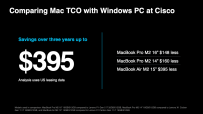
If you watch the video above, you’ll see Fletcher give some more detailed breakdowns of TCO of Mac versus virtually every other common endpoint used in orgs (Windows, Linux, Windows VMs in the cloud) and I appreciated the agnostic approach to the TCO calculator that Cisco has taken. Their findings were interesting:

One area that was touched on in the presentation above was the adoption of biometrics by employees across Windows vs Mac (Windows Hello for Business vs TouchID):

There’s no obvious reason to me why this would be so different, and I’d certainly have some questions around configuration of WHfB at Cisco given this disparity (corporate policy could mandate the use of WHfB for example if you’re driving towards a passwordless environment as part of a zero trust strategy). In the video above, the CIO did say some feedback from users was they found WHfB complex / difficult to configure and perhaps didn’t trust how their biometric data was being used (likely misunderstanding of how their face is being used to unlock the device). Having worked at Microsoft for seven years as a Modern Workplace specialist I’ve configured Intune/EntraID and Windows to drive WHfB and as an employee this was the best, fastest and most secure way to log into my corporate PC so I am a bit surprised by the above finding.

A Mac choice program is one of the few things you can do that’s going to save money, make the head of HR happy, make the CFO happy and make employees more productive and happy.

Fletcher Previn (SVP & CIO @ Cisco)

Hybrid Worker Bundle

One other thing stuck out to me from the video above, the introduction by Cisco of the “Hybrid Worker Bundle” (click here to skip to the section of the video that talks about this). The idea was to make it easier for hybrid / remote workers to onboard as new employees. Taking some screen snips from the video you can see it contains a layered approach to what a new user would need:

  • A box containing everything you need in ‘layers’
  • The inside lid (and first thing seen) is the user’s employee badge (if they’re a new hire)
  • The first layer is the user’s new MacBook + external keyboard and trackpad
  • The next layer contains a Cisco security appliance and wireless access point to provide a managed network experience
  • Finally, a Webex collaboration device called a Cisco Desk Pro is included that provides a second display for Webex calls to improve the end user experience.

My first impression was this is a very cool way to deliver a hybrid working experience to employees, one that is optimised for both security and performance, wrapped in a very ‘consumer’ like unboxing experience.

Cool stuff.

Categories
Microsoft365 Windows 11

Intune – The New Microsoft Store Experience

I see that the above video was released today outlining the ease of integration between Microsoft Intune and the Microsoft Store for managing app installations from the cloud (all powered by winget in the background).

With the signaled retirement of the Microsoft Store for Business, along with the restricted functionality of the Microsoft Store for Education that has already taken place, this new Store integration can not come soon enough for those admins that are keen to reduce complexity of app management on Windows.

I have not had a chance to get hands on with this myself yet sadly (future blog post to come!), however I was sufficiently excited by the video to want to share it with the readers of this blog, along with the official Microsoft Learn documentation supporting this.

To be honest, winget reminds me a lot of APT (Advanced Package Tool) from Debian that I used regularly when running Linux distros as my desktop and also on Debian based servers I was managing. There is tremendous power and scriptability of command line tools like this that most admins just love, however there is also a time and place for GUI based app management as well. Ubuntu is one of the most popular Debian-based linux distros out there, and they have the pun-inspired Aptitude graphical package manager for those that want a simpler experience. I’d suggest that the Microsoft Intune integration with the Microsoft Store, extended by the Company Portal app for self-service installation of optional apps, creates a similar offering of managed application support in the Windows ecosystem.

I’m definitely looking forward to getting hands on with this new solution and sharing it with my education customers as soon as possible – watch this space!

Categories
Microsoft365 Windows 11

Sign Into MacOS With AzureAD … With JAMF

Apple II
My first experience of a PC was similar to this, called the Kiwifruit and made by my dad. Image Credit.

I’ve used a lot of different operating systems over the years, in fact my first exposure to a Personal Computer (PC) was built by my dad based on the Apple II – being from New Zealand he extended the fruit naming convention and called it a “Kiwifruit”. Since then, I’ve used almost every flavour of Windows (skipped Vista thankfully), multiple Linux desktop distros (Fedora, Debian, Ubuntu, YellowDog), OS X / MacOS and now love using Windows 10 exclusively on my Surface Laptop.

The point is, device and OS mobility is something most end users experience over time and inside education institutions students and teachers often use a multitude of different devices. To reduce the friction at sign-in, centralizing the identity of the user in the cloud with AzureAD is a smart move. This works natively in Windows 10 of course, allowing for rapid deployment using modern management of devices. To date, MacOS has not supported AzureAD authentication in the OS itself meaning you could not sign into the device with your cloud identity (you could join it to a local on-premise domain if you wished to).

This is all changing with a recent announcement from JAMF.

Authentication: With Jamf Connect (available with Jamf Pro or independent of Jamf Pro), formerly NoMAD premium solutions, users will be able to authenticate to their Mac with their Azure Active Directory credentials. This will simplify life for end users by enabling them to enter only one set of credentials to access their Mac and immediately use cloud-based services registered with Azure Active Directory (e.g., Microsoft Office 365). Account setup and synchronization with Azure Active Directory will happen automatically behind the scenes.

This is an awesome step forward, allowing Mac users to have a single cloud ID to sign into any device (AzureAD can even be used to sign into ChromeBooks if SAML authentication is provided via Chrome Management Console).

This new feature from JAMF builds on the integration between Casper Suite and Microsoft’s EMS that was announced in late 2017:

JAMF.jpg
Image Credit

My Point of View:

Identity is not something that is usually top of mind for school leaders when it comes to considering their IT deployment and spend. However, getting it right initially will likely save considerable money in the long run and also future proof for access into whatever devices a school may choose to introduce for use by teachers and students.

AzureAD is a great option to standardize on and, with increasing partners federating and integrating into it, it is more powerful and flexible than ever.

Categories
Microsoft365 Windows 11

Minecraft:EE Comes To iPad & Greater Cross Platform Support In General

UPDATE 8th September: the iPad version of Minecraft:EE is now available in the App Store and can be downloaded today. You can sign in with your O365 credentials (still need an M:EE license)

There was a major announcement this week that Minecraft:Education Edition is coming to iPads in September 2018.

Hero-Photo_Minecraft-iPad-1

From the announcement:

“Minecraft: Education Edition on iPad unlocks new and intuitive ways of collaborating and sharing and has revolutionized the way our students and teachers explore curriculum and projects,” says Kyriakos Koursaris, Head of Education Technology for PaRK International School. “The features allow for deep and meaningful learning, and the values it promotes, from inclusivity to 21 century skills, empower everyone to use technology with extraordinary results,” said Koursaris.

This, combined with the announcement last week of a new national Schools’ Agreement between the Ministry of Education and Microsoft in New Zealand, means that even more schools will have access to Minecraft:Education Edition on multiple platforms of iOS, MacOS and Windows10. Talking with partners and educators there is already huge interest in the ability to now play Minecraft:EE on an iPad.

Engaging & Creative Learning Opportunities

You should, of course, check out the hundreds of lessons and worlds on the official Minecraft:EE website here, where you are bound to find a lesson for your curriculum area and age of students. However, on the weekend I saw on Twitter an awesome example of promoting literacy with students in Minecraft by Sarah Bau, a teacher in Australia.

Sarah decided to get students building their own house in a shared Minecraft:EE world:

Students negotiated amongst themselves on land selection, and were given two lessons to build, fit out and photograph their property.

She also used OneNote to create and share the lesson content with the students and has generously made this available online here.

MEE real estate.png
A screenshot of Sarah’s lesson plan in OneNote, including the WALT and WILF

Sarah then went on to get the students use Canva (something I’ve blogged about in the past when hosting TeachMeets at St Andrew’s College) to create real estate adverts in a tri-fold brochure to advertise their Minecraft:EE house for sale. They were even able to take “photos” of their house in Minecraft using the Camera feature and export these screenshots for inclusion in their real estate sales brochure. Here is one example from her blog (which I really do encourage you to check out again here):

MEE real estate1.png
Example student real estate brochure, designed in Canva and featuring their Minecraft:EE house.

This reminds me of other Minecraft focused literacy activities I’ve been involved with in the past and showcases the incredible flexibility of Minecraft and the diverse learning opportunities it supports. I suggest you also check out this example that Wilj Dekkers used with his students to support creative writing with Year 6 students, also combining OneNote and Minecraft.

Cross Platform Support From Microsoft

ipad meeWith the announcement of iOS support for Minecraft:Education Edition, it is continuing a theme of greater cross platform support from Microsoft for other OS in the Education Space.

I blogged last week about the release of iOS support for Intune for Education, something that is pretty significant in my perspective as it opens up that elusive opportunity for schools to manage all of their devices through a “single pane of glass” i.e. – one platform for MDM.

Perhaps the feature that has drawn the most attention from schools that use a mixture of devices and cloud collaboration suites is the integration of Google Drive (amongst other cloud storage platforms) into Microsoft Teams:

Teams
Note the option to “Add cloud storage” in the Files tab of a Microsoft Team for Education

You can see how easy it is above to add a third party cloud storage to your Microsoft Team (if your O365 Tenant Administrator has allowed this) and when this is selected, you are presented with a range of options:

Teams2

While Google Drive is arguably the most popular of the third party cloud providers above in education, I was in a large school recently where the Senior Leadership Team (SLT) had been using Dropbox.com for sharing Office documents across multiple devices. They were very excited to see the integration of Dropbox into Teams.

What surprises most teachers, however, is the ability to actually open and edit documents hosted in Google Drive directly inside Teams – you are not required to go to G Suite to edit:

Teams3
Viewing a range of Google Docs inside a Google Drive, within Microsoft Teams!

Teams4
Editing a Google Doc directly inside Microsoft Teams – you can see in the top right that I’m signed into Google with my personal Gmail account. In a school scenario, this could be achieved by using SSO hosted out of AzureAD.

My Perspective & Final Thoughts:

Three pretty recent announcements and/or product releases showing Microsoft support for other platforms in Education:

  • Third party cloud storage in Microsoft Teams (available now)
  • iOS support and management in Intune for Education (available now)
  • iOS support for Minecraft:Education Edition (coming in Sept 2018)

In many ways, this is simply continuing a recent trend from Microsoft to show more support and openness, highlighted by Satya Nadella’s comments that Microsoft loves Linux:

microsoftloveslinux.0.0.jpg
Some have been quick to deride this new ‘love’ for Open Source, but the continued support of other OS in Education shows there is some substance to these claims

Perhaps unsurprisingly, the ultimate winners out of all this is schools, teachers and students. There is an ever greater range and choice of platforms for teaching and learning for schools to choose from and with cross-platform management tools like Intune for Education now available it is simplifying their administration tasks as well.

In the end, this choice has to be a good thing.

Categories
Microsoft365

Custom HTML Report On Office365 Powered By PowerShell

My first jobs in IT required significant Command Line Interface  (CLI) experience, to the point I started using Fedora Core 2 as my desktop of choice, and doing administration on various versions of Linux, from Debian, to RedHat, to CentOS and finally the ubiquitous Ubuntu. Funnily enough (in hindsight), I even explored Yellow Dog Linux, a distro aimed at running on PowerPC based Apple Macs (long before the Intel CPU days!).

In that light, I’m thrilled that PowerShell has become such a major part of administration in the Windows world now and just last week I listened to, and blogged about, this awesome presentation from the Godfather of PowerShell: Jeffrey Snover.

Earlier today I came across this awesome blog from The Lazy Administrator showing how to build a custom HTML report on your O365 Tenant using the PowerShell module ReportHTML:

Read the original blog post here.

dash.png
Exemplar HTML dashboard. Credit

If you’re an IT admin managing O365 this could be worth exploring given you can customise and tweak what you want out of it. I know O365 has a bunch of PowerBI reports to give you a lot of this information already but, just like my adventures with Yellow Dog Linux, sometimes you just want to tweak it your own way.

Hope this is useful and full credit to The Lazy Administrator for sharing his awesome work.