Categories
Windows 11

How To: Creating Local Users on Windows 11 Home & Windows 11 Pro During OOBE Startup

This post has a few sections in it so you can jump to the section of most interest to you:

I’ve been working with a few customers recently that have been receiving devices with Windows 11 Home Edition and wanting to create local users on the device. Their feedback to me is that it has become increasingly more difficult to do this over successive versions of Windows updates as Microsoft clearly tries to drive users to sign in with a Microsoft Account (MSA). A quick point of clarification:

Microsoft Account (MSA) vs Work or School Account (Organisational Credentials)

  • Microsoft Account (MSA)
    • This is the personal user accounts that Microsoft offers and is not related to your work/school in anyway. Historically, these were well known domain names such as @live.com, @hotmail.com, @outlook.com, @xbox.com etc. These allow you to sign into various Microsoft services as well (email, Bing etc) and, of course, Windows devices during the Out Of Box Experience (OOBE) during start up for the first time.
    • It’s worth noting that you can use a custom email address as your MSA which is both handy, but can lead to confusion. For example:
      • You could create an MSA with your Gmail address if you wanted e.g. first.last@gmail.com. Even if you set your password for your MSA the same as your Gmail account it would not actually be authenticating against Google, you just happen to have mirrored the username/password.
      • You may have inadvertently created an MSA the same as your work or school email address (and if you’re a fan of a single password for all services you’re in for a bit of fun!). This would mean your MSA might look like first.last@your-school-name.edu and if you were around in the Microsoft Live@Edu days (pre-O365) this was actually quite common.
  • Work or School Account
    • This is essentially your organisational account connected to either an on premise Active Directory or the cloud identity services from Microsoft EntraID (previously called Azure Active Directory)
    • These are useful for signing into managed Windows 11 devices or other organisational provided services (increasingly, work/school are integrating these credentials to deliver Single Sign On (SSO) services to third party services as well).

With that out of the way, on to the challenge of adding local users to Windows 11 Home/Pro!

Create Local User On Windows 11 Home During OOBE

As mentioned, successive updates to Windows 11 Home have made it increasingly hard to create a local user during the OOBE start up as you’re channeled down the pathway of signing into the device with your MSA.

For the record, I’m totally in favour of using an MSA on Windows 11 Home (or a Work/School account on Windows 11 Pro or above) for signing in because it’s not great having local users on devices where passwords can be forgotten. At least with an MSA there are password recovery options available.

It used to be that you could turn off the wifi connection on the device and this would force Windows to allow you to create a local user instead as the device was tricked into thinking there was no internet connectivity. This is no longer a possibility, as during the OOBE wizard you’re prompted to sign in or create an MSA:

If you remove the network connection you’re no longer prompted to create a local account, you’re simply asked to reconnect:

Even exploring the “Sign-in options” looking for a local user do not offer you this:

Now, there is a ‘hack’ that many internet users have identified as working – if you sign in with your MSA account and use a bogus account of “a@a.com” or “no@thankyou.com” (with any password combo you wish) it seems to throw an error and allow you to create a local user:

An error is then presented suggesting this account is indeed a valid MSA but has been used too many times with a wrong password and has been locked out and gives you the chance to create a local user instead:

If you click Next you’re prompted to create a local user:

I call this a ‘hack’ because it’s clearly not the intended signing in process Microsoft wants users to do and there is no guarantee this will continue to be available if those accounts were closed down by their owners or Microsoft but, for now, if you really do want a local user on a device this works.

The other alternative to creating a local user on a Windows 11 Home is to go through the OOBE and sign in with a legitimate MSA and then create a local user account from Windows Settings and then sign out of your MSA and sign back in as the new local user account you created. Guides for creating this local user account are here:

Create a local user or administrator account in Windows – Microsoft Support

Upgrading Windows 11 Home To Pro / Enterprise / Education

The other alternative to avoid the above ‘hack’ is to upgrade your Windows 11 Home device to a higher version that does support the creation of a local user during the OOBE setup. You’d need to have a valid license key to upgrade the device during the OOBE but the process itself is pretty straightforward.

When you turn on your Windows 11 Home device for the first time the OOBE kicks off and you see the option to select your country:

At this stage, hit “Shift+F10” to launch the command prompt and type “changepk.exe” and hit enter:

This launches the Windows GUI for Activation Settings where you can select “Change Product Key”

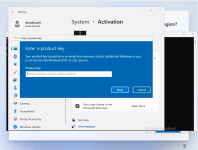
You are then prompted to enter your Windows upgrade product key:

This will then reboot the device and kick off the slightly different OOBE for Windows Pro (see below).

Where Do I Get My Upgrade Keys?

If you’re an M365 subscriber as a workplace/school then you historically got these keys from Microsoft’s Volume Licensing Service Centre (VLSC) however this is now being deprecated as VL keys are moving to the M365 Admin Portal, but there is a key piece of info here to understand:

  • A VL Key administrator must be an admin user in the M365 Admin Portal, AND
  • The VL Key administrator must still be registered in VLSC to be able to see these keys in the M365 Admin Portal (the email address / user must match in both VLSC and M365 Admin Portal

If you’re not registered at the VLSC but will be the person managing VL keys in the M365 Admin Portal reach out to your licensing provider and they can trigger a registration email sent to you from Microsoft to kick off the VLSC registration. It will look something like this:

Note: it can take up to 24hrs before this registration is activated and you can start seeing the VL keys in the M365 Admin Portal.

This second step is something many users are unaware of and even if they’re a Global Admin in the M365 Admin Portal wonder why they can not see the VL Keys there – they must still be registered at VLSC with the same email address. Once this happens, they can log into the M365 Admin Portal and navigate to Billing >> Your Products >> VL Keys where a search can be done for Windows keys e.g.

Note that you can export all key into a CSV file or can copy the key as per the red arrow above.

With your Windows 11 Home device now upgraded to Windows 11 Pro (or above) you can complete the OOBE and create a local user through the setup.

Create Local User On Windows 11 Pro During OOBE

The initial steps of the OOBE wizard for Pro is very similar to Home – choose your location, language, keyboard settings etc, but then you get presented with a new option, to set up for personal use (signing in with an MSA) or setting up for work or school (where the device would be joined to a local domain or EntraID (formerly, AzureAD):

Given we don’t want to replicate the MSA challenges of Windows 11 Home, you need to select “Set up for work or school” and progress. You’re prompted to enter your work/school email address which would kick off the cloud EntraID join and enrolment into Intune, but that’s not what we want to do in this instance so choose “Sign-in options”:

Unlike Windows 11 Home there is a new option presented to complete a Domain Join instead:

When this is selected, you’re now given the option to create a local user:

And then create a memorable password:

Followed by password prompts, showing you’re in the process of creating a local user on the device:

Final Thoughts

I’m a passionate advocate of a ‘managed device’ as I believe that increases the chances of it being secured and ready for work/learning, so I try to guide all my customers away from creating local users on devices in virtually all instances. With that said, I acknowledge there are some scenarios where customers are wanting to create local users for various reason and this blog shows some ways of achieving that through the OOBE process.

My prediction is that Microsoft continues to close loopholes and ‘hacks’ that allow for non-MSA users to be created during the OOBE process for Windows Home, so what I’ve outlined above using ‘a@a.com’ or ‘no@thankyou.com’ is not something I’d recommend users rely on. Instead, the upgrade pathway to Windows 11 Pro (or Enterprise, or Education) during OOBE is a better option and provides the user with both an EntraID Join (formerly an Azure AD Join – AADJ) or the ability to create a local user if you select “Domain Join” during the OOBE process.

Finally, if you do sign into a device during OOBE with your MSA or work/school account and decide you want a local user instead, you can create these via the Windows Settings: Create a local user or administrator account in Windows – Microsoft Support. This is probably the most compliant method of achieving a local user for Windows Home devices.

If you know of any other ways to create local users during OOBE feel free to drop it in the comments below!

Categories
Windows 11

3 Tips In 3 Minutes For Microsoft Edge Browser (Chromium Edge)

In January 2020 Microsoft officially launched the “new” Edge Browser, based on the Chromium code. I’d been using this in beta for many months prior to that and you can get ALL the information here and if you want to update your Windows 10 laptop to using the new Edge browser then go here. Of course, Edge is also available on MacOS and iOS as well.

I’ve shared three tips in three minutes in the above video which I encourage you to check out, but here they are with links for more help:

Tip One – Using Profiles

If you switch between user profiles regularly (like I do when delivering customer demos and also testing new features for my own learning), then this is a great time save for you.

Full guide on how to use profiles here.

Why is this important? No more using anonymous / incognito browsing during demos, and also means you can use profiles that remember your separate browsing history and this can also by synchronized across devices.

You add a profile to Edge based on your Office365 (AzureAD) credentials but you can also use your Microsoft Account (MSA) e.g. @outlook.com or @hotmail.com etc.

This immediately allows you to separate “work” browsing from “personal” browsing – on the same device and in the same browser. Very handy.

Tip Two – Creating Edge Apps

This is a neat feature that allows you take any website and install it as a stand alone Edge App

Guide on how to create Edge Apps here.

Why is this important? The use case that is of most interest for me here is inside of Microsoft Teams. I’m a Guest in a number of other tenants and when I use the primary Teams desktop app, sometimes notifications in those other Guest Tenants is less obvious.

Enter Edge Apps – I can create dedicated apps for each Guest Tenant and with one click can launch into that and use it “natively”.

This is a great time saver for those that use Teams as guests regularly. But of course, you can use this for any web app e.g. create a dedicated Edge app for your favourite news website, or streaming music player – the list is endless.

Tip Three – Collections

In some ways, collections work as visual bookmarks in a standard browser, but you can do a whole lot more with them!

Guide and information on Collections in this blog.

Why is this important? Students and Teachers often need to do a lot of research on the internet – collections are a “one click” way to store websites, images and snippets of text from anywhere on the web into a central place (managed by your Edge profiles as per Tip 1).

You can also easily share these Collections with others, either via Excel, Word, or copy/paste into a platform like OneNote if you wanted to.

Even More Tips!

There are currently 34 additional tips from the Microsoft Edge Browser Support Page – see them all here.

There you have it – some quick tips and tricks on making the most of the new Edge browser!

microsoftedgenewlogo
A new take on the traditional Edge browser logo

Categories
Microsoft365

Microsoft Editor Launches To Promote Better Writing

With much of the world in lockdown due to #COVID19, I missed the initial announcement of this feature last week – but you can read the full release here.

From an education perspective, this is a welcome announcement and becomes another tool for students and educators to leverage to assist in improving their writing. From the original blog:

Microsoft Editor, an AI-powered service that enables you to write with confidence in 20+ languages, can help. Write polished prose, craft impressive emails, and post on your favorite sites like LinkedIn, Gmail, Facebook, and more.

Microsoft Editor comes in two forms:

  1. Free – basic editor functionality such as spelling and grammar powered by the Microsoft Account (MSA) such as outlook.com, hotmail.com etc.
  2. Paid – as part of the Office365 subscriptions there is additional functionality such as advanced grammar and style refinements, including clarity, conciseness, formal language vocabulary suggestions and even plagiarism suggestions.

That last one, plagiarism checking, is called “Similarity Checker” and is particularly important for education where students and academics are regularly required to prove that their writing is either their own, or suitably attributed. From the blog:

The web provides every writer with a huge amount of reference material, and it can be challenging and time-consuming to properly do citations. Similarity checker helps by identifying potentially unoriginal content and making it easy to insert relevant citations. This feature will be available in the coming months in Word for the web.

Where Will Microsoft Editor Show Up?

There are three areas you can access Editor:

  1. Microsoft Word
  2. Microsoft Outlook (And Outlook Online)
  3. In the browser using a soon-to-be-released browser plugin for Microsoft Edge and Google Chrome Browsers (this means that when writing blogs or lengthy Facebook posts you’re covered!)

As always, I recommend you check out the original post about this and if you’re an educator, look to promote this with your students and colleagues.

Categories
Microsoft365

True Guest Access Comes To Microsoft Teams (at last!)

UPDATE: You can see the documentation around the Guest Experience here.

A useful matrix comparing the functionality of local team members vs guests is below:

Teams

Ever since Microsoft Teams For Education was first announced the immediate request from educators was twofold:

  1. Can we invite parents into Teams?
  2. Can we invite teachers from other schools with G Suite / Gmail addresses ?

Until recently, only external users with AzureAD Office365 credentials could authenticate as guests into a Team which was great if the person you wanted in the Team had this, but the reality is many parents did not have an O365 account.

This morning it’s been announced that Guest acccess has been extended significantly to include consumer accounts such as Gmail.com, Outlook.com, Hotmail.com and others and will be given full access to the Team chat, files and meetings etc.

How it works

To invite a guest to a team, select “Add Members” in the menu next to the team name. Then add the guest’s email address. They will receive a welcome email message with information about the team and what to expect now that they’re a member. If the guest doesn’t yet have a Microsoft Account associated with their email address, they will be directed to create one for free (this is an important step for the authentication to work – it does not take long at all and effectively registers the guest’s personal email address as a Microsoft Account – also known as an MSA).

To invite a guest to a team, select Add Members in the menu next to the team name.

To invite a guest to a team, select Add Members in the menu next to the team name.

You can now add anybody with a consumer account as a guest in Teams

You can now add anybody with a consumer account as a guest in Teams

Once they accept the invitation, guests can participate in chats, join meetings, collaborate on documents, and more. Teams with guests will be identified with text and icons throughout the Teams UI to give all team members a clear indication that there are guests in that team.

Text and icon give a clear indication of guest participation in a team.

Text and icon give a clear indication of guest participation in a team.

FAQ:

Who can use guest access?

Guest access is included with all Office 365 Business Premium, Office 365 Enterprise, and Office 365 Education subscriptions.

How do I enable guest access

Guest access is a tenant-level setting in Microsoft Teams and is turned off by default. To take advantage of the new functionality, admins need to enable guest access in the Office 365 admin centre

If I already enabled guest access when Azure Active Directory (AAD) guest access became available, do I need to take any additional action to enable guest access for consumer email accounts?

If you have already enabled guest access, then your users will be able to add guests with a consumer account without additional action on your side.

If you enabled guest access with the expectation that you wanted to restrict it to AAD accounts only, you can disable guest access via the Teams setting by switching the feature off.

My Perspective:

This is a game changer for education as it opens a huge amount of collaborative possibilities to educators. From the top of my head I’m thinking:

  • Inviting parents into class Teams for younger students
  • Parent Teacher Association (PTA) Events e.g. organsing the school the fair or fundraisers
  • Sports Team Collaboration – parents can share photos from game day, see updates
  • Inviting external experts into a Team to teach a lesson, do a video conference with students etc
  • Communities of Learning (CoLs) – teachers collaborating across schools, contributing information around  students from feeder schools
  • Professional Learning Groups (PLG) where educators and experts across different organisations can join a Team together to go on a professional development journey.

I am super excited to see how the creativity of educators is unlocked with this announcement for the increased collaboration through Microsoft Teams for Education.

Categories
Microsoft365

Microsoft Teams Adds Guest Access

A really exciting announcement this morning from the MSFT General Manager Lori Wright – Guest Access is now available!

Read the official release here.

This is far and away the most requested feature from schools that I’ve encountered and given the enormous growth in usage of Microsoft Teams since it was released six months ago, I can see Guest Access contributing to even more usage. Here’s an interesting infographic of usage so far:

Teams 1.png

It is worth nothing, however, that this is not unrestricted guest access at this stage. From the blog release:

Beginning today, anyone with an Azure Active Directory (Azure AD) account can be added as a guest in Teams. That means anyone with one of the more than 870 million user accounts—across Microsoft commercial cloud services and third-party Azure AD integrated apps—can be added as a guest in Teams.

This actually caught me out as I saw on Twitter first thing this morning that Guest Access had been released so I immediately logged into my demo O365 Tenant and signed into Microsoft Teams, inviting my personal email address of #######@mcneill.co.nz. Sure enough, I received the invite:

Teams 2

However, when I attempted to authenticate into the Team it didn’t work. The reason for this is because my @mcneill.co.nz domain email is hosted (and has been for ten years) on Google Mail services i.e. not using Azure Active Directory (AAD). It looks like this will be rectified in future releases with support for signing in with a Microsoft Account (MSA):

Later, we’ll add the ability for anyone with a Microsoft Account (MSA) to be added as a guest in Teams. If the guest doesn’t have an existing MSA, they will be directed to create a free account using their current corporate or consumer email address, such as Outlook.com or Gmail.com.

This authentication is being managed by Azure B2C which I blogged about previously, which provides the host organisation with a lot of very granular control over how and what users can access within the host tenant.

From an education perspective, there is a world of opportunities for guest access, with the following being the first off the top of my head:

  • Inter-school collaboration for professional development (this is particularly relevant in New Zealand with the development of the Communities of Learning or CoLS)
  • External experts are used for professional development of staff or additional teaching of students. Remember, Meet Now allows video calls directly within Teams.
  • Adding Parents or Caregivers into a Team for seamless communication between school and home
  • School partners/suppliers who deliver services could be added to a Team for easier communication

Teams 3

I’ve blogged about a few times about Teams and could be worth checking out if you’re new to these:

While many schools do use AzureAD, some are 100% Google Cloud accounts and therefore, as in my example above, they won’t be able to sign into Teams at this stage. There is, however, a good work around for this using AzureAD Single Sign On (SSO). This requires the primary identity of students/faculty to be managed out of AzureAD but then allows for the configuration of SSO into G Suite accounts in only a few minutes. This is probably the easiest way to usher in Google Schools to using Teams at this stage.