Categories
Microsoft365 Minecraft:EE

Video: Migrating Store For Education/Business Apps With Intune

It has been a while since I’ve last posted on here since being made redundant, but I made the most of it with a ten day “redundancy ride”, bikepacking my way through the beautiful South Island of New Zealand. To show a few photos from the trip:

However, I’m pleased to land at Cyclone Computer Company as a Technology Strategist and will be working with education and commercial customers moving forward. I’ll update more on this in due course, but I wanted to share this short video from the amazing Scott Breen because he has explained in very simple terms how to migrate from the soon to be deprecated Microsoft Store for Education (or business) to the new Microsoft Store app type in Intune.

Deprecation of the Microsoft Store for Education

Signalled as far back as July 2021 in this blog post, the key dates to understand are imminent:

  • 30th April 2023 (no more syncs)
  • 15th June 2023 (no more deployments)

Therefore, it’s critical to make this transition away from the Store for Education to the new store app deployment methodology with Intune.

If you’re deploying the ever popular Minecraft: Education app through Intune then you’ll need to make this change immediately, and there is actually some dedicated documentation to help you with this here:

Intune Microsoft Store app changes – Minecraft Education

The process is simple – only 3 steps

As per Scott’s video, there are only three steps required:

  1. Create a new Microsoft Store app
  2. Copy Group Assignments
  3. Remove Assignments from the old app and/or delete the old app

Private Store is now Company Portal

Many customers were using the “Private Store” functionality in the Microsoft Store to provide a curated list of apps that a user could optionally download if they wished.

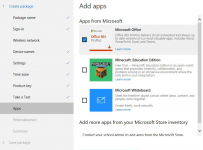
This functionality is now only available to end users via the free cross-platform Intune Company Portal app. In the image below, the old Private Store is minimized on the left and the new Company Portal is on the right:

Final Thoughts

I’m a big believer in modern management and Intune is at the heart of this from a Microsoft perspective. As the app story evolves it’s critical to keep up with these changes and fortunately in this instance, the change from the deprecated Store for Education to the new Microsoft Store app type in Intune is pretty painless.

Do make sure you move quickly to avoid being impacted by the cut off date.

Categories
Microsoft365 Windows 11

Intune – The New Microsoft Store Experience

I see that the above video was released today outlining the ease of integration between Microsoft Intune and the Microsoft Store for managing app installations from the cloud (all powered by winget in the background).

With the signaled retirement of the Microsoft Store for Business, along with the restricted functionality of the Microsoft Store for Education that has already taken place, this new Store integration can not come soon enough for those admins that are keen to reduce complexity of app management on Windows.

I have not had a chance to get hands on with this myself yet sadly (future blog post to come!), however I was sufficiently excited by the video to want to share it with the readers of this blog, along with the official Microsoft Learn documentation supporting this.

To be honest, winget reminds me a lot of APT (Advanced Package Tool) from Debian that I used regularly when running Linux distros as my desktop and also on Debian based servers I was managing. There is tremendous power and scriptability of command line tools like this that most admins just love, however there is also a time and place for GUI based app management as well. Ubuntu is one of the most popular Debian-based linux distros out there, and they have the pun-inspired Aptitude graphical package manager for those that want a simpler experience. I’d suggest that the Microsoft Intune integration with the Microsoft Store, extended by the Company Portal app for self-service installation of optional apps, creates a similar offering of managed application support in the Windows ecosystem.

I’m definitely looking forward to getting hands on with this new solution and sharing it with my education customers as soon as possible – watch this space!

Categories
Microsoft365 Windows 11

Tips & Tricks: Pre-Installing Office365 ProPlus & Forcing Password Resets

Pre-Installing Office365 ProPlus

In my job I spend time in developing markets where the internet connection is not guaranteed to be fast or even available at all times. Therefore, being able to deploy larger applications to Windows 10 devices via provisioning packages is a useful technique to reduce the bandwidth requirements down to being a simple AzureAD join request and authentication.

One tool that can assist with this is the Set Up School PC App, available for free in the Microsoft Store and this allows you to easily configure a Windows 10 device with settings and apps as well as joining the device to AzureAD during the setup. One of the most common applications required on education devices is the Office365 Pro Plus suite which usually requires a reasonably fast internet connection to download and install.

However, with an update to the Set Up School PC App last month,  this can now be packaged up into the provisioning package and deployed directly onto the device:

O365 PP SUSPC.PNG

Previously, a Windows 10S version of Office was available via the Set Up School PC App however this update will be useful for all versions of Windows 10.

Forcing Password Resets:

Many schools are still running a hybrid identity platform, meaning they have an on premise Active Directory that is connected to their cloud identity in Azure Active Directory using AzureAD Connect:

Microsoft’s identity solutions span on-premises and cloud-based capabilities. These solutions create a common user identity for authentication and authorization to all resources, regardless of location. We call this hybrid identity.

In some situations, users end up primarily signing into cloud apps e.g. the Office365 Portal and rarely authenticate directly against the on premise Active Directory. Nevertheless, organisations will still want users authenticating against AzureAD to be forced to change their password on the first login.

With a hat tip to Stefan van der Busse who pointed this one out to me, I note there is now a public preview of a service to force password resets in AzureAD on next login.

It is typical to force a user to change their password during their first logon, especially after an admin password reset occurs. It is commonly known as setting a “temporary” password and is completed by checking the “User must change password at next logon” flag on a user object in Active Directory (AD).

The temporary password functionality helps to ensure that the transfer of ownership of the credential is completed on first use, to minimize the duration of time in which more than one individual has knowledge of that credential.

Think of the beginning of the school year / semester when students are first issued a password to access the school environment. That password may have been shared via a printed onboarding document, an email or even verbally shared with the student. In other words, someone else knows the password. Being able to force that reset on the first login, irrespective of whether the student authenticates against an on premise Active Directory, or against the cloud Azure Active Directory, is a good step towards ensuring better password security.

This is also very helpful in scenarios where students bring a BYOD device that is not domain joined – it will allow them to sign into the Office365 Portal and reset their password.

Categories
Windows 11

Microsoft Whiteboard Finally Arrives (In Preview)

Way back in February of this year I was introduced to a Preview version of Microsoft Whiteboard, an app for Windows 10 devices that was similar to that running on the awesome Surface Hub devices. I was able to show a handful of customers but because it was not available there was a degree of frustration at not being able to get “hands on” with it in their classrooms.

That’s all changed with this weeks announcement of a public preview of the Whiteboard App for Windows 10.

If you’re in a hurry to get your hands on this then click the following direct download link:

Direct Download of Whiteboard Preview App from Windows Store

Microsoft Whiteboard Preview is built for anyone who engages in creative, freeform thinking before getting to their final output. It’s designed for teams that need to ideate, iterate, and work together both in person and remotely, and across multiple devices.

For schools that are already heavy users of OneNote Class NoteBooks you may ponder why this is a good tool to explore, but I believe there are definitely differentiated value propositions here including:

  • In the Whiteboard Preview App the pens are at the bottom of the app rather than at the top as they are in OneNote. If you’re using Whiteboard App projected onto a touch enabled TV or Projector screen then this is a huge thing. You don’t need to be stretching right up to the top of a large screen to change pens – you can “grab” the new pen from the bottom of the screen, just as you would on a traditional whiteboard:

Whiteboard pens.PNG

  • You can easily click ‘n drag text, images, diagrams and virtually any other object around within whiteboard.
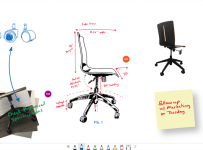
  • The photo stack feature is a neat one that is not available in OneNote:

gif

  • Co-authoring is easier with MSA accounts such as Outlook/Hotmail supported, as well as traditional Office365 Accounts meaning collaboration can be easily implemented with users outside of your school if that is desirable:Whiteboard Share.PNG
  • Multiple canvases are supported for easy sharing across different classes/projects:

For schools that already use touch and pen enabled devices there is obviously a lot of additional value here, although the “finger touch” option is reasonably accurate even without a pen. The fact you can share without the need for an Office365 account opens this up to schools that perhaps use other cloud collaboration suites but want to get the value of this free tool.

It’s been a long time in development before it’s got to this stage and I do encourage you to download it and give it a go.

Categories
Windows 11

Windows 10 Fall Creators Update – What’s New?

MixedReality1.pngThis week saw the major announcement of the latest iteration of Windows 10 operating system called “Fall Creators Updates” (or 1709 if you prefer to track version numbers!).

There is a heap of blog posts about this that touch on the various new features but the overall summary is that this update is still focused on allowing end users to be super creative through enhanced Mixed Reality apps and tools, but also maintaining the longstanding commitment to accessibility for all users. The following 30 minute video really gives a great overview of the new features and I encourage you to check it out:

This official blog post is also a great read as it goes over some of the major features in the Fall Creators Update, including:

  • Windows Mixed Reality
  • Photos App updates (better story telling features that students will love)
  • Mixed Reality Viewer (drop 3D models directly into the real world and then take photos)
  • My People – pinning your favourite people/contacts to the task bar for even quicker access and sharing of content.
  • Microsoft Edge updates – especially around handling PDFs and digital inking support
  • Microsoft Store – updates for a better customer experience
  • Security – no update would be complete without even further features keeping your device and content secure.
  • Mobile Phone handoff – the ability to continue your searches from your phone to your device
  • Productivity enhancements – worth looking at the blog for the full list, but OneDrive Files On Demand has landed, along with some neat features like “find my pen” if you’re using a compatible device, and eye control of Windows 10 for even greater accessibility.
  • PC Gaming – bunch of updates to make gaming (and sharing of your gaming through Mixer) even easier on Windows 10
  • 3D in Office – for students and teachers that are really wanting to make their presentations sizzle, you can build and deploy 3D models into PowerPoint.

MixedReality
A virtual shark being dropped into a classroom

The list above is just a brief summary and it’s definitely worth checking out the details in the blog post . One of the features that impressed me most was the eye tracking support in Windows 10. I’ve blogged about how accessibility is at the heart of everything Microsoft does, as well as how machine learning in Azure is supporting diagnosing dyslexia and the video below shows how people suffering from ALS can use Windows 10 simply through eye tracking:

It’s truly incredible to think of the impact on the lives of these people who can start to communicate again through using their eyes.

An Educational Perspective:

Windows 10 Fall Creators Update delivers amazing value to empower students and educators to be creators in and out of the classroom.

  • The Photos app brings new functionality that introduces students to visual storytelling. It helps them learn the vital skills of visual communication and digital storytelling through an easy to use inbox Windows application.
  • Microsoft Edge now ships natively with Read Aloud functionality for web pages, PDFs and ePubs.
  • Windows 10 automatic redeployment streamlines end of year device reset for schools. Administrators can easily start the process with a simple key stroke on the lock screen, entering their admin credentials.
  • Intune for Education updates multiple fixes around improving performance plus new settings and management capabilities for basic printer setup, Microsoft Edge, Windows Defender, Windows Firewall and power policies.
  • Basic printer set up for Azure Active Directory joined devices allows IT to set a default printer for a device or student through Intune for Education. Students automatically see and print to assigned printers without any additional setup on their devices. IT admins can specify whether students can find and install additional printers. This is a real key and something that many schools exploring Intune for Education have been asking me about for a while.

Windows 10 Fall Creators Update (1709) is of course a free update and you can download it by simply:

  • Click the Windows button on your keyboard or bottom left of your screen, followed by the cog icon as seen below:

Creators Update0


  • Select “Update & Security”

Creators Update1

  • Click “check for updates” and you you should see the new version of Windows 10 start downloading:

Creators Update

So go get it – and have fun!

Categories
Windows 11

New: Use PowerShell To Manage Licenses In Windows Store For Business / Education

powershellMany organisations are increasingly using PowerShell to automate routine tasks and schools are no different in this way.

With the recent surge in interest around Minecraft Education Edition (or M:EE for short), many schools have been asking for an easier way to manage, assign and revoke these licenses for individual students. Up until now, this could only be done via the Store itself (see here for a guide).

Happily, there is now a method to use PowerShell to achieve the rapid license management – it is still in Preview Release at the moment but could be worth checking out if you want to do some testing:

Microsoft Store For Business & Education PowerShell Module (Preview)

You can use the PowerShell module to:+

  • View items you’ve purchased – shown in Apps & software
  • Manage licenses – assigning and removing
  • Perform bulk operations with .csv files – automates license management for customers with larger numbers of licenses

It’s great to see even easier ways to manage Education focused apps from the Store through the use of PowerShell.