Categories
Security

Is It Possible To Go Passwordless? Experimenting With Temporary Access Pass in AzureAD

UPDATE 22nd August 2022: I came across a great video from Matt Soseman with a great walkthrough video showing how to implement and experience going passwordless. Definitely worth a watch:

—–

In my non-work conversations with friends and family, it seems there is a general growing awareness of the need to improve their security posture with their online accounts. Most people seem to have one or more of the following things in play:

  • A strong password
    • Gone are the days of simplistic or guessable passwords – most understand the next for a reasonably complex password.
  • A Passphrase
    • Instead of a complex, hard to remember password (e.g. w90ep8[5={h]U:OJ), a few people I know are moving to longer, but more memorable, passphrases (e.g. ILike$unnyDaysInMarch2!)
  • Single use passwords/passphrases for different websites/applications
    • No longer are they using a single, shared password/passphrase across their entire digital life
    • This is good, but can lead to difficulty remembering passwords, which leads to my next point
  • A Password Manager
    • Lots of great free/low cost options online to store unique, complex passwords and make them available either via a browser plugin/extension or mobile app on the smart phone of choice.
  • MultiFactor Authentication (MFA)
    • Perhaps the gold standard for account protection, adding MFA to an existing password/passphrase massively increases the protection of the account against unauthorized access.
    • Increasingly, more and more personal and professional services allow you to turn on stronger account protection with MFA

The above are excellent and I encourage you to implement these yourself if you’ve not already embraced a combination of them for your digital life. With that said, there is a growing trend to move away from passwords altogether and instead use alternative means of authentication to achieve this. From a Microsoft Azure Active Directory (AAD) perspective, this is enabled by a few different technologies and I read this week of the general availability of the Temporary Access Password (TAP) to enable the secure onboarding of a new user into a directory without ever providing them with a permanent password. You can read about this here. The end state of a passwordless environment could look like this:

“…We use the MS Authenticator for passwordless sign in. That is the only way employees can access resources. Enrollment is based on TAP, and we do not hand over a traditional password to the users…” – Global Toy Manufacturer, EU 

Secure authentication method provisioning with Temporary Access Pass – Microsoft Tech Community

I decided I’d give this a go and see how easy it was to configure. I did run into a few hiccups so worth reading to see how you can avoid my mistakes!

Getting Started

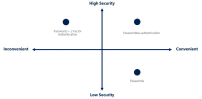
Security is always a balancing act between convenience and robustness of the security measures.

Understanding the options for passwordless authentication and what is right for your organisation is important and you can read about this here. I generally like a combination of Windows Hello for Business which works great on a device with a camera that can do facial recognition or a fingerprint scanner, combined with the Microsoft Authenticator App configured and ready to go. If you’re going to settle on the Authenticator App, then this documentation is the starting point for you. Your pre-requisites for getting this working will be:

  • AzureAD MFA with push notifications allowed as a verification method
  • Authenticator App installed on your mobile device
  • The mobile which has the Authenticator App installed on it must be registered with the AzureAD tenant to an individual user
    • I am making this one in bold early on as this is what caught me out. I tried to use the Authenticator App on my primary mobile phone that also does passwordless authentication for my primary work account – whilst I could add my test account to Authenticator I could not register this phone with my test tenant. This meant that I was not able to truly test Passwordless and I went around in circles until I recognized this and set up Authenticator App on a spare Android smartphone I had (Pro Tip: a friend told me they use an Android Emulator on Windows to get around this issue – smart!)
  • Optional: if you’re wanting to test this out rather than implementing it organization wide, you may want to create a Security Group in AzureAD with a subset of users who you assign this policy to for testing.

Enable Passwordless Phone Sign-in Authentication Methods

First, sign into AzureAD Admin Portal with a sufficiently credentialed user. I then created the Security Group and added two users (make sure they’re licensed correctly to support this):

You then need to browse to the Security –> Authentication Methods (direct link here) and make sure you turn on the two policies for Microsoft Authenticator and Temporary Access Pass:

I scoped the functionality for both policies down to the “Temp Password User Group” I created so that this would not affect the majority of users in my tenant:

Create A Temporary Access Pass

The documentation to create a Temporary Access Password Policy is outlined here, and again I’ve scoped this down to my Security Group for testing. It is possible to edit the complexity of this temporary password as well which might require some consideration depending on how you’re going to distribute it (e.g. over a phone call to a remote user, or in a help desk scenario):

With the policy in place, creating a Temporary Access Pass is easy, simply find the user in AzureAD, go to their Authentication Methods, and choose to “Add Authentication Method” selecting Temporary Access Pass:

Helpfully, the TAP is shown on screen AND a link to the URL (https://aka.ms/mysecurityinfo) where they should sign in and register their devices and Authenticator App:

I want to point out again here that it is absolutely critical that the user completes the phone registration during this process. The steps are outline below (I’ve underlined and italicized #5 as key):

  1. Browse to https://aka.ms/mysecurityinfo.
  2. Sign in, then click Add method > Authenticator app > Add to add Microsoft Authenticator.
  3. Follow the instructions to install and configure the Microsoft Authenticator app on your device.
  4. Select Done to complete Authenticator configuration.
  5. In Microsoft Authenticator, choose Enable phone sign-in from the drop-down menu for the account registered.
  6. Follow the instructions in the app to finish registering the account for passwordless phone sign-in.

A key point to understand here is that you can only use a single phone/Authenticator app for passwordless sign in on a unique work/school account:

A phone must be registered to a single work or school account. If you want to turn on phone sign-in for a different work or school account, you must unregister your account from this device through the Settings page.

Signing Into Brand New Windows Device With Passwordless Authentication

One of the really cool things with passwordless authentication is that this can be extended to Windows sign in as well. Usually, this would be combined with Windows Hello for Business as mentioned earlier, but if you have a brand new device that you are going to AzureAD Join then you can do this without needing a password. So what does this look like?

First, when prompted to setup a device for work or school, you need to choose this option:

Enter your full organization email address:

Since the user has already been configured for Passwordless Authentication via the Microsoft Authenticator App, no password is prompted for, instead the push notification to the phone takes place:

On my phone I’m asked to match the number on screen:

A few minutes later I have a working desktop, having never entered a password.

Based on organizational policy, it’s usually a good time during the setup to force the Windows Hello for Business configuration (instructions here). If you go to Account Settings you can see that the user is signed in and the device is joined to AzureAD:

Final Thoughts

The Education Industry is often complex and implementing security measures around identity and authentication can be challenging when not all users would have a phone for MFA (students for example). That said, senior leaders are often provided a phone by the institution and would be strong candidates to move towards a passwordless approach to protect the information they have access to securely.

It’s clear that a lot of work has been done in the background to make Temporary Access Pass relatively simple to implement and combined with Microsoft Authenticator App the experience for the end user is very simple too. Again, this is critical as reducing the friction for users to ‘get started’ or ‘get on with their jobs’ is key from an IT perspective and ensuring that there are robust security measures still in place is the balancing act for all IT and Security teams.

Embracing a passwordless approach might not be appropriate for all users in your organisation right now, but it’s definitely something to consider and trial for a smaller subset of users to provide maximum protection.

Have you already moved to Passwordless? I’d love to hear your experiences in the comments below.

Categories
Microsoft365

Using Conditional Access To Protect Student and Staff Identity With Location Based Policies

Overview of Conditional Access

This post was inspired by recent conversations with partners and IT Admins in schools who were wanting to provide a layer of additional protection for students without requiring them to use MFA (usually, because younger students do not always have access to mobile phones). 

It’s a lengthy post, however provides a good step by step overview on how to protect users from overseas identity attacks by blocking international authentication attempts through the use of Conditional Access without requiring MFA. The following sections are included:

  1. Why Identity Protection
  2. What is Conditional Access?
  3. How To
  4. Implications of this Approach
  5. Final Thoughts

Why Identity Protection?

Attempts by bad actors to exploit weak or compromised passwords is one of the most common attack vectors experienced by organizations globally and education is no exception. In fact, in a 2019 Microsoft Security blog it was noted:

There are over 300 million fraudulent sign-in attempts to our cloud services every day … MFA can block over 99.9 percent of account compromise attacks. With MFA, knowing or cracking the password won’t be enough to gain access. To learn more, read Your Pa$$word doesn’t matter. (source)

MFA, or Multi Factor Authentication, is a process whereby a second form of identification is required (usually a smartphone app or SMS code message) which works very effectively, however can be challenging or time consuming for some end users. This is particularly true in education where schools often have younger students who may not have a phone with which to perform the MFA action.

Whilst weak passwords can be relatively easily avoided by schools and universities by applying minimum password complexity rules, the reality is many users will leverage the same password in other online platforms (e.g. social media, fitness apps and other websites where they have created accounts) and it may be that those platforms have their user database compromised. In those circumstances, a good place to check is the website Have I Been Pwned? where simply entering your email address will reveal if your account has been compromised online. Having obtained compromised account details, would-be attackers can launch automated drive by attacks on many online platforms, including M365. MFA will go a long way towards stopping this, however Conditional Access is another tool available to M365 users that is effective even without MFA which may be unavailable due to age or skill of end users.

Given that the vast majority of attackers are likely to be attempting authentications from overseas, Conditional Access will allow you to automatically block those attempts, adding an invisible layer of protection to all users without slowing down the authentication process at all. I was talking to an IT partner recently who supports multiple schools and he commented:

[Conditional Access is a] quick easy way to stop 99% of our student accounts getting compromised, probably staff as well… [other solutions] don’t have any product offerings outside of MFA … Conditional Access is a game-changer!”

What Is Conditional Access?

conditional-access-signal-decision-enforcement

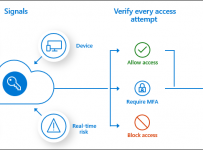
Conditional Access policies at their simplest are if-then statements, if a user wants to access a resource, then they must complete an action. (source)

As part of Microsoft’s security approach based on Zero Trust, Conditional Access provides an excellent set of tools to the IT Administrator to allow employees or students and teachers the ability to carry out necessary tasks and actions, whilst ensuring security policy is applied with the least imposition possible.

Conditional Access uses a few terms interchangeably, so for clarity sake keep the following three ideas in your mind:

  • A Condition needs to be met. This is the “if” statement and is made up of common signals. Common examples of conditions or if statements include
    • User or group membership; IP location information (i.e. where the end user is connecting to the internet from); Device (e.g. OS or device state); Application (e.g. using authorized apps only); as well as advanced 1st Party Microsoft Identity Protection Tools such as Microsoft Cloud App Security (MCAS)
  • A Decision is made to Grant access to a resource (or, alternatively, block it) based on the Condition / if statement. This is the “then” statement completed for each Condition. Common decisions include:
    • Block access (clearly the most restrictive decision); Grant Access with optional additional layers required such as MFA, only from compliant or hybrid AAD joined device or from an approved app only (e.g. official Outlook app for iOS and not the native Mail client).
  • Like all policies in M365, a Conditional Access policy must be Assigned to a valid user/group or users/groups before it becomes effective.

Common examples of Conditional Access policies used by organizations include:

  • Requiring multi-factor authentication for users with administrative roles
  • Requiring multi-factor authentication for Azure management tasks
  • Blocking sign-ins for users attempting to use legacy authentication protocols
  • Requiring trusted locations for Azure Multi-Factor Authentication registration
  • Blocking or granting access from specific locations
  • Blocking risky sign-in behaviors
  • Requiring organization-managed devices for specific applications

How To

There are a bunch of great tutorials out there (this is a super simple one to follow) and the official documentation is always highly recommended to read, but if you want to follow my steps then read on. In this example I will be setting up a Conditional Access policy to block all authentications from outside New Zealand, but allowing any internal authentications to process without requiring MFA. A policy like this, tweaked for your location, would provide the additional layer of protection for your accounts without adding any additional steps for your end users.

  • Start at the AzureAD Admin Centre (accessible via the M365 Admin Centre menu options) and scroll down to locate the Security menu

1

  • Create a Named Location where you will define your Country IP address range

2

Which should look like this:

3

This will be important as Conditional Access Policies will be relying on Named Locations that you’ve created. You can also define specific IP address ranges rather than entire countries if you choose.

  • It’s now time to create your Conditional Access Policy and use the Named Location you created above. In the blade menu choose Conditional Access:

3-1

  • Then look to create a new Policy:

4

When creating a Conditional Access Policy there are three steps you need to always consider:

  • What’s the Condition that needs to be met? (the If statement)
  • What access will you Grant? (the Then statement)
  • Which Users and/or Groups will you Assign the policy to?

Setting up the Condition to block all logins but to exclude your named location(s) such as New Zealand in my location requires two steps. First, include Any Location:

5

And then exclude the Named Location you created:

6

  • With your Condition defined, you now need to Grant the access you want associated with this policy:

7

In this example I have chosen to simply “Block Access” – remember, this will now apply to all locations I “Included” in the above Condition (which was ‘anywhere’) but critically will exclude the Named Locations I selected – New Zealand. In effect, this means that any attempt to sign into M365 outside of New Zealand will be blocked immediately. You’ll note there are other good options to consider such as enforcing Multi Factor Authentication (MFA) and more advanced options such as ensuring that the device is compliant from a security posture assessment.

  • The final step to complete setting this up is to Assign the new policy – this process follows the standard M365 Administrative workflow of selecting a user(s) or group(s)

8

It’s worth noting that you can set the policy to “Report-only” – this is a great thing to do initially when testing to ensure that you’re not locking yourself out of your tenant! Assign the policy and then monitor the impact

  • To Monitor the sign-in activity and check the impact of your Conditional Access Policy, return to the main AzureAD Admin Portal and under the “Monitoring” section of the menu you’ll see “Sign-ins” which should look something like this:

10

From an end user perspective, they would receive a message like this:

10-1

Implications Of This Approach

Multi Factor Authentication (MFA) is obviously one of the best ways to protect accounts, however the above example shows that a simple Conditional Access policy can go a long way towards protecting student and teacher accounts without negatively impacting their authentication sign in process. This can be used effectively in situations where end users do not have any means of completing MFA (such as, no mobile phone or access to a fixed landline to receive an automated MFA call).

The power of Conditional Access is that it can still be used in conjunction with MFA, as it could easily be tweaked to allow a teacher or student travelling overseas to still log into M365 but they would necessarily be prompted for MFA to ensure the integrity of their authentication.

For those educational institutes looking to provide the maximum level of protection around their accounts they should consider AzureAD Identity Protection which works by collating and analyzing many signals and making automated decisions based on the risk profile of the sign-in attempt.

Identity Protection uses the learnings Microsoft has acquired from their position in organizations with Azure AD, the consumer space with Microsoft Accounts, and in gaming with Xbox to protect your users. Microsoft analyses 6.5 trillion signals per day to identify and protect customers from threats.

The signals generated by and fed to Identity Protection, can be further fed into tools like Conditional Access to make access decisions, or fed back to a security information and event management (SIEM) tool for further investigation based on your organization’s enforced policies. (source)

With Identity Protection, the following risk classifications are analyzed:

RISK DETECTION AND REMEDIATION

Risk detection type

Description

Atypical travel

Sign in from an atypical location based on the user’s recent sign-ins.

Anonymous IP address

Sign in from an anonymous IP address (for example: Tor browser, anonymizer VPNs).

Unfamiliar sign-in properties

Sign in with properties we’ve not seen recently for the given user.

Malware linked IP address

Sign in from a malware linked IP address.

Leaked Credentials

This risk detection indicates that the user’s valid credentials have been leaked.

Password spray

Indicates that multiple usernames are being attacked using common passwords in a unified brute force manner.

Azure AD threat intelligence

Microsoft’s internal and external threat intelligence sources have identified a known attack pattern.

The “Atypical Travel” is an interesting one that I’ve encountered given my work across Asia – I’ll be prompted for MFA when signing in at locations I rarely travel to.

Identity Protection then creates three levels of risk:

  1. Low
  2. Medium
  3. High

A smart approach for schools and universities would be to automatically block Medium and High risk sign in attempts and in doing so, significantly bolstering their security posture when it comes to Identity Protection.

Final Thoughts

There are many ways organisations can add additional layers of protection to the authentication process to reduce the chance their users are compromised and the potential of serious damage is limited. There is always a balance between security and inconvenience (which risks non-adherence from end users), and therefore the beauty and power of Conditional Access should be very appealing to IT Administrators in schools and universities. Of course, Multi Factor Authentication (MFA) and AzureAD Identity Protection provide some of the highest levels of protection possible, but I would personally strongly encourage every organization to start with Conditional Access based on location and blocking overseas authentication attempts.

If you’ve got other strategies for protecting your users’ accounts, drop them in the comments below.

Categories
Microsoft365 Windows 11

Guest Posts: The Future Is Password-less & Intune For The Win!

In previous blog posts I’ve made, I’ve been quick to redirect readers to other’s blogs when I see an awesome post that covers a topic I’m interested in really effectively. Today is no different, except that I’m going to share with you two posts at the same time.

Identity.PNG

Enable Password-less Sign In With Security Keys

Original Post Here

A month or two ago a colleague showed me signing into the online Office Portal using a Yubikey – what intrigued me was not just no need to enter a password, but no need to enter a username. From this, I quickly obtained my own Yubikey, set up a demo environment and ended up demonstrating this during a presentation on Data Privacy and Security Considerations at the Independent Schools of New Zealand Annual Conference..

As I was getting on a plane this week I read Peter van der Woude’s latest post on using this technology to go a step further: signing into a Windows 10 1903 machine with a Yubikey but also managing all of this via Intune (additional information here):

If you’ve never used a Yubikey before, you essentially configure them with account credentials, which could be anything from your AzureAD username/password, through to your social media or other cloud services accounts, protect the key with a local PIN and/or biometric and you’re done. When you’ve configured a service, such as Twitter, to use your Yubikey, you’re prompted to insert the key into the device to authenticate, unlock it with your PIN and/or biometric, and the authentication is completed. The important point is you’ve never entered your username and/or password.

People often ask me, why is a PIN more secure than a password? Well, I’d suggest you read this article from The Verge, but perhaps more importantly, this documentation from Microsoft,  which goes into detail on the following reasons:

Why is a PIN more secure than a password?

  1. PIN is tied to the device: That PIN is useless to anyone without that specific hardware. Someone who steals your password can sign in to your account from anywhere, but if they steal your PIN, they’d have to steal your physical device too!
  2. PIN is local to the device: A password is transmitted to the server — it can be intercepted in transmission or stolen from a server. A PIN is local to the device — it isn’t transmitted anywhere and it isn’t stored on the server.
  3. PIN is backed by hardware: The Hello PIN is backed by a Trusted Platform Module (TPM) chip, which is a secure crypto-processor that is designed to carry out cryptographic operations. The chip includes multiple physical security mechanisms to make it tamper resistant.
  4. PIN can be complex if enforced by the organisation: You can require or block: special characters, uppercase characters, lowercase characters, and digits.

Why does this matter for education?

The ISNZ conference I presented at had a theme of “The Future of Talent” and all educational institutes need to be thinking about how they’re preparing students for the workforce, and this includes actively teaching and modelling good digital citizenship when it comes to security. Of course, this extends to parents as well: my eldest daughter signed up for Instagram this week and the first action I required of her was to set up multi factor authentication.

In many K-12 and Higher Education institutes, students use shared devices and routinely enter their passwords. A Yubikey would both simplify and secure this approach. Similarly, for younger students who often find it difficult to remember a username and password combination, using a Yubikey and remembering only a PIN could be a more effective approach.

I’ve been advising customers that MFA should be seen as a requirement for any senior leadership staff, HR, Finance and those dealing with pastoral care records in education, but to further protect their identity credentials using something like a Yubikey would be a sensible approach, especially given the relatively low cost of the keys and the ability to use them across almost all online services now. I have configured my Yubikey as an authentication mechanism for:

  • AzureAD
  • Microsoft Account
  • Google Account
  • Twitter
  • LinkedIn
  • DropBox
  • WordPress

If you’re not doing MFA or would like to know more about a password-less future then read Peter’s blog and talk to your local IT Team or Partner.

User Interactive Win32 Intune App Deployment with PSAppDeployToolkit

The second guest blog post I’d like to call out today is from Stefan van der Busse and show cases his great work extending some of the advanced Win32 app deployment features of Intune and combining it with User Interaction to deliver a really slick customer experience.

Original Blog Post Here

Stefan’s blog post, like Peter’s, is aimed at the IT Admin, but it is focused very much on improving the end user experience by prompting them when an application is going to be installed or upgraded, giving them the option to defer the process or requiring them to quit active or dependent applications before the install can proceed:

Win32PSApp3

To see it in action watch this YouTube video:

Stefan explains why this is important in his blog:

How can we provide end users whose devices are managed with Microsoft Intune (Standalone) with a better installation experience, for high user applications while not relying on them to self serve application updates using the Company Portal?

Services like this have previously been available through on premise tools such as SCCM, however the solution presented by Stefan via Intune ‘un-tethers’ the end user from the workplace, meaning these updates and installs can take place anywhere the device is connected to the internet. Education, like most other verticals, has an increasingly mobile workforce and customer base (students), so the ability to deploy apps ‘any time, anywhere’ is only going to grow.

Again, I encourage you to read Stefan’s original blog post here.

My Final Thoughts:

If you’ve not picked up on it already, I’m a big fan of Intune as an MDM for managing Windows10 in a modern way, and the two guest blogs I’ve shared today show innovative ways to improving the security and app deployment processes for organisations.

For educational institutes, who increasingly hold and manage hyper-sensitive information on students and staff, taking steps towards MFA and a password-less future is critical, and is a responsible approach to modelling good Digital Citizenship to both employees and students.

Similarly, adopting modern, cloud-first approaches to device management and app deployment will reduce costs for educational institutes whilst increasing flexibility in terms of not requiring IT Services to physically touch every device or have it on the local area network.

Lastly, I’m grateful to all those bloggers out there that write incredible posts that I can reference from my blog! Thank you!

Categories
Microsoft365

Creative Approach To Password Management For Younger Students

One of the challenges in schools is helping younger students (ages 5-8) remember unique passwords that remain complex enough to prevent their “friends” logging in as them. Recently, I saw the following method described in an internal mail thread at work and it is apparently being used by thousands of students in a US school district.

Each junior classroom put three identical posters on the wall that students could easily see from any vantage point in the classroom.

Poster One:

The first poster is colors.  This one has a dozen or so colors on it spelled out beside objects that are that color e.g.

1

Poster Two:

The second is drawings of animals with the name of the animal spelled out next to it.  There’s roughly a dozen animals on the poster e.g.

2

Poster Three:

The last poster is numbers with random icons next to them e.g.

3

How It Works:

On the first day of school when technology is going to be used, the teacher assists students to set their (relatively) complex passwords by pointing at each poster and saying

“Pick your favourite colour, then animal and finally your favourite number from each of the posters. Type those letters  and numbers next to each of your favouite things.”

The students then end up with password combinations such as “GreenDog3” or “PinkElephant13”

Depending on how many options you give students on each poster it will increase/decrease the number of combinations around passwords, but should be sufficient to keep most accounts secure and certainly significantly more secure than a shared password for all students that many schools still use at junior ages.

It’s easy to see that this might take a little while to teach initially, but has the added benefit of students needing to learn how the shift key works to generate capital letters but based on the account from the internal mail thread, usually by the second week you have 5year old students who can’t even spell yet, having memorized a reasonably complex password. For those that haven’t memorized it, the posters remain as visual cues for them.

When it comes time to reset passwords, they simply replace the posters with different combinations of colours, animals and numbers, and the class do a joint reset by selecting their new favourite options – simple!