Categories
Microsoft365 Security

Microsoft 365 Secure Score – Easily Improve Your Security Posture

UPDATE 16th February 2022: The Microsoft Secure Score have published a great video walking through the dashboard just days after I published my blog post. Embedding it below for reference:

I remember back in 2018 discovery Microsoft Secure Score for the first time when it was still primarily focused on Office365 – I wrote this blog about it. Revisiting it recently, it is awesome to see how far it has progressed with the integrated security features from the full Microsoft Defender suite contributing to a complete view of your organisation’s security posture. If you’re wondering what Secure Score is, then here is the blurb from Microsoft Docs:

Microsoft Secure Score is a measurement of an organization’s security posture, with a higher number indicating more improvement actions taken. It can be found at https://security.microsoft.com/securescore in the Microsoft 365 Defender portal.

Source: Microsoft Secure Score | Microsoft Docs

If you’re on time you can watch this quick video which shows me providing a very brief overview of Microsoft Secure and then acting on the top recommendation for my demo tenant which is to turn on MFA (Multi Factor Authentication) for administrators:

Why Use Microsoft Secure Score

Fundamentally, Secure Score helps organizations:

  • Report on the current state of the organization’s security posture.
  • Improve their security posture by providing discoverability, visibility, guidance, and control.
  • Compare with benchmarks and establish key performance indicators (KPIs).

As I engage with CIO, CTO, IT Managers and key Business Decision Makers, one of the constant hot topics of discussion is security. They all want to know how to get easy wins to improve their security posture but don’t always know where to start.

Security in education is challenging – protecting identities, devices, documents, cloud apps, let alone the age range of users from K-12 students through to varying technical competencies of teachers and school administrative staff, knowing where to start is not always easy.

A classic overview of the challenge school IT staff face

Moreover, many IT staff are genuinely keen to report ‘up the line’ to their managers about what is being done to improve their security posture and where the funding needs to be invested to accelerate this.

Enter Microsoft Secure Score.

One of the major appeals of Secure Score for me is the relative simplicity it offers. The overview is clear, the recommended improvement actions are obvious, the accompanying documentation on how to implement those improvements is right there, and the ability to monitor and report on security changes over time provides measurable feedback. For these reasons, I strongly recommend you check it out if you have IT administrative responsibilities for your organisation.

How To Access Secure Score

To check out Secure Score you can click this link directly or if you’re signed into the home of the Microsoft Security Admin Centre you can see it in the left hand menu:

Once you’re in the Secure Score you are presented with the Overview page that provides some key indicators for you, including:

  • Your current score
  • Actions that need reviewing
  • Top Improvement actions
  • Comparison with similar organisations

As you can see from the screenshot above, my demo tenant has a very low score as many things are not turned on and there is significant opportunity to quickly and easily improve the security posture. You can also see that compared to similar organisations my tenant is significantly less secure. Microsoft calculates this comparison based on similar sized tenants in your region and industry.

Improvement Actions

This is my favourite section as it provides an almost “paint by numbers” approach to how to get the quickest wins to improve your security posture:

Here are the top 5 recommendations for my demo tenant. You can clearly see what the actions are, what impact it will have on the overall secure score, what the current status is (note I changed MFA to planned), are you currently licensed for this (super helpful if you’re trying to justify further investment in security) and lastly what products are being used. It should be no surprise that 3/5 of the top recommendations involve identity as this remains one of the main attack vectors for bad actors and the education industry is not immune to this.

By clicking on any of the improvement actions a new pane appears from the right with detail overview and implementation steps – as you can see below after I clicked on “Require MFA for administrative roles”:

The level of information displayed here is actually pretty impressive and the fact it’s easily digestible means you should read it all. You’ll note it’s saying that 0/3 of my administrative roles are currently protected – giving you an immediate sense of the scale of the risk here. It’s also giving an overview of the end user impact – something that is very important to factor in when doing something like an organisation wide change and what level of end user training may be required. For example, implementing MFA for administrator users (3 in my instance) should have minimal impact given there are not many of them numerically and, given they’ve been allocated some form of administrative permissions, they should be technically capable of registering for MFA relatively easily. By contrast, if you were turning on MFA for all end users the scale of potential disruption and support tickets might be quite high!

Implementation Guide: Turning on MFA For Administrators

Simply clicking the ‘Implementation” tab provides another step by step guide on how to turn this on and ensure that you’re sending your Secure Score in the right direction. Things to note here:

  1. It automatically outlines what the prerequisites are and indicates whether you’ve met them (green tick). If you don’t meet these it’s recommending you simply turn on the Security Defaults and outlines what this does
  2. Given the licensing in this demo tenant has AzureAD Premium 2 it provides additional clarity around Conditional Access and how this can be used.
  3. Custom Implementation guidance is provided on creating a new policy to apply to users. I followed this in the video above if you want to watch it video form (click here to start at implementation point in the video)

If you prefer to follow step by step with screenshots then the below outlines how to do this. You need to start the AzureAD Conditional Access Portal here.

click to create a new policy
  1. Give your policy a name
  2. Select which users you’d like to this apply to
  3. I chose to select by Directory Roles, so that any new User Admins would automatically be included
  4. You can see my choice of User Administrator – this new policy will only apply to users who have been given this directory role

Next move down to Cloud apps or actions and then select for this to apply to all cloud apps. Note that it does warn you that you need to take care to not lock yourself out of the tenant! Given I’m only applying this to directory roles of User Administrator I would be fine as I was signed in as a Global Administrator. Do take care though!

In this example I did not configure any conditions here, but it’s worth noting this option exists. For example, you can set this policy to only apply if the sign in was attempted outside of your local area network (which implies some trust if someone is on your network either physically or VPN), or another common one I’ve seen is by IP address range – blocking or requiring MFA for any international IP address attempting to authenticate for example. If you have AzureAD Premium 2 then you can apply “User Risk” which uses Microsoft’s algorithms to determine if the sign in attempt is considered risky on a high / medium / low scale.

Next, you configure the “Grant” with either block or grant access, and for this instance I’ve selected to require MFA. NOTE: you need to hit select at the bottom right to continue! The final step is to enable the policy in the bottom left. Again, double check you’re not going to be locked out by this policy, and then select to “On” (by default it’s set to “Report-Only” which is a great way to test the impact by looking at the audit logs:

Conclusion

With that, you’ve implemented the highest recommendation to improve your security posture by making it far harder for a bad actor to gain administrative access inside your tenant. As you can see, this only takes a few minutes to implement and yet it starts you on your journey towards a more secure M365 tenant and the implementation guides hold your hand the entire way.

As always, I highly recommend you check out the documentation and then build out a plan to implement Secure Score across your Identity and Apps. I know of at least two organisations that include a Secure Score review in their weekly IT team meetings to ensure they’re trending in the right direction – an excellent practice that is easy to adopt!

Categories
Microsoft365 Windows 11

Webinar: Moving A School To The Cloud With M365 Education

Technology is a great servant of pedagogy

imagesToday I hosted a webinar with Aaron Overington, the IT Manager at Oneschool Global NZ and we discussed his two year journey of moving the IT infrastructure he manages into the cloud. He achieved much of this using the solutions inside the Microsoft 365 Education suite and he went into detail around the planning, objections raised (and countered!), proof of concepts and ultimately the delivery and completion of this project.

I started this blog post with the quote above because, whilst there is a lot of technical discussion in this webinar, if you listen closely to Aaron talking you hear that his driving motivation is to ensure he contributes towards the best possible learning environment for the teachers and students of Oneschool Global NZ, that will result in the highest learning outcomes possible. It’s very important, in my mind, not to lose sight of that outcome because when done well, technology should fade into the background of effective learning scenarios.

This digital transformation journey took Aaron and his team approximately two years from the genesis of his vision through to the completion of the execution and included the powering down of all the on-premise servers across the multiple campuses he supported throughout New Zealand in January 2019:

LinkedIn - Project Done!

Webinar Recording:

We recorded the webinar using Microsoft Teams (I forgot to hit record so missed the first minutes!) and you can watch it here:

Some Key Points Of Interest:

The following points are time stamped – click the link that interests you and it will launch in YouTube on that topic.

Slide Deck From Webinar:

Aaron kindly agreed to share his deck from the session and you can view this below:

My Point of View:

I’m hugely grateful to Aaron and the team at Oneschool Global NZ for sharing their journey on this webinar and allowing the recording and deck to be shared after the event as well.  Oneschool Global NZ has a reasonably unique set of requirements in terms of close management of applications, content and network filtering for users across a geographically diverse set of campuses. Through the use of M365 Education Aaron was able to move the school’s IT infrastructure completely to the cloud and keep it integrated with their cloud LMS (Canvas), video conferencing solution (Zoom) and cloud Student Management System (Edge Learning Solutions).

In completing this project, Aaron was able to achieve significant cost and resource savings for the school and deliver a more efficient platform to drive teaching and learning outcomes for the teachers to leverage and the students to benefit from.

Ultimately, this is the key message from this story in my view: technology remains a great servant to pedagogy and, when deployed effectively, can truly accelerate the digital transformation of an organisation.

Categories
Microsoft365

Secure Your Office365 Tenant With Secure Score

As schools are required to document ever more sensitive information about students, it is no surprise that school IT Managers and senior leaders responsible for IT in schools continue to say that security and protection against hacking and data leaks remains one of their key concerns. Most schools store large amounts of Personally Identifiable Information (PII), often on behalf of students that are minors in age, and the requirement to protect this against external threats is greater than ever.

This week I have discovered a tool available to Office365 Administrators called Secure Score that provides direct guidance around the best actions to take to improve security in your tenant and reduce the risk of unauthorized hacking or data leaks. You can read more about this here and for a quick overview, the following video is quite helpful:

It’s important to note that if you have Windows Advanced Threat Protection (ATP) you can include this into your score as well. The great part about Secure Score is that it analyzes what services your Tenant is using (i.e. Exchange Online, OneDrive, Teams etc) as well as what services/products you’ve purchased for your Tenant and then customizes your possible overall score based on the above criteria. In other words, this is not a ‘one size fits all’ tool, but accurately reflects what you can do to secure your organisation and tenant against potential threats.

What Is Secure Score?

Ever wonder how secure your Office 365 organization really is? Time to stop wondering – the Office 365 Secure Score is here to help. Secure Score analyzes your Office 365 organization’s security based on your regular activities and security settings and assigns a score. Think of it as a credit score for security.

Just like we service our vehicles regularly and need to have an official Warrant of Fitness certificate to prove that it is safe and secure on the road, think of Secure Score as a check list of actions that you can take as an administrator to protect your organisation and users from both external and internal threats. I am going to share some screenshots below of how it looks and make some comments, but first some outlines from within the tool itself (If you want to jump straight to your Secure Score Dashboard then click here)

  • Welcome to the Microsoft Secure Score
    • Secure Score is a security analytics tool that will help you understand what you have done to reduce the risk to your data, and show you what you can do to further reduce that risk. We think of it as a credit score for security
  • Your Secure Score
    • Secure Score figures out what Office 365 services you are using, then looks at your configuration and behaviors and compares it to a baseline asserted by Microsoft. If your configuration and behaviors are in line with best practices, you will get points, which you can track over time. More importantly, you will be able to quick determine what things you can do to reduce their risk
  • Take Action, Improve Your Score
    • Secure Score helps you quickly figure out what actions you can take to improve your score. You can check your action queue and find the change you can make that most improves your security posture with the least amount of usability impact for your users
  • Analyzing Your Score
    • Secure Score gives you a different way of managing your risk. Rather than reacting or responding to security alerts, the Secure Score lets you track and plan incremental improvements over a longer period of time
  • DISCLAIMER
    • The Secure Score does not express an absolute measure of how likely you are to get breached. It expresses the extent to which you have adopted controls which can offset the risk of being breached. No service can guarantee that you will not be breached, and the Secure Score should not be interpreted as a guarantee in any way

What Does It Look Like?

To get started with your Secure Score Dashboard,  or follow the guide below:

1
Sign into your Office365 Admin Portal and then click on the “Admin Centres” on the left and select “Security and Compliance”

2
You should see the “Microsoft Secure Score” tile in the dashboard with a direct link to the Microsoft Secure Score you can click on – or go directly here,

3
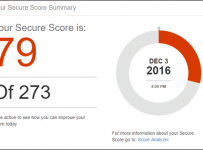
You will immediately be displayed your current score, along with a possible maximum secure score. In the above screenshot you can see my demonstration tenant has a score of 95 out of a possible 566. If I had Advanced Threat Protection available I could also add scores from my Windows10 devices.

5
This is a a particularly interesting use of AI showing how your tenant compares to other tenants in your Industry Sector. My demo tenant is an Education Tenant so I have a direct comparison point of anonymized data from other education institutes and what their average Secure Score is (74). I can also see what the overall Secure Score is on the far right (31)

6
This slider bar is very helpful – it allows me to take a pragmatic approach to security. The reality is most school IT managers are very busy and do not have endless hours to be implementing additional security features, no matter how ‘best practice’ they may be. Similarly, they need to consider the impact on the end users and their daily work flows. By shifting the slider to the left, only the least intrusive actions are suggested (your overall possible Secure Score is also reduced). Similarly, sliding right creates more recommended actions and boosts your overall possible Secure Score.

7
Here you can see the first four actions recommended for my tenant, along with the expanded view of the first recommended action – enabling Multi Factor Authentication for users with elevated privileges (e.g. admins).You will note that it shows the impact on the users, the cost to implement as well as links explaining what the threats this action is designed to combat or mitigate (this is super helpful in terms of assisting an IT manager in justifying these sorts of actions).

7a
By clicking on one of the threats there is an expanded dialogue box explaining the impact / risk of this threat.

7b
One of the features I best like about Secure Score is that you can take action directly from this dashboard. By clicking on “Learn More” you can get an action that will start to action this feature. In this screenshot, it even points out the users with elevated privileges who would be impacted my implementing MFA, as well as providing an option to notify them – super handy!

8
This was the top 20 action items recommended for my demonstration Education Tenant – those with [Not Scored] means there is currently no assessment (yet!) of this in the tool but expect it to come. You can also choose to “Ignore” an action which means it won’t count towards your overall score, or you can indicate if you’re using a third party tool for this action (Which will again reduce the overall score).

9
Secure Score provides the ability to filter actions based on what your priorities are e.g. low cost, or low impact on end users vs perhaps protecting data or securing the identity of users. This allows IT Admins to take a very granular and targeted approach to securing their O365 tenant.

10
Finally, you can select “Score Analyzer” which gives you a view of the security of your tenant over time. This allows you to track progress and identify whether you’re trending in the right direction or not in terms of securing your tenant and users.

My Point of View:

I remember listening to a security expert present to Education IT Directors and IT Managers in Canberra in 2016 and he shared his opinion that the Education Sector was “one or two major security incidents away from having enforced security regulation similar to the banking and health sectors” – that certainly caused everyone to sit up and take notice!

This article from Ed Tech Magazine earlier this week further highlights the risks schools face:

Schools utilizing education technology may need to double down on cybersecurity as collections of student data become more common targets for cybercriminals, announces the Federal Bureau of Investigations in an alert, Tuesday.

According to the FBI, utilizing education technology offers a number of useful services, including “adaptive, personalized learning experiences, and unique opportunities for student collaboration,” as well help with administrative services. However, in exchange, education technology companies may have access to student information including biometrics, personal identifiable information and students’ geolocation.

The FBI warning went even further:

“Malicious use of this sensitive data could result in social engineering, bullying, tracking, identity theft, or other means for targeting children,” according to the alert. “Therefore, the FBI is providing awareness to schools and parents of the important role cybersecurity plays in the securing of student information and devices.”

The good news for those IT managers responsible for securely administrating an O365 Tenant is that Secure Score now provides an excellent check list of activities to undertake to ensure the balance between security and pragmatism can be achieved. Additionally, it also provides stronger justification when recommending to non IT leadership why they need to have MFA in place (particularly when you can use the comparison scores to other O365 tenants in your industry!).

In terms of free and easy tools to support administrators to be more security conscious, Secure Score is one of the best I’ve come across recently.