



I learnt of a cool new feature inside of Microsoft Teams today that has a lot of application in the Education sector so I wanted to make a quick blog post and “how to” video of this.
What Are Tags?
Very simply, it is a way to create a custom list of users that can be “@ mentioned” in any post or discussion inside of a Team. The full documentation is here and describes the feature as:
Tags in Microsoft Teams let users communicate with a subset of people on a team. Tags can be added to one or multiple team members to easily connect with the right subset of people. Team owners and members (if the feature is enabled for them) can add one or more tags to a person. The tags can then be used in @mentions by anyone on the team in a channel post or to start a conversation with only those people who are assigned that tag.
Tagging Needs To Be Turned On By Teams Admin
Before you can get started with using Tags, you do need to have this enabled inside of the Teams Administration area:
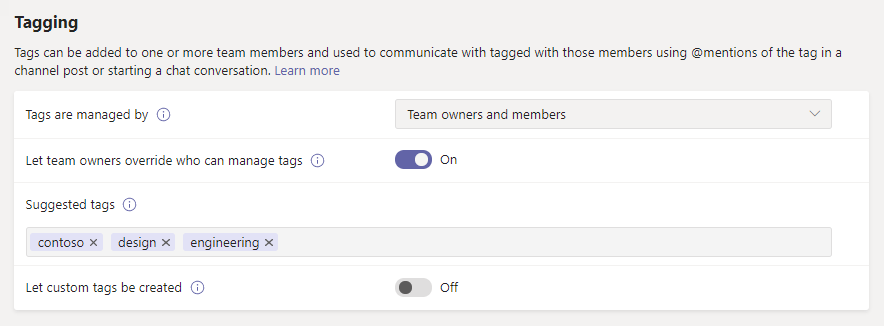

There are some limitations you should be aware of: a team can have up to 100 tags, up to 100 team members can be assigned to a tag, and up to 25 tags can be assigned to a single user.
It’s also worth noting that individual Team owners can override the global admin defaults. What this means is that they may choose to allow members in the Team they own to create and use tags. This could be a scenario where a teacher allows students to create tags for their project groups for easier communication. As always, read the documentation to learn how best to apply these.
How Would You Use Tags In Education?
I share some examples in the video above, but specific examples that come to my mind include:
- Staff Wide Teams:
- Principal may choose to create a tag for “SLT” (Senior Leadership Team) when they want to tag content and bring it to their attention
- Head of Teaching and Learning may create a tag “HoF” (Head of Faculty) so they can tag all Heads of Faculties in one go e.g. for an upcoming meeting
- Faculty Teams:
- For larger faculty Teams that includes multiple teaching areas e.g. a Science Faculty that contains Biology, Chemistry and Physics then creating Tags for each of those areas that contains all the Biology Teachers, Chemistry and Physics teachers makes a lot of sense. This way you can accurately tag only those teachers who need to see the content relevant to their teaching subject.
- A “Moderators” Tag – when a teacher needs check marking to be completed they could tag “Moderators” for assistance and include a OneDrive link to the work for marking.
- Classroom Teams:
- Tags shine here too where a teacher may create tags based on differentiated learning e.g. a “Triangles” tag for those students in the “Triangles” reading group, a “Stars” tag for those in the “Stars” Maths group etc.
- Project Based Tags – a teacher may either create, or even delegate permissions to students to create, tags based on projects that students are working on. This way, they can easily tag in their project team members on relevant discussion with push notifications occurring appropriately.
- This is particularly useful in scenarios where schools have disabled 1:1 chat between students, therefore encouraging students to use the Posts tab inside the main Team, but students want to quickly and easily target the message to their project team.
Tags Add Value & Streamline Communication
Even the quickest analysis of Tags reveals multiple scenarios and workflows where they can add real value to education institutes in how they communicate. They are easy to turn on, easy to manage, and provide granular control to Team Owners to easily manage who can use tags.
Give it a try – if you come up with new ideas drop them in the comments below.