Presenting on stage at Bett Asia 2022 with Glenn Malcolm
This week I have been in beautiful Bangkok, Thailand presenting at the Bett Asia 2022 Conference. Among the numerous sessions I presented, one of the favourites was co-presenting with the incredible Glenn Malcolm from local Bangkok Patana International School. Glenn is a Minecraft Mentor and expert educator and what made this so special was I first connected with him way back in 2017 shortly after I joined Microsoft. He had stumbled across some of my blog posts on Minecraft: Education Edition and we connected over our shared love of game based learning and integrating this into our teaching and learning practice.
The session was well attended on the main stage in the exhibitor hall and Glenn shared three examples of how he has integrated Minecraft: Education Edition into his classes. As is his custom, Glenn makes all his sessions available on his own blog and he pre-recorded the session and it’s available here too:
Of course, this is not a recording of the live session we did so my contributions and questions are not included, but Glenn has generously made the resources he references available on his blog for anyone to access – I highly encourage you to check them out here.
I really appreciate the thoughtful approach Glenn brings to game based learning and his awareness of how this can integrate into virtually any curriculum area and across a wide age range. The noticeable thing from the videos he shared of his students was the way they articulated so much of their learning, especially around some of the soft skills such as the need to communicate and collaborate to accomplish the task set for them. To me, this highlighted one of the many benefits of game based learning – you get the instant engagement of “the game”, but you get so much of the learning skillsets developed “by stealth”. It struck me that as the students talked about what they did they used language such as “the challenge we faced was…..” and “the problem we had to overcome looked like….” and they were likely unconsciously connecting that challenge/problem with a specific learning outcome – they simply saw it as part of “the game”.
When we think about attributes of successful people in the work force, one thing that is prized is being able to clearly articulate the challenge/problem/blocker and then work collaboratively with a team to resolve that for the success of the business. An inability to clearly define a problem and then go about seeking a solution can lead to serious inefficiency and unproductiveness in the workplace. These students are demonstrably displaying those nascent skills through the gameplay of Minecraft in their classrooms. It’s that sort of link to developing the whole student (and not just the academic markers of traditional education) that keeps me so enthusiastic about this as a platform for teaching and learning.
When I first quit my job in ICT and trained to become a teacher, I was told on day one of my teacher training:
EVERY one of you will be a teacher of literacy. No matter if you’re thinking you’ll be a Math teacher or a Science teacher or a Physical Education teacher, you’re ALL teachers of literacy – it’s not just the job of our English teachers.
This stuck with me in a powerful way and as I progressed my career as a History, Social Studies and English teacher I always gently reminded my colleagues from other faculties that they needed to ensure they were providing students with strategies in their subjects to help with literacy and comprehension too!
Consequently, I super enthusiastic about the new product coming called Reading Progress in Teams. As always, I do encourage you to read the full information and blog here but I’ll include the vidoes below for convenience and add my thoughts too.
This blog explains in detail the four components of Reading Progress which are:
Create an assignment in Microsoft Teams.
This is where the reading material is populated for the students to read.
Student reading and recording.
Student opens the assignment, sees the reading material, and can video record themselves reading the passage.
Educator Review.
The reading is automatically ‘graded’ for fluency and this data is provided to the educator for review, just like any other normal assignment in Teams
Powerful insights to track student progress.
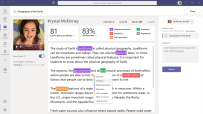
Trends, accuracy, words per minute, common mistakes and omissions are all recorded and can be viewed at an individual student or entire class level. (coming soon: school wide insights for leadership to review)
Example of reading progress trends
My Thoughts
As a trainee teacher, I was required to learn how to take “running records” – these are crucial tools for tracking student literacy and improvement and identifying issues to comprehension. Every teacher has done these, and every teacher knows it’s a time intensive but critical task.
I can immediately see how Reading Progress can pick up some of the ‘heavy lifting’ in this process. I don’t think it will ever be a direct replacement for all running records, but will quickly give a baseline that will allow a teacher to focus on the students with the most needs, whilst also accelerating those students who have the strongest fluency. Additionally, Reading Progress can help reduce student fear / self consciousness in terms of reading in front of others. With this, they can do this by themselves but the teacher still gets the full benefit of seeing their progress.
As a father of four children, I know that all students learn at different paces and in different ways. Some take to reading like a duck to water, others need constant encouragement and assistance to get going. In terms of saving teachers time and focusing on students with the highest needs, I can see Reading Progress being a very valuable tool in the classroom.
UPDATE 24th November: After experimenting with the updated Insights app in Microsoft Teams I have some additional observations:
The Insights App updates student activity fast – like, really fast. I worked as a student in my demo tenant and then check the Insights app as the teacher of the Team and could see the activities within 1-2minutes of them being done:
Snapshot from Insights app showing the channels, tabs and files I’d viewed as a student, along with which files I’d edited and the number of posts I’d made.
This got me me thinking that the Insights app could go someway towards answering that question many teachers ask when it comes to device usage in classrooms:
How do I know if my students are working on the tasks I want them working on, when all I can see is the back of their laptop screens?
Whilst I would always promote active teacher engagement with students by wandering around the room and doing visual and oral check in with students as part of good classroom practice, the Insights app would allow a teacher to see if the student has opened the required files and edited them in close to real time, during an actual lesson.
This could be especially helpful if teaching a hybrid class with students not physically present in the class
With sufficient planning and scaffolding, the various activities captured by Digital Activities reporting in the Insights app could allow a teacher to structure a clear learning pathway inside of Teams, similar to what a traditional LMS might afford e.g.
Start at a certain channel and make a post in the Conversations tab e.g. what your inquiry question is going to be (logged by Channel View in Insights)
Find one other question posted by a classmate and leave a reaction to it (logged by Reactions in Insights)
Navigate to the Files tab in the channel and open the template exemplar (Files opened logged by Insights)
Create your own file and complete your inquiry (edited files logged by Insights)
If the Insights App was showing that students were not ‘on task’ by their lack of activities, the teacher can easily spark a conversation with them to see if they need assistance with the work, or a reminder to stay focused to meet the completion time frames of the assigned task.
Looking for resources and training to get started?
I have been interested in educational analytics for years now, and many of my early forays into collecting student data were using freely available and often Open Source solutions. It was in my previous role as Director of ICT at St Andrew’s College that I caught the love of blogging and you may be interested to read some of my posts around data collection and analysis with a view from insight a school. Some notable call outs:
Digitizing, anonymizing and securing the voting of student leaders. This was a solution I was thrilled about as it had a real and immediate impact on the College.
Another favourite, this time using the Open source Learning Management System Moodle and some custom scripts to visualize student attendance and grades on each course, both for teachers and students.
A GIF showing how the visualization of attendance would appear to a student when they went to a Moodle course (this one loops, for students it would be drawn once)
We soon started exploring how we could use some of the Microsoft tools for data collection, processing and visualization which started with tools like MS Query, Excel and eventually led to PowerBI
Pastoral Care seemed an obvious place to get started with increased data visualization and we pulled data from a range of different sources and built dashboards in PowerBI that leveraged Row Level Security, meaning teachers could only see the data on the students in their classes.
A last one to perhaps check out is how we started reporting on student academic progress – some videos here showing the dashboards as they looked in 2016:
One other area I wanted to use reporting was across the Moodle LMS to see what touch points and telemetry we could gather to get insights into student engagement. One of the real strengths of Moodle and its open source foundation, is that anyone in the community can build plugins and modules that other users can implement and tweak. I picked up the Engagement Analytics plugin and deployed this for insights. This provided some interesting insights through reports similar to the below:
Engagement, according to this plugin, was defined as:
The Engagement Analytics block provides information about student progress against a range of indicators. As the name suggests the block provides feedback on the level of “engagement” of a student, in this plugin “engagement” refers to activities which have been identified by current research to have an impact on student success in an online course. The plugin was developed as part of a NetSpot Innovation Fund project by Monash University (Project manager: Dr Phillip Dawson), with code by NetSpot developers (Ashley Holman and Adam Olley).
From the project plan: “We intend to implement a block that teachers can add to their Moodle course that will provide them with a quick graphical snapshot of which students are at risk.” (Dr Phillip Dawson)
Currently the plugin has three indicators: – Forum activity – Login activity – Assessment activity
This immediately turned up some interesting insights with teachers able to observe the “lurker” phenomenon: students that regularly logged in, would go to (and presumably read) class forums, but rarely, if ever, post. This would become very obvious from a quick scan of the engagement analytics and aid the teacher in prompting those students with a “next step” activity to move from reading to contributing.
Another insight this revealed was that many students who rarely contributed to class discussion, were over very active and ‘vocal’ on forums – a place where they could think through their answer first in detail, and then draft and post an asynchronous response. It highlighted that whilst some students felt uncomfortable or perhaps less confident in ‘real time’ back and forth discussion typical in many classrooms, they were more than capable of contributing excellent answers in a classroom forum activity.
Updates to Microsoft Teams Insights App
Insights were added to Microsoft Teams for Education over a year ago and during the COVID19 Pandemic, provided a valuable touchpoint for teachers on what and how students were engaging with during distance learning. If you’re new to Insights then this support article is critical as a starting point as it shows how to add the app to your Teams and get started.
It was really great to see that last week the Insights team released a blog post showing that there are 6 new ways you can track student engagement in your classes. As always, I encourage you to read the original blog post in full here, but if you’re in a rush, see below for the six new features:
See engagement across multiple classes
Drill down to specific activity within a class
Get spotlights of student behavior and individual habits
See overall student activity (or inactivity) on Teams
Drill down to see synchronous class behavior (aka Teams meeting behavior)
Get quick access to class grades and grade distributions
The big shift here with Insights is the ability to get greater information around outliers e.g. immediate identification of students that have been absent from online class meetings, and even “habits” – i.e. alerting you to which students have been working on assignments very late at night, or very early in the morning.
Of the above features, it’s the first four that appeal to me the most:
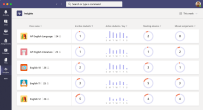
Seeing a snapshot of all the classes I teach and noticing any trends or outliers at a glance that would encourage me to dig deeper is a wonderful time saver for teachers. SourceDrilling down into a class level reveals the new “Activity” and “Habits” cards that give a teacher the ability to see more information about students in the class. This is AI working to complement the classroom observations of a teacher and surface up “just in time” alerts to assist the teacher in followup actions SourceHabits are revealing – learning that some students are constantly working very late at night or early in the morning can lead to instructive conversations between teachers and students and reveal potential distractions or blockers to effective learning. These new student behaviour and habit cards are a great insight for teachers. SourceThis is perhaps my favourite – the ability to see individual student activity (or inactivity!) by hovering over a student’s bar, the teacher can see what files they have been editing (and when), as well as any posts or reactions they’ve made in the class Team. This insight solves one of the challenges teachers always ask “how can I tell if my students are working on the documents / activities I need them to be working on when all I see is the back of a laptop screen?”
My Thoughts
Insights are only as useful as the actions they generate.
I remember teaching a student History and Moodle Engagement Analytics revealed that he was mostly doing his homework submissions and forum posts after 1am. This insight prompted me to have a conversation with him which led to me learning he was working the late shift at Kentucky Fried Chicken to help pay the rent on the family home. This sparked a great discussion on how we could modify homework expectations for him so he could continue to support his family financially whilst still progressing his academic study.
When I look at these new Insights from the team I’m excited because it’s the perfect tool to assist teachers who we all know are time-poor. Leveraging high level dashboard overviews across all classes provides the starting point for a teacher with insights. In my experience, when a teacher starts getting useful data insights they become what I call “data curious” and love to dig deeper and ask more questions of the data. This can lead educational institutes down the pathway of creating bespoke data warehouse platforms for reporting, but with these new Insights with Teams, this will fill that need for many teachers with no customization required.
Here is a video from Mike Tholfsen showing how the original Insights App can be installed and works:
Update 8th April 2020 – The team at Minecraft: Education Edition have posted a great PDF guide to multi-player gaming – check it out here.
—
I’ve blogged a lot about Minecraft: Education Edition and what an incredible tool it is for teaching 21st Century skills such as collaboration, communication, critical thinking and creativity – not to mention coding!
Today I am blown away by the fact you can play across the internet using Join Codes
Historically, Minecraft: Education Edition was only playable across the Local Area Network (LAN) however with the launch of Join Codes this has opened up Internet play as well. Without further ado, I’ll show you how easy it is to play with the help of my good friend Dan Bowen:
Earlier this week I wrote a post collating a HEAP of amazing resources to help classroom teachers, IT Administrators and parents learn teach and effectively during this period of increased remote learning and self isolation – check it out here.
Adding Minecraft: Education Edition to the list of tools that educators and students can use in remote learning scenarios absolutely changes the game (excuse the pun!)
So What Needs To Be Configured?
As per the video above, simply sharing the Join Code is sufficient for the guest user to enter the world, however the host does need to take some steps to allow this. The official M:EE blog has some guides here, but it all comes down to something called “port forwarding” – honestly, it’s not as scary as it sounds!
To allow Minecraft:Education Edition to communicate across the internet, the host needs to allow their Minecraft application to forward port #19132 across the internet, thus allowing the guest to join to their world. The slightly tricky part here is:
Every student/teacher will likely have a different router at home which will have it’s own configuration methodology.
Never fear! The great website PortForward has step-by-step guides for just about every router under the sun, including my FritzBox!
You will need the administrator username/password for your router to make these changes.
You only need to make the change once, and then it should be fine for that device (if you intend to host worlds on multiple devices, you’ll need to configure the port forwarding for each device.
So what does this look like?
Here is the setting on my FritzBox:
The numbers in red ink above correspond to:
My device name – this is my Surface Laptop and is what I’m configuring the port forwarding for (remember, if I was to do this from an iPad I’d need to also set up port forwarding for that device)
My internal IP address associated with my Surface Laptop – these can change from time to time, so if it stops working, you may need to set the rule up again
MAC Address – this is the unique hardware identifier of the wireless card in my laptop and is used to identify the laptop on the internal network
The routing rules I’ve configured to forward ports
Note that I’ve set up TWO rules – one for TCP traffic and one for UDP traffic, but both on the same port #19132 (you don’t really need to understand the technology behind this, but you DO need to configure the routing rules correctly).
Note that there is a green dot to the left of my two rules showing the port forwarding is active and working correctly.
Internet Play With Minecraft: Education Edition Is A Game Changer
The awesome team at Minecraft: Education Edition made an announcement last week, providing both free resources for remote learning AND free access to Minecraft:EE through to the end of June 2020 – check out this announcement here.
If you’re new to Minecraft:EE I suggest you check out my Ultimate Setup Guide to Minecraft:EE that will include all the information you should ever need to get up and running.
SELF-AWARENESS An individual has the ability to identify and name one’s emotions and their influence on behavior.
COPING SKILLS An individual develops and demonstrates the ability to regulate emotions, thoughts and behaviors in context with people different than oneself.
SOCIAL MANAGEMENT An individual has the ability to make safe and constructive choices about personal behavior and social interactions.
Final Thoughts
What are you waiting for? Get stuck into playing Minecraft: Education Edition across the internet – and use this time of remote learning to build something incredible.
Wondering where to get started?
Check out the 2020 Minecraft Education Challenge to engage students in creative problem solving – it’s an awesome way for students to remain connected with multiplayer Minecraft: Education Edition over the internet whilst remaining at home. The details are all here.
NOTE: even though Join Codes allow you to play across the internet, you can still only connect with other users inside your Office365 Tenant – i.e. your fellow students and teachers. You can not play inter-school at this stage.
This is from the 2019 Microsoft Ready CoreNote with Satya Nadella and Professor David Kellerman showing how he has connected 500 students in first year Engineering courses at the University of New South Wales through clever use of Microsoft Teams, Bots & Azure Cognitive Services.
This is a story I’ve been aware of for a while and also shown to numerous Higher Education institutes over the last week and they’ve been hugely impressed and interested in how they can replicate this sort of outcome with Microsoft Teams.
For some background videos, I suggest you check out:
and
From these, you can really start to get a sense of the possibilities of these platforms for changing the way students learn and engage in that learning journey.
I have had the absolute privilege working alongside some incredible educators during my decade inside the Education Sector and in my role with Microsoft I get into a truly wide and diverse range of schools now.
One of the very first blog posts I wrote back in October 2013 featured Tam, at the time the assistant Head of English, that explored using technology with a Level 3 English Standard. It’s a great post (with some amazing student work being displayed) showing how fearless she was in introducing technology that she freely admitted was not something she was an expert in:
What came through from both teachers during our discussion was there was no need for the teacher to be the expert in the technology, rather by guiding students towards various options and encouraging them to ask discerning questions and collaborate with their peers, then they would be able to learn the necessary skills themselves to complete the assessment. By using tutorials available online through sites such as YouTube, it was the equivalent of bringing experts into the classroom to teach particular skill-sets.
An example of student work from the Level 3 Standard Tam taught
I concluded the blog post at the time with this summary observation:
Summary:
Student choice around technologies and content for the assessment increased engagement in the teaching and learning.
Students collaborated to find the best tools and tutorials for their presentations
Cross-curricular links were made, with students using content from classes as diverse as Agriculture, Geography and Media Studies
Teachers recognised they did not need to be the experts in every piece of technology used by students
Using online tutorials was the equivalent of bringing experts into the classroom to facilitate the teaching and learning
That was then, this is now:
Since 2016, both Tam and I have moved on to different roles, managing to keep in touch with our shared online communities and occasionally crossing paths at various eLearning and EdTech events.
After avoiding it due to to a lack of understanding and confidence, I thought, ‘lets give it a go!’.
Well, I was blown away with the students and Minecraft Edu.
A key strategy to ensuring successful take up was allowing the students an initial class to simply “play” in Minecraft – the results were positive:
Students were all engaged and talking about what they were doing
They were soon creating and several were exploring the Science elements
Tam was asked by the students if they could work on it at home, or stay in at lunch.
Students that had previously preferred to work on their own were now collaborating with others in the class
That last point is particularly important as it affirms what I’ve seen from other schools and teachers. Some students, who previously have little contribution to class discussions, suddenly become more engaged and willing to work alongside their fellow students when co-operating inside Minecraft:EE. This is a central part of the New Zealand Curriculum, called the Key Competencies and are:
Thinking
Relating to others
Using language, symbols, and texts
Managing self
Participating and contributing
It’s easy to see how all of those competencies will be utilized through Minecraft:Education Edition.
I did chuckle over Tam’s final comment about the effectiveness of the classroom controls in Minecraft:EE, that include a global “Pause” button on game play – this must be the most effective “full attention cue” a teacher could ever ask for!
A Personal Perspective:
Last month I introduced my 7yr old son to some Minecraft:EE at home. He’s not played any other games before so I was interested to see how he would approach the game. I’ve taught and trained many adult teachers on how the game works and in basic to medium game play and watched as some of them have become frustrated and given up.
It was therefore fascinating to watch my son just “give it a go”, watch him fail, stop and think, and then give it another go in a slightly different way. He was determined to master the gameplay and now we play for 30-60mins each Saturday working away at building various things like an animal petting zoo, circus or tree houses in Minecraft:Education Edition.
I wonder if adults, like Tam has demonstrated over the years, need to let go of some of their concerns about being unskilled or failing with technology, and simply “give it a go”, and also be prepared to be led by students in this area. When it comes to technology, the younger people are less inhibited and worried about failure – they’re used to failing and just keeping on going.
When I observed to my 7yr old son that he had certainly learnt a lot about Minecraft over the last month or so, he looked at me seriously and said:
Dad, I don’t want to hurt your feelings but I think I probably definitely know more about Minecraft than you do now!