Categories
Microsoft365

The Ultimate Collection of Intune / Endpoint Manager Resources For Education

Intune for Education

UPDATE 19th July 2021: added some additional interactive guides from Joe Cicerco showcasing common scenarios with MEM for Education (specifically, configuring Enterprise WiFi and wrapping .exe files for deployment) as well as an AutoPilot in Edu guide.

UPDATE 24th May 2021: added another section of third party blogs/resources that are helpful. Specifically today, a post to show how Win10 Location Finding services in Intune works.

Looking back over four years of blogging during my time at Microsoft, I realise I’ve made a couple of “Ultimate Collections of ….” blog posts and my rationale for these is very clear: if I can make a “one stop shop” for people to get resources and then keep that one blog post updated as things change, it becomes easier to simply refer customers and partners to that location. The two I currently have are:

  1. Ultimate Minecraft:Education Getting Started Guide
    1. This has proven incredibly popular, regularly on the ‘trending posts’ on my blog and whilst I’ve not added a heap to it recently, remains a great starting point for educators and IT admins alike.
  2. Ultimate Collection of Resources for Remote Learning With M365
    1. This was purely a response to the COVID19 pandemic and was being shared (and accessed) regularly during the first half of 2020 and seen as a go to collection for educators around the world.

Now, I’m always very clear that none of my blog posts should ever replace the official Microsoft Documentation and I always try to link back to this as the source of truth and guides to best practice. I’m also very clear that I try to indicate when changes / updates have occurred by adding a date stamp at the top of the blog post and then using the strikethrough of text when something is no longer relevant.

With this in mind, I’m going to start collating resources on this blog post and keep it updated over time and if I’m missing any obvious ones, please let me know in the comments below or ping me on @samuelmcneill

My Own Blog Posts

There are others, but the above are the more recent / in depth posts but to check the rest, simply click this link to search for Intune across by blog.

Video Resources

The Microsoft Intune for Education Deployment Workshop is a tremendous collection of 21 videos taking you through the deployment stages – click here to access the entire library Here is the embedded playlist:

Documentation

This is a somewhat ‘catch all’ area for largely written documentation that should prove helpful – I’ll add a comment below each link to give you more guidance on what it is before you click the link.

Third Party Blogs / Resources

Partner Specific Content

There may be some overlap here between Documentation and content generated by MSFT specifically for Partners, but worth separating it out too:

People To Follow On Twitter / LinkedIn

A very incomplete list and in no ways ranked, but just some very knowledgable people you could learn from (as I do every day!)

Categories
Microsoft365 Minecraft:EE

ChromeBooks Now Supported on Minecraft: Education Edition

UPDATE 11th August 2020 – The official launch blog is now available for you to read here:

https://education.minecraft.net/blog/minecraft-education-edition-available-on-chromebooks-for-back-to-school

I’ve blogged many times about Minecraft: Education Edition previously with perhaps the three most popular posts being:

  1. Ultimate Minecraft:Education Edition Getting Started Guide
  2. Playing Minecraft:Education Edition across the Internet
  3. Similar Sign On – configuring your Google environment to work with Minecraft:EE

Now there is even more exciting news for K-12 education institutes:

Minecraft: Education Edition now supports ChromeBooks!

Right now, the program is still in Beta and you can get started with the guide here, but this change now means that the compatible devices that can run Minecraft: Education Edition include:

  • Windows 10
  • MacOS
  • iPadOS
  • ChromeBooks (New)

With the addition of ChromeBooks, the majority of devices used in K-12 education institutes are now covered.

Chromebook availability

Minecraft: Education Edition is now available from the Google Play Store as an Android app for Chromebook. This version of Minecraft: Education Edition offers the same set of features as other versions (Window, macOS and iPad) including cross-platform multiplayer.

I’ve had the opportunity to support a number of schools in a pilot of Minecraft: Education Edition on ChromeBooks and the feedback from them has been very positive, with the performance and experience of students playing Minecraft: Education Edition on their Chrome devices.

If You’re New To Minecraft: Education Edition …

Perhaps you’re here for the first time because you have ChromeBooks then I would definitely encourage you to check out the new eSports Framework that I blogged about here and you can watch the intro video here:

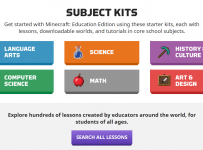
Secondly, make sure you check out the Lessons Library which has a huge range of lessons that can be searched by key word or curriculum area here:

Subject Kits

Thirdly, the “Build Challenges” are a fast start into getting students engaged in constructive tasks in Minecraft: Education Edition and are often the first teamwork goal that educators assign their students:

Build Challenges

If you want to see my own experiences of doing the Solar Build Challenge and reflecting on being a life long learner that I invite you to read this reflection.

Need To Get Trained?

If you’re new to Minecraft: Education Edition and want to get more training then check out:

Categories
Microsoft365 Minecraft:EE

Remote Learning With Minecraft: Education Edition Across the INTERNET!

Update 8th April 2020 The team at Minecraft: Education Edition have posted a great PDF guide to multi-player gaming – check it out here.

I’ve blogged a lot about Minecraft: Education Edition and what an incredible tool it is for teaching 21st Century skills such as collaboration, communication, critical thinking and creativity – not to mention coding!

Today I am blown away by the fact you can play across the internet using Join Codes

Historically, Minecraft: Education Edition was only playable across the Local Area Network (LAN) however with the launch of Join Codes this has opened up Internet play as well. Without further ado, I’ll show you how easy it is to play with the help of my good friend Dan Bowen:

Earlier this week I wrote a post collating a HEAP of amazing resources to help classroom teachers, IT Administrators and parents learn teach and effectively during this period of increased remote learning and self isolation – check it out here.

Adding Minecraft: Education Edition to the list of tools that educators and students can use in remote learning scenarios absolutely changes the game (excuse the pun!)

So What Needs To Be Configured?

As per the video above, simply sharing the Join Code is sufficient for the guest user to enter the world, however the host does need to take some steps to allow this. The official M:EE blog has some guides here, but it all comes down to something called “port forwarding” – honestly, it’s not as scary as it sounds!

To allow Minecraft:Education Edition to communicate across the internet, the host needs to allow their Minecraft application to forward port #19132 across the internet, thus allowing the guest to join to their world. The slightly tricky part here is:

  • Every student/teacher will likely have a different router at home which will have it’s own configuration methodology.
    • Never fear! The great website PortForward has step-by-step guides for just about every router under the sun, including my FritzBox!
  • You will need the administrator username/password for your router to make these changes.
    • You only need to make the change once, and then it should be fine for that device (if you intend to host worlds on multiple devices, you’ll need to configure the port forwarding for each device.

So what does this look like?

Here is the setting on my FritzBox:

Port Forwarding2

The numbers in red ink above correspond to:

  1. My device name – this is my Surface Laptop and is what I’m configuring the port forwarding for (remember, if I was to do this from an iPad I’d need to also set up port forwarding for that device)
  2. My internal IP address associated with my Surface Laptop – these can change from time to time, so if it stops working, you may need to set the rule up again
  3. MAC Address – this is the unique hardware identifier of the wireless card in my laptop and is used to identify the laptop on the internal network
  4. The routing rules I’ve configured to forward ports

Port Forwarding

Note that I’ve set up TWO rules – one for TCP traffic and one for UDP traffic, but both on the same port #19132 (you don’t really need to understand the technology behind this, but you DO need to configure the routing rules correctly).

Note that there is a green dot to the left of my two rules showing the port forwarding is active and working correctly.

Internet Play With Minecraft: Education Edition Is A Game Changer

The awesome team at Minecraft: Education Edition made an announcement last week, providing both free resources for remote learning AND free access to Minecraft:EE through to the end of June 2020 – check out this announcement here.

If you’re new to Minecraft:EE I suggest you check out my Ultimate Setup Guide to Minecraft:EE that will include all the information you should ever need to get up and running.

As students and educators come to terms with self-isolation and remote learning, I’d also like to call attention to The Mindful Knight world and lesson plan:

Learning Objectives

  • SELF-AWARENESS An individual has the ability to identify and name one’s emotions and their influence on behavior.
  • COPING SKILLS An individual develops and demonstrates the ability to regulate emotions, thoughts and behaviors in context with people different than oneself.
  • SOCIAL MANAGEMENT An individual has the ability to make safe and constructive choices about personal behavior and social interactions.

Final Thoughts

What are you waiting for? Get stuck into playing Minecraft: Education Edition across the internet – and use this time of remote learning to build something incredible.

Wondering where to get started?

Check out the 2020 Minecraft Education Challenge to engage students in creative problem solving – it’s an awesome way for students to remain connected with multiplayer Minecraft: Education Edition over the internet whilst remaining at home. The details are all here.

NOTE: even though Join Codes allow you to play across the internet, you can still only connect with other users inside your Office365 Tenant – i.e. your fellow students and teachers. You can not play inter-school at this stage.

Categories
Microsoft365 Minecraft:EE

Hour Of Code With Minecraft: Education Edition

As the academic year starts to wind up for many schools, teachers are often looking for engaging activities to motivate tiring students who have an eye on the summer break, whilst still delivering robust learning outcomes.

Enter the newly revamped Hour of Code inside of Minecraft: Education Edition.

With a highly relevant topic focused on using AI technology to fight forest fires, students need to use coding across a series of tasks to train a bot that can first recognise fire-risk shrubbery and then deploy the bot to save a village in a fire-risk zone before an impending lightening storm strikes. The Hour of Code runs between December 9th and 15th and you can register here to officially participate.

Here’s an intro video to the new Hour of Code lesson inside of Minecraft: Education Edition:

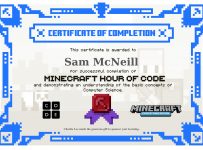
Currently, I’m working through a large amount of internal professional development focused on topics such as Azure Cloud Services, Microsoft 365 and Dynamics 365, so in the spirit of being a “life long learner” I completed the Hour of Code activities too:

Hour of Code Certificate.jpg

If you’re interested, it took me around 20 minutes to complete the ‘required’ elements of the lesson, but there are more extension activities inside the lesson that get students thinking deeper around coding.

There are a few key things in this Hour of Code that are especially valuable for educators:

  1. It’s self paced: students can work through it in a heavily scaffolded world with clear, easy to comprehend and follow instructions.
  2. It’s in the full version of Minecraft: Education Edition: previous contributions from the Minecraft team to the Hour of Code have focused on a browser only version in 2D (see them here), whereas this uses all the goodness of M:EE and the inbuilt Code Editor.
  3. It does not require a login! The Minecraft: Education Edition team have added the one-off Hour of Code lesson to the main landing page when you launch the application, meaning there are no barriers to getting started! Even if your school or students have never used Minecraft:EE before you can run this lesson, and you can download the free application here.
  4. There is a Teacher Walk Through Video: Many educators understandably want to learn what they’re getting into before committing the time to planning how to add a new resource into their limited and precious teaching time. To help with this, the Minecraft:EE team have created a walk through video – see below:

Once your students fall in love with coding inside of Minecraft: Education Edition the good news is that there is a LOT of additional coding content they can use. Check this link for all the information.

If you’re downloading or updating your version of Minecraft: Education Edition, make sure you’re on at least version 1.12.15 (see below) as this has the “Try a Demo Lesson” content in it.

Hour of Code No Login Required
Only version 1.12.5 or above has the Hour of Code lesson that does not require a login.

A Few Things To Note:

I really rate this lesson because it is topical: students around the world are expressing a unified voice that we need to care for the environment we have here on earth.

Additionally, the idea of training a bot is relevant in a lot of real-world AI scenarios that developers are working on all the time. In this series of AI For Good lessons one of the activities requires students to train an Azure Vision service on various photographs showing cats and dogs. In this Hour of Code lesson, students need to train their bot to destroy dry and dangerous bushes but not to remove healthy greenery, creating a strong link between their coding and the real world environment they need to protect.

Lastly, because the new lesson plan is delivered inside the application itself, there are a few URL that are required to be open on your school firewall or proxy – here are the links to whitelist if it’s not working for you:

If you end up wanting to go deeper with Minecraft:Education Edition you may want to read my Ultimate Getting Started Guide here.

Categories
Minecraft:EE

Minecraft: Education Edition Back To School Update Released

I blogged back in June around the ISTE event in Philadelphia about the newly announced features that were going to land in Minecraft: Education Edition and I’m thrilled to see them released today! Note: the new release is version 1.12.0 (previous version was 1.9.3)

The M:EE team have released their own blog post covering this and, as always, I encourage you to read the original post here. If you need specific technical help about the new release then check the support pages for the Back To School Update here.

On the back of this announcement I will update my trusty Ultimate Setup Guide for Minecraft:EE, so if you want a ‘one stop shop’ for setup, I suggest you read it.

What Are The Key Things I Need To Know?

  • Big improvements to Multiplayer mode – one of the biggest frustrations I’ve heard from schools is that people in other classes simply join the worlds of students uninvited. Now, with the release of “Join Codes” you can’t enter a world without first being provided the pictorial join code: problem solved. Additionally, the host can invite others into their world in “guest mode” meaning they can view, but not edit/change the world. This is a huge release.

Hosting-768x432

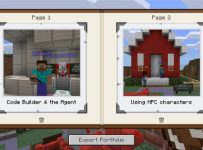
  • Improved Sharing of Worlds & Exporting of Content – one of the best parts of Minecraft:EE is the ability to deeply integrate it into the learning and assessment happening in a classroom. This got even easier now with links to worlds inside of libraries, meaning teachers can hyper link from an LMS or Microsoft Teams directly to the template world they want students to use. Additionally, you can now export content students have been collecting inside their in-game portfolio (Book & Quill) as a PDF, not simply a text file with separate images. This makes it far easier when it comes to submitting in-game assessment to a LMS or Teams assignment. These two small tweaks will make a big difference for educators.

library-share-world-768x432

portfolio-2-768x432

  • Single Sign On – a handy one for users on Windows 10 who sign into their device with their O365 credentials. Now, Minecraft:EE will automatically sign you in as well which is handy on 1:1 devices. In shared scenarios you can still sign out of M:EE to allow a different user to sign in.
  • Immersive Reader – I remember when I first quit my job in ICT to re-train to become a teacher and. the first day of teacher’s college we were told “You’re all teachers of literacy! No matter your subject specialty, you’re all teachers of literacy!” Now, with Immersive Reader coming to Minecraft:EE, this app joins the growing list of others that are helping students access the material they need to learn with the support they need.

Final Thoughts:

It’s great to see the continued evolution of Minecraft: Education Edition and, as always, make sure you go to the home page for full details. In my view, this update addresses some key requests from educators so it’s always pleasing to see the product team is listening to the customers and updating accordingly. Additionally, the focus on the learning side of things with better portfolio export options, easier external linking to worlds and improved literacy support means this update will appeal even more to teachers.

If you’re on Windows 10 or an iPad you’ll get the update automatically. If you’re on a MacBook / iMac you’ll need to download the app and reinstall – start here.

Categories
Microsoft365 Windows 11

The Ultimate Minecraft:Education Edition Guide – Getting Started

mee

UPDATE 3rd May 2021 – A commonly asked request is whether Minecraft: Education Edition can be licensed for clubs / home schooling – the answer, now, is YES! Check out the details here:

Minecraft Education for Camps, Clubs & More | Minecraft: Education Edition

UPDATE 11th August 2020 – The official launch blog announcing Minecraft:EE on ChromeBooks is now available for you to read here:

https://education.minecraft.net/blog/minecraft-education-edition-available-on-chromebooks-for-back-to-school

UPDATE 22nd July 2020 – ChromeBooks are now supported – read here for more information!

UPDATE 19th March 2020 – INTERNET play has arrived…. well perhaps it’s been here since Join Codes! But, check it out in my new blog post because this literally changes the game when it comes to Minecraft:EE and keeping kids engaged outside the classroom.

UPDATE 16th August 2019 – some pretty big releases in the “Back to School Update” that I’ve blogged about here. Biggest features in terms of setup is around controlling multiplayer worlds, so I have updated that section below. Also note, version number for this release is 1.12.0 (previous version was 1.9.3). Official support pages for the Back To School Update are available here.

UPDATE 10th May 2019 – a new AzureVM Cloud Hosted option announced at MS Build meaning changes to the Multiplayer option section below. I’ve also updated the companion apps section since you don’t need to download the Code Connection companion app since the Nov 2018 Anniversary release.

UPDATE 28th Nov 2018 – there is a new way to manage licenses more easily for Minecraft:EE using the O365 Admin Portal (in the way you’d normally manage other licenses) removing the necessity for the Microsoft Store for Education. See the licensing section below.

I decided to write this post out of practicality – I’m getting asked almost on a daily basis what needs to be done to get Minecraft:EE up and running and it’s probably easier to simply update a single blog post and link to this to answer the question, rather than write up replies each time. I’ve decided to write this mainly as bullet points to show just the key information and make it quick to read.

Note: the product is evolving, licensing is changing, platforms are being added – expect this blog post to be updated regularly. I’ll add “Update: date stamp” to the top of the blog as I append new information. Where ever possible, I’ll try to link to official guides / documentation – if you spot a dead link leave a comment below.

Getting Started – What You Need

  • Supported Device Platforms: You’ll need a device that runs Windows 10, MacOS (10.9+) or iOS (iOS9+) – more information here.
  • Your students and teachers need an Office365 username/password to be able to sign into M:EE. There are a lot of ways you can set this up – useful blog post to quickly create users in O365 is here
  • Licenses – You can sign into M:EE 25x as a teacher and 10x as a student before you need a license.
    • New Zealand: as there is a national agreement with the Ministry of Education with M365 A3 (2019-21) schools can get M:EE at no cost. Licenses are required and can be sourced by contacting nzschools@datacom.co.nz and requesting “M365 A3 licenses with Minecraft:EE”
    • Elsewhere: You can purchase licenses directly from the Microsoft Store for Education or these can be sourced from your licensing partner through various agreements (EES, CSP, OVS-ES etc). Official Documentation Here.
    • Clubs and Home Schooling: New in April 2021 is the ability to buy licenses for your clubs / schools / camps which is awesome. Check out the official documentation here.
  • Getting Started – Official Documentation Here

Getting The Applications

There are numerous ways you can source the Minecraft:EE applications:

  • Direct download link for Win10/MacOS
  • iOS App Store for iPad
    • This can be distributed via VPP and the MDM of your choice
  • Microsoft Store for Education for Win10
    • This can be used by students for individual downloads if they’re signed in, or you can use an MDM like Intune for Education to automatically deploy the app to Win10 devices.
  • Companion Applications – there are currently two companion apps there is only one additional app for M:EE that can be downloaded from here – these are currently only supported on Win10 / MacOS
    • Classroom Manager – a tool to support teachers to manage a group of students playing M:EE
    • Code Connection – enables students to do block based programming (and JavaScript) inside M:EE This is no longer required now that the Code Connection is inside the main application itself with the November 2018 update

Licensing

Once you’ve obtained licensing you do need to assign these to individual users.

  • Unlike most of the O365 Licensing, you do not manage M:EE licenses via the Offic365 Admin Portal – you do it via the Microsoft Store for Education
    • UPDATE 28th November 2018 – you still can manage licensing as above if you wish, but as of today you can also manage it via the O365 Admin Portal making it far easier – NEW DOCUMENTATION HERE
  • Official Documentation here for managing licensing.
  • Recommendation: set your licenses to “auto assign” if you have Student Use Benefit (SUB) in place i.e. every student in the school has a license. This means that as soon as a student signs into M:EE for the first time they are automatically assigned a license in the Store for Education.
  • If you have purchased a limited number of licenses e.g. 50, then suggest you do not use Auto Assign but instead manually assign those licenses through the Store for Education. You can also revoke licenses there if you wish to re-assign e.g. to a new class. Official Documentation Here.

Classroom Content / Lesson Plans

There is a wealth of information available for teachers to quickly get up to speed with ideas for using Minecraft:EE in their classrooms.

There is a wealth of ideas out there for any curriculum / age range – just get searching!

Minecraft:EE Multiplayer / Networking Considerations

Minecraft:EE works quite differently from other versions of Minecraft (Xbox, iPad PE, Win10, Java version). Key things to be aware of:

  • Update 16th August 2019: The “Back To School Update” (version 1.12.0) has added key features for Multiplayer Mode – check them out here.
    • Join Codes: now the host of the multiplayer world needs to share a pictorial join code before others can join. This will stop ‘mystery players’ joining without permission
    • Host can also invite others into their world in ‘visitor mode’ meaning it’s effectively read/view only and they can’t edit/create in the world.
  • You need an internet connection to sign into M:EE – this is because you use your Office365 credentials to authenticate. After that, if you’re playing single player you no longer need the internet
  • Minecraft:EE worlds are saved to the local device – the worlds do not live on a server or in the cloud.
  • Multiplayer games – official documentation here
  • Update 10th May 2019 – whilst the information below is still true and accurate, there is now an option to work around this using cloud hosted AzureVM worlds for Minecraft:EE. This will allow you to overcome some of the challenges below around network security, and playing over the internet for homework. AzureVM licensing/costs are not included in the standard Minecraft:EE licensing and would need to be paid for additionally.
    • The AzureVM has been discontinued as of late 2019.
  • Multiplayer games – the host (usually a teacher, could be a student in group work) has the world on their laptop – other students then connect over the LAN/WLAN to the host device. In other words, the host device becomes an ad hoc server. This has some considerations you need to be aware of:
    • M:EE broadcasts via UDP across the network to allow users to see worlds/games being hosted. Some networks block this.
    • Many schools segment traffic on their network using VLAN – this can prevent students/teachers devices being able to connect to each other directly
    • Example code to configure a network switch (Allied Telesyn) can be found here – this allows the correct traffic to go between VLAN/subnets and also supports UDP broadcast. Use with care – no support/advice provided with this
    • You can not connect across the internet (easily) to play multiplayer games e.g. for homework. Users need to be on the same LAN/WLAN and same subnet.
    • There is a maximum number of 30 users in a multiplayer world.
    • When the game quits, all users are removed from the world and the work is saved to the host device.
  • Users need to be in the same Office365 Tenant (i.e. school) to connect in the same world. Even if they are on the same LAN/WLAN they must use the same O365 domain name to sign in and play multiplayer e.g. users@school-name.edu
  • If students wanted to continue to work on the multiplayer world individually, it would need to be exported and shared with them – Official Documentation Here.

Miscellaneous Links

Conclusion

There is a huge amount of information out there for support educators with Minecraft:EE – if I’ve missed anything please drop a comment below so I can include it in the blog post. The aim here is to make life easier for schools, educators, IT administrators and partners to get up and running with M:EE as quickly as possible.

Happy learning and playing!