How To: Custom PowerBI Reporting From Intune Data

There are two things that I’m a sucker for when it comes to technology: a great data visualisation (often achieved via PowerBI) and a seamless cloud deployment and management of device (usually by Intune).

This morning I read a tweet from Jannik Reinhard that managed to combine the two of them in a single blog post, so naturally I wanted to read more! As always, I try to credit the original source when I’m inspired to write my own blog based on their content, so check out his tweet here:

And you can read his full post here: Build PowerBi Dashboard based on Intune Data Warehouse – Modern Device Management (jannikreinhard.com)

The genius behind this blog post is the beta feature called the Microsoft Intune Data Warehouse – if you’re wondering what this is, then the documentation states:

The Intune Data Warehouse samples data daily to provide a historical view of your continually changing environment of mobile devices. The view is composed of related entities in time.

Data Warehouse data model – Microsoft Intune | Microsoft Docs

The warehouse exposes data in the following high-level areas:

  • App protection enabled apps and usage
  • Enrolled devices, properties, and inventory
  • Apps and software inventory
  • Device configuration and compliance policies

These are all super helpful things to know and, whilst Intune provides it’s own reports, sometimes you want to drill a little deeper into the data or present it in a way that makes more sense for your own preferences for troubleshooting.

Getting Set Up For Custom Reporting With PowerBI

Jannik’s blog does a great job stepping you through the steps to get set up – honestly, this is only going to take you 2-3minutes. I could screenshot it, but he’s already done this here

The key is to select ‘Get Data’ in PowerBI App and then search for “Intune” in the search box and you should see the connector:

The other super helpful contribution from Jannik is the Intune Dashboard template he’s build and shared on GitHub – you can download it from here. It comes pre-populated with his data, but a simple click of “Refresh” in PowerBI and you’ll be seeing your own data reporting from your tenant.

Sample Data From My Intune Console

Within 5 minutes of reading the original blog I had my own data being visualised and here are the three main views:

Apps

Devices

Config Profiles

One thing that confused me at first was the three buttons at the bottom of the report for App / Device / ConfigProfiles – you can see these highlighted above. I initially thought you could click on these to select each report, but you actually still need to click the tab at the bottom of PowerBI for each report – see below:

Correcting the above – Jannik helpfully reached out on Twitter and reminded me that when using PowerBI Desktop you need to select ctrl+click to trigger buttons in a report. Once you publish the dashboard to www.powerbi.com then you no longer need to hold ctrl+click, but simply click on the button and it will change views. Thanks for the reminder Jannik!

Other than that, the reports work beautifully and the data can be refreshed daily to see the latest snapshot. With a little tweaking of the PowerBI report you can call out out whatever data is most important to you – have fun!

Categories
Podcast

Guest Appearance On The EdTech People Podcast Discussing EduTech with Matt Setchell

Earlier this morning I was invited by Matt Setchell to be his very first guest on his The EdTech People podcast. Matt recently became the Chief Technology Officer at Concero UK, a Microsoft Gold Partner delivering managed services to education customers. Prior to that, he was IT Services Lead for a collection of schools in the UK and is passionate about how technology can empower the education sector.

It was a very enjoyable 50minute chat sharing our combined passions for education and technology. You can listen on Spotify here:

Matt was a great host, asked interesting questions and is a regular sharer of EduTech knowledge on his Twitter account – do make sure you follow him.

Categories
Microsoft365

Reading Progress in Microsoft Teams for Education with Mike Tholfsen

I’m sharing this new webinar released this week from Mike Tholfsen:

This is a webinar I did that covers Reading Progress in Teams, a new (free) reading fluency tool that is a new feature in Microsoft Teams Assignments for 2021. Microsoft Teams Reading Progress allows educators to assign reading fluency passages that students can independently record themselves reading out loud. Educators can review the audio and video with AI assisted help and gather insights automatically on student progress. This webinar also covers the background on Reading Progress, feedback, new features in Teams and other useful scenarios.

Mike Tholfsen

Webinar Table of Contents

0:00 Introduction

0:23 Background and the key scenario

3:33 Tacoma School example

6:32 Research and Personas for the tool

9:06 Deep dive demo

26:32 Reading Progress feedback

30:32 New Reading Progress features

Additional Resources To Learn More

✅ Reading Progress Landing Page: https://aka.ms/ReadingProgress

✅ Reading Progress Interactive click-through: https://aka.ms/ReadingProgressInterac…

✅ Launch blog: https://aka.ms/ReadingProgressAugust2021

✅ Reading Progress Support: https://aka.ms/ReadingProgressSupport

✅ Microsoft News Story: https://aka.ms/ReadingProgressNews

✅ Research behind Reading Progress: https://aka.ms/ReadingProgressResearch

✅ K12 one-pager PDF: https://aka.ms/ReadingProgressK12PDF

✅ HED one-pager PDF: https://aka.ms/ReadingProgressHEDPDF

✅ End-to-End demo: https://aka.ms/ReadingProgressDemo

Related Videos

📺 Video of Tacoma School District: https://aka.ms/ReadingProgressVideo

📺 End-to-End Reading Progress demo: https://aka.ms/ReadingProgressDemo

📺 10 Microsoft Teams new features for 2021: https://www.youtube.com/watch?v=IRPje…

📺 9 new features in Microsoft Teams Assignments: https://www.youtube.com/watch?v=tDG0B…

Connect With Mike’s Content

Mike has become a prolific content generator across a wide range of platforms and I find that his videos have become and go to and must view to get the condensed version of new features rolling out to Microsoft Education products:

🔔 Subscribe to Mike’s YouTube Channel: https://aka.ms/MikeYouTubeSubscribe

Connect with Mike on Social:

Twitter: https://twitter.com/mtholfsen

LinkedIn: https://www.linkedin.com/in/miketholfsen

Instagram: https://www.instagram.com/mtholfsen

Pinterest: https://www.pinterest.com/miketholfsen

TikTok: https://www.tiktok.com/@mtholfsen

Wakelet: https://www.wakelet.com/@mtholfsen

Categories
Microsoft365 Windows 11

Empowering Students & Teachers To Self-Deploy Windows 10 Devices with AutoPilot & Intune

One of the most common discussions I have with education customers, both in K-12 and Higher Education, along with our partners, is around the easiest pathways to mass scale device deployments. As the COVID19 pandemic continues to impact schooling, many students are in remote/hybrid learning scenarios and require devices to support their learning. Consequently, traditional models of deployment need to be reconsidered as devices are often needing to be shipped directly to teachers and students who may be in various levels of lockdown, there may be a mixture of institution and personally only devices needing management and of course a pressing concern to ensure the devices are secure and compliant.

This graphic illustrates the changing approach to device deployment that many education institutes are facing

With that background, I was thrilled to see a recent LinkedIn post from my colleague Ovi Barceló Hernández where he shared a real life, very personal example of “practicing what you preach” as he recorded his 8yr old son unboxing and self-deploying his new school Windows 10 device:

As always, I encourage you to read the full original post, but the key take away was his 8yr old son could easily deploy his device for learning, straight from the sealed box from the manufacturer and within minutes end up with:

  • A full zero-touch deployment of Windows 10 EDU, already secured
  • A deployment of all the needed software (now we have Notepad ++, Minecraft: Education Edition, Scratch, Chrome, Lego WeDo, Paint.Net, VLC Player, 7-Zip, Publisher apps, and, of course M365 Apps)
  • A completely managed device, end to end, with full control on updates
  • All in a 4/128 device!! 78GB still available after everything I mentioned here.

Aside from dispelling myths around the challenges of deploying Windows in education, Ovi’s son was able to independently prepare his device for learning and gain new skills and a sense of ownership from being part of the preparation of his device for learning during this period of remote and hybrid teaching.

If you’re interested in learning more about how to do this, we have created interactive, click-through guided demos of many of the required tools, including the Windows for AutoPilot and Intune for Education platforms to enable this. I’ve collated all of these videos in this blog post here but will specifically link to:

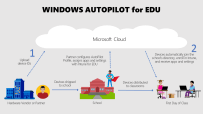
I particularly like the above video because it demonstrates genuine options around end user self-deployment allowing both schools and deployment IT partners to save money on what has historically been a costly and time/labour intensive part of the deployment process. This is outlined in the following infographic:

Understanding Windows AutoPilot for Edu and empowering students and teachers to self-deploy their own devices

If you are wondering what is required to achieve the same outcomes, the base line solutions to seamlessly allow end user self-deployment like Ovi’s son achieved would be:

Not Just For Education…

If you’re reading this and thinking this solution is just for education, then think again! It’s widely used in many organisations now and when I saw Ovi’s post above, it reminded me of one from my NZ based colleague Ben Brown when he posted the following question!

IT people, why are you still imaging devices?? 💻 A real world example of why autopilot + cloud ☁️managed devices just makes so much sense. Broken work laptop -> full work machine in <10 minutes 🎉

Ben Brown – LinkedIn

Being the talented individual he is, Ben created a time lapse of his re-deployment process from unboxing his new Surface, to deploying it via Windows AutoPilot and then submitting the return ticket for his broken device – all in under ten minutes!

Final Thoughts

These two examples are great because they’re real world examples of people who would likely both identify as “not super techy” IT Manager type individuals and yet, with the power of modern deployment technologies likes Windows AutoPilot and Intune, they were both able to quickly get themselves up and running with new devices in mere minutes.

It’s hard to overstate the importance of this empowering of end users to ‘own the process’ both in terms of building their confidence that they could redeploy their existing device if it needed a full reset if something went wrong, or in the case of Ben, deploy a brand new replacement device if something more serious had happened.

For education leaders, this should prove the point that the pathway forward for large scale deployment of Windows devices is a modern management approach, freeing the IT team up for more important functions to the organisation than simply touching every device to prepare it for end users. If you are an IT Admin in a school and would like to know more about how to implement this process yourself, then check this link which has all the documentation you need:

Link to documentation here

If you have questions on this, feel free to hit me up on Twitter or in the comments section below!

Categories
Microsoft365

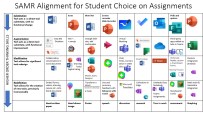
SAMR Alignment For Student Choice on Assignments In Office365

UPDATE 30th August:

Matthew Nickerson has posted a revised / improved version of his graphic which you can see in the tweet below:

Image Credit

I’m a huge fan of the SAMR model and have blogged about it numerous times on my blog previously so I was delighted when my Twitter PLN (Professional Learning Network) tagged me in on this awesome tweet from Matthew Nickerson (I suggest you follow him!) showing a matrix he had created focusing on how students could submit assignments using only tools in the Office365 suite:

If this spins your wheels, then definitely check out my previous blog post about creating a digital classroom with O365 from a history teacher’s perspective which also mentions SAMR and includes my favourite SAMR poster of:

samr-diving

Last month I did a presentation to educators and leadership in South East Sulawesi Region in Indonesia who were launching a new O365 initiative and I shared the SAMR model with them too at the time – they appreciated the simplicity of the taxonomy but also the breadth and freedom to integrate tools in creative ways to drive better learning outcomes. Ultimately, I see SAMR as being a framework that you can hang your own thinking and planning on in a structured way to drive deeper student engagement with technology, but it is not intended to be a prescriptive guide.

It was back in 2014 that I first came across SAMR and could see it’s power in math lessons where teachers were flipping the classroom with tools like OneNote and Surface Pro devices with digital inking. Check out this blog post I wrote at the time featuring Ben Hilliam (who is now the global head of Math for Education Perfect) where I included my other favourite SAMR poster:

Explaining the SAMR model through coffee

The Role of Twitter

A final word about Twitter – I mentioned at the start of this post that I came across this great teaching aid via my Twitter Professional Learning Network. I’m not overstating it to say that every week there are multiple tweets that catch my eye from dedicated, creative professional teachers that are freely sharing their knowledge on Twitter to assist and inspire their colleagues.

I am not a fan of social media – I have no personal social media accounts myself, so I found it strange that in May 2014 I was training teachers at the school I was working at how to use Twitter to build their own Professional Learning Network (PLN). You can read about that experience and my rationale for it here.

Fast forward from 2014 when I wrote that blog post to 2021, and I used Twitter daily for learning about and keeping abreast of education developments and EduTech. If you have not built your own PLN I encourage you to do so, and I shared tips on how to do this in the blog post above.

Categories
Windows 11

New To Intune / Endpoint Manager? This Book Is For You

I work with a lot of System Integrator partners in education, both across K-12 and Higher Education, many of whom are new to managing Windows 10 with an MDM. I’m always referring them to Microsoft Endpoint Manager / Intune and the wonderful online documentation that is available here:

Constantly updated, the online documentation should be your go-to resource

Adding to this wealth of resource is Scott Duffey, a bit of a legend in the Endpoint community at Microsoft and you can follow him on Twitter too, with his first book entitled Learning MEM

I’m keen to get my hands on the book myself (my Kindle Oasis is getting a real workover at the moment as it is), as the topics included look excellent:

  • Microsoft Endpoint Manager – What it is and how to use it
  • How to set up your own MEM learning environment
  • Mobile Device Management (MDM) concepts for iOS, macOS, Android, and Windows 10 devices
  • Enrollment concepts for each platform including Windows Autopilot, Apple Automated Device Enrollment (ADE), and Google ZeroTouch
  • Endpoint Security with Compliance and Azure AD Conditional Access across Microsoft Intune, Configuration Manager, Azure AD, Microsoft Defender for Endpoint, and Office 365.
  • Mobile Application Management (MAM)
  • Advanced MEM concepts including extensibility through Microsoft Graph API and PowerShell

If you’re keen for a copy yourself, make sure you head to the website for the links on how to purchase. Once I have my own copy and have read it, I’ll post an update on my blog.