Categories
Microsoft365 Minecraft:EE

Ngā Motu – A Story Of Whanaungatanga (Connectedness)

kanohi ki te kanohi


Pa settlement bird eye
The Pā settlement inside Ngā Motu

The quote above means ‘face to face, in person, in the flesh’ and therefore it might seem a strange choice to start a blog post about a computer game, nevertheless it is of central importance in the genesis of Ngā Motu.

Just over 12 months ago I had a māramatanga (brainwave, big idea): how could we leverage Minecraft: Education Edition, a hugely popular platform that was available to all ākonga (students) in State and State-Integrated schools in Aotearoa (New Zealand) to promote:

  • Te Ao Māori – the Māori world
  • Te Reo Māori – the Māori language
  • Tikanga – the procedures, protocols and customs of Māori

In many ways it was an ambitious idea for any number of reasons and yet here we are in Te Wiki O Te Reo Māori 2019 launching Ngā Motu to the world through this incredible video:

Starting At The Beginning:

It was mid 2018 and after the initial surge of excitement about my māramatanga for leveraging Minecraft: Education Edition to build something distinctively Kiwi, I was trying to find the right partner who could actually build out this grand vision. It was at this stage that my long time Te Reo Twitter buddy Te Mihinga Komene suggested I reach out to someone called Whetu Paitai and inquire about his previous work on the Minecraft: Java Edition platform he had called Mahi Maina (a sort of transliteration of Minecraft, Mahi meaning ‘to work’ and Maina meaning ‘mining’).

Before continuing the narrative, however, and in keeping with the theme of connectedness / whanaungatanga and the importance of face to face meetings to Māori, it’s worth showing the quote behind Te Mihinga’s Twitter account to reinforce this:

Screenshot 2019-09-07 at 11.03.12.png

My language connects me

My family grounds me

My culture defines me

It is this type of mindset and deep seated belief that has been a constant throughout the last 12 months of working towards delivering Ngā Motu to the world. Ironically, however, in the absence of any direct contact details and only a few sketchy search results on FaceBook hinting at the existence of Mahi Maina, I resorted to messaging Whetu on LinkedIn – hardly an auspicious start!

Screenshot 2019-09-07 at 10.20.06

As the screenshot shows, a virtual connection was made, and our joint hīkoi (journey) began.

Students start their exploration of Ngā Motu on the waka hourua – the double hulled canoe – it’s a fitting metaphor for the hīkoi (journey) we’ve been on to deliver this Minecraft world over the last 12 months

Building Whanaungatanga (Connectedness)

Whanaungatanga: a relationship through shared experiences and working together which provides people with a sense of belonging.

After the initial connection on LinkedIn, Whetu and I had a number of phone calls where I became ever more excited about his knowledge, skills and experience in both Minecraft and Te Ao Māori. This led to Anne Taylor (Education Lead for Microsoft NZ) meeting kanohi ki te kanohi (face to face) with Whetu near his home in the beautiful Coromandel area of New Zealand. I then had a chance to connect in person with Whetu and three of his tamariki (children) when he visited the Microsoft Auckland office in December 2018. With a hongi (pressing of noses together) on greeting, Whetu and I were ready to get into the nuts and bolts of what we were really trying to create together.

We were united in our tūruapō (vision) to use this platform to promote te reo Māori (the Māori language) something that even the best intentioned kaiako (teachers) sometimes find challenging, especially around the correct pronunciation of Māori words. At the time, I could never have imagined how cleverly Whetu would utilize his deep understanding of the Minecraft platform to build out a series of lessons that harnessed the innate game play of Minecraft to teach students the fundamentals of te reo Māori.

Whakataukī (Proverbs, wisdom) form an important part of Māoritanga (Māori culture) and I love them because many combine vivid imagery with sage advice. It was at this meeting in December that a pathway of co-operation was forged that ultimately has led to the release of Ngā Motu this week. The following whakataukī is therefore appropriate:

Ko koe ki tēnā, ko ahau ki tēnei kīwai o te kete

You at that and I at this handle of the basket

The meaning is clear: when we both carry one handle of the basket, we share the load and can achieve more together than we may have done separately. Whetu, and his company Piki Studios, along with Anne and myself representing Microsoft, shared the vision and mahi (work) to bring Ngā Motu to completion.

The Momentum Grows

With the idea starting to take serious shape, others began to hear about the idea and lend their support. In particular, the incredibly passionate Minecraft: Education Edition team from Microsoft Corp in Seattle. This culminated in Deirdre Quarnstrom and Sara Cornish flying down to Wellington, New Zealand to connect with Marianne Malmstrom and Simon McAtamney from Newlands Intermediate School to film a hack mini that Marianne was running as a holiday programme, and where Whetu Paitai would debut Ngā Motu to students for the first time as a closed beta testing release. As the tweets show, it was very well received:

https://twitter.com/s_nish/status/1151657448203096064?s=20

As I reflect on the diverse range of people involved in the Ngā Motu project, I truly believe it is the vibrancy and power of Māoritanga that has drawn them into this project and the passion for the taonga (treasure) that is te reo Māori (the language) that many New Zealanders like Whetu and the incredible teachers at Newlands Intermediate demonstrate. To be able to see this rich culture visibly emerge as distinctively Māori through Minecraft and the work of Piki Studios made everyone involved incredibly proud:

The mythical, the extinct and the present all co-exist inside of Ngā Motu. Top left to right: a taniwha (water spirit / guardian), the kiwi bird (national bird of New Zealand), inside a wharenui (meeting house), a moa (extinct, flightless bird)

Ngā Motu – A Koha (gift) To Ākonga (students) Everywhere

This week of Te Wiki O Te Reo Māori (Māori Language Week) sees the official launch of Ngā Motu.

Access Lessons & World Here

It is something that everyone involved is incredibly proud of and involves the following resources:

As you can see from the above screenshots, there is much to explore inside of Ngā Motu and I can’t wait to hear the clever ways students and educators adapt the world to various learning outcomes. There are three main structured lessons inside the world that teach students:

  • Māori Vowel Sounds
  • Māori Consonant Sounds
  • Māori Numbers

Realistically, however, there are infinite ways Ngā Motu can be used to teach any number of concepts. I hope to update this post in the future with new ideas and also how the world itself evolves in future iterations.

Final Thoughts:

I am incredibly proud to have been able to contribute to this project in various ways, thrilled by the new relationships it has introduced me to and excited for the possibilities that Ngā Motu will be used by educators in both Aotearoa (New Zealand) and beyond.

Seeing the collective reactions of people to this world during the development and pre-release stages has been humbling – everyone loves the work Whetu has contributed to this project.

I am going to finish this blog post with a final whakataukī (proverb):

Takoto kau ana te whānau a Tāne

The children of Tāne lie prone

This proverb means that once the trees are cleared away, the work is done: it applies to any work that is now completed (in Māori mythology, the forest trees are the children of Tāne).

With Ngā Motu now finished and released as a koha (gift) to the global education community the hīkoi (journey) may be drawing to a close, but the whanaungatanga (relationships and connectedness) will endure.

Categories
Microsoft365

Technical Post: Provisioning AzureAD Users Into G Suite Org Units

banner.pngI’ve been working with Stefan van der Busse (suggest you follow him on Twitter) for a couple of years now and have learnt heaps from him in various aspects of the Enterprise Mobility and Security (EMS) Suite, where he has a lot of experience and crafted some great solutions.

I’m really pleased to see he has started a new blog and, in true geeky style, has chosen GitHub as the hosting platform.

Check his blog out here

He’s kicked off the inaugural post with a topic that we’ve exchanged ideas and knowledge over recently – how to sync AzureAD users into specific Organisational Units (OU) inside of G Suite. You can see this post here.

It’s an important read because it deals with an increasingly common situation: a customer that has no on premise identity platform anymore and wants to do Single Sign On and user synchronization between the AzureAD and Google identity clouds.

The Value of Experience & Testing

One of the many benefits you’re likely to get from Stefan’s blogs is the culmination of his experience and extensive testing and this comes through in the very first post he’s released – finding a probable bug when users are moved between departments or business units in AzureAD, this sync is not acknowledged at the G Suite end. In his words:

A word of warning

This is a great solution for getting users provisioned into G. Suite and into their initially correct OU. But through rather extensive testing and going back and forth with Azure AD support, there’s a major caveat that they don’t mention in any of the support articles.

All provisioning requests that are sent to G. Suite use a POST REST method. This is generally fine; and works perfectly for user creation. But as per the G. Suite Admin Directory API documentation updates to existing users need to use a PUT REST method.

So what does that mean?

Any subsequent changes such as a user moving between departments or business units could result in a user moving between assigned groups, and therefore needing to be moved to a different OU in G. Suite.

The change is sent to G. Suite by Azure AD but simply and unfortunately ignored.

That knowledge is gold if you’re setting up a similar situation in your tenant/business and worth noting and planning around.

If you like what you’re seeing from this initial blog post, then suggest you subscribe to Stefan’s blog – you can do this here.

Categories
Minecraft:EE

Minecraft: Education Edition Back To School Update Released

I blogged back in June around the ISTE event in Philadelphia about the newly announced features that were going to land in Minecraft: Education Edition and I’m thrilled to see them released today! Note: the new release is version 1.12.0 (previous version was 1.9.3)

The M:EE team have released their own blog post covering this and, as always, I encourage you to read the original post here. If you need specific technical help about the new release then check the support pages for the Back To School Update here.

On the back of this announcement I will update my trusty Ultimate Setup Guide for Minecraft:EE, so if you want a ‘one stop shop’ for setup, I suggest you read it.

What Are The Key Things I Need To Know?

  • Big improvements to Multiplayer mode – one of the biggest frustrations I’ve heard from schools is that people in other classes simply join the worlds of students uninvited. Now, with the release of “Join Codes” you can’t enter a world without first being provided the pictorial join code: problem solved. Additionally, the host can invite others into their world in “guest mode” meaning they can view, but not edit/change the world. This is a huge release.

Hosting-768x432

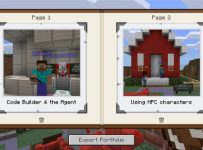
  • Improved Sharing of Worlds & Exporting of Content – one of the best parts of Minecraft:EE is the ability to deeply integrate it into the learning and assessment happening in a classroom. This got even easier now with links to worlds inside of libraries, meaning teachers can hyper link from an LMS or Microsoft Teams directly to the template world they want students to use. Additionally, you can now export content students have been collecting inside their in-game portfolio (Book & Quill) as a PDF, not simply a text file with separate images. This makes it far easier when it comes to submitting in-game assessment to a LMS or Teams assignment. These two small tweaks will make a big difference for educators.

library-share-world-768x432

portfolio-2-768x432

  • Single Sign On – a handy one for users on Windows 10 who sign into their device with their O365 credentials. Now, Minecraft:EE will automatically sign you in as well which is handy on 1:1 devices. In shared scenarios you can still sign out of M:EE to allow a different user to sign in.
  • Immersive Reader – I remember when I first quit my job in ICT to re-train to become a teacher and. the first day of teacher’s college we were told “You’re all teachers of literacy! No matter your subject specialty, you’re all teachers of literacy!” Now, with Immersive Reader coming to Minecraft:EE, this app joins the growing list of others that are helping students access the material they need to learn with the support they need.

Final Thoughts:

It’s great to see the continued evolution of Minecraft: Education Edition and, as always, make sure you go to the home page for full details. In my view, this update addresses some key requests from educators so it’s always pleasing to see the product team is listening to the customers and updating accordingly. Additionally, the focus on the learning side of things with better portfolio export options, easier external linking to worlds and improved literacy support means this update will appeal even more to teachers.

If you’re on Windows 10 or an iPad you’ll get the update automatically. If you’re on a MacBook / iMac you’ll need to download the app and reinstall – start here.

Categories
Microsoft365 Windows 11

Awesome Office365 Updates – But When Do I Get Them??

UPDATE 16th July 2020 – This month Microsoft has introduced a new channel for updates to the Microsoft 365 Apps (formerly known as Office365 ProPlus). This is the new “Current Channel” where updates are pushed out as soon as they’re available. You can read more about this here and there is the Microsoft Documentation on Channels here. The key table to understand I’ve included below:

Comparison of the update channels for Microsoft 365 Apps

The following table provides a comparison of Current Channel, Monthly Enterprise Channel, and Semi-Annual Enterprise Channel.

COMPARISON OF THE UPDATE CHANNELS FOR MICROSOFT 365 APPS
Current
Channel
Monthly Enterprise
Channel
Semi-Annual Enterprise
Channel
Recommended use Provide your users with new Office features as soon as they are ready, but on no set schedule. Provide your users with new Office features only once a month and on a predictable schedule. For select devices in your organization, where extensive testing is needed before rolling out new Office features. For example, to comply with regulatory, governmental, or other organizational requirements.
Release frequency1 At least once a month (likely more often), but on no set schedule Once a month, on the second Tuesday of the month Once a month, on the second Tuesday of the month
Feature updates2 As soon as they’re ready (usually once a month), but on no set schedule Once a month, on the second Tuesday of the month Twice a year (in January and July), on the second Tuesday of the month
Security updates3

(if needed)

Once a month, on the second Tuesday of the month Once a month, on the second Tuesday of the month Once a month, on the second Tuesday of the month
Non-security updates2

(if needed)

Usually at least once a month (possibly more often), but no set schedule Once a month, on the second Tuesday of the month Once a month, on the second Tuesday of the month
Support duration for a given version4 Until the next version is released with new features, which is usually about one month Two months Fourteen months

My key point to make for educators would be:

We recommend the Current Channel for the latest/greatest updates, but the key message would be to ensure that your students and educators are on the same Channel so that they’re sharing the same features and there is no discrepancy in the experience.


Original Post:

In the lead up to ISTE 2019, there are some incredible announcements being made by the Microsoft Education team and I’m sure there will be more new features released at ISTE itself. Two that have really stood out to me in the last week were published by Mike Tholfsen and include:

  1. 30 Summer Updates for OneNote and OneNote Class Notebooks
  2. PowerPoint AI Presenter Coach

The second one, was announced this morning by Mike on Twitter:

You can see the summary video here:

The 30 updates to OneNote are incredible and go a long way towards making OneNote 2016 something that teachers can finally migrate away from, safely knowing their favourite features are now included in the Windows 10 UWP app, or on whatever platform they access OneNote on. Some of my favourite updates from this announcement include:

  • A return to very granular distribution of pages/sections:
    • Pages can be distributed to individual students only
    • Pages can be distributed to defined groups – great for reading groups, math groups, or those with special requirements e.g. audio notes.
    • Multi-page distribution – select specific pages to distribute in one motion
    • Distributing pages into specific sections inside of a Student’s notebook.
  • Lock LMS pages after a due date – great for assignments and knowing that a page has gone to read only, and students can no longer edit it.
  • Integration into Teams – such an important feature, and here at last! The ability to import older notebooks into their new notebooks inside of Teams for Education:

Import FRE from OneNote into Team

  • TurnItIn Integration inside of Teams is here – something I’ve written about before.
  • Generating math quizzes directly inside of OneNote based on a formula you’ve already written – so clever!

Generate quiz GIF 3.gif

  • Send to Outlook – Windows 10; a return of one of the most loved features from OneNote 2016, now you can easily send emails to OneNote from the Win10 app as well.
  • Publish Notebooks (Make it Mine) – allow teachers/students to publish their OneNote notebooks so that others can take a copy of them and add them to their own OneDrive.

The list goes on, and I really do encourage you to read the entire 30 which are here to find out which are of most interest to you.

That’s great – but when should I expect to see these updates?

Mike’s post indicated that a number of the updates were coming to the Office Insider program immediately, and others will be rolling out shortly. Nevertheless, there are some organisation level settings that may still impact when you receive these updates. For this reason, it’s worth knowing about:

  1. The Office Insider Program
  2. Update Channels for Office365 ProPlus

It’s important to remember that Office365 is a subscription service which means it gets more regular feature updates compared to the Office2019 suite (remember the Twins Challenge that showed the differences?). These updates can be pushed out monthly which is great for education where so many of the features improve student learning and save teachers time. Some organisations, however, prefer a slower release cycle to provide a consistent user experience and not overwhelm some users with new features and content.

The three update channels are explained below:

Update channel Primary purpose How often updated with new features Default update channel for the following products
Monthly Channel Provide users with the newest features of Office as soon as they’re available. Monthly Visio Online Plan 2 (previously named Visio Pro for Office 365)

Project Online Desktop Client

Office 365 Business, which is the version of Office that comes with some Office 365 plans, such as Business Premium.

Semi-Annual Channel Provide users with new features of Office only a few times a year. Every six months, in January and July Office 365 ProPlus
Semi-Annual Channel (Targeted) Provide pilot users and application compatibility testers the opportunity to test the next Semi-Annual Channel. Every six months, in March and September None
The final channel is an important one as having a group of “targeted” users to experience the latest updates in advance of the majority of users allows for testing any compatibility issues as well as giving them a chance to train on the new features.
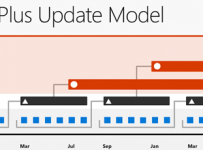
Update Channels.png
Visual representation of the update channels

How do you configure the update channels?

To configure the update channel for an Office 365 ProPlus installation, you can use the latest version of the Office Deployment Tool or use the Group Policy Administrative Template files (ADMX/ADML) for Office.

If you want to find out what channel you’re on, then open any Office365 ProPlus app (e.g. Word) and click File, then Account and you should see something similar to this:

Monthly Channel

Final Thoughts:

New feature updates are awesome and you can see that in the lead up to the new school year in the northern hemisphere, many of the features that were announce in January at BETT London 2019 are now starting to be added to Office365, and brand new features are popping up too.

For those more adventurous students and educators, being on the Monthly Channel will ensure they get the latest features as soon as possible which is awesome if you’re open to change and adopting a growth mindset as a life long learner. On the flipside, if you want to reduce change for your staff and students, then being on the semi-annual release may be the best compromise: new features still come but the pace of change is less rapid.

Whatever you choose, having some users on the targeted release cycle (or even the Insiders Program) is sensible as it allows for a sneak-peak at features before the general user population in your organisation receive those updates. This means any conflicts or  compatibility issues can be addressed, as well as having some users familiar with the newer features and able to train or evangelize the best updates to the rest of your organisation.

Categories
Microsoft365

Take Your Files (& email!) With You Using OneDrive Graduation

Graduate.PNGThis post shares another answer to commonly asked questions from schools I engage with:

How do students take their files with them when they graduate?

Here is the answer in a Tweet from the inimitable Mike Tholfsen:

The direct link to the guides are here:

OneDrive.com Graduation

What Is Included?

What Is Missing?

Perhaps unsurprisingly, given this is a OneDrive tool, it does not include any sort of email migration which would be super handy. For a student to be able to migrate their email history from their school Office365 account to an Outlook.com account would complete this Graduation Tool nicely.

The good news is, there are plenty of options for importing email from other provides like Gmail and if you wanted to bring your O365 email from school into your outlook.com account then simply go to settings (direct link here) and select “Sync Email”:

Sync email 1

Choose “Other email accounts” and enter your O365 Credentials:

Sync email 2

You’ll notice there are two options above in terms of importing the email from the “old” school account to appear in the matching folders in the new @outlook.com account such creating a combined inbox, sent folder etc. This is more streamlined but many students may like to keep their school email separate from their new account and can create a subfolder structure by choosing the second option – this ends up looking as follows:

Sync email 3.PNG

In case you’re wondering, the bob@minecraft.sammcneill.me is a real O365 email address in a demo tenant I set up (expires soon) so it proves you can pull through the email from O365 to Outlook.

My Point of View:

This is a great move from the OneDrive.com team as it easily allows students to follow a simple step to take their important files and folders with them. Critically, the content from a OneNote Class NoteBook is often the main record of student learning and this is also guided in terms of how to move this.

As I’ve demonstrated above, it’s not hard for students to also move their school email on to their new account, providing a complete digital record of their learning and communication as they graduate into their next stage of education or into the workforce.

One more “end of year task” has now been simplified for educators and students alike!

Minecraft:Education Edition Arrives In The Cloud – AzureVM Available Now

minecraftI’ve been blogging here about Minecraft:Education Edition for a while now, and one of the most requested features I hear from educators and students alike is for a cloud hosted version. At MS Build 2019 the Minecraft:EE team announced this is now possible through an Azure VM:

The direct link for the information is below:

Announcement of AzureVM For Minecraft:Education Edition

From the announcement:

IT administrators and educators have been asking for a better multiplayer experience, including workarounds for device limitations and classroom management. Our team has taken this feedback and worked with Azure to develop a Minecraft VM solution.

The Azure VM will host the multiplayer world, instead of the student or teacher. So, if a teacher wants to setup a multiplayer world, they no longer need to host the world on their device or rely on a student to host. When a multiplayer world is hosted on Azure, students simply connect via an IP address, accessing their world when they need to.

Whilst there are no mentions around likely running costs of this VM, schools will need to be mindful of this given all Azure services are largely based on a “base as you consume” pricing model.

My Point of View:

In my mind, this is a significant step forward as it solves a number of problem scenarios that I was talking about with some trainers yesterday that I was working with around Minecraft:EE, namely:

  • Many schools segment network traffic using VLANs and blocking peer-to-peer connectivity across the wireless network. This increases the difficulty of getting multiplayer Minecraft:EE working easily.
    • Hosting the worlds in an AzureVM removes this security issue as all players (teachers and students) exit the LAN and access the hosted world on the internet.
  • Until now, students needed to be on the same LAN to be able to play multi-player meaning continuing to collaborate in a hosted world for homework was virtually impossible.
    • With this announcement, students can continue working together on a project in Minecraft:EE because they can access the hosted world via the AzureVM from home.

I’m sure more information will emerge around likely Azure hosting costs, and it may be some schools choose to disburse costs to students such as a $5/semester course related costs to manage this. Either way, for those schools interested in resolving the above challenges and driving greater use of Minecraft:Education Edition in their STEM curriculum, this is a positive announcement.