Categories
Microsoft365 Minecraft:EE

The Ultimate Collection Of Resources For Remote Learning with Microsoft 365

I’m initially composing this in mid-March 2020 and primarily in response to numerous people that have been asking me for a single blog post of resources to assist with all aspects of Remote Learning in education (similar to what I wrote and updated for Minecraft:Education Edution).

The impact of #COVID19 / Coronavirus is being felt globally and so I’ve decided to pool resources from across the internet specifically connected with M365 for Education and breaking it down into the following sections:

  • Classroom Teaching Resources
  • Network & Infrastructure Considerations
  • Tips & Tricks
  • Everything Else!
  • Videos

I’ll update this continuously whilst there is emerging news and requirements – it is not a complete list right now, and I aim for it to be a living document, so check back regularly!

UPDATED 24th April: Added OneNote Best Practice Guidance for IT Admin and Teachers under “Network & Infrastructure Considerations”

UPDATED 11th April: Added Guide to Breakout Rooms in Teams under Classroom Teaching Resources; Calendar of free Education Webinars under Tips & Tricks; Numerous links to articles / documentation explaining security and privacy in Microsoft Teams under Network & Infrastructure Guidance; Video Tips for Students using Office365 under Tips & Tricks; Mike Tholfsen’s guide on Microsoft Teams Meetings – what to use now and what is coming soon under Classroom Teaching Resources; Blog on Remote Work Trends (including Education) – fascinating insights into Teams usage during COVID lockdown under Everything Else!; Update the COVID19 Tracker below

UPDATED 2nd April: Added changes to School Data Sync (SDS) processes for rapid creation of Teams under “Everything Else!”

UPDATED 31st March: Added Mike Tholfsen’s collection of shortlist URL for educators under “Classroom Teaching Resources”;

UPDATED 30th March: Added links to Teams Call Quality reporting with PowerBI Dashboards under “Network & Infrastructure Considerations”;

UPDATED 27th March: Added guide for using Teams in low bandwidth scenarios under “Network & Infrastructure Considerations; Guides to checking in on Student Social and Emotional Wellbeing under “Everything Else!”; YouTube playlist of all RemoteLearning videos from Microsoft Edu under “Videos”;  YouTube playlist of quick tips for teachers in Office365 under “Videos”; Microsoft blog highlighting integration with various LMS and Microsoft Teams under “Classroom Teaching Resources”; Updated the COVID19 confirmed cases as of 27th March

UPDATED 25th March: Added Teams Attendance app under “Everything Else!”

UPDATED 24th March: Added MakeCodeLivestreaming Classes under “Classroom Teaching Resources”

UPDATED 21st March: Added great case study of teaching with Teams & OneNote under “Classroom Teaching Resources”; Added Video Case Study under “Videos”;

UPDATED 20th March: Added information Shifting to distance learning: A 5-day guide for school leaders​ under “Classroom Teaching Resources”; Integrating your existing Learning Management System (LMS) with Microsoft Teams under “Classroom Teaching Resources”; Remote Learning with FlipGrid guides under “Classroom Teaching”; Canvas LMS integrates with Microsoft Teams under “Network & Infrastructure Considerations”; Integration between Schoology LMS and Microsoft Teams under “Network & Infrastructure Considerations”; Updated the COVID19 confirmed cases as of 20th March.

UPDATED 19th March: Added information on Family Learning Centre under “Everything Else!”; Minecraft:Education Edition internet play is possible with Join Codes under “Classroom Teaching Resources”

UPDATED 18th March: Added information size limits of members in a Microsoft Team, on a video call etc in “Network & Infrastructure Considerations”

UPDATED 17th March: Added information around School Data Sync for rapid Teams deployments based on data in your SIS/SMS under “Everything Else!”; Added information on OneDrive File Requests for larger assignments under “Tips & Tricks”; Added information on Digital Signatures to prove document ownership under “Tips & Tricks”; I’ve also added a new VIDEOS section of relevant content.

COVID19 Tracker:

This is a great visualization powered by Bing and PowerBI tracking the current impact of COVID19 – check the latest data here and the snapshot below has been updated as of 20th March (approx 73K more confirmed cases in three days!)

COVID2019
Data as of 20th March 2020

The spread of COVID19 is rapid – see latest numbers below as of 11th April:

COVID
Data as of 11th April 2020

Classroom Teaching Resources

Whilst there are a huge amount of tools inside of Microsoft 365 for Education, perhaps the most “in demand” in times of remote learning is Microsoft Teams and the great news is this is available at no cost as part of the A1 Education offering from Microsoft.

Network & Infrastructure Considerations

It’s important that educational institutes have configured their environments to work smoothly under increased load – the following guides are best practice and an awesome starting point:

Tips & Tricks

Everything Else!

Videos

Sometimes seeing is believing, and I’m going to embed some easy videos to consume directly inside the blog:

  • Online classes and lectures with all your students. Part 1 class setup

  • Online classes and lectures with all your students. Part 2 schedule online meetings

  • Dutch kindergarten students explaining how to use Teams for remote learning, including on an iPad and iPhone (there are English subtitles)

  • My video showing how you can use Join Codes in Minecraft:Education Edition to connect wtih friends over the internet – full details here.

  • Video case study of remote teaching using Teams and OneNote in Hong Kong – make sure you turn on the CC subtitles for English translation:

  • Playlist on YouTube of all Microsoft Education Remote Video Guides:

  • Quick Tips in Office365 YouTube Playlist:

Conclusion

It’s super important that communities come together at this time to support each other, support our wonderful educators and school leaders and ensure that our students are feeling loved and supported during these rapidly changing times.

If you’ve got awesome links that I can include feel free to make a note in the comments or drop me a DM on Twitter over at @samuelmcneill

Categories
Microsoft365 Podcast

PODCAST: #EDUTECHTALKS #9 – Leveraging Microsoft Teams to Enable Virtual Classrooms featuring Matthew Jorgensen

PodcastThe ninth podcast between Amit Pawar and myself in our #eduTechTalks series is now available on all major Podcast Platforms and features Matthew Jorgensen, eLearning Director from St Stephen’s College on the Gold Coast in Queensland, Australia.

Click below to listen or here to launch.

In this podcast we discuss how Microsoft Teams for Education is enabling teachers to connect with students who can not be physically present on the campus for any reason. With health scares across Asia, many international students were unable to return to the classrooms in time for the start of the school semester, so Matthew Jorgensen leveraged Teams to help with video streaming of live lessons to those students at home.

I first saw Matthew’s work on LinkedIn in this post where he described what was happening at the school:

Channel 9 joined an English class with Mrs Mullan who has been live-streaming and recording lessons for multiple classes and attendees at a time … Selina (online) and Reagan (live in person) are our College International Captains and they were grilled by Channel 9.

The app used is Microsoft Teams …It can even convert speech to text and display it on the screen … Recording sessions have gone so well that teachers are interested in video recording lessons for absent students in the future, or just to have for revision.

LinkedIn
Matthew’s LinkedIn post received a lot of positive feedback when he shared how his school was using Microsoft Teams to do livestreaming of lessons to remote students.

Since recording the podcast, we’ve seen many other schools using Microsoft Teams for this as well, such as schools inside the Catholic Education of Western Australia:

https://twitter.com/sarajennings71/status/1229754875312869376

REMINDER: this edition, along with all previous podcasts we have published, is now also available on Apple Podcasts – SUBSCRIBE HERE to automatically receive each podcast when published.

For now, sit back, relax, and enjoy the latest podcast featuring Matthew Jorgensen.

Categories
Microsoft365

File Requests In OneDrive – A Versatile Tool In Education

UPDATE 3rd April I was inspired after talking to some colleagues to create a quick video showing the awesome way to collect files with OneDrive File Requests and share with colleagues in the Teams file section easily. Check this out:

Original Post below:

The product set inside of Office 365 is continually evolving and today I was thrilled to see a new feature rolling out called File Requests. The official documentation is here, and it was launched in Q4 2019 according to the Microsoft 365 Road Map (that’s an incredible website – bookmark it and use the filters effectively to find out what’s coming and what has been released already).

File Request Rolling Out
The Microsoft 365 Roadmap shows that the new feature of File Requests was released in Q4 2019

I tweeted about this yesterday and it was well received by educators who had longed for this functionality:

What Is File Request?

With the file request feature in OneDrive, you can choose a folder where others can upload files using a link that you send them. The users that you request files from cannot see what’s in the folder – they can only upload files to it.

With a file request:

  • Anyone can send you a file – they don’t need to have OneDrive.
    • This is critical – reducing the barriers to collaborators sending you content by requiring no authentication and no existing account/subscription for a service means users can send the files you need with the least amount of hassle.
  • All the files sent to you are saved in a single folder that you choose.
    • See the scenarios below – the ability to collate all files inside your OneDrive is awesome.
  • People who respond to your request can only upload files. They do not have view or edit access to your OneDrive.

    • Security, security, security – preventing people from seeing the submissions of other collaborators means you can use OneDrive File Request with confidence that anonymity is assured for the submitter.

Some other cloud storage providers offer this as well – notably DropBox – however there are many reasons why educational institutes would like to use OneDrive for this functionality.

Concerns Around Shadow IT

I’ve written previously about teachers using “Shadow IT” services in their schools, this post focused on compliance risks around unauthorised sharing of intellectual property, and this one summarised the views of the New Zealand Government’s Chief Digital Officer on the topic. In the second report, it was noted:

“Shadow cloud” is a name given to public cloud services that employees use without formal approval. Shadow cloud usage exists for many reasons. For example, agency employees who have used public cloud services in previous jobs or at home often see the opportunity to use them in their work.

Generally, the motivation of employees (in this case, teachers, faculty and administrative staff) is good: they simply want to be more effective and efficient in their role and use tools to that end. However, many third party apps will likely not meet regulatory or compliance requirements and also mean that content is being shared in ways that can not be controlled, monitored or searched should the need arise.

This is why File Requests inside of OneDrive is so critical – it negates the need for Shadow IT by providing very useful functionality (see below for scenarios where this could be leveraged in educational institutes), whilst still affording the school all the benefits of strong security and compliance of the files. If you’re unfamiliar with the tools inside of Office365 in this space, a good starting point would be:

How Does File Requests Work?

  1. In your OneDrive, select the folder where you want the files to be uploaded, and then click Request files.

    The Request Files menu option in OneDrive for Business

  2. Under What files are you requesting, enter a descriptive name for the files you are requesting from others. (They’ll see this description when they get the file request.)The Request files dialog box after requesting files in OneDrive for Business
  3. Click Next.
  4. You can click Copy link to copy the request link and send it to anyone you would like to request files from, or you can enter the email address or addresses of the people you want to request files from. You can also type a message that will be included in the email that OneDrive sends to them.The Send file request dialog box providing a link or email address option in OneDrive for Business
  5. Click Done.

You’ll receive a notification email whenever someone uploads files to your file request folder.

The great part of this service is that anyone with the link will be able to upload files to the request. However, they aren’t able to see or edit other contents in the folder or see who else is able to upload files. They also do not need to be OneDrive subscribers – they simply click the link and enter their name so their file uploads are identifiable.

When recipients click the link, they’ll see:

The notification received when a OneDrive for Business user requests files

Notes:

  • If the recipient is not signed in, the recipient will be asked to add a first name and last name to help the requestor identify the different files uploaded. The provided first name and last name is not validated; it is purely for identification of the files (the name is prefixed to the uploaded file names)
  • If the recipient is signed in and responds to the request, the identity is recorded as part of the upload.
  1. Click Select files, browse to the appropriate folder, and select the file being requested. If you need to add additional files, click Add more files.
  2. When you’ve selected all the requested files, click Upload.The dialog box for uploading files in response to a file request in OneDrive for Business
  3. Recipients will get another notification once their files have been successfully uploaded.The notification received after a successful file upload in response to a file request in OneDrive for Business

Where Could This Be Used In Education?

There are a number of scenarios where this could be used in education and in fact, I used the DropBox equivalent in 2016 when I was running a Digital Scavenger Hunt for students in a school competition. I wrote about this extensively here, because at the time I had to crowdsource ideas on how to achieve this:

Initially, I was unsure of the best technology to get students to submit their photos and videos to a central location easily, and without needing a specific app or account. I tried to crowdsource some suggestions through my PLN (Professional Learning Network) on Twitter, with ideas of using PadletClusterInstagram and Google Drive all being suggested. I also thought about setting up an open course on our Moodle site that students could submit photos and videos for the competition through, however the reality is that it is still not super easy from a mobile phone to do this.

In the end the I opted for DropBox for the reasons I explained in the blog post, but now I’d definitely choose OneDrive File Requests. So what scenarios could this apply to?

  • Digital upload competitions, like the Digital Scavenger example above.
  • Assignment scenarios where large media files (videos, high resolution RAW photos etc) need to be submitted, but students can not see other files submitted by fellow students
    • Most Learning Management Systems have a maximum file submission size (e.g. in Microsoft Teams For Education it is 50MB)
  • Job Applications – asking potential employees to upload job applications to a single repository – with File Requests they’re secured in your OneDrive with things like Office365 Retention Policies and Version Controls protecting them, but none of the applicants being able to see them.
  • Photo Collections from events – this is one of the more popular scenarios – imagine a school sports day or festival and students have taken photos on their smartphones. Having an easy method to collect these in one place without requiring authentication or a dedicated app. Simply distribute the link and photos will be uploaded quickly and easily – a great example of crowdsourcing!
  • Articles for school newspapers / magazines that are written by many authors, sometimes staff members, students, external coaches and contractors – having a single point of collation makes for a super easy process of submission and subsequent organisation.
    • File Request also has the ability to set a cut off date when submissions can no longer be made – a useful way to try and drive compliance to a due date!
  • RFP responses from contractors – when a large school project is being outsourced, having respondents submit their proposals in an easy manner (that doesn’t require authentication or existing subscriptions to a service) is a very convenient method for both the school and the external parties.

Final Thoughts

Managing Shadow IT is an increasing concern for many ICT Directors and CIO – having the ability to offer staff the ease of use of File Requests coupled with the security and compliance of OneDrive and Office365 is something that many school leaders will be excited about.

It shows the continual evolution of the offerings inside the suite of Office365 and that is a great thing – perhaps the only challenge is keeping up with all the announcements! For that reason, do make sure you regularly check the Microsoft 365 Roadmap link I referenced earlier!

One thing that is worth noting is your Office 365 administrator must enable Anyone links in OneDrive for file requests to work. If you don’t, you’ll see this dialogue:

File Request
If you’re seeing this, you need your Office 365 Administrator to turn on “Anyone links” in your tenant
Categories
Microsoft365 Minecraft:EE

NEW: Te Reo Māori Supported With Microsoft Translator

UPDATE 19th December: Great to see that Māori translation is now being supported in a wider range of applications inside of Office365. Today, I see that Mike Tholfsen tweeted that translation to/from te reo Māori is now supported inside of Immersive Reader:

This is another important step to making this language accessible to a wider audience and delivering all of the benefits of Immersive Reader from an accessibility and learning aide perspective.

NZ_Maori_29_B.jpg
Image Credit

Yesterday saw the exciting announcement from Brad Smith that Te Reo Māori is now supported by Microsoft Translator. In his blog post, Brad wrote:

Today, in New Zealand, 15% of the population is Māori yet only a quarter of the Māori people speak their native language, and only 3% of all people living in New Zealand speak te reo Maori.

This new translation support was announced at St Joseph’s Orakei School in Auckland with Satya Nadella in attendance:

What excites me is this is the culmination of 14 years of engagement from the Microsoft NZ team to deliver better native support for Te Reo Māori across the Microsoft offerings. I’ve personally been involved in the project around Ngā Motu, our Te Ao Māori world inside of Minecraft: Education Edition where we worked closely with Whetu Paitai and his team at Piki Studios which not only created the world, but also a fully translated Resource Pack for Minecraft: Education (or Mahi Maina) for an immersive reo Māori experience.

logo
Image Caption

To learn more about Ngā Motu and the journey of whanaungatanga check out my earlier blog post.

With the inclusion of Te Reo Māori into Microsoft Translator, users can now translate back and forth from English and Māori, but also from other languages into Māori. Powering these translations is Microsoft’s Neural Machine Translation technologies:

Te reo Māori will employ Microsoft’s Neural Machine Translation (NMT) techniques, which can be more accurate than statistical translation models. We recently achieved human parity in translating news from Chinese to English, and the advanced machine learning used for te reo Māori will continue to become better and better as even more documents are used to “teach” it every nuance of the language. This technology will be leveraged across all our M365 products and services.

Here are some tweets around the announcement:

https://twitter.com/MicrosoftNZ/status/1197570824389050369

https://twitter.com/MicrosoftNZ/status/1197634404396331008

More details in this Microsoft News Centre annoucement. You can also see Will Lewis, the Principal Architect for Microsoft Translator, talking about this technology at the 1hr 57min mark of this video in the following Tweet:

https://twitter.com/MicrosoftNZ/status/1197699294456762368?s=20

Categories
Windows 11

Video Editing In Education On Windows 10

I’ve previously worked as a Social Sciences teacher and know that every teacher has needed to complete video editing at some point. Whether this is capturing the best moments from a school camp or field trip into a video to show in assembly, or collating all the most exciting shots from an athletics day or swimming sports to show parents, a quick and easy way to make a compelling video is incredibly useful.

Of course, students love to make video presentations for assignments to show their learning as well, so having a built in video editor in Windows 10 makes it very easy for both educators and students to achieve their goals. An example of a video made entirely in Video Editor is the latest “What’s new in Edu?” – check it out below:

That’s a pretty good looking video!

Getting Started With Video Editor in Windows 10

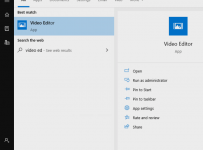
If you’re wondering how to get started, simply hit the Windows key and start typing “Video Editor”:

Video Editor

To start, there are a few resources I’d recommend:

Of course, it makes sense in this visual age that Video Editor also has video tutorials on how to use some of the most popular features, and you can follow the YouTube Channel here. A couple of favourites from me:

Adding Special Effects:

Adding Background Music:

Video Editor How-To Guide For Educators

Last, but certainly not least, is the how to guide for educators which has detailed instructions on how to use the Video Editor

Download Video_Editor_How_To_Guide

Students can automatically create quick videos with music, or customize their movie with narration, filters, and 3D effects to bring learning to life. Through this process they can develop creativity with the power of video storytelling and leverage 3D effects and Digital Inking within their films.

As I touched on at the start, educators often need to create video newsletters, training materials, and recaps from special events along with movies to engage and inform their class – Video Editor is perfect for this.

New Features In Video Editor

Recently, the Video Editor team has added a number of top requested features such as:

  • Split Video and Precision Trim so students and educators have fine-grained controls frame by frame and can break apart video clips easily.
  • Add from web allows students to get photos from the Bing Image Search and insert them directly into a storyboard complete with Creative Commons captioning to support digital citizenship.
  • Backup Projects with this, Educators can easily back up a project to save video projects in progress and share them as templates with their class. Importantly,  students can back up group projects between devices and classmates.
  • Improved navigation with Thumbnails and Multi-select save valuable classroom time to get films produced efficiently

My Thoughts

From first hand experience, I know how useful it is to have an easily accessible video editor on every device – whether it is your personal teacher laptop or computers your students have access to in your classroom or school.

Since Windows Movie Maker is no longer available or bundled with Windows, it’s awesome to see Video Editor to continue to evolve as a built-in application for quickly making great looking videos. If you’ve not tried it, give it a go!

Categories
Microsoft365 Windows 11

Guest Posts: The Future Is Password-less & Intune For The Win!

In previous blog posts I’ve made, I’ve been quick to redirect readers to other’s blogs when I see an awesome post that covers a topic I’m interested in really effectively. Today is no different, except that I’m going to share with you two posts at the same time.

Identity.PNG

Enable Password-less Sign In With Security Keys

Original Post Here

A month or two ago a colleague showed me signing into the online Office Portal using a Yubikey – what intrigued me was not just no need to enter a password, but no need to enter a username. From this, I quickly obtained my own Yubikey, set up a demo environment and ended up demonstrating this during a presentation on Data Privacy and Security Considerations at the Independent Schools of New Zealand Annual Conference..

As I was getting on a plane this week I read Peter van der Woude’s latest post on using this technology to go a step further: signing into a Windows 10 1903 machine with a Yubikey but also managing all of this via Intune (additional information here):

If you’ve never used a Yubikey before, you essentially configure them with account credentials, which could be anything from your AzureAD username/password, through to your social media or other cloud services accounts, protect the key with a local PIN and/or biometric and you’re done. When you’ve configured a service, such as Twitter, to use your Yubikey, you’re prompted to insert the key into the device to authenticate, unlock it with your PIN and/or biometric, and the authentication is completed. The important point is you’ve never entered your username and/or password.

People often ask me, why is a PIN more secure than a password? Well, I’d suggest you read this article from The Verge, but perhaps more importantly, this documentation from Microsoft,  which goes into detail on the following reasons:

Why is a PIN more secure than a password?

  1. PIN is tied to the device: That PIN is useless to anyone without that specific hardware. Someone who steals your password can sign in to your account from anywhere, but if they steal your PIN, they’d have to steal your physical device too!
  2. PIN is local to the device: A password is transmitted to the server — it can be intercepted in transmission or stolen from a server. A PIN is local to the device — it isn’t transmitted anywhere and it isn’t stored on the server.
  3. PIN is backed by hardware: The Hello PIN is backed by a Trusted Platform Module (TPM) chip, which is a secure crypto-processor that is designed to carry out cryptographic operations. The chip includes multiple physical security mechanisms to make it tamper resistant.
  4. PIN can be complex if enforced by the organisation: You can require or block: special characters, uppercase characters, lowercase characters, and digits.

Why does this matter for education?

The ISNZ conference I presented at had a theme of “The Future of Talent” and all educational institutes need to be thinking about how they’re preparing students for the workforce, and this includes actively teaching and modelling good digital citizenship when it comes to security. Of course, this extends to parents as well: my eldest daughter signed up for Instagram this week and the first action I required of her was to set up multi factor authentication.

In many K-12 and Higher Education institutes, students use shared devices and routinely enter their passwords. A Yubikey would both simplify and secure this approach. Similarly, for younger students who often find it difficult to remember a username and password combination, using a Yubikey and remembering only a PIN could be a more effective approach.

I’ve been advising customers that MFA should be seen as a requirement for any senior leadership staff, HR, Finance and those dealing with pastoral care records in education, but to further protect their identity credentials using something like a Yubikey would be a sensible approach, especially given the relatively low cost of the keys and the ability to use them across almost all online services now. I have configured my Yubikey as an authentication mechanism for:

  • AzureAD
  • Microsoft Account
  • Google Account
  • Twitter
  • LinkedIn
  • DropBox
  • WordPress

If you’re not doing MFA or would like to know more about a password-less future then read Peter’s blog and talk to your local IT Team or Partner.

User Interactive Win32 Intune App Deployment with PSAppDeployToolkit

The second guest blog post I’d like to call out today is from Stefan van der Busse and show cases his great work extending some of the advanced Win32 app deployment features of Intune and combining it with User Interaction to deliver a really slick customer experience.

Original Blog Post Here

Stefan’s blog post, like Peter’s, is aimed at the IT Admin, but it is focused very much on improving the end user experience by prompting them when an application is going to be installed or upgraded, giving them the option to defer the process or requiring them to quit active or dependent applications before the install can proceed:

Win32PSApp3

To see it in action watch this YouTube video:

Stefan explains why this is important in his blog:

How can we provide end users whose devices are managed with Microsoft Intune (Standalone) with a better installation experience, for high user applications while not relying on them to self serve application updates using the Company Portal?

Services like this have previously been available through on premise tools such as SCCM, however the solution presented by Stefan via Intune ‘un-tethers’ the end user from the workplace, meaning these updates and installs can take place anywhere the device is connected to the internet. Education, like most other verticals, has an increasingly mobile workforce and customer base (students), so the ability to deploy apps ‘any time, anywhere’ is only going to grow.

Again, I encourage you to read Stefan’s original blog post here.

My Final Thoughts:

If you’ve not picked up on it already, I’m a big fan of Intune as an MDM for managing Windows10 in a modern way, and the two guest blogs I’ve shared today show innovative ways to improving the security and app deployment processes for organisations.

For educational institutes, who increasingly hold and manage hyper-sensitive information on students and staff, taking steps towards MFA and a password-less future is critical, and is a responsible approach to modelling good Digital Citizenship to both employees and students.

Similarly, adopting modern, cloud-first approaches to device management and app deployment will reduce costs for educational institutes whilst increasing flexibility in terms of not requiring IT Services to physically touch every device or have it on the local area network.

Lastly, I’m grateful to all those bloggers out there that write incredible posts that I can reference from my blog! Thank you!