Categories
Microsoft365 Minecraft:EE

Reflections On Being A Life Long Learner & The Top THREE Lessons I Learnt

Recently, I have been reflecting on what it means to be a “Life Long Learner” in light of the ongoing research indicating that the K-12 students of today will likely have 5 or more distinct careers during their time in the workforce, meaning re-training is an inevitability.

Related to this topic, I am actually going to be speaking on May 7th 2019 as part of the Microsoft #FutureOfWork Event (registration here) on the topic of Game Based Learning principles, something that many organisations are starting to adopt for staff training.

Speaker Organic Post - Join me at the Microsoft FutureOfWork Summit.jpg
Register to attend for free here

As evidence of this, the following LinkedIn post from Chee Kiat OH shows staff learning about Robotic Process Automation via Minecraft:Education Edition:

LinkedIn.PNG

Alice Bonasio, writing for CIO.com earlier this week commented:

The concept that there are clear milestones and an eventual finishing line to learning was never ideal, but it is even more woefully inadequate in a technology-enabled world. To thrive in volatile environments, we must embrace life-long learning. (emphasis mine)

Cut To The Chase: What Are The Top Three?

I’m going to expand on these in more detail further down in the post, but for those impatient to know what my top three reflections were on being a Life Long Learner here they are:

  • It’s critical – all sectors are changing too fast for individuals to NOT be learning all the time.

As I quoted in this blog post on reflections of tomorrow’s teachers,

In this age of accelerations, such a slow process is no longer good enough and inevitably leads to a widening gap between what students need to learn and what teachers teach. When fast gets really fast, being slow to adapt makes us really slow.

Andreas Schleicher

  • It requires determination – individuals are always short of time, energy and motivation

I admire anyone that works full time in a demanding job and still finds time to complete formal study on top of that. The good news is that with MOOCs and other online training options like edX and LinkedIn Learning it’s becoming ever more flexible to wrap training around busy schedules.

  • It’s rewarding – learning new things has an inherent thrill to it, just ask any student that has grasped a new concept or skill for the first time.

My learning journey has included being a K-12 student, both undergraduate and post-graduate University student, re-training into a new career with a secondary teaching diploma and now finally continuous on-the-job learning. Through this journey, I’ve covered just about every type of learning there is. Nevertheless, it’s still exciting when I grasp new knowledge or skills and then proceed to apply it for the first time in my daily life or job.

So where and how have I been learning?

Minecraft:EE Build Challenge – Solar Model

I was in Singapore last week as part of the APAC Education Partner Summit 2019 and I was asked to present on the topic of “Making Education Transformation Real in K-12” and you can see my slides below (note: I was deliberately using Office365 PowerPoint with support for 3D models to animate my Minecraft:EE and Solar System Models – SlideShare does not support this animation):

After talking about Game Based Learning I ended up showing a Build Challenge inside of Minecraft:EE that I had worked on that morning (around 3am actually, since I work up very early with time zone differences!). Here’s the link to the build challenge that had a reasonably simple objective:

Objective

The Sun is 286 times the size of the smallest planet in our solar system, Mercury. If Mercury were the size of one Minecraft block, try to build a scale model of Mercury and the rest of the planets. You may have to round up or down to the correct number of blocks. To get you started, we’ve created a world with a Minecraft block scale sun!

To complete this, I ended up needing to do quite a bit of learning and also develop an iterative approach to knowledge building. I’m going to describe this for you but if you want to access my finished files you can download them from here (they include the Minecraft world, my Excel spreadsheet, and my MakeCode coding files).

The first challenge was finding out the basic facts around the Solar System – planet names, colours, sizes, relative distances from each other and the sun. I ended up compiling this into an Excel Spreadsheet and used a basic formula to convert 1km into 1 block inside Minecraft:EE

Excel

With this in mind, I was able to then create some sample code to build out each planet to scale:

Solar 3

This would be faster than building each planet by hand inside of Minecraft and the intial results were pleasing enough – here are spheres representing Earth (blue, small) and Mars (red and partially built):

Solar 4

So I now knew I could build each planet individually but the question was how to make this a scale model with the accurate distances between each planet? I decided to build each planet sequentially and place the starting position relative to my location – so you can see that Mercury would be built first, 58 blocks away from my starting position against the Sun, representing 58million kilometers away. This was followed by Venus (pale yellow) 108 blocks away, representing 108million km from the sun and so forth. Here’s two views of the same code, one in MakeCode.com blocks and the other in JavaScript:

When I ran my code this executed beautifully:

Solar 7

However, because of the huge scale of the universe, I quickly realised that to travel 5,946 blocks in Minecraft to get to Pluto (representing 5,945,900,000km from the sun) would take a LONG time.

KEY LEARNING: the scale of the universe is ginormous! This was reinforced to me through trying to create a scale model inside Minecraft! Whilst I built this using code, I never got to see those planets as it would take forever to run to them inside the game (unless I teleported).

The other learning was that to build a scale model of Jupiter inside of Minecraft:EE as a sphere with a diameter of 143 blocks also takes a LONG time.

Instead, I decided to iterate my code in two important ways:

  1. So that I could at least see each of my planets I set an arbitrary distance between each planet of 50 blocks inside Minecraft. I also set each planet to be 10 relative blocks above the previous one so it would go up in a nice consistent line.
  2. I replaced the “sphere” command in Minecraft with a “circle” command meaning it would be far faster to build, as it would only be a disk the appropriate size, and not a sphere.

Here was my new code alongside each other:

Solar 8

When I ran the “solarCircle” code it worked wonderfully,quickly building out scale circles of each planet but near enough so I could visualize them together:

In the first picture on the left you can see the planets scaling out nicely, before being hidden by the massive size of Jupiter. Navigating around that to the right, you can see in the second picture the remaining planets.

Through this exercise, done in my hotel room before I presented to group of ~70 partners, I learnt many things about the solar system! It also helped me understand different way that data can be represented and how by using computational thinking and coding I was able to break down a bigger problem of building a scale model into smaller steps that I could replicate and modify individually.

If I linked this back to my three key reflections on Life Long Learning:

  1. It’s critical
    1. For my presentation I really wanted to have an authentic example that the audience could relate to and show a real use of Game Based Learning.
  2. It requires determination
    1. I admit I got a bit annoyed during this and thought about quitting and using a different example where I didn’t have to prepare all the data, but I persevered and chose a Growth Mindset instead.
  3. It’s rewarding
    1. I got a genuine kick out of this when my final version of code worked flawlessly and gave me a great view of the scale of the planets relative to each other. It has also given me another working example I can use in different demonstrations with educators around the region.

LinkedIn Learning – Azure Technical Training

Badge LinkedIn LearningThe second example of life long learning has taken place over the course of this week as I completed some mandatory technical training around Azure services for my job with Microsoft. One of these modules was around Microsoft Azure Artificial Intelligence Strategy and Solutions (see the badge on the left that I got when completing this learning).

In many ways, the learning via LinkedIn includes elements of Game Based Learning Theory – there are points that can be gained for completing each section and badges that can be unlocked for finishing an entire module. These can then be shared and celebrated on various social media platforms (I published mine on my LinkedIn wall).

Through completing around five hours of training in this space I learnt a lot and also had much of my wider ideas clarified or affirmed. Again, if I link it back to my three reflections on Life Long Learning:

  1. It’s critical
    1. If I want to be able to have relevant conversations with customers in the Education Sector, I need to be across both the trends happening in the sector but also the technology offerings and solutions that Microsoft have. I literally could not keep my job if I was not continuing to learn as our technologies evolve.
  2. It requires determination
    1. With hundreds of emails a week coming and going, customer presentations, internal meetings there are always reasons to delay or ignore critical training. I needed to prioritize this and commit to being a Life Long Learner or else it simply would not have happened.
  3. It’s rewarding
    1. Just like in the Minecraft:EE example above, I got a genuine thrill when I passed the assessment related to each module and was pleasantly surprised when I realized I knew more than I thought I did in some areas. Additionally, it’s equipped me to have deeper conversations with my customers in a way that I would not have been able to before.

Final Thoughts:

It can sometimes be trite to talk about Life Long Learning, however I’m more convinced than ever that we all need to be adopting this, along with a Growth Mindset when it comes to our workplaces. As someone that has had three distinct phases in my professional working life already I am in many ways an accurate reflection of the trends the research is predicting. If you’re interested in more research, check out the Class of 2030 data published here.

Having worked in a range of different sectors, including as a secondary school teacher, I’ve been both inspired and dismayed by my colleagues approaches to life long learning. The best continually challenge themselves to both reinvent and reimagine how they complete their jobs and deliver amazing results. Others, sadly, “stick to what they know and what they’ve always done” and I believe that it will be increasingly difficult to be successful in the workplace both now and in the future when a Growth Mindset is not adopted to power life long learning. It seems appropriate to finish with the words of General Eric Shinseki from the US Armed Forces:

Eric Shinseki.jpg

Categories
Microsoft365

Harvest: Making Marking Easy in OneNote Class Notebooks

Harvest2OneNote Class Notebooks remain one of the most popular features in the Microsoft Office365 Education offerings and teachers love the simplicity of seeing all of their students’ work in one place. This is especially important when it comes to quickly and efficiently marking the work of students and providing feedback.

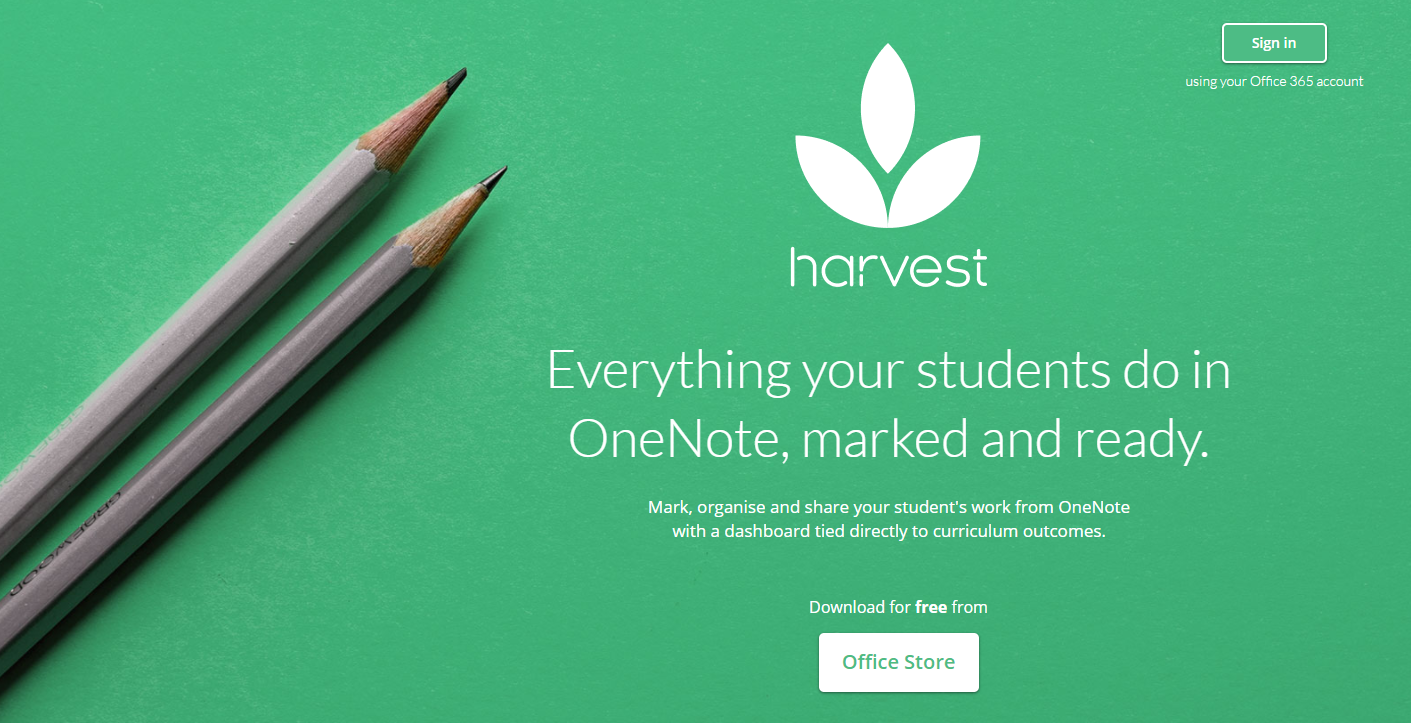
The One Education team, creators of the Infinity One laptop for students, recognised the power and popularity of OneNote and created a brand new product called Harvest to supercharge marking and sharing of student work for teachers. This is hosted entirely in the Azure cloud and harnesses all the power of Office365 API and OneNote Class Notebooks, demonstrating innovative thinking by helping teachers reduce the time consuming work of marking and collating student work.

I’ve created a quick six minute introduction to the product where I walk through some of the key features and you can see this below:

As you will have seen in the video, teachers can install the plugin into OneNote Online (note that for now OneNote desktop does not support the addition of third party extensions, so Harvest only works in the browser version of OneNote Online) and can get started marking student work immediately:

Harvest1

Currently, Harvest supports a database of both New Zealand and Australian curriculum standards/strands meaning teachers can easily search for the standard they wish to mark student work against. This, in itself, streamlines the marking process for teachers as they do not need to manually enter the curriculum details that the student is studying.

Here is a simple example of marking a student’s Year 13 Calculus work:

On the left you can see the student’s Maths–>Calculus section in the OneNote Class Notebook has been selected and on the right the teacher has clicked “Browse” to identify the curriculum strand they’re assessing against. Mathematics and Statistics is selected.

Harvest Maths1

The teacher selects the curriculum level / year level to narrow down the selection of curriculum strands to choose from:

Harvest Maths2

The teacher then selects the most appropriate curriculum strand(s) they are assessing against:

Harvest Maths3

The teacher can now see the curriculum strand, give it a grade of “Below / At / Above Level” and can even add a comment of up to 255 characters (visible only to the teacher currently)

Harvest Maths4

Harvest Dashboard
Harvest Dashboard Link

What really sets Harvest apart is the use of existing API within OneNote to collate all of this work (essentially, these grades are Tags within OneNote) and then display them in a “single pane of glass” interface. This assists the teacher to get an overview of either a single student or an entire class based off the marking they have completed. To view this dashboard the teacher simply clicks the “Harvest” menu item and then “Dashboard” and it loads for them in a new tab in their browser:

Harvest Dashboard1

Some things to note in the above screenshot:

  • Teachers can select from multiple different OneNote Class Notebooks on the left hand menu
  • Teachers can also select from multiple curriculum areas within the same Class NoteBook which obviously makes a lot of sense for primary school teachers, or cross-curricular class environments.
  • Students are all listed in a grid (the columns), with a colour coded system showing whether they are Below / At / Above The Level based on each curriculum strand marked (the rows in the grid). Where a student does not have work marked against a particular curriculum strand it is grey indicating “No Rating”
  • Harvest will also generate a thumbnail of the student work when hovering over the grade in the grid – note at this stage thumbnails of digital inking is not available.

It’s not hard to imagine how beneficial the above view would be for a teacher when it comes to writing school reports or preparing for parent/teacher interviews – they would literally have ALL graded work collated into one place and able to show the parent at the click of a button. This is harnessing all the power of OneNote Class Notebooks, the associated API’s and the Azure cloud to streamline marking and reporting for teachers.

Harvest Dashboard2
Viewing larger thumbnails of student work in Harvest Feed, where the various grades are easily recognizable through consistent colour coding.

To top it off, teachers can choose to share selected student work directly to parents with a shortened URL (something Microsoft recently added to Class Notebooks):

Harvest Share
A teacher must first select “Student Feedback” along the top to make it publicly visible, and then simply copy the link to share with a parent.

I am really excited by the prospects of Harvest because it seems like a product that understands the challenges teachers have managing large amounts of assessment and aims to simplify the reporting process. With many schools moving to increasingly digital and paperless environments, leveraging the existing power within OneNote to support assessment and reporting is a smart move and something I’d imagine many schools will be very interested in.

For schools that are wanting to get started with Harvest straight away, check out these comprehensive set up instructions.

Hack The Classroom Is Back

hacktheclassroom.PNGMicrosoft run an annual “Hack the Classroom” event designed to engage teachers and inspire them with the teaching of computational thinking in their curriculum areas. You can learn more about this online event on June 27th at the following link:

Hack The Classroom 2017

By attending this session you will:

  • Learn from teachers by taking a glimpse into their classrooms to see how new tools are creating new possibilities
  • Engage, interact, and pose questions with speakers, product team members, and other educators
  • Gain access to professional development resources and tools to get started

You can calculate your local time zone for this event by clicking here.

This session will also include further information about the recently released Code Builder functionality for Minecraft Education Edition. Talking with educators, this is one of the most requested features for Minecraft EE and is a perfect way to teach computational thinking within a gamified environment like Minecraft.

If you are a teacher that has been wondering how you can include STEM/STEAM related content into your classes this is a great opportunity for you to be connected and inspired.

Using Power Query in Excel 2016 To Ready CSV Files for Student Data Sync (SDS)

Student Data Sync, or SDS, is a core tool from Microsoft that helps schools prepare their student, teacher and class data ready for use in great platforms such as Teams for Education (formerly Microsoft Classroom) and Intune for Education.

In countries outside of the USA (where API exist), schools need to prepare six CSV files containing the relevant information from their Student Management System (SMS). Fortunately, Microsoft has provided some sample scripts and files (along with a toolkit to verify your data integrity) to help.

SDS
Student Data Sync is the starting point to creating a correlation or framework that connects your students, teachers and classes together in a meaningful way, allowing you to leverage cloud based tools more efficiently.

However, often the challenge lies in the format of the exported data from the school’s SMS. This is where Grant Saul, the Director of ICT from Westlake Boys High School has powerquerystepped in and provided a fantastic tutorial on how to use Power Query, a tool that comes in Excel 2016, to tidy up the format of your source data and prepare it for import with Student Data Sync.

In Grant’s example, he takes a standard export from Kamar (a very popular New Zealand SMS) and shows how it can be transformed using Power Query into the correct format for importing into SDS. You can read his original post here (and I encourage you to do so) whilst watching his screencast below:

The great feature of Power Query is it records each step in the data transformation, allowing you to easily replicate / replay the changes when the source data is refreshed, creating a super efficient method of managing your data.

For schools that want to use Microsoft SDS this is a very helpful guide.

Categories
Microsoft365 Windows 11

From The Garage: Presentation Translator

Presentation Translator

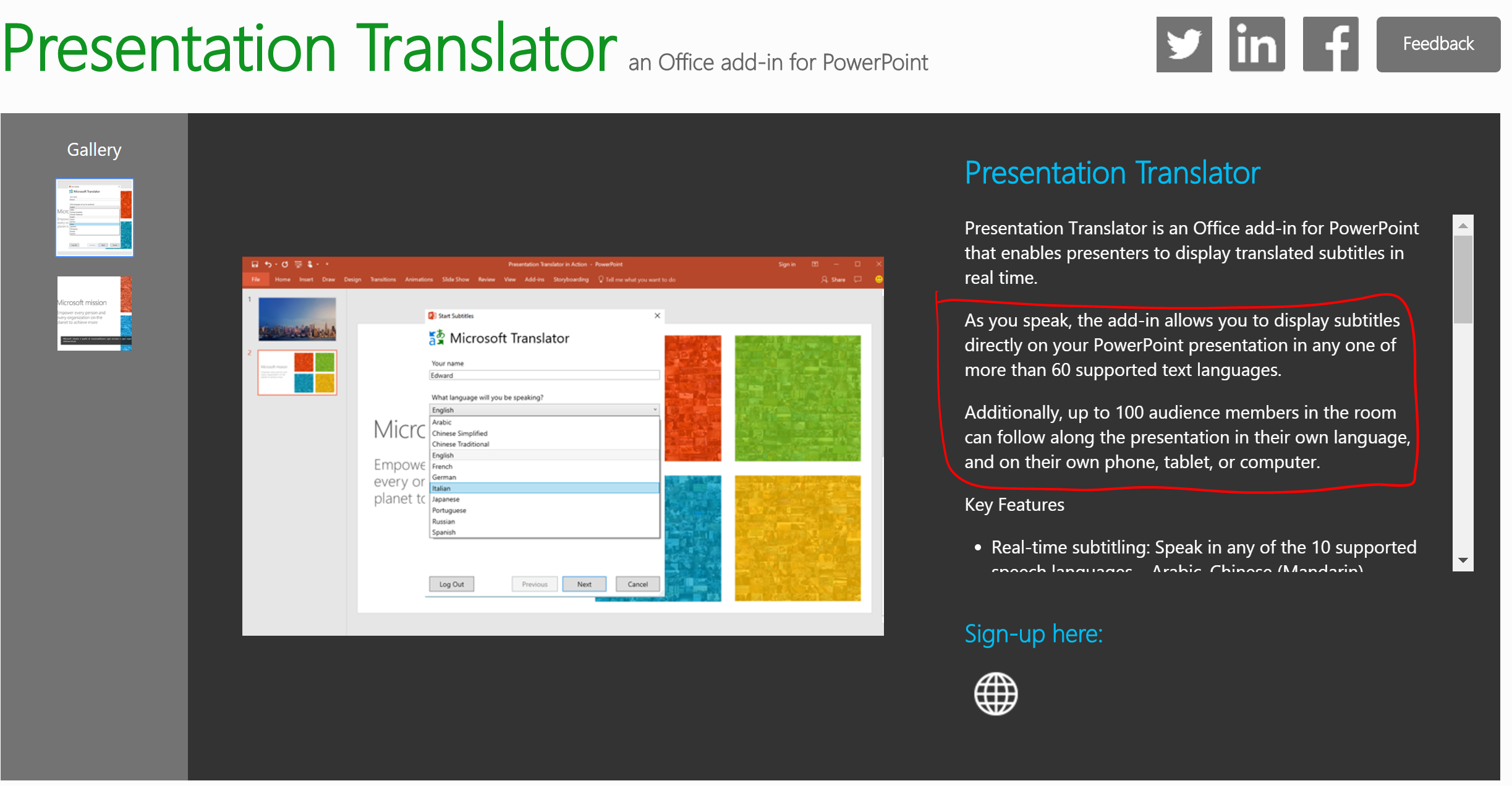
The annual Microsoft Build conference is running at the moment and amongst other announcements I saw this one from the Microsoft Garage called “Presentation Translator”

This looks to be a plugin for PowerPoint that will offer some pretty neat features and is described on the website as:

As you speak, the add-in allows you to display subtitles directly on your PowerPoint presentation in any one of more than 60 supported text languages.

Additionally, up to 100 audience members in the room can follow along the presentation in their own language, and on their own phone, tablet, or computer.

There is some obvious scenarios where this functionality will be awesome when you have a multi-lingual audience you’re presenting to, however I can see a lot of value for this within Education as well. One situation would be for students who prefer to be able to read content to deepen their understanding. Having real time transcription (and translation) will certainly be an amazing demonstration of technology that will add real value to students and teachers alike.

This is not an official release yet but you can sign up for the preview here.


Categories
Microsoft365

Embed A PowerBI Dashboard In Your Application

I read the following blog post this afternoon that demonstrated how to embed a PowerBI Dashboard directly into a web application. It’s worth watching the 14min video if you’re a developer as there are a lot of tools and sample code that you can explore straight away to test this out:

I see this as particularly useful for schools that allow students to log into their Learning Management System (LMS) or for parents who may have a portal into the school’s Student Management System (SMS). To be able to build dashboard reporting of a student’s learning and display it visually and interactively is a great step forward compared to much of the reporting that students and parents currently receive.

Yes, currently it is quite technical to achieve this, however some schools have internal resources that could build a web app and incorporate this type of reporting, whilst others would be looking for their IT partners to build this in.

In the past, I’ve worked to embed open source reporting graphs into LMS such as Moodle (you can see an example here), however using PowerBI embedded dashboards would definitely take this kind of reporting to the next level!