Categories
Windows 11

Real Stories Of Teaching With Minecraft:EE

Last week I shared a blog post from the Microsoft Australia Education Team about the difference accessibility to devices makes for learners and this week I see they’ve shared an excellent webinar showcasing the work of four teachers from New South Wales.

As always, I refer you to the original blog post to read in detail:

Minecraft Education Edition takes the Australian Curriculum into a whole new world.

The webinar is definitely worth watching as well:

A few things really stick out to me from listening to these passionate educators:

  • The ability to integrate Minecraft:EE and game based learning across curriculum areas. Many of the examples shared link Science, Mathematics, Geography, History and English into a thematic unit.
  • Dispelling the notion that gaming and game based learning is only for boys. One of the teachers works in a girls school and describes very high levels of interest and enthusiasm for the activities.
  • Strong linking to the Australian Curriculum. This can, of course, be adapted for other curriculum in different countries, but it’s pleasing to see a solid pedagogical basis for the learning.
  • Some of the teachers who share explained this was the first time they were using Minecraft:EE and were nervous about it’s outcome. Nevertheless, they were prepared to give it a go, and demonstrated all the attributes of being a life long learner.
  • Exporting of models and maps designed in Minecraft:EE to 3D printers to take ideas from concepts to production. This is an important workflow that makes the learning “real” for many students.
  • The use of Microsoft OneNote Class NoteBooks to tightly plan and structure the lessons and outcomes that students were required to work towards. This can provide the framework for students and also confidence for teachers that there is a structure and direction to the lessons and it’s not always simply “playing”.
minecraft_5-1024x572.png
Using OneNote as a PBL Template for structuring activities in Minecraft
  • Digital Citizenship can be taught and “lived” through the playing of Minecraft.
minecraft3.jpg
Screenshot of a general store as part of the Gold Trail in Victoria, Australia


My Point Of View:

minecraft_4-1024x572
Student drawings of the “Code Agent” in Minecraft:EE

Hearing first hand from other educators about their fears, challenges and successes in the classroom is important for teachers. The webinar above provides some insights into the learning from four teachers and is worth listening to as they are pretty candid about what did and did not work. I am particularly interested in the discussion around teaching of Coding and Computational Thinking through Minecraft as this is something I’ve blogged about before and is particularly relevant in NZ with the changes to the Digital Technologies Curriculum Strands. From the original blog:

With the integration Code Builder in Minecraft Education Edition, Lynne Telfer’s students have been exploring ways to program their Code Agent powered by Microsoft Make Code. This requires students to access their computational thinking and develop a set of algorithms (set of instructions) for the Code Agent to create with structure blocks within Minecraft Education Edition. The Code Agent is a fantastic way to expose students to both visual programming and free coding in Java Script. Students experience the benefits of its application through the designing their own commands and solving efficiency challenges when building digital artifacts.

Again, have a look at the original blog post for more details and if you’re interested in giving Minecraft:EE a go in your classroom then perhaps check out this blog post about how to deploy and code in Minecraft.

Categories
Microsoft365 Windows 11

Making A Difference With Accessibility

blog-11I’ve blogged previously about my observation that accessibility is at the heart of product design at Microsoft, particularly in the Windows 10 and Office 365 product suites. This morning I read a great blog post from the Microsoft Australia Education team:


Making a difference – NSW Education and Office 365 changing school culture.

It’s a great read and I encourage you to link through to this and see it in detail. It includes the following video case study:

In my previous work as a secondary school social sciences teacher, we were often focusing on lifting the learning outcomes for targeted students. Literacy levels were something that was important for all, and often implementing strategies for improving educational outcomes for Māori and Pasifika students was also a focus. The point here was that the messaging around targeted strategies for these groups was that it would also help improve outcomes for all students because it was fundamentally sound pedagogy.

The same is true for the accessibility features in Office 365 and Windows 10 – ensuring compliance with accessibility standards will help all students (and indeed, all users, such as teachers, administration staff and parents). The blog post from the MSAU team highlighted the following key features in the area of accessibility:

  • Check Accessibility
    In the Review Tab in Office 365, simply click on the Check Accessibility button to see if your document – test, assignment, teaching notes – can be read aloud. The key is to use styles and avoid using the return key to create space on the page, which can be done in the paragraph styles. That way when your document is being read it can alert the reader – “Heading: Year 5 test”. “Subheading: Answer any two questions”. “Subheading. Question One”. You can immediately grasp the difference this makes to vision impaired students or those who respond better to the spoken word. Plus, by applying styles, you’ll be learning some good writing habits yourself!
  • Learning Tools
    Learning Tools gives students new ways to approach learning tasks in Word, OneNote, Outlook, Office Lens or ePubs. The Immersive Reader is a standout. It enables students to have a text read to them, giving vision-impaired students learning independence and putting them on an equal footing with their peers. The Dictation tool allows students for whom writing is an impossibility to record their thoughts without writing. And the contrast tool is a powerful decoding aid for dyslexic students. Learning tools don’t just make a huge difference to students with learning difficulties, they can increase fluency for English language learners and help emerging readers to progress to higher levels.
  • Office Lens
    This app is a game changer. A free download, it enables students to snap a photo of, for example, the class whiteboard, a printed page or rough sketch on paper. They can then import it into OneNote, OneDrive, Word, PowerPoint, Outlook or Immersive Reader where it appears as editable text. Just from a research perspective it’s a huge time-saver, enabling every student to collate information quickly without having to rekey. For students with reading difficulties it means that text can then be enlarged or different fonts or colour backgrounds to make it more accessible. Now even the school canteen pricelist can be quickly scanned and read back to a blind student. Plus, teachers can save a lot of time after team brainstorming meetings by simply photographing the whiteboard ready to take the next step – from sharing to editing!

Text from a photo on the left is scanned via OCR and read in Immersive Reader

  • Presentation Translator
    Presentation Translator is a new add-in to PowerPoint that translates and subtitles live presentations, displaying subtitles directly on a presentation in any one of more than 60 languages. By unmuting the microphone, teachers can also allow students to ask questions by typing or speaking, which are displayed for all to see. This enables hearing impaired students to follow along with the class on their phone, tablet or computer and participate in the discussion without requiring assistance.


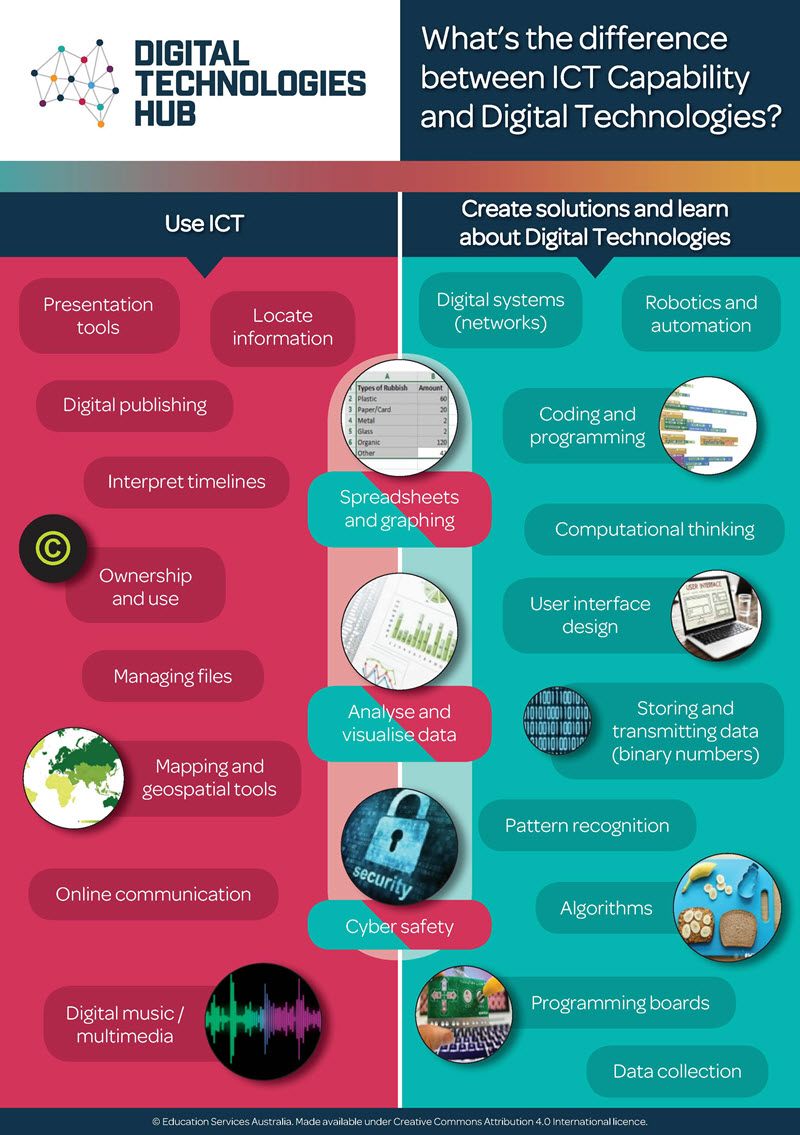
What’s The Difference Between ICT Capability & Digital Technologies?

The changes to the Digital Technologies Curriculum for 2018 is generating a lot of discussion amongst teachers in New Zealand. This morning, I saw a great infographic from an Australian website that attempts to show the differences between the use of ICT in education and Digital Technologies. 

There are three infographics below, broken down by:

  1. ICT Capability & Digital Technologies In the Australian Curriculum
  2. Examples of when to use Digital Technologies or ICT
  3. What it looks like in the classroom

You may not agree with all of the distinctions, but it’s certainly a helpful guide at least and is shared with permission under the Creative Commons Licensing:

ICT Capability & Digital Technologies In the Australian Curriculum

ICT v Digital Technologies

Examples of when to use Digital Technologies or ICT

ICT v Digital Technologies2

What it looks like in the classroom

ICT v Digital Technologies3

These are great resources for teachers to review and I encourage readers to review the infographic published by NZCER that shows what is actually happening in the NZ Years 1-8 classes with respect to Digital Technologies usage.

Beyond this, it is clear from the whitepaper Youth, Technology and Disruption released in New Zealand in December 2016 that the workforce is undergoing significant disruption and changes in education to support the required skills is a necessity.