Categories
Minecraft:EE

Minecraft: Education Edition Back To School Update Released

I blogged back in June around the ISTE event in Philadelphia about the newly announced features that were going to land in Minecraft: Education Edition and I’m thrilled to see them released today! Note: the new release is version 1.12.0 (previous version was 1.9.3)

The M:EE team have released their own blog post covering this and, as always, I encourage you to read the original post here. If you need specific technical help about the new release then check the support pages for the Back To School Update here.

On the back of this announcement I will update my trusty Ultimate Setup Guide for Minecraft:EE, so if you want a ‘one stop shop’ for setup, I suggest you read it.

What Are The Key Things I Need To Know?

  • Big improvements to Multiplayer mode – one of the biggest frustrations I’ve heard from schools is that people in other classes simply join the worlds of students uninvited. Now, with the release of “Join Codes” you can’t enter a world without first being provided the pictorial join code: problem solved. Additionally, the host can invite others into their world in “guest mode” meaning they can view, but not edit/change the world. This is a huge release.

Hosting-768x432

  • Improved Sharing of Worlds & Exporting of Content – one of the best parts of Minecraft:EE is the ability to deeply integrate it into the learning and assessment happening in a classroom. This got even easier now with links to worlds inside of libraries, meaning teachers can hyper link from an LMS or Microsoft Teams directly to the template world they want students to use. Additionally, you can now export content students have been collecting inside their in-game portfolio (Book & Quill) as a PDF, not simply a text file with separate images. This makes it far easier when it comes to submitting in-game assessment to a LMS or Teams assignment. These two small tweaks will make a big difference for educators.

library-share-world-768x432

portfolio-2-768x432

  • Single Sign On – a handy one for users on Windows 10 who sign into their device with their O365 credentials. Now, Minecraft:EE will automatically sign you in as well which is handy on 1:1 devices. In shared scenarios you can still sign out of M:EE to allow a different user to sign in.
  • Immersive Reader – I remember when I first quit my job in ICT to re-train to become a teacher and. the first day of teacher’s college we were told “You’re all teachers of literacy! No matter your subject specialty, you’re all teachers of literacy!” Now, with Immersive Reader coming to Minecraft:EE, this app joins the growing list of others that are helping students access the material they need to learn with the support they need.

Final Thoughts:

It’s great to see the continued evolution of Minecraft: Education Edition and, as always, make sure you go to the home page for full details. In my view, this update addresses some key requests from educators so it’s always pleasing to see the product team is listening to the customers and updating accordingly. Additionally, the focus on the learning side of things with better portfolio export options, easier external linking to worlds and improved literacy support means this update will appeal even more to teachers.

If you’re on Windows 10 or an iPad you’ll get the update automatically. If you’re on a MacBook / iMac you’ll need to download the app and reinstall – start here.

Categories
Microsoft365 Windows 11

Awesome Office365 Updates – But When Do I Get Them??

UPDATE 16th July 2020 – This month Microsoft has introduced a new channel for updates to the Microsoft 365 Apps (formerly known as Office365 ProPlus). This is the new “Current Channel” where updates are pushed out as soon as they’re available. You can read more about this here and there is the Microsoft Documentation on Channels here. The key table to understand I’ve included below:

Comparison of the update channels for Microsoft 365 Apps

The following table provides a comparison of Current Channel, Monthly Enterprise Channel, and Semi-Annual Enterprise Channel.

COMPARISON OF THE UPDATE CHANNELS FOR MICROSOFT 365 APPS
Current
Channel
Monthly Enterprise
Channel
Semi-Annual Enterprise
Channel
Recommended use Provide your users with new Office features as soon as they are ready, but on no set schedule. Provide your users with new Office features only once a month and on a predictable schedule. For select devices in your organization, where extensive testing is needed before rolling out new Office features. For example, to comply with regulatory, governmental, or other organizational requirements.
Release frequency1 At least once a month (likely more often), but on no set schedule Once a month, on the second Tuesday of the month Once a month, on the second Tuesday of the month
Feature updates2 As soon as they’re ready (usually once a month), but on no set schedule Once a month, on the second Tuesday of the month Twice a year (in January and July), on the second Tuesday of the month
Security updates3

(if needed)

Once a month, on the second Tuesday of the month Once a month, on the second Tuesday of the month Once a month, on the second Tuesday of the month
Non-security updates2

(if needed)

Usually at least once a month (possibly more often), but no set schedule Once a month, on the second Tuesday of the month Once a month, on the second Tuesday of the month
Support duration for a given version4 Until the next version is released with new features, which is usually about one month Two months Fourteen months

My key point to make for educators would be:

We recommend the Current Channel for the latest/greatest updates, but the key message would be to ensure that your students and educators are on the same Channel so that they’re sharing the same features and there is no discrepancy in the experience.


Original Post:

In the lead up to ISTE 2019, there are some incredible announcements being made by the Microsoft Education team and I’m sure there will be more new features released at ISTE itself. Two that have really stood out to me in the last week were published by Mike Tholfsen and include:

  1. 30 Summer Updates for OneNote and OneNote Class Notebooks
  2. PowerPoint AI Presenter Coach

The second one, was announced this morning by Mike on Twitter:

You can see the summary video here:

The 30 updates to OneNote are incredible and go a long way towards making OneNote 2016 something that teachers can finally migrate away from, safely knowing their favourite features are now included in the Windows 10 UWP app, or on whatever platform they access OneNote on. Some of my favourite updates from this announcement include:

  • A return to very granular distribution of pages/sections:
    • Pages can be distributed to individual students only
    • Pages can be distributed to defined groups – great for reading groups, math groups, or those with special requirements e.g. audio notes.
    • Multi-page distribution – select specific pages to distribute in one motion
    • Distributing pages into specific sections inside of a Student’s notebook.
  • Lock LMS pages after a due date – great for assignments and knowing that a page has gone to read only, and students can no longer edit it.
  • Integration into Teams – such an important feature, and here at last! The ability to import older notebooks into their new notebooks inside of Teams for Education:

Import FRE from OneNote into Team

  • TurnItIn Integration inside of Teams is here – something I’ve written about before.
  • Generating math quizzes directly inside of OneNote based on a formula you’ve already written – so clever!

Generate quiz GIF 3.gif

  • Send to Outlook – Windows 10; a return of one of the most loved features from OneNote 2016, now you can easily send emails to OneNote from the Win10 app as well.
  • Publish Notebooks (Make it Mine) – allow teachers/students to publish their OneNote notebooks so that others can take a copy of them and add them to their own OneDrive.

The list goes on, and I really do encourage you to read the entire 30 which are here to find out which are of most interest to you.

That’s great – but when should I expect to see these updates?

Mike’s post indicated that a number of the updates were coming to the Office Insider program immediately, and others will be rolling out shortly. Nevertheless, there are some organisation level settings that may still impact when you receive these updates. For this reason, it’s worth knowing about:

  1. The Office Insider Program
  2. Update Channels for Office365 ProPlus

It’s important to remember that Office365 is a subscription service which means it gets more regular feature updates compared to the Office2019 suite (remember the Twins Challenge that showed the differences?). These updates can be pushed out monthly which is great for education where so many of the features improve student learning and save teachers time. Some organisations, however, prefer a slower release cycle to provide a consistent user experience and not overwhelm some users with new features and content.

The three update channels are explained below:

Update channel Primary purpose How often updated with new features Default update channel for the following products
Monthly Channel Provide users with the newest features of Office as soon as they’re available. Monthly Visio Online Plan 2 (previously named Visio Pro for Office 365)

Project Online Desktop Client

Office 365 Business, which is the version of Office that comes with some Office 365 plans, such as Business Premium.

Semi-Annual Channel Provide users with new features of Office only a few times a year. Every six months, in January and July Office 365 ProPlus
Semi-Annual Channel (Targeted) Provide pilot users and application compatibility testers the opportunity to test the next Semi-Annual Channel. Every six months, in March and September None
The final channel is an important one as having a group of “targeted” users to experience the latest updates in advance of the majority of users allows for testing any compatibility issues as well as giving them a chance to train on the new features.
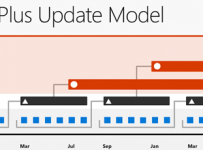
Update Channels.png
Visual representation of the update channels

How do you configure the update channels?

To configure the update channel for an Office 365 ProPlus installation, you can use the latest version of the Office Deployment Tool or use the Group Policy Administrative Template files (ADMX/ADML) for Office.

If you want to find out what channel you’re on, then open any Office365 ProPlus app (e.g. Word) and click File, then Account and you should see something similar to this:

Monthly Channel

Final Thoughts:

New feature updates are awesome and you can see that in the lead up to the new school year in the northern hemisphere, many of the features that were announce in January at BETT London 2019 are now starting to be added to Office365, and brand new features are popping up too.

For those more adventurous students and educators, being on the Monthly Channel will ensure they get the latest features as soon as possible which is awesome if you’re open to change and adopting a growth mindset as a life long learner. On the flipside, if you want to reduce change for your staff and students, then being on the semi-annual release may be the best compromise: new features still come but the pace of change is less rapid.

Whatever you choose, having some users on the targeted release cycle (or even the Insiders Program) is sensible as it allows for a sneak-peak at features before the general user population in your organisation receive those updates. This means any conflicts or  compatibility issues can be addressed, as well as having some users familiar with the newer features and able to train or evangelize the best updates to the rest of your organisation.