Video: Integrating Moodle LMS Into Microsoft Teams

The impact of COVID19 on the digitization of education is truly remarkable and, I believe, irreversible. Student expectations for course content to be delivered “on demand” and “just in time” via a variety of mediums has become the norm and many Universities and schools are struggling to keep up.

One trend I’ve observed is that with the proliferation of digital platforms, many educators and students are now struggling to understand what content goes where and how to streamline the entry points to accessing learning materials. This is a real and valid question, especially in light of the drive from many educational institutes to improve the equity of access to content and accommodating the varied learning needs of students. With a plethora of platforms deployed, it makes sense to being rationalization, both through improved security via Single Sign On (SSO) between them, but also simplifying the user experience (UX) by providing a common entry point to start learning and collaborating.

Microsoft LMS Integration Documentation

To this end, Microsoft has created a number of integrations between Microsoft Teams and popular Learning Management Systems (LMS). Linking directly to some of the documentation for this:

Moodle Integration Video

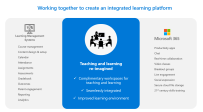
My colleague Lalit Mohan has created a great walkthrough video showing the tight integration of Moodle inside of Microsoft Teams. This has both the end user experience and the configuration required by an administrator:

The ease of a truly integrated experience between the real-time collaboration benefits of Microsoft Teams (and M365) with the LMS of Moodle natively accessible with one click is a powerful combination:

If you’re an organization that has deployed multiple platforms to meet the needs (and demands) of remote and hybrid learners and are now starting to return to a mixture of face to face and remote learning, it could be the right time to consider the rationalization and deeper integration of your learning platforms.

Seeing the ease of connecting Microsoft Teams with a variety of LMS could be the start of that journey for you.

Categories
Microsoft365

How To: Monitoring Student Engagement In Microsoft Teams

UPDATE 24th November: After experimenting with the updated Insights app in Microsoft Teams I have some additional observations:

  • The Insights App updates student activity fast – like, really fast. I worked as a student in my demo tenant and then check the Insights app as the teacher of the Team and could see the activities within 1-2minutes of them being done:
Snapshot from Insights app showing the channels, tabs and files I’d viewed as a student, along with which files I’d edited and the number of posts I’d made.
  • This got me me thinking that the Insights app could go someway towards answering that question many teachers ask when it comes to device usage in classrooms:

How do I know if my students are working on the tasks I want them working on, when all I can see is the back of their laptop screens?

  • Whilst I would always promote active teacher engagement with students by wandering around the room and doing visual and oral check in with students as part of good classroom practice, the Insights app would allow a teacher to see if the student has opened the required files and edited them in close to real time, during an actual lesson.
    • This could be especially helpful if teaching a hybrid class with students not physically present in the class
    • With sufficient planning and scaffolding, the various activities captured by Digital Activities reporting in the Insights app could allow a teacher to structure a clear learning pathway inside of Teams, similar to what a traditional LMS might afford e.g.
      • Start at a certain channel and make a post in the Conversations tab e.g. what your inquiry question is going to be (logged by Channel View in Insights)
      • Find one other question posted by a classmate and leave a reaction to it (logged by Reactions in Insights)
      • Navigate to the Files tab in the channel and open the template exemplar (Files opened logged by Insights)
      • Create your own file and complete your inquiry (edited files logged by Insights)
    • If the Insights App was showing that students were not ‘on task’ by their lack of activities, the teacher can easily spark a conversation with them to see if they need assistance with the work, or a reminder to stay focused to meet the completion time frames of the assigned task.

Looking for resources and training to get started?

Background to my love for data

I have been interested in educational analytics for years now, and many of my early forays into collecting student data were using freely available and often Open Source solutions. It was in my previous role as Director of ICT at St Andrew’s College that I caught the love of blogging and you may be interested to read some of my posts around data collection and analysis with a view from insight a school. Some notable call outs:

  • Digitizing, anonymizing and securing the voting of student leaders. This was a solution I was thrilled about as it had a real and immediate impact on the College.
  • Another favourite, this time using the Open source Learning Management System Moodle and some custom scripts to visualize student attendance and grades on each course, both for teachers and students.
A GIF showing how the visualization of attendance would appear to a student when they went to a Moodle course (this one loops, for students it would be drawn once)
  • We soon started exploring how we could use some of the Microsoft tools for data collection, processing and visualization which started with tools like MS Query, Excel and eventually led to PowerBI
  • Pastoral Care seemed an obvious place to get started with increased data visualization and we pulled data from a range of different sources and built dashboards in PowerBI that leveraged Row Level Security, meaning teachers could only see the data on the students in their classes.
  • A last one to perhaps check out is how we started reporting on student academic progress – some videos here showing the dashboards as they looked in 2016:

One other area I wanted to use reporting was across the Moodle LMS to see what touch points and telemetry we could gather to get insights into student engagement. One of the real strengths of Moodle and its open source foundation, is that anyone in the community can build plugins and modules that other users can implement and tweak. I picked up the Engagement Analytics plugin and deployed this for insights. This provided some interesting insights through reports similar to the below:

Source

Engagement, according to this plugin, was defined as:

The Engagement Analytics block provides information about student progress against a range of indicators. As the name suggests the block provides feedback on the level of “engagement” of a student, in this plugin “engagement” refers to activities which have been identified by current research to have an impact on student success in an online course. The plugin was developed as part of a NetSpot Innovation Fund project by Monash University (Project manager: Dr Phillip Dawson), with code by NetSpot developers (Ashley Holman and Adam Olley).

From the project plan: “We intend to implement a block that teachers can add to their Moodle course that will provide them with a quick graphical snapshot of which students are at risk.” (Dr Phillip Dawson)

Currently the plugin has three indicators: – Forum activity – Login activity – Assessment activity

Engagement Analytics Plugin – MoodleDocs

This immediately turned up some interesting insights with teachers able to observe the “lurker” phenomenon: students that regularly logged in, would go to (and presumably read) class forums, but rarely, if ever, post. This would become very obvious from a quick scan of the engagement analytics and aid the teacher in prompting those students with a “next step” activity to move from reading to contributing.

Another insight this revealed was that many students who rarely contributed to class discussion, were over very active and ‘vocal’ on forums – a place where they could think through their answer first in detail, and then draft and post an asynchronous response. It highlighted that whilst some students felt uncomfortable or perhaps less confident in ‘real time’ back and forth discussion typical in many classrooms, they were more than capable of contributing excellent answers in a classroom forum activity.

Updates to Microsoft Teams Insights App

Insights were added to Microsoft Teams for Education over a year ago and during the COVID19 Pandemic, provided a valuable touchpoint for teachers on what and how students were engaging with during distance learning. If you’re new to Insights then this support article is critical as a starting point as it shows how to add the app to your Teams and get started.

It was really great to see that last week the Insights team released a blog post showing that there are 6 new ways you can track student engagement in your classes. As always, I encourage you to read the original blog post in full here, but if you’re in a rush, see below for the six new features:

  1. See engagement across multiple classes
  2. Drill down to specific activity within a class
  3. Get spotlights of student behavior and individual habits
  4. See overall student activity (or inactivity) on Teams
  5. Drill down to see synchronous class behavior (aka Teams meeting behavior)
  6. Get quick access to class grades and grade distributions

The big shift here with Insights is the ability to get greater information around outliers e.g. immediate identification of students that have been absent from online class meetings, and even “habits” – i.e. alerting you to which students have been working on assignments very late at night, or very early in the morning.

Of the above features, it’s the first four that appeal to me the most:

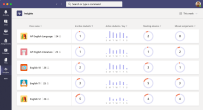
Seeing a snapshot of all the classes I teach and noticing any trends or outliers at a glance that would encourage me to dig deeper is a wonderful time saver for teachers. Source
Drilling down into a class level reveals the new “Activity” and “Habits” cards that give a teacher the ability to see more information about students in the class. This is AI working to complement the classroom observations of a teacher and surface up “just in time” alerts to assist the teacher in followup actions Source
Habits are revealing – learning that some students are constantly working very late at night or early in the morning can lead to instructive conversations between teachers and students and reveal potential distractions or blockers to effective learning. These new student behaviour and habit cards are a great insight for teachers. Source
This is perhaps my favourite – the ability to see individual student activity (or inactivity!) by hovering over a student’s bar, the teacher can see what files they have been editing (and when), as well as any posts or reactions they’ve made in the class Team. This insight solves one of the challenges teachers always ask “how can I tell if my students are working on the documents / activities I need them to be working on when all I see is the back of a laptop screen?”

My Thoughts

Insights are only as useful as the actions they generate.

I remember teaching a student History and Moodle Engagement Analytics revealed that he was mostly doing his homework submissions and forum posts after 1am. This insight prompted me to have a conversation with him which led to me learning he was working the late shift at Kentucky Fried Chicken to help pay the rent on the family home. This sparked a great discussion on how we could modify homework expectations for him so he could continue to support his family financially whilst still progressing his academic study.

When I look at these new Insights from the team I’m excited because it’s the perfect tool to assist teachers who we all know are time-poor. Leveraging high level dashboard overviews across all classes provides the starting point for a teacher with insights. In my experience, when a teacher starts getting useful data insights they become what I call “data curious” and love to dig deeper and ask more questions of the data. This can lead educational institutes down the pathway of creating bespoke data warehouse platforms for reporting, but with these new Insights with Teams, this will fill that need for many teachers with no customization required.

Here is a video from Mike Tholfsen showing how the original Insights App can be installed and works:

Categories
Microsoft365

OneNote Class NoteBook Tips for COVID19

onenote-class-notebooksNew Zealanders awoke this morning to learn that a staggered lockdown of the country was occurring due to new COVID19 infections meaning Auckland schools would be closing for the rest of the week at least.

I thought I’d take this opportunity to record a quick (7min) video showing how teachers can harness just a few features of the incredible power offered in OneNote Class NoteBooks

In the video below, I briefly:

  1. Intro the structure of a Class Notebook if you’re new to them
    1. Collaboration Space (teachers/students both have read/write permissions)
    2. Content Library (teacher has read/write permissions, students have read only)
    3. Teacher Only Section (teacher has read/write permissions, students are blocked completely)
    4. Student Notebooks (teacher has read/write permissions, students have read/write permissions only to their own notebook – classmate’s notebooks are hidden)
  2. Demonstrate the speed of synchronisation in the Collaboration Space
  3. Class Notebook Tools
    1. Distribute Page
    2. Review Page
    3. Lock Page

Why This Matters

Many teachers want to ensure that students can only work on content during a defined period of time, or even only in class. The ability to lock a page in OneNote gives teachers precisely that control and confidence that after the “due date” has passed, students can no longer modify or edit content on the defined page in OneNote.

Of course, this can also be managed using Microsoft Teams Assignments which is closer in experience to a traditional Learning Management System (LMS) but for formative assessment, the ability to use the locking feature in OneNote is quick and easy for most teachers and intuitive for students to see their work is now “locked”.

Keep safe and be kind to each other during this time and let’s continue to thank our incredible teachers and school leaders as they demonstrate themselves the attributes of a “life long learner” in picking up and effectively utilizing new tools for remote/hybrid teaching.

Categories
Microsoft365 Windows 11

Awesome Office365 Updates – But When Do I Get Them??

UPDATE 16th July 2020 – This month Microsoft has introduced a new channel for updates to the Microsoft 365 Apps (formerly known as Office365 ProPlus). This is the new “Current Channel” where updates are pushed out as soon as they’re available. You can read more about this here and there is the Microsoft Documentation on Channels here. The key table to understand I’ve included below:

Comparison of the update channels for Microsoft 365 Apps

The following table provides a comparison of Current Channel, Monthly Enterprise Channel, and Semi-Annual Enterprise Channel.

COMPARISON OF THE UPDATE CHANNELS FOR MICROSOFT 365 APPS
Current
Channel
Monthly Enterprise
Channel
Semi-Annual Enterprise
Channel
Recommended use Provide your users with new Office features as soon as they are ready, but on no set schedule. Provide your users with new Office features only once a month and on a predictable schedule. For select devices in your organization, where extensive testing is needed before rolling out new Office features. For example, to comply with regulatory, governmental, or other organizational requirements.
Release frequency1 At least once a month (likely more often), but on no set schedule Once a month, on the second Tuesday of the month Once a month, on the second Tuesday of the month
Feature updates2 As soon as they’re ready (usually once a month), but on no set schedule Once a month, on the second Tuesday of the month Twice a year (in January and July), on the second Tuesday of the month
Security updates3

(if needed)

Once a month, on the second Tuesday of the month Once a month, on the second Tuesday of the month Once a month, on the second Tuesday of the month
Non-security updates2

(if needed)

Usually at least once a month (possibly more often), but no set schedule Once a month, on the second Tuesday of the month Once a month, on the second Tuesday of the month
Support duration for a given version4 Until the next version is released with new features, which is usually about one month Two months Fourteen months

My key point to make for educators would be:

We recommend the Current Channel for the latest/greatest updates, but the key message would be to ensure that your students and educators are on the same Channel so that they’re sharing the same features and there is no discrepancy in the experience.


Original Post:

In the lead up to ISTE 2019, there are some incredible announcements being made by the Microsoft Education team and I’m sure there will be more new features released at ISTE itself. Two that have really stood out to me in the last week were published by Mike Tholfsen and include:

  1. 30 Summer Updates for OneNote and OneNote Class Notebooks
  2. PowerPoint AI Presenter Coach

The second one, was announced this morning by Mike on Twitter:

You can see the summary video here:

The 30 updates to OneNote are incredible and go a long way towards making OneNote 2016 something that teachers can finally migrate away from, safely knowing their favourite features are now included in the Windows 10 UWP app, or on whatever platform they access OneNote on. Some of my favourite updates from this announcement include:

  • A return to very granular distribution of pages/sections:
    • Pages can be distributed to individual students only
    • Pages can be distributed to defined groups – great for reading groups, math groups, or those with special requirements e.g. audio notes.
    • Multi-page distribution – select specific pages to distribute in one motion
    • Distributing pages into specific sections inside of a Student’s notebook.
  • Lock LMS pages after a due date – great for assignments and knowing that a page has gone to read only, and students can no longer edit it.
  • Integration into Teams – such an important feature, and here at last! The ability to import older notebooks into their new notebooks inside of Teams for Education:

Import FRE from OneNote into Team

  • TurnItIn Integration inside of Teams is here – something I’ve written about before.
  • Generating math quizzes directly inside of OneNote based on a formula you’ve already written – so clever!

Generate quiz GIF 3.gif

  • Send to Outlook – Windows 10; a return of one of the most loved features from OneNote 2016, now you can easily send emails to OneNote from the Win10 app as well.
  • Publish Notebooks (Make it Mine) – allow teachers/students to publish their OneNote notebooks so that others can take a copy of them and add them to their own OneDrive.

The list goes on, and I really do encourage you to read the entire 30 which are here to find out which are of most interest to you.

That’s great – but when should I expect to see these updates?

Mike’s post indicated that a number of the updates were coming to the Office Insider program immediately, and others will be rolling out shortly. Nevertheless, there are some organisation level settings that may still impact when you receive these updates. For this reason, it’s worth knowing about:

  1. The Office Insider Program
  2. Update Channels for Office365 ProPlus

It’s important to remember that Office365 is a subscription service which means it gets more regular feature updates compared to the Office2019 suite (remember the Twins Challenge that showed the differences?). These updates can be pushed out monthly which is great for education where so many of the features improve student learning and save teachers time. Some organisations, however, prefer a slower release cycle to provide a consistent user experience and not overwhelm some users with new features and content.

The three update channels are explained below:

Update channel Primary purpose How often updated with new features Default update channel for the following products
Monthly Channel Provide users with the newest features of Office as soon as they’re available. Monthly Visio Online Plan 2 (previously named Visio Pro for Office 365)

Project Online Desktop Client

Office 365 Business, which is the version of Office that comes with some Office 365 plans, such as Business Premium.

Semi-Annual Channel Provide users with new features of Office only a few times a year. Every six months, in January and July Office 365 ProPlus
Semi-Annual Channel (Targeted) Provide pilot users and application compatibility testers the opportunity to test the next Semi-Annual Channel. Every six months, in March and September None
The final channel is an important one as having a group of “targeted” users to experience the latest updates in advance of the majority of users allows for testing any compatibility issues as well as giving them a chance to train on the new features.

Update Channels.png
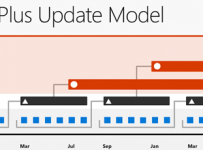
Visual representation of the update channels

How do you configure the update channels?

To configure the update channel for an Office 365 ProPlus installation, you can use the latest version of the Office Deployment Tool or use the Group Policy Administrative Template files (ADMX/ADML) for Office.

If you want to find out what channel you’re on, then open any Office365 ProPlus app (e.g. Word) and click File, then Account and you should see something similar to this:

Monthly Channel

Final Thoughts:

New feature updates are awesome and you can see that in the lead up to the new school year in the northern hemisphere, many of the features that were announce in January at BETT London 2019 are now starting to be added to Office365, and brand new features are popping up too.

For those more adventurous students and educators, being on the Monthly Channel will ensure they get the latest features as soon as possible which is awesome if you’re open to change and adopting a growth mindset as a life long learner. On the flipside, if you want to reduce change for your staff and students, then being on the semi-annual release may be the best compromise: new features still come but the pace of change is less rapid.

Whatever you choose, having some users on the targeted release cycle (or even the Insiders Program) is sensible as it allows for a sneak-peak at features before the general user population in your organisation receive those updates. This means any conflicts or  compatibility issues can be addressed, as well as having some users familiar with the newer features and able to train or evangelize the best updates to the rest of your organisation.

Categories
Microsoft365 Windows 11

Cloud Mobile Device Management Delivers For Schools & Partners

CGHSLogoThrough the use of cloud-first technologies and modern deployment methodologies Cyclone have supported Christchurch Girls’ High School through a significant device upgrade to Windows 10 over the Christmas 2017 break. This was achieved through using the full suite of services included in the Microsoft Schools Agreement with the Ministry of Education and driven greater efficiencies for Cyclone and reduced costs for Christchurch Girls High School.

This week I caught up with Stefan van der Busse from Cyclone to learn more about the company’s latest school deployments and how their continued focus on cloud technologies is assisting them to deliver faster and more affordable system upgrades for their education customers. Stefan talked specifically about Christchurch Girls’ High School Te Kura o Hine Waiora (CGHS) and the upgrade from Windows 7 to Windows 10 over the Christmas 2017 holiday break.

When Cyclone first engaged with CGHS there was a very traditional network in place, with on-premise Active Directory and Group Policy managing the school owned Windows 7 fleet with no device management platform at all. Stefan’s goal was to increase the visibility of these devices both on and off the school network and therefore the plan was to move the school towards a cloud-first Modern Device Management (MDM) approach. The Microsoft technologies used in this deployment were:

Why Use Modern Cloud Deployment Technologies?

Historically, Cyclone have used reasonably custom deployments for each school they managed and had planned towards standardizing deployments to increase efficiencies and reduce costs for the schools. Over the Christmas 2017 break they had a number of school sites that were looking to upgrade from Windows 7 to Windows 10 and this presented the perfect opportunity to co-ordinate a hybrid-cloud approach to deployment across multiple sites.

CGHS alone had 60x staff laptops to be replaced in January (TELA), with a further 200x desktop machines around the school between January and April and 100x HP Stream laptops that were effectively ‘unmanaged’ with local administrator users and were being replaced with Lenovo N24 laptops. Upgrading over 350 machines represented a significant amount of work, where typically a systems administrator would be on site at the school building a custom image based off the required applications requested by the school.

Cyclone briefly considered implementing Microsoft SCCM into the environment to manage all of the school devices, however quickly opted to use a hybrid approach with more cloud technologies for the following reasons:

  1. It was more in line with the Ministry of Education and their clear strategic push towards schools leveraging the cloud more effectively.
  2. Cyclone could reduce costs by not using SCCM as there would be no need to deploy a local server and the associated overheads with running and maintaining the environment.
  3. SCCM requires considerable technical skill sets to manage effectively and Cyclone has been strategically focusing on Microsoft Cloud Certifications for their engineers as a priority over traditional on premise infrastructure.

Planning For A Successful Upgrade:

This was the first foray into using Windows Analytics by Cyclone and they opted to deploy this via Microsoft CSP, provisioning an OMS workspace into Christchurch Girls’ High School Azure tenant. Allowing shared visibility between Cyclone and the school into the status of the machines needing upgrading introduced a new level of transparency for the school. Using Upgrade Readiness the team at Cyclone had full visibility into the school devices and could easily see which were still on Windows 7 and, for the handful of devices that had previously been upgraded to Windows 10, they could see which version of Windows 10 was running. This level of reporting made it easier to sign off completion of the upgrade when all devices were on the latest version of Windows 10.

Upgrade Readiness
An example dashboard in Upgrade Readiness as part of Windows Analytics

Furthermore, the ability to see various drivers on the devices and identify ones that were causing issues provided a pathway to quicker resolution of issues during the upgrade as technicians could then physically track down any remaining ‘troublesome’ devices that needed manual intervention.

“Moving forward, our goal will be to use Windows Analytics and Upgrade Readiness across all schools as part of our standard deployment practice. This will allow us to reduce costs and reactive support calls by proactively targeting and resolving any issues on specific devices” – Stefan van der Busse

In addition to Windows Analytics, Cyclone used Microsoft App-V for the first time. This is a form of virtualization where applications are ‘containerized’ when deployed:

Microsoft Application Virtualization (App-V) can make applications available to end user computers without having to install the applications directly on those computers. This is made possible through a process known as sequencing the application, which enables each application to run in its own self-contained virtual environment on the client computer. The sequenced applications are isolated from each other. This eliminates application conflicts, but the applications can still interact with the client computer.

App-V is provided at no cost as part of Windows 10 Enterprise or Windows 10 Education (compare features here) which is available to schools under the Ministry of Education Schools Agreement. Cyclone now deploy the Windows 10 Education SKU as the standard operating system into all of their managed schools. Stefan explained the motivation to use App-V in these schools as allowing them to:

“Dynamically control consistent application deployment to the right people, at the right place, at the right time.”

For example, a student studying music can be sitting in the music tuition room accessing specific course related music applications on a school desktop machine but could equally be using a school laptop in the common room or outside on the lawn and have the same experience on either device. Conversely, if another student who was not studying music logged into the same machine after the music student had signed out they would have no access to the music applications. This degree of dynamic application control provided by App-V delivers real and immediate benefits to Cyclone in terms of saving time and money spent previously on creating base images for schools.

Essentially, Cyclone is now able to create a standard barebones image that will suit most schools and through using App-V they only need to sequence and deploy applications once and know they will be running the same version across all school sites they manage. Stefan shared the example of Sketchup Pro, a product licensed for schools by the Ministry of Education, by packaging and sequencing this with App-V it can be opened in a virtual container across any school on any device using the provided licensing information. Cyclone can now use their growing catalog of pre-packaged applications in App-V and supplement this with a school’s unique applications as required. This significantly reduces the amount of work required by a technician customizing a deployment for each school.

Seeing The Benefits Of Cloud Management:

For Christchurch Girls’ High School the benefits of this new cloud-first approach has been immediate. One of the biggest benefits is seamless sign on across multiple educational cloud platforms through the implementation of AzureAD P1 and Seamless Single Sign On, which now enables students and staff to use a single set of credentials and a tailored CGHS user experience to sign into:

With Seamless Single Sign On, students only need to enter their username and password when logging into Windows 10. Seamless SSO then authenticates the user to any of the integrated services, regardless of browser choice (Internet Explorer, Chrome, Opera & Firefox)

What’s next?

From the perspective of the Cyclone team, this is only the beginning of leveraging cloud-first technologies to drive efficiencies and reduce costs for schools. They have only touched the surface of the feature sets of Intune, using largely the automatic enrolment into AzureAD to drive device reporting in Windows Analytics and have already identified features they will use Intune for in their school management.

Cyclone plans to further refine their Windows 10 deployment service, making it accessible to all of Cyclone’s managed customers across the education sector, ideally without the need for any on-premise infrastructure or investment. Stefan explained:

Our end goal will be to equip our engineers with a standardized USB key that can be inserted into any internet connected device, which will then boot and connect to Azure Web Services back ended by an Azure SQL Database for acquiring site specific deployment decisions at install time. This will be particularly important for schools that Cyclone are supporting to reduce on premise infrastructure investment and leverage cloud service.

Clearly, this will lower both the cost for schools through reduced hardware on premise, but also the overheads for Cyclone in terms of managing different schools by standardizing on a single, consistent approach.

My Perspective:

This is a great example of a System Integrator recognizing that the management of Windows devices is changing significantly, as Microsoft pivots towards increasing use of cloud-first MDM technologies. Future releases of Windows 10 will have even greater management capabilities in Intune and this will require all IT administrators to re-think their traditional standard deployment methods of local on-premise domain controllers, with Group Policy and Active Directory as the primary means of managing devices.

As the students and staff at CGHS have experienced first-hand, starting with a cloud identity in AzureAD opens up seamless single sign on to a wide range of other cloud services providing a simpler experience and faster access to learning tools in the school. Perhaps most importantly, it’s also driving down costs for the school as their IT partner can leverage greater levels of automated device reporting and remote management through these services.

Categories
Microsoft365

OneNote Class Notebook Updates – Easily Review Student Work

OneNote-class-notebooks.pngOneNote continues to be the leading light in the Office365 suite for schools and the Class Notebook is a big reason for this. It’s pleasing to see that constant development is happening in this product and Microsoft released new features this week. Pleasingly, these include some of the most requested features from teachers such as:

  • Easily see when students have started their work in a distributed page or assignment.
  • Quickly see which pages you, the teacher, have already reviewed.
  • See if a student added any new content after a teacher has already reviewed or graded a page

You can read the full release here

You may also be unaware that there is increased support for OneNote Class Notebooks and a range of Learning Management Systems (LMS). This video has a good intro:

If you have a compatible LMS then you can now run tightly integrated assessment through OneNote which is an attractive feature for most teachers.