Categories
Microsoft365

Best Practice For Schools When Creating Microsoft Teams For Education

Almost a year ago I posted some thoughts on SharePoint Design and Office365 layout and I mentioned then that it was one of the most common questions I was asked in my engagements with schools.

Now, I’m more likely to be asked:

“how should I set up my Microsoft Teams? Should it be one big Team for ALL staff? Separate Teams for each Faculty? What about Channels?”

Whilst I’ve formulated my own ideas on this over time, today I came across a great resource from the Microsoft Education Support pages helpfully entitled:

Best practices for school leaders creating teams and channels in Microsoft Teams for Education

This is pretty extensive resource that covers off a range of different scenarios where Teams could be used, and is part of the wider Education Support pages for Microsoft Teams.

One question I routinely get asked that is most popular in larger High Schools, is how to set up a Faculty/Department. This is the recommendation from the guide:

HeaderDepartments


Channels & Files Tabs

I’ve seen Teams where there are so many Channels it’s hard to know where to find content. Alternatively, other schools use only the default General Channel and then place an ever-deeper hierarchy of folders and sub folders inside of the Files tab, meaning teachers need to drill down endlessly to find the content they are looking for.

In the end, I think there is probably a happy equilibrium where Channels can be used to meaningfully split out content, with this then being saved into the Files tab of each relevant Channel. How each school chooses to find this balance will likely come down to their size and how they operate (or aspire to operate) in a digital hub like Teams. The guide does provide a form hierarchical template for schools to consider:

Within your district or school, it’s possible to create teams that follow an organizational structure. Use this approach if you have strict reporting requirements, are managing a large district with high staff numbers, or have goals to increase transparency across a diverse set of schools and employees. Here’s how that might look, with teams “reporting” up the chain to other teams. This ensures school leaders, staff, and teachers are members in the teams that are relevant to them.

Hierarchy.png

One layout that I’ve often discussed with schools might be how would the Science Faculty look when using Microsoft Teams. This mirrors some of these discussions and I would replicate the layout below that I’ve expanded for the Physics Channel into the other sub-channels:

  • Science Faculty (Team)
    • General (Channel)
      • Conversations Tab (inter-department conversation, reduce email etc)
      • OneNote Tab (Store Departmental Meeting notes etc)
    • Physics (Channel)
      • Yr12 Content (Files Tab Folder)
        • Individual Unit To Teach (Files Tab sub-Folder)
        • Individual Unit To Teach (Files Tab sub-Folder)
        • etc etc
      • Yr11 Content (Files Tab Folder)
        • Individual Unit To Teach (Files Tab sub-Folder
        • Individual Unit To Teach (Files Tab sub-Folder)
        • etc etc
    • Chemistry (Channel)
    • Biology (Channel)
    • Junior Science (Channel)

My Thoughts:

Having some guidance around best practice for Microsoft Teams set up is a helpful starting point for schools to work from, however invariably schools will need to customise for their own goals and ways of working. I was talking to an IT Director in a school earlier this week who had a goal of moving his entire IT team off email and into communications via Teams and had largely achieved this within his own department. That said, achieving the same outcome across a wider staff is a much larger exercise in change management.

As more schools look to move from on-premise infrastructure and into cloud based platforms, guidelines like the above are helpful tools to start with.

Categories
Microsoft365 Windows 11

Updated Documentation For M365 Education

M365 Edu Documentation

I have done a lot of live demos over the last couple of months to customers, partners, school leaders and IT admins. I have found that one of the best ways to prepare for these is to ensure I’m following best practice direct from the source. In my case this is the official Microsoft Education documentation.

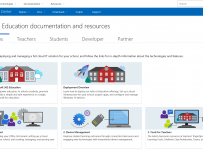
For those that have been paying attention, the fairly recent addition of “Education” to the front page of the Microsoft Docs website is a big deal and shows how serious the Education sector is and remains for Microsoft:

Docs

This week, those documents received an overall update to reflect the new Microsoft 365 Education (M365) offerings and this is split into five sections:

  1. IT Admins
  2. Teachers
  3. Students
  4. Developers
  5. Partners

Perhaps the biggest overall has been to the IT Admin Deployment Overview Guide which has a strong focus on all the things I’ve been live demo’ing of late: Managing Windows 10 through Cloud Deployment and pushing the best applications and tools for teachers. There is a scaled approach here too, with more advanced topics for IT admins that have moved well beyond the basics of modern cloud deployment. For example, I had a school reach out to me earlier this week asking for assistance with setting up Exchange Online – there is now improved documentation for that linked directly from the M365 Edu Documentation e.g.:

My Point of View:

The reality is that products evolve and change constantly. It is virtually impossible for IT admins (let alone teachers) to keep up with the rapid release of new features in products as release cycles get shorter and shorter. Consequently, knowing the source of the best documentation becomes incredibly important and it is pleasing to see that the Microsoft Docs continues to evolve and update just as rapidly as the products themselves.

Without exaggeration, I probably come back to this website every other day for various reasons and if you’re an IT Admin managing any of the M365 Edu solutions then this should be a favourite in all your web browsers!

Categories
Microsoft365

Get Trained & Certified In Microsoft Teams

TeamsI have completed a number of courses via edX, an online training platform originally founded by Harvard and MIT in 2012.

The model of learning is easy, flexible and self-paced and best of all, the courses are generally all free. That said, if you wish to certify your knowledge and training you can pay for the exam and certification to provide evidence of professional development and proven skills in a certain area.

This morning I was made aware of a course providing training in the management of Microsoft Teams:

Hero_MicrosoftTeams_960x600.png

To enroll in the free edX course click below:

Enabling Teamwork with Microsoft Teams

Course Outline:

In this course you will learn how to enable Microsoft Teams in Office 365.  The course illustrates the value of Teams collaboration and includes tips and tricks for getting the most of out of Teams.

You will also learn how to configure Teams. Specifically, you will learn how to:

  • Enable users
  • Configure Teams settings
  • Plan for network usage
  • Configure voice functionality

The course also discusses advanced configuration of Teams including compliance and calling features. The course is intended for IT professionals that manage an Office 365 deployment.

What you’ll learn

  • Enable users for Microsoft Teams
  • Configure Microsoft Teams
  • Configure audio conferencing with Teams.
  • Best practices for using Microsoft Teams

Cost of Certification:

If you want to certify your completion of this course the cost is USD$99.

Given the course is being run by product managers of Skype and Teams from within Microsoft itself you know you’re getting the best practice guidelines for managing Teams in your Institution. Again, you can sign up for the course here.