A short post referencing a recent announcement saying fact that verified students can now get $100 free credit towards any of 25 different Azure Services.
Build Web and Mobile Apps quickly using .NET, .NET Core, Java, Ruby, Node.js, PHP, and Python. Integrate Azure App Service into existing frameworks and get unparalleled developer productivity with cutting-edge capabilities such as continuous integration, live-site debugging, and the industry-leading Microsoft Visual Studio IDE.
Artificial Intelligence and Machine Learning infuses apps, websites, and bots with intelligent algorithms to see, hear, speak, understand, and interpret a user’s needs through natural methods of communication. Enabling computers to learn from data and experiences and to act without being explicitly programmed.
Harness Big Data by analyzing all data in one place with no artificial constraints with Azure Data Lake Store. Data Lake Store can store trillions of files and a single file can be larger than one petabyte in size—200 times larger than other cloud store options.
To claim the free credit you do need to be honest as there is three criteria you need to acknowledge:
If you are a student who meets the above criteria, or teaches a student interest in learning to develop for the cloud, then sharing this great offer would be appreciated.
“Clippy” was once considered the height of AI assistance!
It is an exercise in stating the obvious to say we are living in a rapidly changing world, where technology is both one of the most disruptive and exciting influences on our society. Yet change is constant, and something that we have experienced forever – in the 17th century King Henry IV of France wished for all his people to have “a chicken in every pot.” Fast forward 300 years to 1977 and Bill Gates’ vision was for a “computer on every desk and in every home” and now with the advent of Artificial Intelligence (AI) and the Internet of Things (IoT) it seems there is a computer in every pot and chicken!
Education is not immune to the increasing influences of technology and yet after a decade working in schools and the wider education sector, I’ve never been more convinced that teachers are the most valuable resource a school can possess and the old scare-mongering that robots will replace them could not be further from the truth. That said, technology and AI is going to empower and enable schools and teachers to do more than ever before and this is at the heart of Microsoft’s vision and is evident through increasingly smart applications designed to help educators and students alike.
Classroom Level Apps:
Familiar Office applications are now ‘super charged’ by the power of the intelligent cloud, utilising Machine Learning (ML) to infuse AI driven features into the products and help teachers improve learning outcomes. This is perhaps most evident in the area of accessibility, where Microsoft works to ensure every student has access to technology in a way that will help them learn.
Presentation Translator is a free plugin for PowerPoint that creates real-time subtitles of what the teacher is saying, displaying them below the presentation. Furthermore, using Azure Cognitive Services, AI-powered speech recognition and translation allows students to hear or read what is being said in their own native language.
The power of Azure’s intelligent cloud enabling Presentation Translator to work
Even in classes where English is the only language being spoken, deaf or hard-of-hearing students can follow along with the real-time transcriptions, either on the teacher’s display or by joining the conversation on their smart phone. From the free app, students can translate the conversation into over 30 languages and ask questions via voice or keyboard entry, which are optionally displayed alongside the teacher’s sub-titles. Presentation Translator maximises and reinforces key learning messages by presenting concepts both aurally and visually to students, as well as providing a searchable typed transcript for revision later.
For the visually impaired, the free Seeing AI app also leverages the massive computing power of the Azure cloud to narrate the world aloud to a student, simply by taking a photo with their smartphone. Seeing AI delivers the relatively simple “read aloud” of text held in front of a smartphone camera, through to aiding a student by scanning currency when paying by cash and reading barcodes off products (with audible beeps to help guide and align the camera). Developed largely by a blind employee at Microsoft, the app can even describe a scene if a photo is taken such as “I think it is a man jumping in the air doing a trick on a skateboard.” For visually impaired students, having a scene in a classroom or playground independently described to them is a liberating experience increasingly possible through the power of AI.
It seems strange to suggest that technology alone can generate a greater sense of inclusion for students. Yet, just like Presentation Translator and the Seeing AI app can draw students into a conversation, AI powered robotics can do the same for students who experience long term medical absences from their classmates. Avatarion is a Swiss company that builds robots connected to the Microsoft Azure IoT Hub that provide absent children a physical presence in class, with full video and audio connections to their hospital or home so they can continue to participate in their learning. The child uses a tablet to control the robot’s movements, speech, send images to classmates and answer questions by raising the robot’s hand and speaking through a connected microphone and speaker. Cloud based AI monitors the robot’s performance at all times, sending valuable information back to the developers to ensure it performs securely and consistently as it represents that ill child in the classroom.
Another combination of AI powered apps that are making significant improvement to literacy levels for students: Microsoft Office Lens and the Immersive Reader in OneNote and Word. Office Lens is a free smartphone app that allows students or teachers to take a photo of text and send it to OneNote or Word where Optical Character Recognition (OCR) is performed by the Azure cloud meaning the text can now be highlighted, have increased spacing between words and syllables and read aloud using the Immersive Reader build right into core Office365 products. Independent research carried out in 2017 shows that the use of Immersive Reader and Learning Tools can significantly improve the reading and writing levels of students and increase equity to educational resources for all students.
School Wide AI Insights:
As the simple-to-use apps above show, Microsoft does not expect every teacher to be a data scientist and AI is increasingly delivered directly via apps that can be used easily by anyone. However, there is also a rich set of tools in the Azure cloud that developers can leverage to build AI powered applications for schools to harness. Tools such as the Office Graph API, Cognitive Services and Media Analytics can be combined with ML to provide deep analytical insights into student performances and then be visually displayed using Microsoft PowerBI dashboards.
The Tacoma Public School District utilised these for AI powered analytics and improved their student graduation rates from 55% to 82.6% over the course of six years. This was not, however, an exercise in technology in isolation. Instead, the school set out to ‘measure the whole child’ and based the programme on four goals:
Helping students achieve academic excellence;
Creating partnerships between parents, community, and staff in educating children;
Focusing on early assessment and intervention to ensure academic success; and
Creating and maintaining safe learning environments.
By pooling all available institutional data on the students in the Azure cloud, along with accessing additional data from government departments and even social media, the Tacoma Public School District was able to use ML and AI to gain deep insights into their students and identify in real time any ‘at risk’ students who required immediate intervention and support.
Closer to home, the Catholic Education of Western Australian (CEWA) have implemented ‘LEADing Lights’, a cloud-first approach to delivering personalised and AI-informed education to the 78,000 students across 163 geographically dispersed schools. Like Tacoma, they are collecting data points from a range of sources and providing rich insights for teachers to take early intervention with students. Dr Cathy Cavanaugh, the Head of Digital Transformation Learning at CEWA, explains how this can look at a classroom level:
“Microsoft Word is used all the time to create essays. Part of the AI in the back end means that as students are writing reports the text can be analysed and sentiment analysed to inform the teacher. There is AI that reads through the text and identifies – based on data points and markers – the level of literacy for the student”
Conclusion:
There are many factors that influence the development and adoption of technology and AI. Brad Smith, President and CLO of Microsoft, recently wrote a blog showing the cultural changes that led to horses eventually being replaced as the primary means of transportation in New York City. Individual students, teachers, schools and even governmental departments will embrace technology at different rates as they perceive the value of it for their communities.
The respective pros and cons of technology in education have long been debated, however I believe Artificial Intelligence provides the key to a step change for the industry. It is not merely ‘digitisation’ of existing resources or teaching practices, instead it is adding a new layer of value by delivering data driven insights and tools to enable access to learning that simply could not be achieved without the power of the intelligent cloud. As this happens, more students will be enabled and empowered to learn, who in turn may go on to be the creators of even smarter tools to help educate the students of tomorrow.
On Tuesday I was in Auckland for the Microsoft Elevate event at Shed 10 which had been transformed into “Everyday Lane” – showing what the Modern Workplace really looks like:
I co-presented with my colleague Anna with a focus on Education and the idea of the “Modern Classroom” with a focus on dispelling three myths:
Windows is hard to manage
Microsoft is not innovative or engaging
Windows is not suitable for teaching and learning.
Here’s a copy of the slide deck from the session:
We focused on three aspects to address the ‘myths’ above:
A truly engaging creative process with coding in Minecraft:Education Edition personalising it in Paint3D and then using Mixed Reality to project the creation into the classroom.
For an independent review of the session, here’s an article from Ben Moore who was at one of my sessions and made the following observations:
The standout offerings were Intune for Education, Immersive Reading, and Minecraft for Education.
Making use of intelligent cloud, Intune for Education is a mobile device management platform that lets teachers create student groups with granular control over what apps are available on their devices and even whether or not the camera is switched on.
Immersive Reading lets students set their own pace for reading, focusing on clarity of the text and building up their skills through a scaffolding approach, presenting a single line at a time, then three lines, then five.
The software can also find and highlight various parts-of-speech to help with those tricky grammar specifics – a truly innovative and equitable approach…..
The myths were on their way to being dispelled by the end of this session.
It was a long day, presenting the above 15 minute session nine separate times over the course of the event, however it was a great opportunity to show how the messaging happening in a modern classroom was the same as what is landing in the modern workplace in the other breakout pods that were on show that day. In fact, one partner pointed this out to me on the day that it would have been great to have Principals and school leaders at the event, as they would have picked up on that consistency of messaging.
A useful matrix comparing the functionality of local team members vs guests is below:
Ever since Microsoft Teams For Education was first announced the immediate request from educators was twofold:
Can we invite parents into Teams?
Can we invite teachers from other schools with G Suite / Gmail addresses ?
Until recently, only external users with AzureAD Office365 credentials could authenticate as guests into a Team which was great if the person you wanted in the Team had this, but the reality is many parents did not have an O365 account.
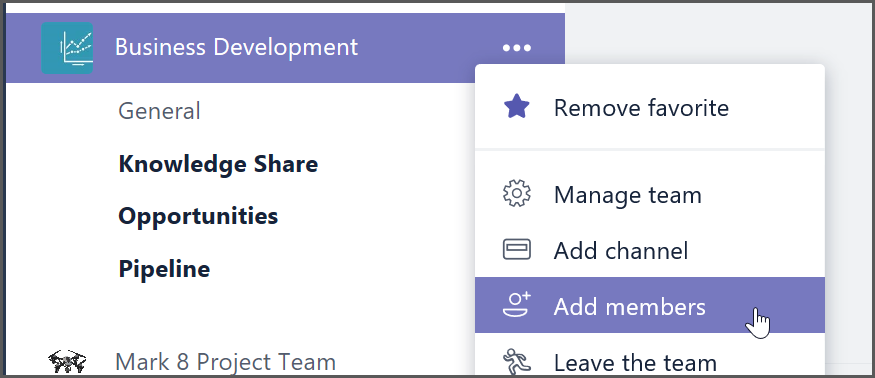
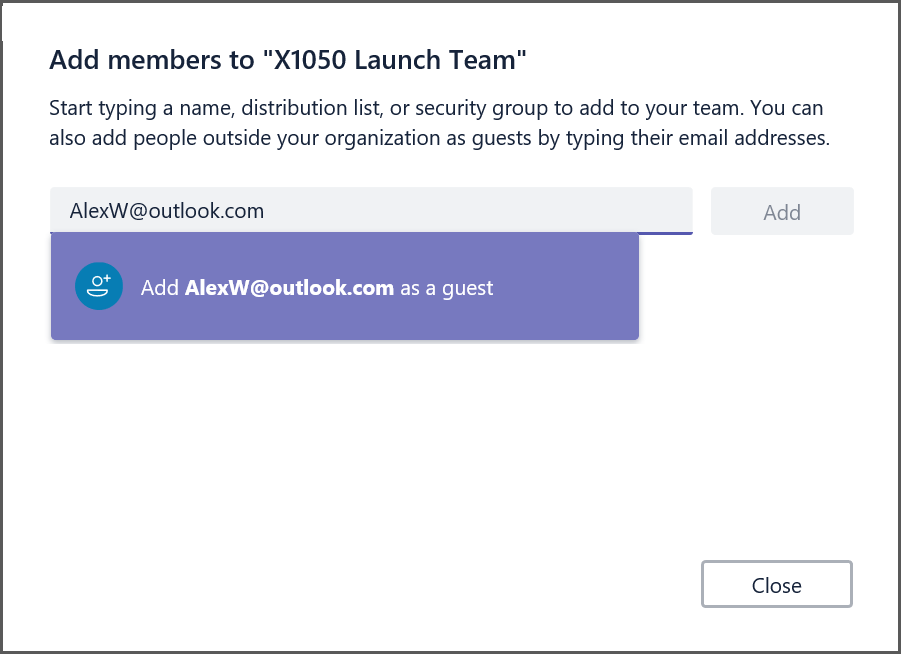
To invite a guest to a team, select “Add Members” in the menu next to the team name. Then add the guest’s email address. They will receive a welcome email message with information about the team and what to expect now that they’re a member. If the guest doesn’t yet have a Microsoft Account associated with their email address, they will be directed to create one for free (this is an important step for the authentication to work – it does not take long at all and effectively registers the guest’s personal email address as a Microsoft Account – also known as an MSA).
To invite a guest to a team, select Add Members in the menu next to the team name.
You can now add anybody with a consumer account as a guest in Teams
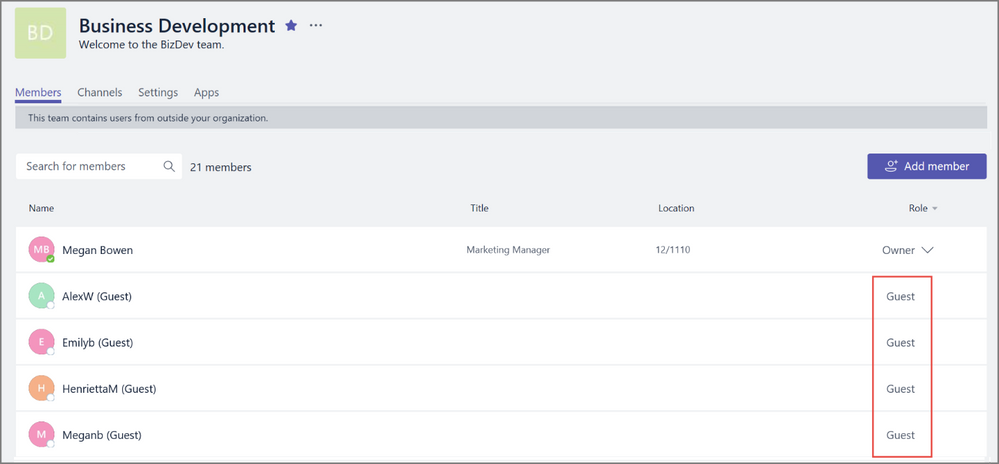
Once they accept the invitation, guests can participate in chats, join meetings, collaborate on documents, and more. Teams with guests will be identified with text and icons throughout the Teams UI to give all team members a clear indication that there are guests in that team.
Text and icon give a clear indication of guest participation in a team.
FAQ:
Who can use guest access?
Guest access is included with all Office 365 Business Premium, Office 365 Enterprise, and Office 365 Education subscriptions.
How do I enable guest access
Guest access is a tenant-level setting in Microsoft Teams and is turned off by default. To take advantage of the new functionality, admins need to enable guest access in the Office 365 admin centre
If I already enabled guest access when Azure Active Directory (AAD) guest access became available, do I need to take any additional action to enable guest access for consumer email accounts?
If you have already enabled guest access, then your users will be able to add guests with a consumer account without additional action on your side.
If you enabled guest access with the expectation that you wanted to restrict it to AAD accounts only, you can disable guest access via the Teams setting by switching the feature off.
My Perspective:
This is a game changer for education as it opens a huge amount of collaborative possibilities to educators. From the top of my head I’m thinking:
Inviting parents into class Teams for younger students
Parent Teacher Association (PTA) Events e.g. organsing the school the fair or fundraisers
Sports Team Collaboration – parents can share photos from game day, see updates
Inviting external experts into a Team to teach a lesson, do a video conference with students etc
Communities of Learning (CoLs) – teachers collaborating across schools, contributing information around students from feeder schools
Professional Learning Groups (PLG) where educators and experts across different organisations can join a Team together to go on a professional development journey.
I am super excited to see how the creativity of educators is unlocked with this announcement for the increased collaboration through Microsoft Teams for Education.


 It seems strange to suggest that technology alone can generate a greater sense of inclusion for students. Yet, just like Presentation Translator and the Seeing AI app can draw students into a conversation, AI powered robotics can do the same for students who experience long term medical absences from their classmates. Avatarion is a Swiss company that builds