Categories
Microsoft365

Managing Shared iPads With Intune

Most of my customers and partners are striving to bring simplicity to students and educators and Single Sign On with a unique set of user credentials is one way to achieve this. With a goal like this, it makes sense to leverage the powerful cloud identity features of Azure Active Directory (AzureAD/AAD) and I realised that I blogged two years ago to the day about the Managed Apple ID federation features AzureAD supports. How time flies and with that in mind I wanted to share another amazing post from Peter van der Woude where he walks through using a combination of Managed Apple IDs, Microsoft Intune and iPads in Shared iPad mode to achieve a great outcome.

Read the original full post here

You can see this is a shared iPad as Peter’s name is in the top left

I’ve mentioned plenty of times before on this blog that I won’t ‘reinvent the wheel’ and am happy to acknowledge when others have written an amazing blog post that I can’t top, and I think in this instance you should definitely read Peter’s blog directly. For now, I’ll simply add some educational context for my readership.

Why This Makes Sense In Education

I’ve been in many schools where iPads are being used and typically they do not use Shared iPad Mode, preferring instead to leverage a managed iPad that is ‘user-less’ – students simply pick it up and have a generic experience. This requirement is often driven by the fact iPads are frequently used by younger students where having a unique username/password to authenticate into any device can be a barrier to learning.

That said, with older students and especially with educators who may be using shared devices, managing Shared iPads makes more sense as you may wish to apply policies where certain users are restricted to certain apps – and it’s at this point that Intune really shines in the management of Shared iPads and Peter’s blog touches on this:

Assign apps and policies to device groups, as user assigned apps and policies will not apply on Shared iPad devices.

Assign apps as required to device groups, as available apps (and the Company Portal app and website) are not supported on Shared iPad devices.

Only Apple VPP apps, line-of-business apps and weblinks can be distributed to Shared iPad devices, as the App Store can not be used.

Disable the App Store via a device configuration profile (setting: Block App store), as the App Store is available on Shared iPad devices but the app installations are disabled.

Block guest sign in via a device configuration profile (setting: Block Shared iPad temporary sessions), to prevent temporary sessions and public access to the Shared iPad devices

Source blog post

Ultimately, however, the secret sauce here is the Managed Apple ID achieved via federation with AzureAD as it is this which allows students and educators to have a unique cloud identity across the major ecosystems used in education: Microsoft 365, Apple and Google (you can read by blog on configuring SSO from AzureAD to Google here). As a school IT Decision Maker, I can’t stress enough the importance of making smart choices when it comes to your cloud identity as you don’t want to end up in the proverbial technological cul-de-sac: a dead end where your students and educators can’t access the resources they need.

By choosing AzureAD, you will have virtually limitless integration policies and have access to incredibly powerful features such as Conditional Access to protect both users and your institutional data – check my blog post about this here:

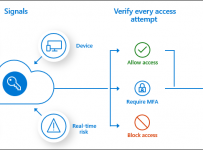
Conditional Access provides powerful, flexible options to protect user identities

Using Conditional Access To Protect Student and Staff Identity With Location Based Policies – SamuelMcNeill.com

Furthermore, iPads allow educators and students to leverage the built-in support for inking and touch that Office365 provides, and with Shared iPad those apps such as OneNote, Word, PowerPoint etc will all be automatically activated and authenticated when the user signs in with their Managed Apple ID – further reducing any barriers to learning and accessing the tools for the classroom.

Conclusion

If you’re an IT Admin looking for a technical blog post on how to implement Shared iPad mode with Intune, look no further than Peter’s post here. If you’re an eLearning lead or ITDM in a school that uses iPads, then hopefully my brief explanation of how centralizing your cloud identity on AzureAD above provides you with some food for thought as you lead your institution’s classrooms towards the cloud!

Categories
Microsoft365

Education Focused Updates To Microsoft Teams – Including 7×7 Videos

UPDATE 26th June 2020 a new blog highlights how to set up and configure the blocking of students entering a scheduled Teams Meeting before the teacher (organizer) is present in the meeting – read here. This addresses the #1 security concern of many schools so it’s worth a read tom understand how to implement.

2020 has certainly been a year of significant disruption in the global education sector, largely due to the unprecedented scale of school closures due to COVID19. I’ve talked with many school ICT Leads, eLearning Facilitators and other Senior Leaders who all agree that COVID19 has forced an acceleration of technology integration by upwards of 2-3yrs in their schools.

Many have come to rely on Microsoft Teams as the unified platform of communications and video calling across their organisations. This large scale adoption has also led to many public requests for additional functionality in Teams and it seems that the June 2020 update is addressing some of the most commonly requested features by educators.

If you’re still looking for a single compilation of Remote Teaching and Learning Resources, then do check out this blog I wrote during the height of COVID19 lockdown.

What’s New In Teams?

As always, I do encourage you read the original post here.

Without doubt, the number one feature was “MORE SCREENS!” and it looks like this is going to be landing soon. As of June, this is going only into private preview, so don’t expect to see it in your tenant anytime soon, but the screenshot below looks promising:

7x7

Additionally, in the northern hemisphere autumn, it looks like a deeper integration of “Breakout Rooms” is coming to Teams, again a very popular request. To be fair, this can be accomplished pretty easily already and I wrote a blog post on this topic here and the accompanying “how to” video is now approaching the 10K views mark since I published it two months ago – probably worth checking out if you’re after Breakout Rooms in Teams:

Another unique value proposition inside of Teams is the “Class Insights” – a way to get deeper understanding of how students are engaging (or not) in your content and who to keep an eye on. This is getting a refresh in the coming months as well and should be another valuable tool for teachers to track progress of their students:

Class Insights

On the privacy side, and building on the existing default background images, users will be able to upload their own customer images to Teams backgrounds to show their personality and flair. Having used this feature extensively internally already, it’s definitely a fun way to spice up video calls:

Custom image

What’s Already Been Rolled Out & Available Now?

Many of the most sought after features are already rolled now and available in your tenants now, including:

To be clear, with the above feature there is no “rejoin” link for the anonymous user, so the user would need to rejoin the meeting, at which point they would be placed in the lobby and the teacher would need to choose to actively re-admit them.

What’s Coming Soon?

Keep in mind that the following time frames are Northern Hemisphere:

  • 7×7 video support on desktop (see 49 people at once) –Preview starting in late June, coming this fall
  • Only Educators can start the meeting – Students must wait in the lobby – Coming this summer
    • Another hotly demanded feature from educators. Currently, you can force the lobby on external users, but the reality is that students are internal users and the need to keep them out of a video call outside of the actual class time is important. This feature will achieve that.
  • Breakout Rooms – Coming this fall
  • Meetings attendee limit increasing from 250 to 300 – Rolling out in June
    • Perfect for Higher Education customers where 1st year courses often extend up to 300 students in a single lecture theatre.

Supporting IT Administrators To Effectively Manage Teams

I talk to a lot of IT Administrators who are wanting smarter ways to roll out and manage Teams, tweak settings and above all, automate the management to save themselves time. If you’re new to Teams and want to know how to get started administrating it successfully, then start here

In terms of new announcements, be aware of:

Other IT Admin features and documentation to be aware of include:

Features for Educators and Partners

Further features and integrations have been announced in the blog post, that include:


Final Thoughts

It’s clear that the MSFT Engineering teams have been very hard at work and the importance of UserVoice for escalating popular asks is apparent here. It’s also clear that many of the next round of features will be landing in time for the popular “Back to School” Northern Hemisphere time frames, with the rest of these features more likely to land at the end of 2020 / start of 2021 which would be important for “Back to School” in the Southern Hemisphere.

If you think there are features still missing, I’d love to hear in the comments below!

Categories
Microsoft365

Creating Breakout Rooms in Microsoft Teams For Education Settings With Meet Now

UPDATE 19th January 2021Mike Tholfsen has created a great video showing how to use the new breakout room functionality in Microsoft Teams, which you can see below. My original method (further down) still works great, but Mike’s video is also super helpful:

UPDATE 21st December 2020 – Microsoft has officially added native Breakout Room functionality to Microsoft Teams. Whilst my ‘work around’ below is still  very valuable, you may be interested to learn how the new functionality works:

UPDATE 9th April 2020 – people have pointed out some schools block students creating Meet Now meetings in channels – how can this be resolved? See below.

It’s been fascinating to observe the feedback from educators globally as they’ve been forced to transition to remote teaching due to the #COVID19 pandemic that has shut schools across the globe. I read a statistic today that 91% of students globally have been affected by school closures in some way, shape or form!

Proving just how adaptive and incredible educators are, I’ve heard many reflect on what has worked successfully, as well as what has been a “false start” in their remote teaching experiences.

One consistent theme from educators has been a tendency to “over teach” – using the allocated lesson time for the equivalent of the “full attention” state, not leaving students appropriate time to process, think critically and complete exercises in a traditional “working state”.

It’s perhaps understandable this has occurred. Teachers are keen to ensure “on task” behaviour in these virtual classrooms and also be seen to have prepared sufficient content to be delivered. However, the reality is students need that processing time to critically evaluate what they’re learning and being able to discuss this with their peers is part of this formative state of knowledge development.

Breakout Rooms Help!

To that end, allowing students to form small groups to discuss what they’ve learnt whilst easily providing the teacher visibility of who is meeting with whom, “pop in” to listen in to each breakout room, ask questions of the small groups to prompt deeper thinking as well as give reminders about when to return to the main virtual lesson is a vital tool in the remote teaching toolbox!

Fortunately, it’s easy to achieve in Microsoft Teams as I demonstrate below:

I liken these breakout rooms to the “call waiting” function of a phone – you can easily keep the main classroom lesson call “on hold” whilst popping into other breakout groups that students are using (a single user can be on up to five calls at once).

Pro Tip: Don’t “hang up” your main meeting call to join a Breakout Room in a channel – rather simply join the Meet Now in the channel and it will put your main call on hold. You can have up to four calls on hold at once and circle back through any of them by clicking the “resume” button for the appropriate call in the top left of Teams.

One piece of feedback I received is if there is a lot of chatter in the channel where the “Meet Now” breakout room has been created, the “Join” button can sometimes scroll up and off the screen, not making it obvious how a late comer might enter the breakout room. This can easily be resolved by using the drop down menu in the top right indicating all current calls happening in that channel:

Teams Breakout Rooms
Meetings happening in a channel are displayed in the top right drop down menu, allowing easy navigation to the join button, no matter how much chat is going on.

Here are two more close ups shots of that, the first with the meetings running in a single channel collapsed, the second with the meetings expanded:

What If My School Blocks Students Creating Meet Now?

The great thing about Microsoft Teams is there are very granular policies that control what users (Students and Teachers) can and can not do inside of Teams. We have even created pre-packaged policies for education and the different year levels. For example, this primary school aged policy package has a default setting of blocking Meet Now:

Meet Now Blocked

This is explained in more detail in this documentation:

Allow Meet now in channels

This is a per-user policy and applies before a meeting starts. This setting controls whether a user can start an ad hoc meeting in a Teams channel. If you turn this on, when a user posts a message in a Teams channel, the user can click Meet now under the compose box to start an ad hoc meeting in the channel.

Screenshot showing the Meet now icon below a message

A school could, if they chose, override the default setting in this policy package however an alternative way is for the teacher to simply create the breakout meetings in the respective channels. Provided at least one student is in the Meet Now, the teacher can safely “hang up” the meeting and leave the students to it if they wanted to. Here’s a screenshot of a more structured channel approach to breakouts with a single Meet Now running in each channel:

10 breakout rooms
Running 10x Breakout Rooms in a single Team

Final Thoughts

There is a lot more that could be added here, but the general principle of using Breakout Rooms is something many educators may choose to add to their remote teaching skill sets. Invariably, being resourceful, teachers will take this, adapt it and enable students to be empowered in their learning through promoting critical thinking and engagement in small group discussion.

If you’ve got ideas on how you’d use Breakout Rooms in Teams then add them to the comments below.

Categories
Microsoft365 Minecraft:EE

The Ultimate Collection Of Resources For Remote Learning with Microsoft 365

I’m initially composing this in mid-March 2020 and primarily in response to numerous people that have been asking me for a single blog post of resources to assist with all aspects of Remote Learning in education (similar to what I wrote and updated for Minecraft:Education Edution).

The impact of #COVID19 / Coronavirus is being felt globally and so I’ve decided to pool resources from across the internet specifically connected with M365 for Education and breaking it down into the following sections:

  • Classroom Teaching Resources
  • Network & Infrastructure Considerations
  • Tips & Tricks
  • Everything Else!
  • Videos

I’ll update this continuously whilst there is emerging news and requirements – it is not a complete list right now, and I aim for it to be a living document, so check back regularly!

UPDATED 24th April: Added OneNote Best Practice Guidance for IT Admin and Teachers under “Network & Infrastructure Considerations”

UPDATED 11th April: Added Guide to Breakout Rooms in Teams under Classroom Teaching Resources; Calendar of free Education Webinars under Tips & Tricks; Numerous links to articles / documentation explaining security and privacy in Microsoft Teams under Network & Infrastructure Guidance; Video Tips for Students using Office365 under Tips & Tricks; Mike Tholfsen’s guide on Microsoft Teams Meetings – what to use now and what is coming soon under Classroom Teaching Resources; Blog on Remote Work Trends (including Education) – fascinating insights into Teams usage during COVID lockdown under Everything Else!; Update the COVID19 Tracker below

UPDATED 2nd April: Added changes to School Data Sync (SDS) processes for rapid creation of Teams under “Everything Else!”

UPDATED 31st March: Added Mike Tholfsen’s collection of shortlist URL for educators under “Classroom Teaching Resources”;

UPDATED 30th March: Added links to Teams Call Quality reporting with PowerBI Dashboards under “Network & Infrastructure Considerations”;

UPDATED 27th March: Added guide for using Teams in low bandwidth scenarios under “Network & Infrastructure Considerations; Guides to checking in on Student Social and Emotional Wellbeing under “Everything Else!”; YouTube playlist of all RemoteLearning videos from Microsoft Edu under “Videos”;  YouTube playlist of quick tips for teachers in Office365 under “Videos”; Microsoft blog highlighting integration with various LMS and Microsoft Teams under “Classroom Teaching Resources”; Updated the COVID19 confirmed cases as of 27th March

UPDATED 25th March: Added Teams Attendance app under “Everything Else!”

UPDATED 24th March: Added MakeCodeLivestreaming Classes under “Classroom Teaching Resources”

UPDATED 21st March: Added great case study of teaching with Teams & OneNote under “Classroom Teaching Resources”; Added Video Case Study under “Videos”;

UPDATED 20th March: Added information Shifting to distance learning: A 5-day guide for school leaders​ under “Classroom Teaching Resources”; Integrating your existing Learning Management System (LMS) with Microsoft Teams under “Classroom Teaching Resources”; Remote Learning with FlipGrid guides under “Classroom Teaching”; Canvas LMS integrates with Microsoft Teams under “Network & Infrastructure Considerations”; Integration between Schoology LMS and Microsoft Teams under “Network & Infrastructure Considerations”; Updated the COVID19 confirmed cases as of 20th March.

UPDATED 19th March: Added information on Family Learning Centre under “Everything Else!”; Minecraft:Education Edition internet play is possible with Join Codes under “Classroom Teaching Resources”

UPDATED 18th March: Added information size limits of members in a Microsoft Team, on a video call etc in “Network & Infrastructure Considerations”

UPDATED 17th March: Added information around School Data Sync for rapid Teams deployments based on data in your SIS/SMS under “Everything Else!”; Added information on OneDrive File Requests for larger assignments under “Tips & Tricks”; Added information on Digital Signatures to prove document ownership under “Tips & Tricks”; I’ve also added a new VIDEOS section of relevant content.

COVID19 Tracker:

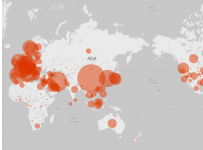
This is a great visualization powered by Bing and PowerBI tracking the current impact of COVID19 – check the latest data here and the snapshot below has been updated as of 20th March (approx 73K more confirmed cases in three days!)

COVID2019
Data as of 20th March 2020

The spread of COVID19 is rapid – see latest numbers below as of 11th April:

COVID
Data as of 11th April 2020

Classroom Teaching Resources

Whilst there are a huge amount of tools inside of Microsoft 365 for Education, perhaps the most “in demand” in times of remote learning is Microsoft Teams and the great news is this is available at no cost as part of the A1 Education offering from Microsoft.

Network & Infrastructure Considerations

It’s important that educational institutes have configured their environments to work smoothly under increased load – the following guides are best practice and an awesome starting point:

Tips & Tricks

Everything Else!

Videos

Sometimes seeing is believing, and I’m going to embed some easy videos to consume directly inside the blog:

  • Online classes and lectures with all your students. Part 1 class setup

  • Online classes and lectures with all your students. Part 2 schedule online meetings

  • Dutch kindergarten students explaining how to use Teams for remote learning, including on an iPad and iPhone (there are English subtitles)

  • My video showing how you can use Join Codes in Minecraft:Education Edition to connect wtih friends over the internet – full details here.

  • Video case study of remote teaching using Teams and OneNote in Hong Kong – make sure you turn on the CC subtitles for English translation:

  • Playlist on YouTube of all Microsoft Education Remote Video Guides:

  • Quick Tips in Office365 YouTube Playlist:

Conclusion

It’s super important that communities come together at this time to support each other, support our wonderful educators and school leaders and ensure that our students are feeling loved and supported during these rapidly changing times.

If you’ve got awesome links that I can include feel free to make a note in the comments or drop me a DM on Twitter over at @samuelmcneill

Categories
Microsoft365 Podcast

PODCAST: #EDUTECHTALKS #9 – Leveraging Microsoft Teams to Enable Virtual Classrooms featuring Matthew Jorgensen

PodcastThe ninth podcast between Amit Pawar and myself in our #eduTechTalks series is now available on all major Podcast Platforms and features Matthew Jorgensen, eLearning Director from St Stephen’s College on the Gold Coast in Queensland, Australia.

Click below to listen or here to launch.

In this podcast we discuss how Microsoft Teams for Education is enabling teachers to connect with students who can not be physically present on the campus for any reason. With health scares across Asia, many international students were unable to return to the classrooms in time for the start of the school semester, so Matthew Jorgensen leveraged Teams to help with video streaming of live lessons to those students at home.

I first saw Matthew’s work on LinkedIn in this post where he described what was happening at the school:

Channel 9 joined an English class with Mrs Mullan who has been live-streaming and recording lessons for multiple classes and attendees at a time … Selina (online) and Reagan (live in person) are our College International Captains and they were grilled by Channel 9.

The app used is Microsoft Teams …It can even convert speech to text and display it on the screen … Recording sessions have gone so well that teachers are interested in video recording lessons for absent students in the future, or just to have for revision.

LinkedIn
Matthew’s LinkedIn post received a lot of positive feedback when he shared how his school was using Microsoft Teams to do livestreaming of lessons to remote students.

Since recording the podcast, we’ve seen many other schools using Microsoft Teams for this as well, such as schools inside the Catholic Education of Western Australia:

https://twitter.com/sarajennings71/status/1229754875312869376

REMINDER: this edition, along with all previous podcasts we have published, is now also available on Apple Podcasts – SUBSCRIBE HERE to automatically receive each podcast when published.

For now, sit back, relax, and enjoy the latest podcast featuring Matthew Jorgensen.

Categories
Microsoft365 Podcast

PODCAST: #EduTechTalks #2 – Enabling Personalized Learning & Better Teamwork Through Tech

The second podcast between Amit Pawar and myself in our #eduTechTalks series is now available on Spotify – click above to listen or here to launch.

There is also a FaceBook Page here where you can follow along and get updates on that platform if you prefer.

In this podcast we discuss the impact of Microsoft Teams on personalized learning in the classroom, with the various ways a teacher can provide feedback and feed forward. Microsoft Teams for Education is evolving rapidly as feedback from educators globally are included.

EduTechTalks.PNG