Categories
Microsoft365 Minecraft:EE

The Ultimate Collection Of Resources For Remote Learning with Microsoft 365

I’m initially composing this in mid-March 2020 and primarily in response to numerous people that have been asking me for a single blog post of resources to assist with all aspects of Remote Learning in education (similar to what I wrote and updated for Minecraft:Education Edution).

The impact of #COVID19 / Coronavirus is being felt globally and so I’ve decided to pool resources from across the internet specifically connected with M365 for Education and breaking it down into the following sections:

  • Classroom Teaching Resources
  • Network & Infrastructure Considerations
  • Tips & Tricks
  • Everything Else!
  • Videos

I’ll update this continuously whilst there is emerging news and requirements – it is not a complete list right now, and I aim for it to be a living document, so check back regularly!

UPDATED 24th April: Added OneNote Best Practice Guidance for IT Admin and Teachers under “Network & Infrastructure Considerations”

UPDATED 11th April: Added Guide to Breakout Rooms in Teams under Classroom Teaching Resources; Calendar of free Education Webinars under Tips & Tricks; Numerous links to articles / documentation explaining security and privacy in Microsoft Teams under Network & Infrastructure Guidance; Video Tips for Students using Office365 under Tips & Tricks; Mike Tholfsen’s guide on Microsoft Teams Meetings – what to use now and what is coming soon under Classroom Teaching Resources; Blog on Remote Work Trends (including Education) – fascinating insights into Teams usage during COVID lockdown under Everything Else!; Update the COVID19 Tracker below

UPDATED 2nd April: Added changes to School Data Sync (SDS) processes for rapid creation of Teams under “Everything Else!”

UPDATED 31st March: Added Mike Tholfsen’s collection of shortlist URL for educators under “Classroom Teaching Resources”;

UPDATED 30th March: Added links to Teams Call Quality reporting with PowerBI Dashboards under “Network & Infrastructure Considerations”;

UPDATED 27th March: Added guide for using Teams in low bandwidth scenarios under “Network & Infrastructure Considerations; Guides to checking in on Student Social and Emotional Wellbeing under “Everything Else!”; YouTube playlist of all RemoteLearning videos from Microsoft Edu under “Videos”;  YouTube playlist of quick tips for teachers in Office365 under “Videos”; Microsoft blog highlighting integration with various LMS and Microsoft Teams under “Classroom Teaching Resources”; Updated the COVID19 confirmed cases as of 27th March

UPDATED 25th March: Added Teams Attendance app under “Everything Else!”

UPDATED 24th March: Added MakeCodeLivestreaming Classes under “Classroom Teaching Resources”

UPDATED 21st March: Added great case study of teaching with Teams & OneNote under “Classroom Teaching Resources”; Added Video Case Study under “Videos”;

UPDATED 20th March: Added information Shifting to distance learning: A 5-day guide for school leaders​ under “Classroom Teaching Resources”; Integrating your existing Learning Management System (LMS) with Microsoft Teams under “Classroom Teaching Resources”; Remote Learning with FlipGrid guides under “Classroom Teaching”; Canvas LMS integrates with Microsoft Teams under “Network & Infrastructure Considerations”; Integration between Schoology LMS and Microsoft Teams under “Network & Infrastructure Considerations”; Updated the COVID19 confirmed cases as of 20th March.

UPDATED 19th March: Added information on Family Learning Centre under “Everything Else!”; Minecraft:Education Edition internet play is possible with Join Codes under “Classroom Teaching Resources”

UPDATED 18th March: Added information size limits of members in a Microsoft Team, on a video call etc in “Network & Infrastructure Considerations”

UPDATED 17th March: Added information around School Data Sync for rapid Teams deployments based on data in your SIS/SMS under “Everything Else!”; Added information on OneDrive File Requests for larger assignments under “Tips & Tricks”; Added information on Digital Signatures to prove document ownership under “Tips & Tricks”; I’ve also added a new VIDEOS section of relevant content.

COVID19 Tracker:

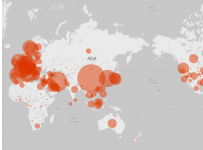
This is a great visualization powered by Bing and PowerBI tracking the current impact of COVID19 – check the latest data here and the snapshot below has been updated as of 20th March (approx 73K more confirmed cases in three days!)

COVID2019
Data as of 20th March 2020

The spread of COVID19 is rapid – see latest numbers below as of 11th April:

COVID
Data as of 11th April 2020

Classroom Teaching Resources

Whilst there are a huge amount of tools inside of Microsoft 365 for Education, perhaps the most “in demand” in times of remote learning is Microsoft Teams and the great news is this is available at no cost as part of the A1 Education offering from Microsoft.

Network & Infrastructure Considerations

It’s important that educational institutes have configured their environments to work smoothly under increased load – the following guides are best practice and an awesome starting point:

Tips & Tricks

Everything Else!

Videos

Sometimes seeing is believing, and I’m going to embed some easy videos to consume directly inside the blog:

  • Online classes and lectures with all your students. Part 1 class setup

  • Online classes and lectures with all your students. Part 2 schedule online meetings

  • Dutch kindergarten students explaining how to use Teams for remote learning, including on an iPad and iPhone (there are English subtitles)

  • My video showing how you can use Join Codes in Minecraft:Education Edition to connect wtih friends over the internet – full details here.

  • Video case study of remote teaching using Teams and OneNote in Hong Kong – make sure you turn on the CC subtitles for English translation:

  • Playlist on YouTube of all Microsoft Education Remote Video Guides:

  • Quick Tips in Office365 YouTube Playlist:

Conclusion

It’s super important that communities come together at this time to support each other, support our wonderful educators and school leaders and ensure that our students are feeling loved and supported during these rapidly changing times.

If you’ve got awesome links that I can include feel free to make a note in the comments or drop me a DM on Twitter over at @samuelmcneill

Categories
Microsoft365

Play Impossible Game Ball Brings An “A-ha” Moment to Education

playImpossible_App_green_edited
Image credit

Every now and then you see a piece of technology that leaves your mind whirring about the possibilities for both educators and students alike. Back in 2016 I encountered the HP Sprout for the first time and blogged my first giddy thoughts about how this could be integrated into incredible teaching and learning moments, calling it an “almost magical technology”.

At BETT London 2019 I saw the Play Impossible ball for the first time, right at the very end of this video and the integration with Microsoft Hacking STEM templates in Excel generated the same reaction in me that the Sprout did:

What endless possibilities could creative teachers come up with when technology infused ball sports in such a fun and natural way?

What’s the big deal? Have a look at this:

(If you’re in a hurry, make sure you scroll to the bottom and watch the video I recorded showing the Play Impossible Game Ball and Excel Data Streamer workbook in action.)

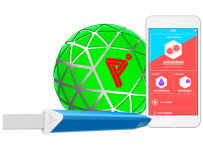
In essence, the Play Impossible game ball is:

an active STEM system that delivers fun and challenging games integrated with math and physics lesson plans through a professionally crafted ball containing sensors that connect to a smartphone, tablet or PC via Bluetooth.

Robust in build quality, small enough for younger hands, it’s easy to get up and running on the platform of your choice (currently supporting Windows10, iOS and Android) and then the intuitive app guides you through how to get playing … and learning! My 9yr and 7yr old kids figured it out in minutes.

Integrating Learning Into Play

I’ve blogged before about the principals of game based learning, however that was mostly in a Minecraft:Education Edition context. When I saw the Play Impossible Game Ball in action I really wanted to get hands on to see for myself how this works and Brian Monnin and the team at Play Impossible kindly shipped me a few demo units for some upcoming events I’m presenting at.  As soon as I got hands on, it became apparent to me that deep learning could be achieved alongside the obvious element of fun through playing. Principal #10 from James Paul Gee’s 16 Principals For Game Based Learning is:

Situated Meanings: Students learn new vocabulary words by experiencing them within game situations. Research suggests learners do not acquire new vocabulary when the word is learnt purely in the context of other words. By contrast, retention is highest when words are learnt in association with an action, event, or image. Gaming provides the perfect vehicle for this.

With data outputs from the Game Ball including measurements like speed (in kph), acceleration, g-force, newtons, rotational spin and air time there are a lot of vocabulary words that are no longer abstract, but directly linked and associated with actions and activities the students are participating in through situated meanings.

With a Play Impossible Game Ball, students (and educators!) immediately get caught up in the fun of competing and the kinesthetic learning opportunities are boundless. However, for me the integration of Excel’s Data Streamer and Hacking STEM templates is where this goes next level in terms of learning pathways.

Excel Data Streamer & Hacking STEM

The Microsoft Education team have put considerable resources into creating STEM lessons for educators to quickly and easily build engaging projects for students to learn the fundamentals of STEM concepts. At the heart of this is Data Streamer, a plugin for Microsoft Excel for O365 subscribers:

Data Streamer provides students with a simple way to bring data from the physical world in and out of Excel’s powerful digital canvas. With a sensor connected to a microcontroller that is  attached to Excel, begin introducing students to the emerging worlds of data science and the internet of things.

Data Streamer is available for free to all O365 subscribers.

With Data Streamer, the at times abstract concepts of IoT devices and the data generated by them can be brought to life through real time visualizations inside of custom built Excel spreadsheets.  Here is an example Excel using Data Streamer to take the output data from a Microbit recording the impact of knock to a helmet:

DataStreamer.PNG

You can easily activate Data Streamer in your O365 version of Excel by following the instructions here or watching this animated GIF:

DataStreamer Activate.gif

There is an entire library of Hacking STEM projects that you can access here, and to support the Play Impossible Game Ball there is a custom Excel workbook you can download here. Some of my favourite Hacking STEM lessons include:

What Does It Look Like?

I recorded a quick video (using the Meet Now feature in Microsoft Teams – a great way to deliver Flipped Learning) to show you just how easy it is to get up and running with the Play Impossible Game Ball app and the Hacking STEM Microsoft Excel workbook and Data Streamer plugin for live data feeds:

The Data Streamer and Excel Hacking STEM workbook are only available on Windows 10 and this adds a unique value proposition here when using the Play Impossible Game Ball. To maximise the value beyond the included app from Play Impossible, Windows 10 and Excel O365 prove again why it is the most versatile STEM platform unlocking the widest range of learning pathways with STEM and IoT devices. By combining the flexible canvas of Excel you can easily add other data streams to the workbook and create your own custom visualizations of this data, providing students hands on experience with the tools that many data scientists use on a daily basis.

Final Thoughts:

What I like about the Play Impossible Game Ball is the wide range of learning opportunities available through this technology. It’s getting kids active and physically moving around and being hands on, but also introducing elements of IoT, data streams and STEM in a fun and comprehensible way.

The included Play Impossible app provides a “fast start” for students from a young age, however the addition of the Hacking STEM Excel workbook with the Data Streamer plugin really increases the use case scenarios, in particular in subjects such as more senior subjects like Physics, Maths with Statistics, along with Physical Education learning about range of motions. The sheer volume of data generated by the Game Ball, and collected and recorded in Excel via Data Streamer, allows for an almost limitless range of extended learning ideas where teachers can bring their own ideas to the tools.

Categories
Microsoft365

Flipped Learning Hacks With Microsoft Teams & Meet Now

Update: 25th Feb 2019: thanks to all those who have shared and commented on this blog on Twitter – really appreciate it. I saw the following Tweet from Craig Render sharing how mobile phones can be added to the equation:

https://twitter.com/jetpack/status/1099776882877190149

This got me thinking about how smartphones could be used to expand the Flipped Learning component of these lessons and it reminded me that Microsoft Stream has a smartphone app that allows you to download the content for offline play – in other words, creating a Podcast type listening/viewing experience of the flipped lesson.

I have an iPhone and you can get the Stream app from the iOS store here. I’ve used the offline feature for listening/watching content on flights before and it’s a great time saver. For students that perhaps have to commute on lengthy bus or train rides, this could be an awesome way to turn that into productive learning time by providing a Flipped Learning experience through Microsoft Teams and Microsoft Stream.

Flipped 4
Using Microsoft Whiteboard to outline Flipped Learning Ideas

Recently, I’ve had a number of conversations with educators and school leaders who have expressed renewed interest in Flipped Learning. Whilst many have experimented with this in the past, for a variety of reasons they’ve pulled back on it from being a regular component of their teaching. Now, however, it seems more are willing to give this a go as increasing numbers of schools introduce BYOD programmes and also platforms like Microsoft Teams for creating a digital hub for learner activity.

What is Flipped Learning?

There are plenty of definitions for this and if you’re interested in joining the discussion then I suggest you check out the #FlippedLearning hashtag on Twitter. New Zealand’s TKI website (Government sponsored teacher resource site) has a good definition of Flipped Learning here:

In a flipped learning setting, teachers make lessons available to students to be accessed whenever and wherever it is convenient for the student, at home, in class, on the bus, or even from a hospital bed. Teachers can deliver this instruction by recording and narrating screencasts of work they do on their computers, creating videos of themselves teaching, or curating video lessons from trusted Internet sites.

If you’re interested in going deeper, do check out the The Flipped Learning Model – A White Paper available as a PDF download.

Flipped 5.PNG
Differences between a traditional and a flipped classroom model. Credit

Why Use Microsoft Teams “Meet Now” Feature For Flipped Learning?

For schools that are using Microsoft Teams already as their digital hub or classroom for online learning, extending this for use in Flipped Learning is an obvious choice.

I’ve written about Meet Now previously on this blog, but essentially it’s a video calling feature inside of Teams that allows you to start a call and then optionally invite attendees to it. For Flipped Learning purposes, Meet Now would not typically see you include a guest on the call (unless you wanted another teacher or expert to join and help explain concepts), but critically there are two features inside of Meet Now that you can leverage for Flipped Learning:

  1. Screen Sharing Feature
  2. Recording Feature

Example of a Screencast recorded in Microsoft Teams

The video above was recorded using my cellphone as an internet connection so the quality is not as high as would normally be produced on a wireless network in a school/home, but you get the idea of how I used Teams to share and record my screen. Scenarios where I would typically consider some flipped learning lessons would include:

  • Relief Lessons: if I knew I was going to be away from school for a period of time (e.g. on a sports tournament or taking a camp) then recording some content for my classes is a quick and easy way to ensure they will continue to progress their learning in my absence
  • Introducing Major Assessment Tasks: one of the keys to ensure students succeed in assessment is helping them understand what is required of them from the task and how they can adapt it for personalised learning (where applicable). This is often a lengthy and time consuming process and may need to be repeated for students who were absent. Recording this once in Teams is a great way to ensure a high quality explanation that all students can access at any time (and go back and re-watch if they’re getting stuck).
  • Scholarship Classes: This came up in a discussion with some students recently where they were discussing how they can get access to scholarship level classes when there were clashes with their timetables. I see this working in two ways:
    • The teacher leading Scholarship may in fact record a series of key ideas / learning concepts using Meet Now / Recording in Teams and start to build out a bank of “lessons” or “key concepts” that students can tap into and watch at any time. Over a number of years, this would start to create a truly valuable resource.
    • Often Scholarship Classes are run before/after the school’s timetabled lessons, meaning there are clashes and students can not always be present. If the teacher recorded the lessons using Teams (and possibly a wireless mic/headset) then all content would be available for students even if they were absent.
  • Extension Activities / Difficult Concepts: Teams would also be a great platform for recording more complex and difficult concepts that take time to explain clearly or in different ways. This would allow the teacher to introduce students to them in a Flipped Way, allowing for ‘watch on demand’ as needed.

Microsoft Teams is the perfect platform for Flipped Learning Recording because:

  • If the school is already using Office365 then Students are ideally already in Teams (consider using School Data Sync to automatically populate students into classes)
  • Teams has the built in Recording Features and Screensharing to enable quick and easy Screencasting on any platform (Windows 10, MacOS, iOS)
  • Recordings are automatically published to Microsoft Stream for secure viewing either inside of the Team itself, or on the Stream platform inside of Office 365.
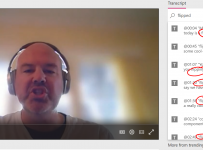
    • It’s worth noting that Stream automatically transcribes your speech inside of your video, allowing everything you say to be searched. This can be especially helpful if you’re a teacher that has certain key words such as “In the end of year exam…..” which students could search across your videos for!
Flipped 3
An example of me searching the automatically generated transcript inside of Stream for “flipped” in my video. You’ll note the time stamp to the left and my spoken text to the right. If any of these are clicked the video is automatically cued up a few seconds before the searched for word or phrase.

Tips For A Successful Flipped Learning Recording In Microsoft Teams:

To make the most of Microsoft Teams to record a Flipped Learning lesson I would encourage you to consider:

  • Using a wireless headset or mic as your audio input, rather than the built in mic on your computer. This will make your voice clearer, as well as reducing ambient noise (and clicking from your keyboard, often positioned very near a built in mic!)
  • Have a touch / digital ink enabled device like my Microsoft Surface – this really unlocks the power of a Flipped Lesson, by allowing you to ink / annotate as if you were writing on a whiteboard in your classroom.
Flipped 8.PNG
inking in Word is a powerful way to use Flipped Learning, calling out the important sections of an upcoming assessment for example. Note that you can even use “Ink Reply” so students with access to the document and see your inking replayed, step by step.
  • When ready to record in Teams, follow this sequence:
    • Launch the Meet Now meeting inside of the correct Channel inside your Teams App
    • Blur your background if you want additional privacy
    • Share your screen – remember, you can share your entire desktop (recommended if you’re going to be switching between multiple apps), or a single application such as a web browser, or Word, OneNote etc.
    • Start Recording when ready (if you have others on the call, do make sure you advise them the session is being recorded)
    • When you’re finished, either simply hang up the call to end it, or stop the recording in the same way you started it.
  • Post-Recording the Flipped Learning lesson will automatically be uploaded to Stream and embedded into the Channel inside of Teams that you recorded it in:
    • Expert Tip: Inside of Teams you can create a dedicated tab along the top just for Stream and the Videos you’re recording – learn how here.
Flipped 2
Students can comment/ask questions about the video/lesson directly inside of Teams

Final Thoughts:

I am a big believer that balance is important in the classroom. This relates to balance between the use of technology and non-technical tools when teaching concepts. Similarly, a classroom that is 100% “flipped” will start to lose effectiveness over time, simply because it is always the same. Teachers need to find the balance between recording resources that can be used to support a flipped model, with doing “live” teaching in the classroom and promoting interaction and discussion amongst the students.

There are many tools available to empower teachers to record their screens for flipped learning, even PowerPoint supports this now, however think the power available in Microsoft Teams, combined with the automatic upload into Teams with transcription and search, makes it the best possible tool for quickly creating flipped content. The audio quality recorded in Teams is excellent – in fact I use it when recording our educational podcast with my colleague based in Singapore.

I encourage you to give Flipped Learning with Teams a go and post any comments or tips from your experience in the comments section below.

Categories
Microsoft365

Free OneNote Professional Development

OneNotePDWith the end of the school year rapidly approaching for those in the southern hemisphere, thoughts of summative assessment followed by a holiday typically dominate the minds of teachers.

In my previous role as an ICT Director at St Andrew’s College I started using the month of November to provide professional development to teachers, particularly those senior teachers who had reduced class loads because their students had left to revise for and sit the national external examinations. Prior to launching our BYOD program I introduced staff to the SAMR model (looking at the date of that blog post, I can’t believe it was four years ago!) and it was through these sessions that I realized end-of-year professional development could be very effective, particularly for senior teachers in high schools.

With this in mind, I see there is going to be a virtual/online OneNote Conference running between November 7-13th with a strong emphasis on education:

More than 25 speakers will be sharing—via video—how they use OneNote to be productive in business and in education. These 20 to 30 minute videos dive deep into real ways you can use OneNote in the real world, shown by OneNote fans just like you. This is a free online event during the dates of November 7th to November 13th, 2017. Visit Learn OneNote Conference to register for free.

You can see more at the official conference URL here:

https://learnonconference.com/

There is an impressive list of sessions on offer, as you can see:

  1. Getting Started with OneNote and Class Notebooks
  2. Why Class Notebook?
  3. Embedding Interactive Elements into OneNote and How They are Used in my Classroom
  4. Staff OneNote, Class OneNote and Collaboration Administration and Permissions
  5. Flipped Lessons Using a Class Notebook Platform
  6. Making Learning Fun with Game-Based Learning and OneNote
  7. Using OneNote in Education for E-Portfolios
  8. OneNote Student Avengers, Unite!
  9. Bringing Joy to Learning: It all STEMs from OneNote!
  10. Teaching Using OneNote
  11. OneNote: The Ultimate New Teacher Training Tool
  12. Teaching Math with OneNote
  13. OneNote and GeoGebra – Creating Interactive Learning Resources
  14. Dealing with Diverse Learners Using OneNote
  15. ​The Future of OneNote in Education
  16. Flipgrid and OneNote Integration

If you can’t make all the sessions you can certainly follow along with the Twitter hashtag of #LONC17

If you’re leading Professional Development around eLearning and pedagogy then I strongly encourage you to attend these sessions and distribute this to your staff so they can tune in for the sessions most applicable to them.

OneNotePD