Categories
Microsoft365 Windows 11

The Ultimate Minecraft:Education Edition Guide – Getting Started

mee

UPDATE 3rd May 2021 – A commonly asked request is whether Minecraft: Education Edition can be licensed for clubs / home schooling – the answer, now, is YES! Check out the details here:

Minecraft Education for Camps, Clubs & More | Minecraft: Education Edition

UPDATE 11th August 2020 – The official launch blog announcing Minecraft:EE on ChromeBooks is now available for you to read here:

https://education.minecraft.net/blog/minecraft-education-edition-available-on-chromebooks-for-back-to-school

UPDATE 22nd July 2020 – ChromeBooks are now supported – read here for more information!

UPDATE 19th March 2020 – INTERNET play has arrived…. well perhaps it’s been here since Join Codes! But, check it out in my new blog post because this literally changes the game when it comes to Minecraft:EE and keeping kids engaged outside the classroom.

UPDATE 16th August 2019 – some pretty big releases in the “Back to School Update” that I’ve blogged about here. Biggest features in terms of setup is around controlling multiplayer worlds, so I have updated that section below. Also note, version number for this release is 1.12.0 (previous version was 1.9.3). Official support pages for the Back To School Update are available here.

UPDATE 10th May 2019 – a new AzureVM Cloud Hosted option announced at MS Build meaning changes to the Multiplayer option section below. I’ve also updated the companion apps section since you don’t need to download the Code Connection companion app since the Nov 2018 Anniversary release.

UPDATE 28th Nov 2018 – there is a new way to manage licenses more easily for Minecraft:EE using the O365 Admin Portal (in the way you’d normally manage other licenses) removing the necessity for the Microsoft Store for Education. See the licensing section below.

I decided to write this post out of practicality – I’m getting asked almost on a daily basis what needs to be done to get Minecraft:EE up and running and it’s probably easier to simply update a single blog post and link to this to answer the question, rather than write up replies each time. I’ve decided to write this mainly as bullet points to show just the key information and make it quick to read.

Note: the product is evolving, licensing is changing, platforms are being added – expect this blog post to be updated regularly. I’ll add “Update: date stamp” to the top of the blog as I append new information. Where ever possible, I’ll try to link to official guides / documentation – if you spot a dead link leave a comment below.

Getting Started – What You Need

  • Supported Device Platforms: You’ll need a device that runs Windows 10, MacOS (10.9+) or iOS (iOS9+) – more information here.
  • Your students and teachers need an Office365 username/password to be able to sign into M:EE. There are a lot of ways you can set this up – useful blog post to quickly create users in O365 is here
  • Licenses – You can sign into M:EE 25x as a teacher and 10x as a student before you need a license.
    • New Zealand: as there is a national agreement with the Ministry of Education with M365 A3 (2019-21) schools can get M:EE at no cost. Licenses are required and can be sourced by contacting nzschools@datacom.co.nz and requesting “M365 A3 licenses with Minecraft:EE”
    • Elsewhere: You can purchase licenses directly from the Microsoft Store for Education or these can be sourced from your licensing partner through various agreements (EES, CSP, OVS-ES etc). Official Documentation Here.
    • Clubs and Home Schooling: New in April 2021 is the ability to buy licenses for your clubs / schools / camps which is awesome. Check out the official documentation here.
  • Getting Started – Official Documentation Here

Getting The Applications

There are numerous ways you can source the Minecraft:EE applications:

  • Direct download link for Win10/MacOS
  • iOS App Store for iPad
    • This can be distributed via VPP and the MDM of your choice
  • Microsoft Store for Education for Win10
    • This can be used by students for individual downloads if they’re signed in, or you can use an MDM like Intune for Education to automatically deploy the app to Win10 devices.
  • Companion Applications – there are currently two companion apps there is only one additional app for M:EE that can be downloaded from here – these are currently only supported on Win10 / MacOS
    • Classroom Manager – a tool to support teachers to manage a group of students playing M:EE
    • Code Connection – enables students to do block based programming (and JavaScript) inside M:EE This is no longer required now that the Code Connection is inside the main application itself with the November 2018 update

Licensing

Once you’ve obtained licensing you do need to assign these to individual users.

  • Unlike most of the O365 Licensing, you do not manage M:EE licenses via the Offic365 Admin Portal – you do it via the Microsoft Store for Education
    • UPDATE 28th November 2018 – you still can manage licensing as above if you wish, but as of today you can also manage it via the O365 Admin Portal making it far easier – NEW DOCUMENTATION HERE
  • Official Documentation here for managing licensing.
  • Recommendation: set your licenses to “auto assign” if you have Student Use Benefit (SUB) in place i.e. every student in the school has a license. This means that as soon as a student signs into M:EE for the first time they are automatically assigned a license in the Store for Education.
  • If you have purchased a limited number of licenses e.g. 50, then suggest you do not use Auto Assign but instead manually assign those licenses through the Store for Education. You can also revoke licenses there if you wish to re-assign e.g. to a new class. Official Documentation Here.

Classroom Content / Lesson Plans

There is a wealth of information available for teachers to quickly get up to speed with ideas for using Minecraft:EE in their classrooms.

There is a wealth of ideas out there for any curriculum / age range – just get searching!

Minecraft:EE Multiplayer / Networking Considerations

Minecraft:EE works quite differently from other versions of Minecraft (Xbox, iPad PE, Win10, Java version). Key things to be aware of:

  • Update 16th August 2019: The “Back To School Update” (version 1.12.0) has added key features for Multiplayer Mode – check them out here.
    • Join Codes: now the host of the multiplayer world needs to share a pictorial join code before others can join. This will stop ‘mystery players’ joining without permission
    • Host can also invite others into their world in ‘visitor mode’ meaning it’s effectively read/view only and they can’t edit/create in the world.
  • You need an internet connection to sign into M:EE – this is because you use your Office365 credentials to authenticate. After that, if you’re playing single player you no longer need the internet
  • Minecraft:EE worlds are saved to the local device – the worlds do not live on a server or in the cloud.
  • Multiplayer games – official documentation here
  • Update 10th May 2019 – whilst the information below is still true and accurate, there is now an option to work around this using cloud hosted AzureVM worlds for Minecraft:EE. This will allow you to overcome some of the challenges below around network security, and playing over the internet for homework. AzureVM licensing/costs are not included in the standard Minecraft:EE licensing and would need to be paid for additionally.
    • The AzureVM has been discontinued as of late 2019.
  • Multiplayer games – the host (usually a teacher, could be a student in group work) has the world on their laptop – other students then connect over the LAN/WLAN to the host device. In other words, the host device becomes an ad hoc server. This has some considerations you need to be aware of:
    • M:EE broadcasts via UDP across the network to allow users to see worlds/games being hosted. Some networks block this.
    • Many schools segment traffic on their network using VLAN – this can prevent students/teachers devices being able to connect to each other directly
    • Example code to configure a network switch (Allied Telesyn) can be found here – this allows the correct traffic to go between VLAN/subnets and also supports UDP broadcast. Use with care – no support/advice provided with this
    • You can not connect across the internet (easily) to play multiplayer games e.g. for homework. Users need to be on the same LAN/WLAN and same subnet.
    • There is a maximum number of 30 users in a multiplayer world.
    • When the game quits, all users are removed from the world and the work is saved to the host device.
  • Users need to be in the same Office365 Tenant (i.e. school) to connect in the same world. Even if they are on the same LAN/WLAN they must use the same O365 domain name to sign in and play multiplayer e.g. users@school-name.edu
  • If students wanted to continue to work on the multiplayer world individually, it would need to be exported and shared with them – Official Documentation Here.

Miscellaneous Links

Conclusion

There is a huge amount of information out there for support educators with Minecraft:EE – if I’ve missed anything please drop a comment below so I can include it in the blog post. The aim here is to make life easier for schools, educators, IT administrators and partners to get up and running with M:EE as quickly as possible.

Happy learning and playing!

Categories
Microsoft365 Windows 11

10 Ways To Enroll Windows 10 Into Intune

EnrolmentScenario3.png

Sometimes, a picture tells a thousand words.

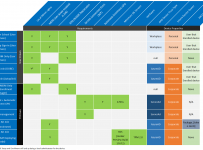
In this case, the above graphic illustrates ten different ways to enroll a Windows 10 device into Intune, Microsoft’s Cloud MDM and it’s probably reasonably safe to assume there could be 100 words to describe each of the ten methods, so 1000 words seems about right for the above image!

Read the full blog post here from Scott Duffey

I saw the above image and blog post on LinkedIn this morning and thought how applicable that is for the Education sector, where there are many permutations on how devices end up on a school network and varying levels of management applied to each. Schools, perhaps more than almost any other sector, have huge levels of BYOD (Bring Your Own Device), mixed in with school owned/leased devices and mixtures of platforms (Win10, MacOS, iOS, ChromeOS, Android).

Schools also have various stakeholders: Teachers, Administrators, Students, Board of Governors, Parents, Visitors. Most of those stakeholders have varying levels of expectations that they can bring a device and get access to the WiFi network. While not all of these devices will be enrolled and managed in Intune, it’s important school IT administrators and IT partners understand that there are many ways to achieve this management and many ‘entry points’ into Intune as well. The blog post covers the current ten methods of:

  1. Scenario 1: Add work or school Account (User Driven)
  2. Scenario 2: Modern App Sign-in (User Driven)
  3. Scenario 3: Enrol in MDM Only (User Driven)
  4. Scenario 4: Azure AD Join (OOBE)
  5. Scenario 5: Azure AD Join (AutoPilot)
  6. Scenario 6: Enrol in MDM Only (Device Enrollment Manager)
  7. Scenario 7: Azure AD Device Registration + Automatic Enrolment Group Policy Object
  8. Scenario 8: SCCM Co-Management
  9. Scenario 9: Azure AD Join (Bulk Enrolment)
  10. Scenario 10: Azure AD Join (AutoPilot Self Deploying Mode)

The original blog post includes links to documentation for each of the above methods which is worth reading up on if they’re new to you. #10 was definitely new to me and I can see a lot of application for that in school environments where you wish to rapidly and securely deploy kiosk style devices:

autoP21
Still in preview, the Autopilot for Kiosk devices offers the most streamlined setup of any of the above 10, the device is AzureAD joined and enrolled into Intune with no user interaction at all

Autopilot Kiosk Deployment relies on configuration inside of Intune:

kiosk

My Perspective:

It’s obvious to all that each successive release of Windows 10 has more MDM hooks and greater control via Intune. Understanding the correct pathways to enroll a device into Intune is important and there is now a wide range of options depending on the type of user and who owns the device.

I was talking to a school in Australia last month where there is a lot of SCCM in large schools – scenario 8 deals with that perfectly. Similarly, in May/June of this year we did many “Trial in a Box” where we demo’ed scenarios #4 and #9 showcasing to schools the quickest way to get school owned/leased/managed devices enrolled and managed into Intune.

If you’re responsible for managing Windows 10 devices in your organisation, spending some time reading the original blog post and associated documentation linked from it, would be time well spent.

Categories
Microsoft365 Windows 11

Minecraft:EE Comes To iPad & Greater Cross Platform Support In General

UPDATE 8th September: the iPad version of Minecraft:EE is now available in the App Store and can be downloaded today. You can sign in with your O365 credentials (still need an M:EE license)

There was a major announcement this week that Minecraft:Education Edition is coming to iPads in September 2018.

Hero-Photo_Minecraft-iPad-1

From the announcement:

“Minecraft: Education Edition on iPad unlocks new and intuitive ways of collaborating and sharing and has revolutionized the way our students and teachers explore curriculum and projects,” says Kyriakos Koursaris, Head of Education Technology for PaRK International School. “The features allow for deep and meaningful learning, and the values it promotes, from inclusivity to 21 century skills, empower everyone to use technology with extraordinary results,” said Koursaris.

This, combined with the announcement last week of a new national Schools’ Agreement between the Ministry of Education and Microsoft in New Zealand, means that even more schools will have access to Minecraft:Education Edition on multiple platforms of iOS, MacOS and Windows10. Talking with partners and educators there is already huge interest in the ability to now play Minecraft:EE on an iPad.

Engaging & Creative Learning Opportunities

You should, of course, check out the hundreds of lessons and worlds on the official Minecraft:EE website here, where you are bound to find a lesson for your curriculum area and age of students. However, on the weekend I saw on Twitter an awesome example of promoting literacy with students in Minecraft by Sarah Bau, a teacher in Australia.

Sarah decided to get students building their own house in a shared Minecraft:EE world:

Students negotiated amongst themselves on land selection, and were given two lessons to build, fit out and photograph their property.

She also used OneNote to create and share the lesson content with the students and has generously made this available online here.

MEE real estate.png
A screenshot of Sarah’s lesson plan in OneNote, including the WALT and WILF

Sarah then went on to get the students use Canva (something I’ve blogged about in the past when hosting TeachMeets at St Andrew’s College) to create real estate adverts in a tri-fold brochure to advertise their Minecraft:EE house for sale. They were even able to take “photos” of their house in Minecraft using the Camera feature and export these screenshots for inclusion in their real estate sales brochure. Here is one example from her blog (which I really do encourage you to check out again here):

MEE real estate1.png
Example student real estate brochure, designed in Canva and featuring their Minecraft:EE house.

This reminds me of other Minecraft focused literacy activities I’ve been involved with in the past and showcases the incredible flexibility of Minecraft and the diverse learning opportunities it supports. I suggest you also check out this example that Wilj Dekkers used with his students to support creative writing with Year 6 students, also combining OneNote and Minecraft.

Cross Platform Support From Microsoft

ipad meeWith the announcement of iOS support for Minecraft:Education Edition, it is continuing a theme of greater cross platform support from Microsoft for other OS in the Education Space.

I blogged last week about the release of iOS support for Intune for Education, something that is pretty significant in my perspective as it opens up that elusive opportunity for schools to manage all of their devices through a “single pane of glass” i.e. – one platform for MDM.

Perhaps the feature that has drawn the most attention from schools that use a mixture of devices and cloud collaboration suites is the integration of Google Drive (amongst other cloud storage platforms) into Microsoft Teams:

Teams
Note the option to “Add cloud storage” in the Files tab of a Microsoft Team for Education

You can see how easy it is above to add a third party cloud storage to your Microsoft Team (if your O365 Tenant Administrator has allowed this) and when this is selected, you are presented with a range of options:

Teams2

While Google Drive is arguably the most popular of the third party cloud providers above in education, I was in a large school recently where the Senior Leadership Team (SLT) had been using Dropbox.com for sharing Office documents across multiple devices. They were very excited to see the integration of Dropbox into Teams.

What surprises most teachers, however, is the ability to actually open and edit documents hosted in Google Drive directly inside Teams – you are not required to go to G Suite to edit:

Teams3
Viewing a range of Google Docs inside a Google Drive, within Microsoft Teams!
Teams4
Editing a Google Doc directly inside Microsoft Teams – you can see in the top right that I’m signed into Google with my personal Gmail account. In a school scenario, this could be achieved by using SSO hosted out of AzureAD.

My Perspective & Final Thoughts:

Three pretty recent announcements and/or product releases showing Microsoft support for other platforms in Education:

  • Third party cloud storage in Microsoft Teams (available now)
  • iOS support and management in Intune for Education (available now)
  • iOS support for Minecraft:Education Edition (coming in Sept 2018)

In many ways, this is simply continuing a recent trend from Microsoft to show more support and openness, highlighted by Satya Nadella’s comments that Microsoft loves Linux:

microsoftloveslinux.0.0.jpg
Some have been quick to deride this new ‘love’ for Open Source, but the continued support of other OS in Education shows there is some substance to these claims

Perhaps unsurprisingly, the ultimate winners out of all this is schools, teachers and students. There is an ever greater range and choice of platforms for teaching and learning for schools to choose from and with cross-platform management tools like Intune for Education now available it is simplifying their administration tasks as well.

In the end, this choice has to be a good thing.

Thriving Through The Transition a.k.a Winning At Digital Transformation

I was tipped off to watching this video by an IT leader in the education sector that I really admire for his approach to IT (high levels of service at the front end and high levels of automation in the back end), so I watched the presentation as soon as I got the chance to sit down and focus on it and take some notes.

Digital Transformation? Everyone is over it aren’t they? It’s cliched already right?

Snover.jpg
Credit: Snover’s Blog

Plenty of people yawn when they hear Digital Transformation yet again, however despite this attitude I gained a lot out of Jeffrey Snover’s presentation and when the Chief Architect for Azure Storage and Cloud Edge, not to mention one of only eleven Tech Fellows in Microsoft, speaks it is generally worth paying attention! So I suggest you spend 30mins to watch but if you prefer to speed read, here’s a summarized version of my notes with some added thoughts and reflections.

Jeffrey’s three key themes were:

  1. Transitions – and the role they play in your career
  2. Transitions – and the role they’ve played in Jeffrey’s own career
  3. Digital Transformation – how this can be the catalyst to supercharge your career

Given the audience of developers he was presenting to, the focus on career impact is understandable, however it was his wider observations of what businesses must do to survive, and then thrive, that were of equal interest to me.

It is through Digital Transformation that disruption can occur and create opportunities to change the linear progression of “stairway jobs” (those that have a steady career progression of step by step improvements) and provide the opportunity to experience “elevator jobs” (periods of time where a career pathway can be accelerated by demonstrating skills that move the company forward).

The idea of positioning yourself (where possible within your existing organisation and role) as someone who is “moving the organisation forward” is neither new or especially insightful, but I find that in regular conversations many people still treat their job as a J.O.B. – something they show up to do in isolation of the wider plans or strategic direction of organisation. Hearing from someone like Snover who has experienced remarkable success in his work career call this out as key so early on in the presentation shows just how important this is.

Industry Transitions Can Hit Organisations Hard

pexels-photo-546819
Photo by luis gomes on Pexels.com

This is true across the board and I see Education wrestling with the impact of Digital Transformation on a frequent basis, as every area of the educational experience is permeated with technology. As I’ve written about regularly, I don’t see the classroom teacher or university lecturer being replaced any time soon but they should be leveraging technology to assist learning in a multitude of new ways.

Jeffrey referenced his time as a UNIX expert at Digital and later as a Windows NT fan, which created his “elevator job” – the time when he was able to grow significantly in his career. However, when industries started to transition away from vertical integration and towards horizontal integration (ironically, the opposite of what is happening now), Digital did not survive this shift. As Jeffery described it:

They were excellent at doing something that no longer mattered

Within a relatively short period of time the industry changed dramatically and many companies did not adapt.

Do You Want To Be Relevant?

As Digital started the inevitable process of selling off various divisions one by one, Jeffrey moved to Tivoli where he continued to be an expert on NT until one day the CTO posed the hard hitting question to him:

You’re one of the hardest working guys here, you’re super smart, but the issue is the product you work on makes me $15K every time I sell it. I want you working on a product that makes me $2-20 million – so my question is: do you want to be relevant?

In this moment of clarity he realised that his work, whilst valuable, was not moving the company forward and he moved roles as the CTO guided him to.

play-stone-network-networked-interactive-163064
Photo by Pixabay on Pexels.com

This is a really interesting anecdote in leadership as well. How often, or willing, are senior leaders to guide key people in their careers? The better ones do this on a regular basis, even if that may mean potentially losing them from their team or even organisation. The flipside is if you’re seen as a boss or company that promotes talent into greater roles, you’re far more likely to attract new talent in the first place that wants to work for you.

I’ve been in various leadership roles where I’ve thought to myself “Gee, I’d hate to lose that person from my team” but by investing in their professional development and giving them increased responsibilities I’ve generally got more in return from them – although inevitably they moved on to bigger roles as their skills/experience outgrew what could be offered to them.

Doing The “Now” With An Eye On “The Future”

This was perhaps one of the most instructive parts of the presentation, precisely because it is one of the hardest things for anyone to balance. Having moved to Microsoft, Jeffrey could see that the future of computing was going to be very large scale data centres that were going to need high levels of automation and scripting to manage i.e. a Command Line Interface (CLI). He wrote the Monad Manifesto  outlining his vision of using .NET for automation and it was this vision that eventually led to the creation of PowerShell. At this however, Microsoft was fully focused on improving the Graphical User Interface (GUI).

This put him on the outer, requiring a “do now” approach to be combined with a longer vision of what the future was likely to require and the talk includes a few humourous stories such as one exec asking him in frustration “Just what part of Windows do you not f**king understand?” Ultimately, Jeffrey found the way forward by getting a powerful backer and forming a “Coalition of the Willing” which took the form of the Microsoft Exchange Server team who could completely see the value in high levels of automation and had a multi-billion dollar business to back it. It was this level of support that eventually saw .NET and PowerShell added to Windows, but it had taken him five years of his working career.

powershell.png

The key take away for me from this section was finding the right business case or backer to prove the value of your proposition and then form a coalition to drive this forward. An idea you may possess in isolation that is not getting traction may either not be articulated clearly enough for others to understand the value, or may not be as great as you think it is!

Why Software Is Eating The World

Marc Andreesson, software developer and, amongst other things, co-founder of the Netscape web browser said way back in 2011 that software would eat the world by replacing traditional business models with software equivalents. This is not hard to see:

  • Bookstores replaced by Amazon
  • Adverts replaced by Google
  • Music replaced by Spotify, iTune
  • Telecoms replaced by Skype and free VoIP/Chat apps
  • Recruitment replaced by LinkedIn

Even in situations where the physical product remains, often the value add is delivered via software e.g. cars still exist but much of the best differentiation between competitors or models of car is software delivered e.g. safety features, navigation, entertainment, fault reporting etc.

ALL companies need to assume that a software revolution is coming and will hit their industry hard.

largest-companies-by-market-cap-chart.jpg
Credit: Visual Capitalist

The trend above is clear – IT companies are replacing traditional leaders in the market capitalization leader board.  Jeffrey mentioned something that I’ve heard in a few different places now: LinkedIn shows more jobs for developers/programmers are being advertised OUTSIDE the tech sector than inside it. In other words, it’s not the tech sector hiring the most technologists: it’s non-traditional IT companies.

The ramifications for this shift are important for Education providers to understand and process. The need for STEM skills becomes ever more necessary because even if a student has no desire to go and work for a tech company, the chances are that the sector they do want to work in will still require significant levels of technical skill sets. How will the K-12 schooling sector respond to this? It’s happening already to some extent (check these Hacking STEM activities) and at a tertiary level many providers are trying to blend elements of computer science into other more traditional faculties to expose students to skill sets that will allow them to do tasks more efficiently.

This was starkly highlighted to me a few years ago when I was looking for some tutorials on how to programme in Ruby and Python. I found a post-graduate history student was posting a blog on his self-taught journey in these languages for others (like me!) to benefit from. His rationale for learning programming was clear: he could write scripts to scan large volumes of digital text looking for key words, ideas and authors and collate these into a meaningful reading list to follow up with later. There was no way he had the time to read that much manually – programming allowed him to “automate” elements of his research.

The “Other” Moore’s Law: Core vs Context

Geoffrey_Moore_at_OSBC
Credit: Wikipedia

In the last third of the presentation Snover focuses on the work of Geoffrey Moore and his work on Core and Context activities in businesses. Put simply:

  • Core Activities: these differentiate you by adding value to the business that you can charge a premium for, win new customers with and build brand reputation e.g. for Microsoft this is investing in software development.
  • Context Activities: essentially everything else. Whilst important to the running of the business, they are not differentiators e.g. for Microsoft this is receptionists, shuttles to get people to work – basically keeping the business running.

To be a leading business, you need to be investing your time, talent and effort into Core Activities, however naturally over time your competitors will respond, new ones will emerge, substitution will take place, a different angle will emerge in the market and you will no longer be able to charge a premium for the Core Activity like you once could.

Once a Core Activity becomes a Context Activity you must adapt …. and quickly.

I think about the above in terms of the release of major operating system updates. I remember, and it’s not that long ago, that you had to pay for the latest major releases of OS, whether that be Apple’s OS X (now MacOS) or going from Windows XP To Windows 7. Now, MacOS updates for free every 9-12 months and Windows 10 is releasing major updates twice a year – for free! The opportunity for revenue is now elsewhere as consumers expect major updates on a regular cycle and are not always willing to pay for this. Many companies have gone to the digital graveyard to die by not responding correctly or in a timely manner to the challenge of workloads shifting from the Core to the Context.

Snover’s Solution To Succeeding In Digital Transformation:

In the end, the final message for companies looking to succeed in Digital Transformation was in the following two points:

  1. Create Bandwidth:
    1. in simple terms, and perhaps somewhat unsurprising from someone with Snover’s background, his advice was to automate as much as possible and move to smarter solutions such as Software as a Service (SaaS).
    2. Use the cloud, but intelligently e.g. start with a “Lift and Shift” of workloads into Infrastructure as a Service (IaaS) so you’re no longer managing hardware on premise yourself, freeing up time, and then “Lift and Modernise” e.g. use of Containers.
  2. Invest in Innovation:
    1. Re-develop existing solutions to be cloud native e.g. using Platform as a Service (PaaS).
    2. Create as many repeatable processes as possible so you can go to market quickly and innovate your core solution rapidly in response to customer feedback.

By following the above, companies can reduce their IT spend away from “Context Activities” such as purchasing hardware, followed by deploying and managing it, and instead invest in SaaS and automation to create the necessary bandwidth within their organisation to start innovating.

The HEART of Digital Transformation is this: BUILD what differentiates you; BUY what doesn’t

Take Action:

The presentation concluded with the following list of “start doing” and “stop doing” advice, keep in mind the audience was developers:

STOP: START:
Clicking Next – in the context of a GUI based environment Automating (scripting and PowerShell!)
Crafting no value add solutions e.g. using Exchange Server on Premise Leveraging SaaS to free up talent e.g. Use  hosted Exchange
Building snowflake servers and clouds DevOps
Low leverage architectures Leveraging Cloud allows you to focus less on the the underlying technology and MORE on the customer conversation
 Dialling it in Invest in your career

Concluding Thoughts:

I personally derived value out of listening to this presentation from Jeffery Snover, someone who has clearly “been there, done that” in his working career and insights on how to marry career progression with organisational relevancy was particularly useful.

pexels-photo-825262
Photo by Fancycrave.com on Pexels.com

Midway through his presentation he pointed out that many organisations are still yet to engage with Digital Transformation and the likely impact this will have on their business. In my experience, even those that are starting to think about this tend to be at the first or second level of impact or “ripple” for example with the scenario of automated and driver-less cars. When asked what careers are most likely to be impacted by this, people generally list off the obvious: taxi drivers, bus drivers, couriers etc. I would suggest a second “layer” may be the automotive repair industry: driver-less cars are likely to crash less frequently which will significantly impact on the demand for panel beaters. Furthermore, they will be driven with optimum efficiency, so the need to tune and service a vehicle may be reduced.

However, think wider still: a significant percentage of police forces are used for traffic management, speed cameras and drink driving stops. Where there is no driver present, there is no need to police this component, so would you really be encouraging your child into a career in the police with an eye on road safety enforcement?

Education is no different – it will face competing pressures (as well as corresponding opportunities) as Digital Transformation, along with ever increasing levels of software, impact how education is delivered and consumed. There is opportunity to be involved “driving the business forward” and helping add value in this sector for those with an eye to it.

Categories
Microsoft365 Windows 11

OneNote On Windows – The One App For The Future

UPDATE 29th June: a reader shared with me this great blog showing some of the key differences between OneNote 2016 and the newer OneNote Windows 10 App.

In December last year I wrote a blog entitled “The Future of OneNote in Education” where Mike Tholfsen walked through a lot of the features around accessibility being built into the OneNote Windows 10 app. This week, a new blog post has been written signposting the future of OneNote on Windows 10 more generally and for educators and students alike, this is an important announcement.

As always, I recommend you read the entire original post by William Devereux but I’m going to summarise the key points for you below from an educational point of view.

Firstly, it appears the product team have been listening:

In spending time with you, we heard a recurring theme: you want a single version of OneNote on Windows that combines all the benefits of the modern Windows 10 app with the depth and breadth of capabilities in the older OneNote 2016.

In my frequent conversations with schools, there is always complaints about the confusion amongst teachers and students of the “two versions of OneNote” – being, of course:

  • OneNote UWP App for Windows10 (free with any version of Win10)
  • OneNote 2016 – part of the Office 2016 / Office365 ProPlus suite

In my experiences, most schools have encouraged users to only work in OneNote 2016, largely because this had the most complete Class NoteBook tools originally. This has changed now with all the Class Notebook functionality being built into the Win10 OneNote app:

Additional Class Notebook features: The full slate of Class Notebook features available in the add-on for OneNote 2016 will be available in OneNote for Windows 10 this summer. Best of all, you no longer need to install a separate add-in—it’s all built-in!

OneNote For Windows 10 Will Become The Default:

Beginning with the launch of Office 2019 later this year, OneNote for Windows 10 will replace OneNote 2016 as the default OneNote experience for both Office 365 and Office 2019

This is significant news for educational institutes as this will potentially drive some changes around professional development on the platform as teachers are encouraged towards using OneNote for Windows 10. I can see many benefits for this as well since the interface design will be consistent across all operating systems now (MacOS, iOS, Web, Win10, Android) as well as improved support for accessibility:

OneNOte consistent layout
The consistent design layout is a good thing for OneNote for users who access OneNote across multiple devices and operating systems.

What’s happening to OneNote 2016?

No new features are going to be added to OneNote 2016 but schools will still be able to use this if they wish to. Importantly, it will no longer be installed by default in Office 2019 when it is released, nor as part of Office 365 at that point. If schools really want to deploy OneNote 2016 they will be able to, however it’s clear from this decision that they should be starting to migrate towards using the OneNote for Windows 10 application with all users.

Top-requested features coming soon to OneNote for Windows 10

Here’s what you can expect to be released in the coming months:

  • Insert and search for tags: OneNote 2016’s popular tags feature is coming to OneNote for Windows 10! Soon you’ll be able to insert, create, and search for custom tags, making it easy to mark key information and find it later. Tags you create will now roam with you to across your devices, and OneNote will even show you tags other people have used in a shared notebook so you don’t have to recreate them yourself.
OneNote Tags
Tags are one of the most powerful features of OneNote in Education and the improved features for Tags in OneNote For Windows10 is awesome.

I’ve been fortunate enough to see a preview of the Tags feature in OneNote for Windows 10 and it is awesome. It has taken all the best parts of the tags in OneNote 2016, simplified the interface and supercharged the functionality. As noted above, the ability to have tags “follow you” across devices and also distribute to all users in a Class NoteBook will make educators very happy indeed.

  • View and edit files: See live previews of Office files in OneNote, work together on attached documents, and save space in your notebooks with cloud files. You’ll get all the benefits of saving a file on OneDrive with the context and convenience of an attachment or preview on a OneNote page.
OneNote OneDrive Files
“Live” documents from OneDrive embedded within OneNote is a nice feature

This will help reduce the sync time of OneNote Notebooks as the documents and related data will be stored in OneDrive, not in the NoteBook itself.

  • Additional Class Notebook features: The full slate of Class Notebook features available in the add-on for OneNote 2016 will be available in OneNote for Windows 10 this summer. Best of all, you no longer need to install a separate add-in—it’s all built-in!

An improved sync experience

The new release promises an improved synch experience across devices and platforms – something that will no doubt excite educators and students alike. The original blog post has some videos showing this experience from a Win10 device, to a Mac and an iPhone – if this is indeed indicative of the sync speed between devices then it suggests a massive improvement which will be welcomed.

In my experience, sync speeds when using the OneNote Online web client are very fast, however the speed varies when introducing desktop/smartphone clients. The videos certainly suggest an improved performance is coming in this key area.

OneNote Sync

Final Thoughts:

Whilst it has taken a while to get to this point, it seems the writing has been on the wall for some time that a single OneNote version would happen on Windows 10. When the interface on the iOS, MacOS and OneNote Online versions changed significantly a couple of years ago it seemed OneNote 2016 aged almost overnight.

Nevertheless, the that familiar interface that many teachers trained on, combined with key features such as custom tags and Class NoteBook controls meant educators were slow to adopt the Windows 10 version of OneNote. Personally, I’ve been trying to use that version for the last 6 months or so and have generally found it excellent for my needs.

School eLearning leads should start planning for professional development for teachers to migrate them off OneNote 2016 and on to OneNote for Windows 10 ahead of the release of Office 2019. This will ensure that teachers are prepared for the change and also because most students will only be using the new version of OneNote For Windows 10 when they download Office 365 ProPlus. No doubt there will be some challenges as people learn a new interface, but sharing a consistent UI across platforms can only be a good thing and new features are being added regularly to OneNote for Windows 10 which will keep everyone happy.

Categories
Microsoft365

Tracking Office365 ProPlus Activation In Your School

I confess that I’m a bit of a reporting nerd when it comes to technology. I love to see a great dashboard of data revealing how my network is performing, where users are consuming content and what devices they are connecting. I’ve blogged previously about the rapid improvements in the Office365 Admin Reporting using PowerBI to give insights into consumption of the various components of Office365 in your organisation.

Further to this, I’ve recently had a number of conversations with school leaders and IT Managers who are interested in seeing how their users are downloading the Office365 ProPlus applications and what devices they are installing them on.

Getting Office365 ProPlus Download

1.PNG
The portal will automatically detect if the user is on a Windows or MacOS device and provide the correct download package. The 32bit version of Office365 ProPlus is downloaded by default. Alternatively, they can use the browser based online version of the Office Apps as seen in the tiles above.
  • Students on Android or iOS tablets and smartphones can download and activate their apps from their respective app stores.
  • Students and faculty members then activate their copy of Office365 ProPlus when they first sign into it by entering their school email address and password.

Tracking Office365 ProPlus Usage

The following steps will show you how to get greater visibility into who is downloading the applications and what type of devices they are using them on. To do the following, you must be an administrator user of your Office365 Tenant.

2.PNG

  • For this purpose, you’ll be looking to see just the Office365 ProPlus Activations so look for the tile in the reports that looks like this and click on it:

3

4.PNG

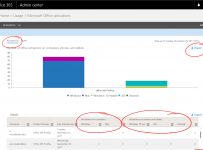
  • The default view takes you to “Activations” i.e. the numbers of devices (computers, smart phones, tablets) Office365 has been activated on. Many people do not know that a single user can activate Office365 ProPlus on up to five computers (Windows and MacOS), 5 smartphones (Windows10 Phone, iOS and Android) and 5 Tablets (iOS and Android). For families with students in school with a ProPlus license this represents awesome value.
  • In my demo tenant above you can see some data with test users activating ProPlus on various devices and this can also be exported into Excel if you want to do further analysis or perhaps import into PowerBI and combine with other reports you may already have.
  • The final report within the Office Activations Reporting section is the “users” and looks like this:

5.PNG

  • The purpose of the above report is to allow an O365 Administrator to get insights into how many of their users are actually downloading and activating Office365. In my demo tenant above there are not many activations which makes sense since most of the users are test accounts. Ideally, in most organisations this should be pretty close to 1:1 ratio of activations vs assigned licenses to ensure they are maximizing the value of their software.

Why Does This Matter?

Quite aside from being a data nerd and loving cool dashboards, the above reporting is important for schools to be monitoring and taking action on for a number of reasons. Whilst many schools do benefit from National or State level agreements to provide ProPlus for “free” to school students and faculty members, others such as Independent and International Schools typically need to be buying these licenses themselves.  To measure the Return On Investment (ROI), individual schools should be tracking this data and actively promoting the download links for students in ways such as including links in school newsletters or download banners on the school Intranet / Website.

Pedagogically, this is important as well. If the school is expecting students to be developing their digital literacy skills and submitting class and homework with the correct tools the school uses (OneNote, Word, Excel, PowerPoint etc), then being able to check whether students have actually downloaded and activated the applications is important. There may be legitimate barriers as to why this has not occurred such as bandwidth limitations at home or the students simply do not know the correct location to get started. Schools can do quite a bit to help their students and faculty members and the MSAU Education team have done a fantastic job collating resources such as email templates to students/parents, Office365 Training Resources and even fun O365 Octopus sticker templates at this link here:

6.PNG

I particularly like the Octopus Stickers at a Primary School Level as this could be a fun incentive for students to download and activate Office365 ProPlus on their devices – once they have done this they receive a free sticker from the school to put on their device and help personalise it in a fun way:

7
Office365 Octopus Sticker Templates could be used as a great giveaway incentive for younger students

Furthermore, because of the large number of devices students can install and activate Office365 ProPlus on, it really helps ensure equity of access to the tools for learning. Practically, this means it could be activated on the home desktop computer in the lounge so homework can be completed on that device. If the family only has a tablet at home and no desktop computer, the student can still activate the tools they need on that device as well. Importantly, this means the student’s learning can continue without the need for the family to purchase their own copy of Office365. This represents a real financial saving for families with students in schools where ProPlus downloads are available.

Finally, as a former K-12 ICT Director, it was important for me to know what sort of devices our students were using, both on the College network and at home. We could use a range of different tools to try and triangulate this data (wifi access data and firewall content reports were two common ways), but I found the Office365 Activation data incredibly useful to see the range of devices our students were working on. It can actually be useful in either confirming or dispelling “hunches” and help answer questions such as “do our students really do a lot of their school work on mobile devices?” An easy way to check would be to run the above report and filter on mobile / tablet activations. I encourage you to give it a go – you might be surprised by what you see!