Categories
Apple Microsoft365

MacAdmins – Solving Mac Office Issues

I’ve had a heap of experience with weird and wonderful M365 Apps issues, but mostly on the Windows platform. As a full time MacBook Pro user these days, I’ve encountered the odd difference on Office apps compared to what I was used to on Windows 11 but none that have totally stumped me.

Today I had a customer with a weird activation issue on M365 Apps on their Mac that I had no clue on, but I got a great tip from a colleague that I should check out the Mac Admins website.

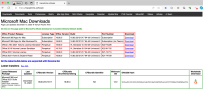
It is nothing fancy to look at:

However, it’s maintained by the Microsoft Office for Mac Developers team:

Amongst the goodness on there is a great collection of tools:

The recommendation from my colleague for the customer issue was to use the Office Reset tool:

Office-Reset is a free downloadable tool that you can use to fix problems and errors encountered with Microsoft Office for Mac apps. This includes Word, Excel, PowerPoint, Outlook, OneNote, OneDrive, Teams and AutoUpdate. The tool can help fix app launch errors, freezes, hangs, crashes, bad plug-ins, corrupt templates, performance issues, and confusing error messages.

Office-Reset

I’m waiting to hear back from the customer if this solved their specific activation issue (fingers crossed), but in meantime I thought I’d share this awesome resource with my readers so they can solve issues faster too.

Categories
Windows 11

Experimenting With Azure Virtual Machines Part 2 – Windows 365

Back in June I wrote about experimenting with Azure Virtual Labs service as part of a multi blog series on virtual machines hosted in Azure.

In this multi-part blog series, I’m going to explore different flavours of Azure Virtual Machines, so buckle up and enjoy:

Hybrid Working & The Role Of CloudPC

This morning I’m writing this blog as I work from home on my MacBook Pro as I need to take my son to a doctors appointment over lunch. It’s this sort of hybrid/flexible working situation that has become increasingly common over the last few years and I’m fortunate that I have both a supportive employer that allows this, as well as technology that makes it possible for me to work seamlessly from my home.

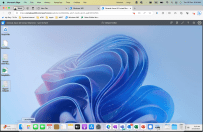
My MacBook Pro is managed by Intune, my default browser is Microsoft Edge with an Entra ID (formerly AzureAD) work profile on it securing access to work resources in M365 and most importantly for this blog post, I also have a Windows 365 CloudPC accessible through my work browser on my Mac:

A screenshot of my MacBook showing my Windows 365 CloudPC running in a tab of Microsoft Edge giving me a full, native Windows 11 experience when I need it.

Most recently, I’ve been using Hyper-V virtual machines hosted on my Windows 365 CloudPC for customer testing:

I’ve blogged previously about my Hyper-V set up, and it was easier for me to continue that on a Windows 11 device than replicating it locally on my MacBook. When working with customers more familiar with a Windows 11 environment, having immediate access to the same OS on my primary machine is incredibly helpful and also means I can run Windows only applications when required securely on my CloudPC. The specs for this CloudPC are:

Just as my MacBook is, this Windows 365 CloudPC is configured and managed by Intune meaning the same corporate baselines are applied protecting both the OS and the content stored on it. I’m heading to Europe at the end of the year for a holiday and whilst I don’t intend to do any work (and won’t be taking my work MacBook with me) if something critical happened and I needed access to work resources I know I could access this Windows 365 CloudPC from a device and have a secured experience to complete any work necessary and my employer could have confidence I was not using a local device from a friend or internet cafe with possible data leaks or compromise risks.

The Windows 365 eBook

This morning I received a copy of the Windows 365 eBook from Microsoft that reminded me of this series of Azure virtual desktop blogs I’m writing and prompted this blog post. You can read a copy of it below in full. I thought I’d share a few take away thoughts from this short document (it’s a 6 minute read).

The Changing Landscape of Work

Microsoft’s messaging to IT Decision Makers (ITDM) is that in a world of increased uncertainty and change, you need to have technology that can support remote/hybrid working effectively in any location and on any device. They share some research data that over half of fully remote employees are considering a shift to a more hybrid work setup and that similarly over half of hybrid employees are considering going fully remote:

In my view this is not going to work for every industry, but certainly many information workers are able to work effectively from various locations and it becomes an increasing consideration for employers how they can deliver that flexibility whilst still meeting their security and compliance requirements around access to sensitive corporate data (see this blog post for more thoughts). I lived through the devastating Christchurch earthquakes of of 2010-11 when much of the central city was laid waste and know first hand how disruptive it was for many businesses, including schools and universities, that could not get physical access to their work locations.

A photo showing the dust rising over Christchurch immediately after the February 22nd 2011 earthquake – Image Credit.

Things had clearly moved forward significantly in the following decade as workplaces shut down again with the global Covid19 pandemic but I still know of large businesses and Government departments that had not fully implemented an effective remote workplace strategy or lacked sufficient numbers of laptops to give to staff who primarily used desktops in their workplace to complete their work. It’s in these scenarios that a secure CloudPC would shine. While I referenced information workers above, Microsoft has a grander vision of where the Windows 365 CloudPC can support a spectrum of roles:

The Only Constant Is Change

Windows 365 helps organisations provision secure Cloud PCs for a variety of job types – including full-time employees, consultants, temporary workers (like product-testers and interns) and mobile teams – no matter if they’re remote or in-person. Windows 365 can be effectively deployed to information workers just as easily as it is to frontline service workers and shift workers.

Security Will Be A Key Determining Factor For ITDM Whether To Embrace CloudPC

I recognised the convenience of having a virtual CloudPC on Windows 365 earlier in my blog post in terms of working from home, running Hyper-V or using Windows-only applications, but I believe one of the key considerations ITDM will have in mind with this type of solution is security, something outlined in the eBook as follows:

Saving Time & Gaining Efficiencies Through CloudPC Deployments

The other core benefit I see here is the ease and efficiency of deploying larger volumes of devices – using Microsoft Intune to configure the specs and settings of Windows 365, an IT Administrator can use the tools they already know for managing their existing physical devices to easily deploy Windows 365 devices, be it a single device for a temporary contractor, or hundreds of CloudPC for every staff member in an organisation if an emergency necessitated working from home on their personal PC or tablet. I acknowledge the eBook is Microsoft marketing material so take the following numbers as you will, but they suggest efficiencies gained are:

  • 40% cost savings when using Windows 365 compared to on-premise VDI or Desktop as a Service (DaaS) offerings
  • 75% reduction in endpoint configuration times
  • 25% reduction in new software deployment times

The Differences Between Windows 365 & Azure Virtual Desktop

A number of customers have asked me about the difference between Windows 365 (W365) and Azure Virtual Desktop (AVD) and at the most simplistic level, it’s helpful to understand that W365 is a subscription based license with fixed monthly costs, no matter how much you use it but with correspondingly less configuration options over the virtual device. On the other hand, AVD is a consumption based model with almost endless configuration options and you pay for what you consume.

Beyond that simple difference, the eBook does provide a helpful comparison chart which was one of the more useful things in the eBook:

Closing Thoughts

After nearly seven years running Windows 10 and Windows 11 devices as my primary working machine, I’m enjoying being back on macOS with my MacBook Pro and experiencing the changes that have happened to the OS since I last used it regularly. However, I use my Windows 365 CloudPC almost every other day for various tasks related to my work and having the flexibility to work across OS is very empowering.

I have talked with a number of CIO in organisations who are actively evaluating the role of CloudPC in their device fleet strategy, with some running pilots with identified users already. I don’t see this trend changing as long as there are requirements for mobile, hybrid and remote working scenarios for employees.

Drop me a line if you’d like to talk more about this or check out https://www.windows365.com to see Microsoft’s information on CloudPC.

Read The Entire Windows 365 eBook – Embedded

Categories
Microsoft365 Minecraft:EE

ChromeBooks Now Supported on Minecraft: Education Edition

UPDATE 11th August 2020 – The official launch blog is now available for you to read here:

https://education.minecraft.net/blog/minecraft-education-edition-available-on-chromebooks-for-back-to-school

I’ve blogged many times about Minecraft: Education Edition previously with perhaps the three most popular posts being:

  1. Ultimate Minecraft:Education Edition Getting Started Guide
  2. Playing Minecraft:Education Edition across the Internet
  3. Similar Sign On – configuring your Google environment to work with Minecraft:EE

Now there is even more exciting news for K-12 education institutes:

Minecraft: Education Edition now supports ChromeBooks!

Right now, the program is still in Beta and you can get started with the guide here, but this change now means that the compatible devices that can run Minecraft: Education Edition include:

  • Windows 10
  • MacOS
  • iPadOS
  • ChromeBooks (New)

With the addition of ChromeBooks, the majority of devices used in K-12 education institutes are now covered.

Chromebook availability

Minecraft: Education Edition is now available from the Google Play Store as an Android app for Chromebook. This version of Minecraft: Education Edition offers the same set of features as other versions (Window, macOS and iPad) including cross-platform multiplayer.

I’ve had the opportunity to support a number of schools in a pilot of Minecraft: Education Edition on ChromeBooks and the feedback from them has been very positive, with the performance and experience of students playing Minecraft: Education Edition on their Chrome devices.

If You’re New To Minecraft: Education Edition …

Perhaps you’re here for the first time because you have ChromeBooks then I would definitely encourage you to check out the new eSports Framework that I blogged about here and you can watch the intro video here:

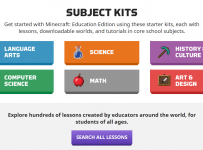
Secondly, make sure you check out the Lessons Library which has a huge range of lessons that can be searched by key word or curriculum area here:

Subject Kits

Thirdly, the “Build Challenges” are a fast start into getting students engaged in constructive tasks in Minecraft: Education Edition and are often the first teamwork goal that educators assign their students:

Build Challenges

If you want to see my own experiences of doing the Solar Build Challenge and reflecting on being a life long learner that I invite you to read this reflection.

Need To Get Trained?

If you’re new to Minecraft: Education Edition and want to get more training then check out:

Categories
Microsoft365 Windows 11

New To Intune As An MDM? Read This Blog Post First!

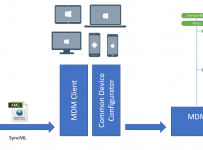
Intune MDM.pngI’ve blogged previously about recognising others when they’ve blogged earlier and better than you, and I’ve got another example of that today with with this excellent blog post from Oliver Kieselbach that gives a high level overview of how Intune works as an MDM. A hat tip to Stefan van der Busse who pointed me at this blog post this afternoon too!

As always, I encourage you to read the original post here.

Oliver does a great job breaking down Intune into:

  • The architecture and components that make up Intune
  • The nature and structure of Configuration Service Providers (CSP) that action change on devices
    • He covers off both native and custom CSP in his blog post
  • Extending your control on a device by ingesting ADMX policy templates
  • Explaining how CSP policies are processed on the device
  • Policy refresh cycles (this is very helpful if you’ve ever wondered when your changes will take affect!)
  • Basic troubleshooting, including reference to 2,500 Administrative Templates for Windows & Office you can manage with Intune

Again, I recommend you read the post in its entirety here, but things that stood out to be in particular included:

1) Policy Refresh Information

Included on this helpful Intune troubleshooting link, the information below is very useful:

How long does it take for devices to get a policy, profile, or app after they are assigned?

Intune notifies the device to check in with the Intune service. The notification times vary, including immediately up to a few hours. These notification times also vary between platforms.

If a device doesn’t check in to get the policy or profile after the first notification, Intune makes three more attempts. An offline device, such as turned off, or not connected to a network, may not receive the notifications. In this case, the device gets the policy or profile on its next scheduled check-in with the Intune service, which is estimated at:

Platform Refresh cycle
iOS About every 8 hours
macOS About every 8 hours
Android About every 8 hours
Windows 10 PCs enrolled as devices About every 8 hours

If the device recently enrolled, the compliance and configuration check-in runs more frequently, which is estimated at:

Platform Frequency
iOS Every 15 minutes for 1 hour, and then around every 8 hours
macOS Every 15 minutes for 1 hour, and then around every 8 hours
Android Every 3 minutes for 15 minutes, then every 15 minutes for 2 hours, and then around every 8 hours
Windows 10 PCs enrolled as devices Every 3 minutes for 30 minutes, and then around every 8 hours

2) Windows 10 templates to configure group policy settings in Microsoft Intune

If you really want to get down to the nitty gritty settings of Windows and Office there are 2,500 templates available now that you can review here.

It’s worth noting you should run Windows 10 1903 for best results when using these templates.

Final Thoughts:

I’ve been using Intune for a while now but still got value out of this post because of the clear way Oliver explained components of Intune as well as links to the official documentation on Microsoft’s well-kept https://docs.microsoft.com site. In particular, the device refresh/updates for policies was helpful as I’m often asked this but to be able to reference it directly makes it more authoritative.

Categories
Microsoft365

Flipped Learning Hacks With Microsoft Teams & Meet Now

Update: 25th Feb 2019: thanks to all those who have shared and commented on this blog on Twitter – really appreciate it. I saw the following Tweet from Craig Render sharing how mobile phones can be added to the equation:

https://twitter.com/jetpack/status/1099776882877190149

This got me thinking about how smartphones could be used to expand the Flipped Learning component of these lessons and it reminded me that Microsoft Stream has a smartphone app that allows you to download the content for offline play – in other words, creating a Podcast type listening/viewing experience of the flipped lesson.

I have an iPhone and you can get the Stream app from the iOS store here. I’ve used the offline feature for listening/watching content on flights before and it’s a great time saver. For students that perhaps have to commute on lengthy bus or train rides, this could be an awesome way to turn that into productive learning time by providing a Flipped Learning experience through Microsoft Teams and Microsoft Stream.

Flipped 4
Using Microsoft Whiteboard to outline Flipped Learning Ideas

Recently, I’ve had a number of conversations with educators and school leaders who have expressed renewed interest in Flipped Learning. Whilst many have experimented with this in the past, for a variety of reasons they’ve pulled back on it from being a regular component of their teaching. Now, however, it seems more are willing to give this a go as increasing numbers of schools introduce BYOD programmes and also platforms like Microsoft Teams for creating a digital hub for learner activity.

What is Flipped Learning?

There are plenty of definitions for this and if you’re interested in joining the discussion then I suggest you check out the #FlippedLearning hashtag on Twitter. New Zealand’s TKI website (Government sponsored teacher resource site) has a good definition of Flipped Learning here:

In a flipped learning setting, teachers make lessons available to students to be accessed whenever and wherever it is convenient for the student, at home, in class, on the bus, or even from a hospital bed. Teachers can deliver this instruction by recording and narrating screencasts of work they do on their computers, creating videos of themselves teaching, or curating video lessons from trusted Internet sites.

If you’re interested in going deeper, do check out the The Flipped Learning Model – A White Paper available as a PDF download.

Flipped 5.PNG
Differences between a traditional and a flipped classroom model. Credit

Why Use Microsoft Teams “Meet Now” Feature For Flipped Learning?

For schools that are using Microsoft Teams already as their digital hub or classroom for online learning, extending this for use in Flipped Learning is an obvious choice.

I’ve written about Meet Now previously on this blog, but essentially it’s a video calling feature inside of Teams that allows you to start a call and then optionally invite attendees to it. For Flipped Learning purposes, Meet Now would not typically see you include a guest on the call (unless you wanted another teacher or expert to join and help explain concepts), but critically there are two features inside of Meet Now that you can leverage for Flipped Learning:

  1. Screen Sharing Feature
  2. Recording Feature

Example of a Screencast recorded in Microsoft Teams

The video above was recorded using my cellphone as an internet connection so the quality is not as high as would normally be produced on a wireless network in a school/home, but you get the idea of how I used Teams to share and record my screen. Scenarios where I would typically consider some flipped learning lessons would include:

  • Relief Lessons: if I knew I was going to be away from school for a period of time (e.g. on a sports tournament or taking a camp) then recording some content for my classes is a quick and easy way to ensure they will continue to progress their learning in my absence
  • Introducing Major Assessment Tasks: one of the keys to ensure students succeed in assessment is helping them understand what is required of them from the task and how they can adapt it for personalised learning (where applicable). This is often a lengthy and time consuming process and may need to be repeated for students who were absent. Recording this once in Teams is a great way to ensure a high quality explanation that all students can access at any time (and go back and re-watch if they’re getting stuck).
  • Scholarship Classes: This came up in a discussion with some students recently where they were discussing how they can get access to scholarship level classes when there were clashes with their timetables. I see this working in two ways:
    • The teacher leading Scholarship may in fact record a series of key ideas / learning concepts using Meet Now / Recording in Teams and start to build out a bank of “lessons” or “key concepts” that students can tap into and watch at any time. Over a number of years, this would start to create a truly valuable resource.
    • Often Scholarship Classes are run before/after the school’s timetabled lessons, meaning there are clashes and students can not always be present. If the teacher recorded the lessons using Teams (and possibly a wireless mic/headset) then all content would be available for students even if they were absent.
  • Extension Activities / Difficult Concepts: Teams would also be a great platform for recording more complex and difficult concepts that take time to explain clearly or in different ways. This would allow the teacher to introduce students to them in a Flipped Way, allowing for ‘watch on demand’ as needed.

Microsoft Teams is the perfect platform for Flipped Learning Recording because:

  • If the school is already using Office365 then Students are ideally already in Teams (consider using School Data Sync to automatically populate students into classes)
  • Teams has the built in Recording Features and Screensharing to enable quick and easy Screencasting on any platform (Windows 10, MacOS, iOS)
  • Recordings are automatically published to Microsoft Stream for secure viewing either inside of the Team itself, or on the Stream platform inside of Office 365.
    • It’s worth noting that Stream automatically transcribes your speech inside of your video, allowing everything you say to be searched. This can be especially helpful if you’re a teacher that has certain key words such as “In the end of year exam…..” which students could search across your videos for!

Flipped 3
An example of me searching the automatically generated transcript inside of Stream for “flipped” in my video. You’ll note the time stamp to the left and my spoken text to the right. If any of these are clicked the video is automatically cued up a few seconds before the searched for word or phrase.

Tips For A Successful Flipped Learning Recording In Microsoft Teams:

To make the most of Microsoft Teams to record a Flipped Learning lesson I would encourage you to consider:

  • Using a wireless headset or mic as your audio input, rather than the built in mic on your computer. This will make your voice clearer, as well as reducing ambient noise (and clicking from your keyboard, often positioned very near a built in mic!)
  • Have a touch / digital ink enabled device like my Microsoft Surface – this really unlocks the power of a Flipped Lesson, by allowing you to ink / annotate as if you were writing on a whiteboard in your classroom.

Flipped 8.PNG
inking in Word is a powerful way to use Flipped Learning, calling out the important sections of an upcoming assessment for example. Note that you can even use “Ink Reply” so students with access to the document and see your inking replayed, step by step.

  • When ready to record in Teams, follow this sequence:
    • Launch the Meet Now meeting inside of the correct Channel inside your Teams App
    • Blur your background if you want additional privacy
    • Share your screen – remember, you can share your entire desktop (recommended if you’re going to be switching between multiple apps), or a single application such as a web browser, or Word, OneNote etc.
    • Start Recording when ready (if you have others on the call, do make sure you advise them the session is being recorded)
    • When you’re finished, either simply hang up the call to end it, or stop the recording in the same way you started it.
  • Post-Recording the Flipped Learning lesson will automatically be uploaded to Stream and embedded into the Channel inside of Teams that you recorded it in:
    • Expert Tip: Inside of Teams you can create a dedicated tab along the top just for Stream and the Videos you’re recording – learn how here.

Flipped 2
Students can comment/ask questions about the video/lesson directly inside of Teams

Final Thoughts:

I am a big believer that balance is important in the classroom. This relates to balance between the use of technology and non-technical tools when teaching concepts. Similarly, a classroom that is 100% “flipped” will start to lose effectiveness over time, simply because it is always the same. Teachers need to find the balance between recording resources that can be used to support a flipped model, with doing “live” teaching in the classroom and promoting interaction and discussion amongst the students.

There are many tools available to empower teachers to record their screens for flipped learning, even PowerPoint supports this now, however think the power available in Microsoft Teams, combined with the automatic upload into Teams with transcription and search, makes it the best possible tool for quickly creating flipped content. The audio quality recorded in Teams is excellent – in fact I use it when recording our educational podcast with my colleague based in Singapore.

I encourage you to give Flipped Learning with Teams a go and post any comments or tips from your experience in the comments section below.

Categories
Microsoft365 Windows 11

Sign Into MacOS With AzureAD … With JAMF

Apple II
My first experience of a PC was similar to this, called the Kiwifruit and made by my dad. Image Credit.

I’ve used a lot of different operating systems over the years, in fact my first exposure to a Personal Computer (PC) was built by my dad based on the Apple II – being from New Zealand he extended the fruit naming convention and called it a “Kiwifruit”. Since then, I’ve used almost every flavour of Windows (skipped Vista thankfully), multiple Linux desktop distros (Fedora, Debian, Ubuntu, YellowDog), OS X / MacOS and now love using Windows 10 exclusively on my Surface Laptop.

The point is, device and OS mobility is something most end users experience over time and inside education institutions students and teachers often use a multitude of different devices. To reduce the friction at sign-in, centralizing the identity of the user in the cloud with AzureAD is a smart move. This works natively in Windows 10 of course, allowing for rapid deployment using modern management of devices. To date, MacOS has not supported AzureAD authentication in the OS itself meaning you could not sign into the device with your cloud identity (you could join it to a local on-premise domain if you wished to).

This is all changing with a recent announcement from JAMF.

Authentication: With Jamf Connect (available with Jamf Pro or independent of Jamf Pro), formerly NoMAD premium solutions, users will be able to authenticate to their Mac with their Azure Active Directory credentials. This will simplify life for end users by enabling them to enter only one set of credentials to access their Mac and immediately use cloud-based services registered with Azure Active Directory (e.g., Microsoft Office 365). Account setup and synchronization with Azure Active Directory will happen automatically behind the scenes.

This is an awesome step forward, allowing Mac users to have a single cloud ID to sign into any device (AzureAD can even be used to sign into ChromeBooks if SAML authentication is provided via Chrome Management Console).

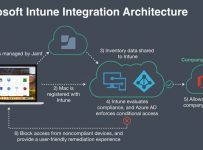
This new feature from JAMF builds on the integration between Casper Suite and Microsoft’s EMS that was announced in late 2017:

JAMF.jpg
Image Credit

My Point of View:

Identity is not something that is usually top of mind for school leaders when it comes to considering their IT deployment and spend. However, getting it right initially will likely save considerable money in the long run and also future proof for access into whatever devices a school may choose to introduce for use by teachers and students.

AzureAD is a great option to standardize on and, with increasing partners federating and integrating into it, it is more powerful and flexible than ever.