Categories
Microsoft365 Minecraft:EE

The Ultimate Collection Of Resources For Remote Learning with Microsoft 365

I’m initially composing this in mid-March 2020 and primarily in response to numerous people that have been asking me for a single blog post of resources to assist with all aspects of Remote Learning in education (similar to what I wrote and updated for Minecraft:Education Edution).

The impact of #COVID19 / Coronavirus is being felt globally and so I’ve decided to pool resources from across the internet specifically connected with M365 for Education and breaking it down into the following sections:

  • Classroom Teaching Resources
  • Network & Infrastructure Considerations
  • Tips & Tricks
  • Everything Else!
  • Videos

I’ll update this continuously whilst there is emerging news and requirements – it is not a complete list right now, and I aim for it to be a living document, so check back regularly!

UPDATED 24th April: Added OneNote Best Practice Guidance for IT Admin and Teachers under “Network & Infrastructure Considerations”

UPDATED 11th April: Added Guide to Breakout Rooms in Teams under Classroom Teaching Resources; Calendar of free Education Webinars under Tips & Tricks; Numerous links to articles / documentation explaining security and privacy in Microsoft Teams under Network & Infrastructure Guidance; Video Tips for Students using Office365 under Tips & Tricks; Mike Tholfsen’s guide on Microsoft Teams Meetings – what to use now and what is coming soon under Classroom Teaching Resources; Blog on Remote Work Trends (including Education) – fascinating insights into Teams usage during COVID lockdown under Everything Else!; Update the COVID19 Tracker below

UPDATED 2nd April: Added changes to School Data Sync (SDS) processes for rapid creation of Teams under “Everything Else!”

UPDATED 31st March: Added Mike Tholfsen’s collection of shortlist URL for educators under “Classroom Teaching Resources”;

UPDATED 30th March: Added links to Teams Call Quality reporting with PowerBI Dashboards under “Network & Infrastructure Considerations”;

UPDATED 27th March: Added guide for using Teams in low bandwidth scenarios under “Network & Infrastructure Considerations; Guides to checking in on Student Social and Emotional Wellbeing under “Everything Else!”; YouTube playlist of all RemoteLearning videos from Microsoft Edu under “Videos”;  YouTube playlist of quick tips for teachers in Office365 under “Videos”; Microsoft blog highlighting integration with various LMS and Microsoft Teams under “Classroom Teaching Resources”; Updated the COVID19 confirmed cases as of 27th March

UPDATED 25th March: Added Teams Attendance app under “Everything Else!”

UPDATED 24th March: Added MakeCodeLivestreaming Classes under “Classroom Teaching Resources”

UPDATED 21st March: Added great case study of teaching with Teams & OneNote under “Classroom Teaching Resources”; Added Video Case Study under “Videos”;

UPDATED 20th March: Added information Shifting to distance learning: A 5-day guide for school leaders​ under “Classroom Teaching Resources”; Integrating your existing Learning Management System (LMS) with Microsoft Teams under “Classroom Teaching Resources”; Remote Learning with FlipGrid guides under “Classroom Teaching”; Canvas LMS integrates with Microsoft Teams under “Network & Infrastructure Considerations”; Integration between Schoology LMS and Microsoft Teams under “Network & Infrastructure Considerations”; Updated the COVID19 confirmed cases as of 20th March.

UPDATED 19th March: Added information on Family Learning Centre under “Everything Else!”; Minecraft:Education Edition internet play is possible with Join Codes under “Classroom Teaching Resources”

UPDATED 18th March: Added information size limits of members in a Microsoft Team, on a video call etc in “Network & Infrastructure Considerations”

UPDATED 17th March: Added information around School Data Sync for rapid Teams deployments based on data in your SIS/SMS under “Everything Else!”; Added information on OneDrive File Requests for larger assignments under “Tips & Tricks”; Added information on Digital Signatures to prove document ownership under “Tips & Tricks”; I’ve also added a new VIDEOS section of relevant content.

COVID19 Tracker:

This is a great visualization powered by Bing and PowerBI tracking the current impact of COVID19 – check the latest data here and the snapshot below has been updated as of 20th March (approx 73K more confirmed cases in three days!)

COVID2019
Data as of 20th March 2020

The spread of COVID19 is rapid – see latest numbers below as of 11th April:

COVID
Data as of 11th April 2020

Classroom Teaching Resources

Whilst there are a huge amount of tools inside of Microsoft 365 for Education, perhaps the most “in demand” in times of remote learning is Microsoft Teams and the great news is this is available at no cost as part of the A1 Education offering from Microsoft.

Network & Infrastructure Considerations

It’s important that educational institutes have configured their environments to work smoothly under increased load – the following guides are best practice and an awesome starting point:

Tips & Tricks

Everything Else!

Videos

Sometimes seeing is believing, and I’m going to embed some easy videos to consume directly inside the blog:

  • Online classes and lectures with all your students. Part 1 class setup

  • Online classes and lectures with all your students. Part 2 schedule online meetings

  • Dutch kindergarten students explaining how to use Teams for remote learning, including on an iPad and iPhone (there are English subtitles)

  • My video showing how you can use Join Codes in Minecraft:Education Edition to connect wtih friends over the internet – full details here.

  • Video case study of remote teaching using Teams and OneNote in Hong Kong – make sure you turn on the CC subtitles for English translation:

  • Playlist on YouTube of all Microsoft Education Remote Video Guides:

  • Quick Tips in Office365 YouTube Playlist:

Conclusion

It’s super important that communities come together at this time to support each other, support our wonderful educators and school leaders and ensure that our students are feeling loved and supported during these rapidly changing times.

If you’ve got awesome links that I can include feel free to make a note in the comments or drop me a DM on Twitter over at @samuelmcneill

Categories
Microsoft365

Universal Print – A Complete Cloud Printing Solution From Microsoft

UPDATE 9th March 2020: A few people have asked me whether macOS and ChromeOS are supported, particularly because the architecture diagram indicates Windows 10 only:

architecture

For now, the focus remains remains on Windows 10 initially, however I understand both MacOS and ChromeOS (ChromeBooks) are on the roadmap. If these are critical features for you, I suggest you add to the Universal Print Feature Request here. For example, there is a MacOS request already that you could upvote here.

up1Last week saw the exciting announcement of the Universal Print solution from Microsoft and, whilst still only in private preview, this is something education customers should definitely pay close attention to. As described in the announcement blog:

Universal Print moves key Windows Server print functionality to the Microsoft 365 cloud, so organizations no longer need on-premises print servers and do not need to install printer drivers on devices. In addition, Universal Print adds key functionality like security groups for printer access, location-based printer discovery, and a rich administrator experience.

I’ve blogged in the past about the hybrid cloud print solution (still available today) powered by AzureAD, however the Universal Print solution goes that next step and requires no on premise infrastructure for print server queues. Now, this is something that I’ve known about internally for quite a while and have been working with some customers on trialling in the private preview. To be able to go public with it at last is pretty exciting and the fact that the launch blog specifically calls out education customers as a focus is awesome.

The Universal Print solution promises to be more simple to deploy than the hybrid cloud solution I mentioned above:

IT organizations can deploy printers and register them with the Universal Print service without the need for a complex hybrid print setup. In addition, printers can be preconfigured and are easily discoverable from Windows devices that are Azure Active Directory (Azure AD) joined. Users can continue to print from their Windows devices or Office as they always have, with no learning curve.

Why Is This Important?

Many schools are already well underway with full cloud migrations of their on premise infrastructure, this webinar I did with Aaron Overington the IT Manager from One School Global is a great example of this. However, in that case Aaron still ran into issues around fully moving to a cloud print solution as Microsoft’s hybrid cloud print required on premise servers still. To that end, he adopted Printix to achieve a 100% cloud environment.

Now, schools could explore the Universal Print solution from Microsoft, instead of third party cloud products and manage their printing with deep integration with Microsoft 365 (M365).

up2.png

The Importance Of Partners

For cloud printing to work, integration with hardware is important. The launch blog notes that Microsoft is working with printer partners to integrate Universal Print directly into their hardware for native support and Canon Inc appears to be one of the first bringing this to market:

The way people work is changing as cloud computing and technology continue to expand and evolve, driving digital transformation. Canon Inc.’s imageRUNNER ADVANCE and Office Printers provide the flexibility and scalability to address diverse workplace needs. In partnership with Microsoft, we are committed to supporting Universal Print and support our customers in their journey to the digital workplace. Isamu Sato, Senior General Manager, Office Imaging Products Operations, Canon Inc.

Most schools will likely have existing printers that do not yet natively support Universal Print, so Microsoft has provided a cloud connector to enable these to work seamlessly. Documentation for the connector is here.

The other component where partners are important for Universal Print is in cost recovery – expensing the cost of that printing. I note that PaperCut has announced on their blog that they have support for Universal Print:

Good news for Azure fans wanting to use PaperCut

Between you and me, we’ve been working with Microsoft for a while on this project. It was hush-hush until today, hence why you haven’t heard us talking about it.

Microsoft contacted us early on in development to ensure PaperCut MF and NG would interface with Universal Print from the get-go. Which, as it happens, is where we’re at today.

We’ve got an easy-to-use integration with the Azure platform via Universal Print, and we’re looking forward to feedback from those in the private preview testing.

Like Microsoft, PaperCut are offering customers the ability to get into a private preview to trial this if you want to – check out their blog.

I expect more partners, both hardware and software, to announce integrations with Universal Print in due course.

Documentation & Getting Started

Even though the product is still in private preview, there is some documentation available already here.

If you want to register for the private preview then complete this form and there is also a Tech Community page here for community discussion on this solution.

Final Thoughts

Printing is not always a glamourous part of IT management, but I am genuinely excited about this announcement as it means there is going to be one less workload required on premise to deploy, manage, backup and replace over time. With deep integration into M365 and AzureAD this should make the ongoing management of printing an easier task for busy IT administrators.

For schools where there is a drive to move the cloud from their Department or Ministry of Education, this is a good announcement and allows time to start strategically integrating the Universal Print into their plans. Some schools have been using the Google Cloud Print solution, however this is being discontinued as per Google’s blog:

Google Cloud Print, Google’s cloud-based printing solution that has been in beta since 2010, will no longer be supported as of December 31, 2020. Beginning January 1, 2021, devices across all operating systems will not be able to print using Cloud Print. We recommend that you find an alternative print solution and migrate your print services by the end of 2020.

Now might be the perfect time to register for that private preview to get a jump on how to integrate Universal Print into your school!

Categories
Microsoft365

File Requests In OneDrive – A Versatile Tool In Education

UPDATE 3rd April I was inspired after talking to some colleagues to create a quick video showing the awesome way to collect files with OneDrive File Requests and share with colleagues in the Teams file section easily. Check this out:

Original Post below:

The product set inside of Office 365 is continually evolving and today I was thrilled to see a new feature rolling out called File Requests. The official documentation is here, and it was launched in Q4 2019 according to the Microsoft 365 Road Map (that’s an incredible website – bookmark it and use the filters effectively to find out what’s coming and what has been released already).

File Request Rolling Out
The Microsoft 365 Roadmap shows that the new feature of File Requests was released in Q4 2019

I tweeted about this yesterday and it was well received by educators who had longed for this functionality:

What Is File Request?

With the file request feature in OneDrive, you can choose a folder where others can upload files using a link that you send them. The users that you request files from cannot see what’s in the folder – they can only upload files to it.

With a file request:

  • Anyone can send you a file – they don’t need to have OneDrive.
    • This is critical – reducing the barriers to collaborators sending you content by requiring no authentication and no existing account/subscription for a service means users can send the files you need with the least amount of hassle.
  • All the files sent to you are saved in a single folder that you choose.
    • See the scenarios below – the ability to collate all files inside your OneDrive is awesome.
  • People who respond to your request can only upload files. They do not have view or edit access to your OneDrive.

    • Security, security, security – preventing people from seeing the submissions of other collaborators means you can use OneDrive File Request with confidence that anonymity is assured for the submitter.

Some other cloud storage providers offer this as well – notably DropBox – however there are many reasons why educational institutes would like to use OneDrive for this functionality.

Concerns Around Shadow IT

I’ve written previously about teachers using “Shadow IT” services in their schools, this post focused on compliance risks around unauthorised sharing of intellectual property, and this one summarised the views of the New Zealand Government’s Chief Digital Officer on the topic. In the second report, it was noted:

“Shadow cloud” is a name given to public cloud services that employees use without formal approval. Shadow cloud usage exists for many reasons. For example, agency employees who have used public cloud services in previous jobs or at home often see the opportunity to use them in their work.

Generally, the motivation of employees (in this case, teachers, faculty and administrative staff) is good: they simply want to be more effective and efficient in their role and use tools to that end. However, many third party apps will likely not meet regulatory or compliance requirements and also mean that content is being shared in ways that can not be controlled, monitored or searched should the need arise.

This is why File Requests inside of OneDrive is so critical – it negates the need for Shadow IT by providing very useful functionality (see below for scenarios where this could be leveraged in educational institutes), whilst still affording the school all the benefits of strong security and compliance of the files. If you’re unfamiliar with the tools inside of Office365 in this space, a good starting point would be:

How Does File Requests Work?

  1. In your OneDrive, select the folder where you want the files to be uploaded, and then click Request files.

    The Request Files menu option in OneDrive for Business

  2. Under What files are you requesting, enter a descriptive name for the files you are requesting from others. (They’ll see this description when they get the file request.)The Request files dialog box after requesting files in OneDrive for Business
  3. Click Next.
  4. You can click Copy link to copy the request link and send it to anyone you would like to request files from, or you can enter the email address or addresses of the people you want to request files from. You can also type a message that will be included in the email that OneDrive sends to them.The Send file request dialog box providing a link or email address option in OneDrive for Business
  5. Click Done.

You’ll receive a notification email whenever someone uploads files to your file request folder.

The great part of this service is that anyone with the link will be able to upload files to the request. However, they aren’t able to see or edit other contents in the folder or see who else is able to upload files. They also do not need to be OneDrive subscribers – they simply click the link and enter their name so their file uploads are identifiable.

When recipients click the link, they’ll see:

The notification received when a OneDrive for Business user requests files

Notes:

  • If the recipient is not signed in, the recipient will be asked to add a first name and last name to help the requestor identify the different files uploaded. The provided first name and last name is not validated; it is purely for identification of the files (the name is prefixed to the uploaded file names)
  • If the recipient is signed in and responds to the request, the identity is recorded as part of the upload.
  1. Click Select files, browse to the appropriate folder, and select the file being requested. If you need to add additional files, click Add more files.
  2. When you’ve selected all the requested files, click Upload.The dialog box for uploading files in response to a file request in OneDrive for Business
  3. Recipients will get another notification once their files have been successfully uploaded.The notification received after a successful file upload in response to a file request in OneDrive for Business

Where Could This Be Used In Education?

There are a number of scenarios where this could be used in education and in fact, I used the DropBox equivalent in 2016 when I was running a Digital Scavenger Hunt for students in a school competition. I wrote about this extensively here, because at the time I had to crowdsource ideas on how to achieve this:

Initially, I was unsure of the best technology to get students to submit their photos and videos to a central location easily, and without needing a specific app or account. I tried to crowdsource some suggestions through my PLN (Professional Learning Network) on Twitter, with ideas of using PadletClusterInstagram and Google Drive all being suggested. I also thought about setting up an open course on our Moodle site that students could submit photos and videos for the competition through, however the reality is that it is still not super easy from a mobile phone to do this.

In the end the I opted for DropBox for the reasons I explained in the blog post, but now I’d definitely choose OneDrive File Requests. So what scenarios could this apply to?

  • Digital upload competitions, like the Digital Scavenger example above.
  • Assignment scenarios where large media files (videos, high resolution RAW photos etc) need to be submitted, but students can not see other files submitted by fellow students
    • Most Learning Management Systems have a maximum file submission size (e.g. in Microsoft Teams For Education it is 50MB)
  • Job Applications – asking potential employees to upload job applications to a single repository – with File Requests they’re secured in your OneDrive with things like Office365 Retention Policies and Version Controls protecting them, but none of the applicants being able to see them.
  • Photo Collections from events – this is one of the more popular scenarios – imagine a school sports day or festival and students have taken photos on their smartphones. Having an easy method to collect these in one place without requiring authentication or a dedicated app. Simply distribute the link and photos will be uploaded quickly and easily – a great example of crowdsourcing!
  • Articles for school newspapers / magazines that are written by many authors, sometimes staff members, students, external coaches and contractors – having a single point of collation makes for a super easy process of submission and subsequent organisation.
    • File Request also has the ability to set a cut off date when submissions can no longer be made – a useful way to try and drive compliance to a due date!
  • RFP responses from contractors – when a large school project is being outsourced, having respondents submit their proposals in an easy manner (that doesn’t require authentication or existing subscriptions to a service) is a very convenient method for both the school and the external parties.

Final Thoughts

Managing Shadow IT is an increasing concern for many ICT Directors and CIO – having the ability to offer staff the ease of use of File Requests coupled with the security and compliance of OneDrive and Office365 is something that many school leaders will be excited about.

It shows the continual evolution of the offerings inside the suite of Office365 and that is a great thing – perhaps the only challenge is keeping up with all the announcements! For that reason, do make sure you regularly check the Microsoft 365 Roadmap link I referenced earlier!

One thing that is worth noting is your Office 365 administrator must enable Anyone links in OneDrive for file requests to work. If you don’t, you’ll see this dialogue:

File Request
If you’re seeing this, you need your Office 365 Administrator to turn on “Anyone links” in your tenant
Categories
Microsoft365 Windows 11

Case Study: Embracing Windows 10 to Power STEAM and Future Skills Development

Minecraft-Group-1440x1080

This article was first published on the Microsoft News Centre – you read the original post here.

In two years, Manurewa Intermediate has improved literacy and numeracy results through a digital transformation journey supported by Windows 10. With rugged laptops designed for mobility and managed by the Microsoft cloud, the school has seen increased engagement and improved academic results in STEAM, Mathematics and Humanities. Additionally, the IT team have deployed and managed school laptops faster and easier than ever before.

School Profile and Background

Located in South Auckland New Zealand, Manurewa Intermediate has prioritised research and careful selection of technology platforms. A culturally diverse school roll of 850 students supported by 65 staff, they embrace the school vision of “Adventurous risk takers: persistent focused achievement”. This vision is supported by foundational frameworks like the Keys to Success where students agree to look after each other, property, the environment and themselves. These values have been instrumental in helping students and teachers become good Digital Citizens during the increased use of technology over the last two years.

The Start of Digital Transformation

When Thomas Bartlett joined the school as Deputy Principal in 2017, he observed a lack of regular computer use in class work. To persuade principal Iain Taylor, he developed a Technology Integration Plan that combined external research on the use of digital technologies in education with plans for pilot classes at the school. While the possibility of a BYOD program was discussed with the whānau community, the Board of Trustees decided that school-provided devices would be a more equitable solution. At the end of the year, the school purchased 160 Windows 10 laptops and identified the digitally skilled teachers to lead further research in Pioneer classes. Throughout 2018, Head of Teaching and Learning Ben Hutchings tracked improved student achievement in these digitally enabled Pioneer classes, especially in the area of Mathematics. This evidence, along with other data points, convinced Principal Iain Taylor and the Board of Trustees to approve the purchase of an additional 400 Windows 10 laptops for 2019.

Windows 10 as a Platform for Learning

The decision to base their digital transformation on Windows 10 was simple, according to Thomas Bartlett:

The decision to use Windows 10 for devices in the school was based around having the most options for our student learning pathways in terms of future technology we may choose to integrate into the school.

Windows 10 was also preferred in the learning area of STEAM, where the use of coding and robotics often meant the devices were being moved around by students. Thomas needed educational devices that were robust enough to cope:

We researched extensively on what would be the strongest device for the classroom. We didn’t want to limit the learning opportunities for our teachers and students

Selecting Windows 10 devices designed for the classroom, combined with the school’s own Keys to Success values, resulted in only three cracked screens in 2019 (in over 10,000 hours of teaching). Minecraft: Education Edition proved particularly popular, which led to some innovative school community engagements, as Thomas describes: “Recently we had a “Boys Night” where all the male whānau came with their sons and as they rotated around the open classrooms, the whānau got to experience Minecraft: Education Edition and see how their sons learnt using technology”

Powered by the Cloud

At the start of the Digital Transformation journey in 2018, the school’s IT Manager Davi Tran was also beginning to explore more effective ways to manage the growing number of devices in the school. After an introduction to Intune for Education by the Microsoft New Zealand Education Team, he started using Microsoft Intune to manage not just Windows 10 devices but also some Apple iPads that the school owned. With additional guidance and support from the Microsoft Fast Track team, Davi accelerated the move to cloud, creating all student and staff identities inside Azure Active Directory (Azure AD) and prepared to start managing the influx of new Windows 10 devices in 2019. As Davi explained:

for Windows 10, it’s really, really easy to manage with Intune. It was the right time, right situation to move everything to Azure AD and Intune with Microsoft 365

To ensure a first-class student experience, Davi provisioned Single Sign On (SSO) in Azure AD for students and staff at Manurewa Intermediate, meaning students could use any device, sign in once with their school credentials and have immediate access to the various digital learning platforms utilised by the school. The experience has been seamless according to Davi:

One login, one user, one password and go everywhere

The simplicity of a cloud identity in Azure AD and the browser-based Intune for Education led to Davi adopting these Microsoft 365 platforms in other schools he manages to save time and improve the student experience.

Partnering for Success

To manage this rapid change, Manurewa Intermediate leveraged trusted partners like the Microsoft Fast Track and local education teams, as well as educational professional development partners to train teachers. The school offered mentoring for teachers multiple times each term, fostering inspiration for digital development and the creation of teaching resources. These partnerships have been instrumental in the success of the school, as Thomas identified:

The level of digital competency in our Maths and Humanities teachers has risen at a very fast rate over the last two years as a result of this training and access to devices

Throughout their digital transformation journey, the leadership team and wider staff modelled their school vision of Adventurous risk takers: persistent focused achievement. The considered selection of Windows 10 as the platform for their digital learning, combined with cloud identities in Azure AD and device management with Intune for Education, has enabled the school to transform their technology use while maintaining a strong focus on improved academic achievement. The future is indeed bright for the students at Manurewa Intermediate.

Categories
Microsoft365 Windows 11

Updated Documentation For M365 Education

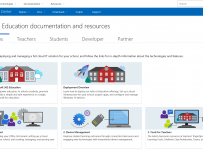
M365 Edu Documentation

I have done a lot of live demos over the last couple of months to customers, partners, school leaders and IT admins. I have found that one of the best ways to prepare for these is to ensure I’m following best practice direct from the source. In my case this is the official Microsoft Education documentation.

For those that have been paying attention, the fairly recent addition of “Education” to the front page of the Microsoft Docs website is a big deal and shows how serious the Education sector is and remains for Microsoft:

Docs

This week, those documents received an overall update to reflect the new Microsoft 365 Education (M365) offerings and this is split into five sections:

  1. IT Admins
  2. Teachers
  3. Students
  4. Developers
  5. Partners

Perhaps the biggest overall has been to the IT Admin Deployment Overview Guide which has a strong focus on all the things I’ve been live demo’ing of late: Managing Windows 10 through Cloud Deployment and pushing the best applications and tools for teachers. There is a scaled approach here too, with more advanced topics for IT admins that have moved well beyond the basics of modern cloud deployment. For example, I had a school reach out to me earlier this week asking for assistance with setting up Exchange Online – there is now improved documentation for that linked directly from the M365 Edu Documentation e.g.:

My Point of View:

The reality is that products evolve and change constantly. It is virtually impossible for IT admins (let alone teachers) to keep up with the rapid release of new features in products as release cycles get shorter and shorter. Consequently, knowing the source of the best documentation becomes incredibly important and it is pleasing to see that the Microsoft Docs continues to evolve and update just as rapidly as the products themselves.

Without exaggeration, I probably come back to this website every other day for various reasons and if you’re an IT Admin managing any of the M365 Edu solutions then this should be a favourite in all your web browsers!

Categories
Microsoft365

When Life Gives You Lemons… Eat Dog Food

LemonsI have been in Singapore this past week at the APAC Education Partners Conference which was a great event and an awesome time to connect with many new partners and also re-connect with the colleagues in my team based in Singapore that I have not seen for a few months.

I ran a bunch of sessions including a Minecraft:Education Edition three hour training event to 30 partners. Being Asia, a group photo after the event was mandatory:

IMG_7258

I also enjoyed the usual sights and sounds of Singapore:

One of the true highlights was visiting the Tanglin Trust School for a couple of hours on Friday morning where we were hosted by Steve Morgan who shared the school’s journey from students almost exclusively using MacBooks to now using ‘touch and pen’ enabled devices and Microsoft OneNote. This was quite the transformation and involved significant planning, trialing and communication but as I wandered the halls looking into the classrooms it was evident that virtually all of the teachers had embraced OneNote in a serious way – it was everywhere!

https://twitter.com/stevesingapore/status/971995253031895042

I liked the following educational take on ‘The Ten Commandments’ that was on the wall in the school:

IMG_7261

The Problem – Being Given Lemons

On the day before I was to fly out I was asked to help configure 60 Surface Pro 4 devices in preparation for the Microsoft E2 Educators event being held the following week (12th March – follow along live here). I discussed the challenge with my colleague Amit Pawar who was also asked for how best to achieve the required outcomes which were essentially:

  1. Office365 ProPlus needed to be installed (with latest version to support inserting 3D Models into PowerPoint)
  2. Minecraft:Education Edition installed
  3. Paint3D (meaning at least the Creators Update of Windows10, otherwise would need to install it via the Microsoft Store)

Not knowing what state the devices would show up in meant we had to make some assumptions, so we prepared a handful of USB drives with the ‘Click 2 Run’ O365 installer (along with a .bat file to execute the install), along with the Minecraft:Education Edition Win10 Installation file.

After returning from the visit to Tanglin Trust School on Friday morning, we found to our dismay that the units had still not arrived meaning we were going to be severely pressed for time. When they did eventually arrive mid-afternoon it was evident our original plan above was not going to work. The devices all had various versions of Windows10 installed on them, different versions of Office365 with multiple language packs (but not the latest version that included the support for 3D models in PowerPoint) and other gremlins that suggested the devices were not going to be the most functional.

The Solution – Making Lemonade

Surface
Some of the Surface Pro needing configuring

It became clear that a Plan B was going to be required to get these devices ready in the very short period of time that we had available and so Amit and I conferred and decided we would need to change tact. Our solution was to:

  1. Create a demo tenant here – https://demos.microsoft.com/ – this gave us temporary demo licenses for M365 A3 and A5 meaning we had temporary O365 ProPlus and Intune liceneses.
  2. Map a domain name to the demo tenant to make it easier to use (fortunately, my forward thinking colleague had a spare one handy).
  3. Create sixty demo user accounts in the Tenant using Excel and FlashFill
  4. Download the ISO and create Windows10 installation USB drives. Fortunately, being in Singapore there is a local Microsoft Data Centre only a few kilometers down the road meaning it did not take long to download the ISO. I had my ‘always travel with’ USB of Win10 so we could get a head start with that one.
  5. Amit then configured Intune for Education in the demo tenant to automatically push out Office365 and Minecraft: Education Edition to any users who signed into the Tenant that were connected via AzureAD and Intune and were licensed appropriately (see step 1 above).

Configuring the above did not take long, with the biggest wait being having Windows 10 reinstalled on the Surface Pro devices.  When the first couple of devices were complete they presented us with this screen in the Windows10 setup steps:

setup-for-personal-use
We chose to “Set up for an organisation” meaning we could automatically enroll the devices into Intune

By choosing the first option of “Set up for an organisation” we were presented with the option to sign in with an email address and password where we used the user names we created in step 3 above. Because the users all had AzureAD P1 and Intune Licenses they were automatically enrolled into our demo tenant (based off the domain name of the email address) and then the magic started to happen:

Office365 ProPlus applications and Minecraft:Education Edition started to immediately download to the device with no need for any further intervention. Intune For Education took over and recognised the configurations of Amit had set up and automatically pushed out the applications to the correct users.

We could then test the first few devices to ensure that Minecraft:Education Edition could be signed into and that when launching PowerPoint it had support for the 3D Models and as an added bonus, the user was automatically signed into Office365 and activated it based off the temporary demo licenses in the tenant – there was no need to manually activate Office.

Selling The Dream – The Lemonade Stall

At this point, I may be stretching my analogy around life, lemonade and lemonade stalls, however what excited me about this was it proved, in a real-world time-sensitive and under pressure situation, that the modern device management (MDM) dream can work very effectively. Intune for Education and AzureAD worked exactly as intended meaning once the initial configuration was completed, it was as easy as signing into the devices with one of the demo user accounts to complete the deployment. In the end, I had to leave at 5:30pm to catch a flight home out of Changi Airport and my colleagues all had other events to get to. As a result, they had to come in on the Saturday morning to finish the re-installation of Windows10 which was the longest part of the whole process, and then simply sign into the freshly installed Surface Pros with the new user accounts and wait a few minutes for the download and installation of Office365 ProPlus and Minecraft:Education Edition to complete.

This was a very satisfying solution and conclusion to a busy week and a great example of ‘eating your own dog food‘ (if you’re not familiar with this curious phrase, have a look at the explanation here).